Keep
Status: Ready
Pin your notes as cards and sort them by colour, pin, label and reminder.
About this app
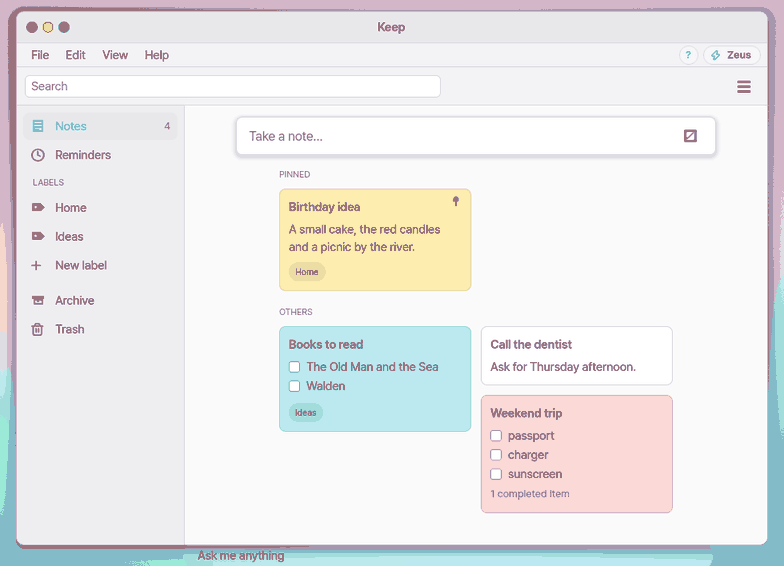
Keep is a board where every note is one card. Press "Take a note…" at the top and write right there; a list note has a check box for each item. You can colour a card, pin it to the top, label it and set a reminder. To do now: press "Take a note…" and write one line.
At a glance
In one line: A board of note cards to write, tick off and sort.
The screen
- "Take a note…": writes a new note in place. The square button at its right makes a checklist.
- Cards: one note each, in columns (two columns on a phone, as in Keep on a phone). Press one to open it. Pinned cards gather under "Pinned". Rest the pointer on a card and its tools show: the pin, a round tick to select, and a row with Background, Remind me, Collaborator, Image, Archive and ⋮. To the right of the Take a note box: New list, New note with drawing and New note with image (the last two are not in this version yet).
- The list at the left: Notes, Reminders, Labels, Archive, Trash. In a narrow window and on a phone the button at the top left shows it.
- The search field and the view button at the top: search by text, and switch the cards between a grid and a list. Selecting cards turns the top row into a bar with the pin, background, archive and ⋮.
Task 1. Write a note
- Press "Take a note…" and type a title.
- Press Enter and type the text.
- Press Done and the card appears.
Say: "Make a shopping note in Keep"
Task 2. Make a checklist
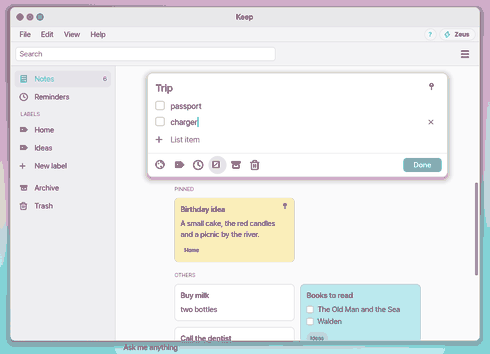
- Press the square button at the right of "Take a note…".
- Type an item and press Enter for the next one.
- Press an item's box when it is done and it moves under "completed".
Say: "Make a packing list in Keep"
Task 3. Sort things out
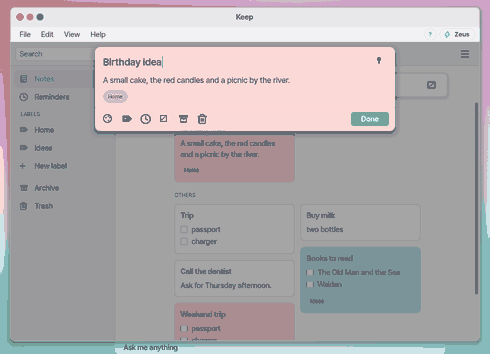
- Press a card to open it and choose a colour with the palette button at the bottom.
- Pin it with the pin at the top right and set a reminder with the clock button.
- Add a label with the label button and gather the notes by label in the list at the left.
Say: "Make the first note yellow in Keep"
Basics
A note is one card, and a card is a few lines (paragraphs or items). What you type is saved on this device as you go, so there is no Save button. An archived note is only put away from the board; a note in the Trash stays until you delete it. Think of notes stuck on a fridge door. To do now: write one note and press Done.
How to use it
- Write: press "Take a note…" (or
C;Lfor a list) and type a title and text. Korean types as usual. Enter makes the next paragraph (or the next item). Done,Ctrl+EnterorEsccloses it. A note with nothing in it is not kept. - Open: press a card to open the editor; what you change is saved at once.
- Colour, label, reminder: the buttons below the editor, in Keep's order: Formatting options (the Aa bar: Heading, Bold, Italic, Underline, Strikethrough for the paragraph the cursor is in; Ctrl+B / I / U; text notes only), Background, Remind me, Collaborator, Image, Archive (once the note has a title), ⋮ (Add label, Add drawing (not yet), Make a copy, Show or hide checkboxes, a rule, Delete note), Undo, Redo and Close. A card's tools are Background, Remind me, Collaborator, Image, Archive and ⋮. On a phone the pin, bell and archive are in the top bar and + , the palette, undo, redo and ⋮ at the bottom. The editor shows "Edited 9:41 PM". For a reminder press "Later today", "Tomorrow morning" or "Next week", or type a date and a time (
15:30,3pmand오후 3시 반all work). - Archive and Trash: the archive button of the editor, or Delete note in the ⋮ menu. An Undo line shows for a moment below. A right-click on a card also gives Pin, Archive, Add label, Make a copy, checkboxes, colour and Delete note.
- Search: type in the search field to look through titles, text and labels; the colour dots below show only that colour. Choose a label in the list at the left.
- View: the button at the top right switches between the grid and the list. Press a card and drag it onto another to put the notes in your own order (the "My order" setting). Labels: Edit labels in the list at the left opens a box to make, rename and delete labels (a delete asks once; the notes stay).
- Full screen:
Ctrl+Cmd+F(or rest the pointer on the green button and press "Full Screen") hides the menu bar and the window's title bar and uses the whole screen. Keep's own header (☰ Keep, search, buttons) is then the top row. Touch the very top edge with the pointer and the menu bar and the title strip slide down for a moment;EscorCtrl+Cmd+Fgoes back to the window. In the web try-out the browser's own full screen turns on too, so the browser's bars go away as well.
How it works
A note is a title and lines with a colour, a pin, labels and a reminder, saved to a file on this device as you type. The assistant does the same things with actions and shows an approval card before anything is deleted for good.
Technical details
The cards are stacked in columns by the width of the window (two on a phone, one in the list view); what you type is kept in memory on each key and written to the file one second after your last change. When a reminder is due, this app tells the Notification Center once, even when its window is closed. The assistant's actions are new note, add item, pin, copy, move, edit label and the like; only deleting a Trash note for good, deleting a label, deleting the checked items and emptying the Trash go through an approval card.
FAQ
How do I make a heading or bold text? Open a text note and press the Aa button (on a phone, the Aa button in the bottom bar). A bar with Heading, Bold, Italic, Underline and Strikethrough opens; the choice applies to the whole paragraph the cursor is in, and shows on the note's card too. Lists have no formatting. Italic leans Latin letters only; Korean text stays upright.
Where are my notes saved?
When are notes in the Trash deleted?
Never by themselves. Open a note and press Delete forever, or press Empty Trash (a box asks once).
Can I add pictures or sound?
This version has text and checklists only. The picture, drawing and recording buttons are there as in Keep, but they say they are not in this version; sharing with other people is not there either.
A reminder did not ring
A reminder whose time has already passed does not ring. Set the time again for later. Also look in the Notifications settings whether Do Not Disturb is off.
What can it not do yet?
9 menu items of this app show greyed out when they do not apply. Press one and it tells you why in one line.
More is under 「What it cannot do」. Pictures, drawing, recording, text styles such as bold, indented list items, repeating reminders and place reminders are not there yet. On a phone you cannot drag cards into another order yet.
Try this
1. Write a note
- Press "Take a note…".
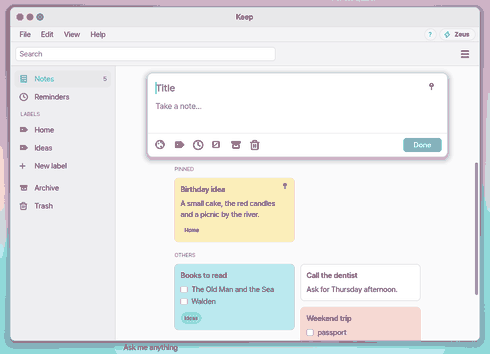
- Type a title, press Enter and type the text.
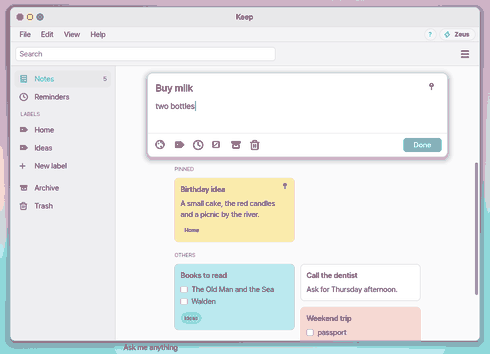
2. Make a checklist
- Press the square button at the right of "Take a note…".
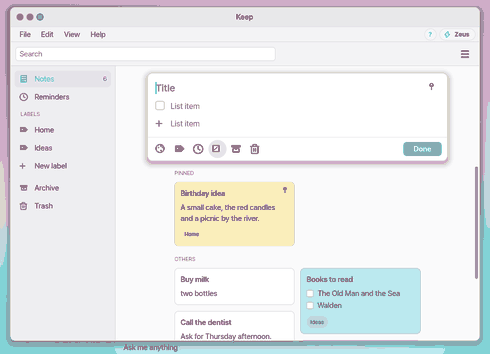
- Type an item and press Enter for the next one.
3. Colour and pin
- Press a card to open it and press the palette button.
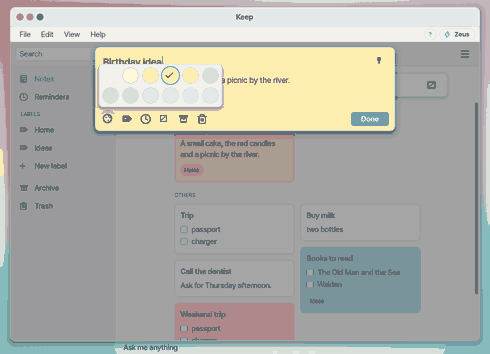
- Press one colour.
Shortcuts
On the board: C new note · L new list · / or Ctrl+F search · J / K next / previous note · Shift+J / Shift+K move the note · Enter open · X select · E archive · # Trash · F pin or unpin · Ctrl+A select all · Ctrl+G grid or list · ? this list. In a note: Ctrl+Enter or Esc finish · Ctrl+Shift+8 show or hide checkboxes · Ctrl+P pin · Ctrl+E archive · Ctrl+Del Trash. Everywhere: Ctrl+N new note · Shift+Ctrl+N new list · Ctrl+, settings · Ctrl+W close the window.
Settings
Settings, Apps, Keep: View (grid or list), Order (my order, last changed first, title A-Z), the morning reminder time (07:00 to 10:00, default 08:00), "Add new items to bottom" and "Move ticked items to bottom" (both on; off puts a new item at the top and keeps ticked items where they are).
What it cannot do
- Pictures, drawing, recording, text styles such as bold, indented list items, repeating reminders and place reminders are not there yet. On a phone you cannot drag cards into another order yet.
- It does not share notes with other people or sync them to other devices. The notes are on this device only.
- 128 notes at most, 1,200 bytes of text per note.
What this app takes
- When a reminder is due the app tells this device's Notification Center once. In the Mac app a line without any content ("you have a reminder") goes on to the Mac only if you turned that on in Settings, Notifications.
- How to switch it off: to remove a reminder open the note and press Remove reminder under the clock button; to remove your data delete the notes for good or delete the folder. When the assistant works with this app, an approval card shows before anything is deleted for good.
NanumOS 0.1.15511 · 2026-11-25