NanumWork
Status: In trial
Team chat for your company: channels, threads and direct messages.

About this app
NanumWork is where a company or team talks about work. Everyone writes in topic rooms (channels), a conversation about one message continues underneath it as a thread, and you talk to one person in a direct message. There is no account: one link brings your team in, and messages go between your team's browsers, sealed. Today it runs in the browser try-out (NanumOS Mobile and Desktop).
At a glance
In one line: company chat — channels, threads, DMs, reactions.
The screen
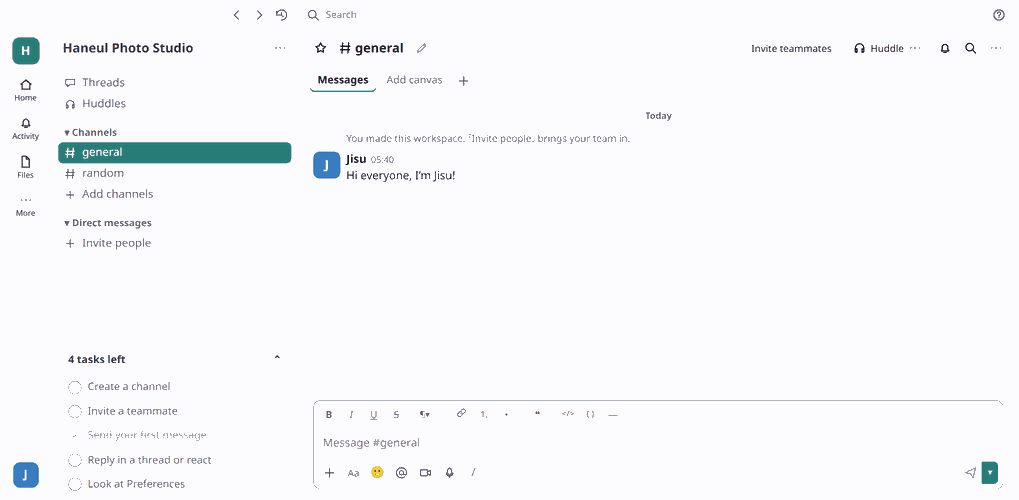
- Desktop sidebar: the workspace letter, Home, DMs, Activity, Later, and You at the bottom. Next to it are Threads and Huddles, Channels (# names), Direct messages (names with a presence dot), and Invite people.
- Desktop center: the search box on top, the channel's name and topic, the member count, Huddle (with a small arrow for 「Start huddle」 and 「Copy huddle link」) and Find. Messages below, then the box you write in.
- Desktop message controls: hover a message to reveal react, reply in thread, save for later and more at its top right. A thread opens in a pane on the right.
- Four tabs at the bottom of the phone: Home, DMs, Activity, You. Home has search, Threads, Later, the channels and the DMs; the + at the bottom right makes a channel.
- Phone message controls: long-press a message for reactions and actions (reply in thread, edit, delete).
Task 1. Make a workspace and bring your team
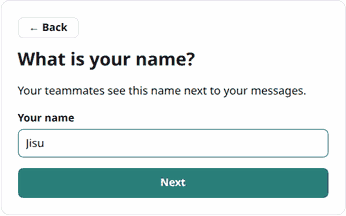
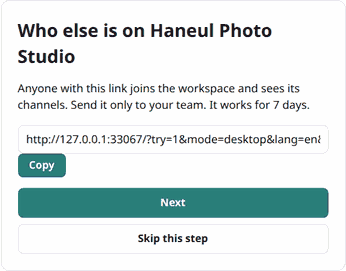
- Open NanumWork, write the company or team name and press [Next], then check your name and press [Next]. Then copy the invite link (or [Skip this step] and [Invite no one]), pick what you use it for (Work, Education, Other) and how much you have used team chat, tick what to do first and press [Start]. Eight presses in all.
- [Copy] the invite link that appears and send it to your team.
Say: "Make a NanumWork workspace called Haneul Photo Studio"
Task 2. Write in a channel and answer in a thread
- Press "# general", write in the box below and press Enter.
- Hover the message you want to answer and press "Reply in thread".
Say: "Send 'meeting at 3' to the general channel in NanumWork"
Task 3. Search
Ctrl+G, type words in the search box, Enter.- Press a result: you jump to the message and it glows yellow for a moment.
Say: "Search NanumWork for quote"
Basics
A workspace is one company; channels are its topic rooms. Think of a building (the workspace) with meeting rooms (channels); a thread is a bundle of notes pinned to one corner of a room's board. Everyone in the workspace sees the channels; a DM is seen by its two people only. Do now: write one hello line in "# general".
How to use it
- Make a channel: "Add channels" (on a phone, the + on Home) → name and topic → [Create]. Every member sees it.
- Write: Enter sends, Shift+Enter makes a new line (Settings can make Enter a new line). The bar above adds bold, italic, strike, link, list, quote and code (
*bold*,_italic_,~strike~, ` - Mention: type
@and pick a person; they see it in Activity and as a red number next to the channel. - Threads: "Reply in thread" on a message → answer in the right pane. "Also send to #channel" shows the reply in the channel too. "N replies" under a message opens it again.
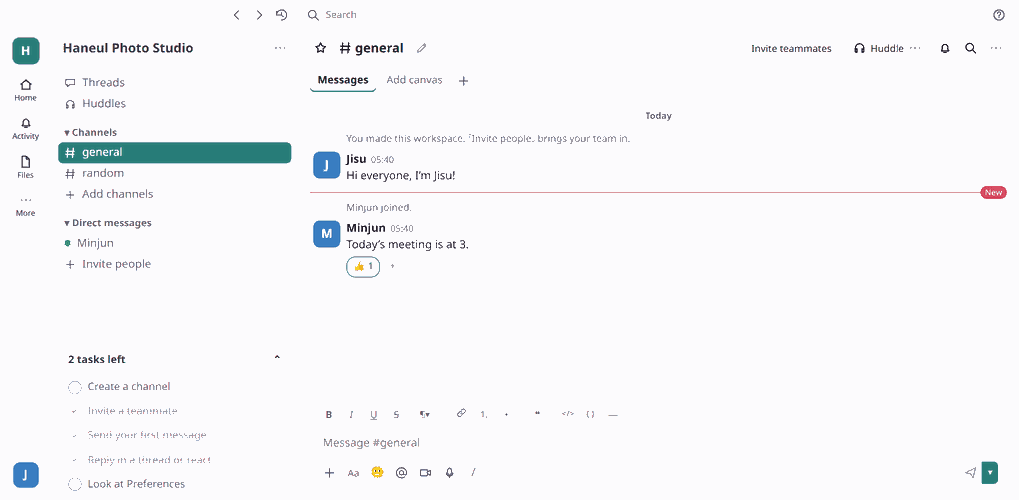
- Reactions: the smiley button adds a reaction like 👍; press it again to take it off.
- Edit and delete: on your message, More → "Edit message" (Enter saves, Esc cancels) or "Delete message" (gone for everyone). ↑ in an empty box edits your last message. Messages can be changed for a day after sending.
- Files: the + in the box attaches a file (up to 64 MB). It goes browser to browser while the other person is online.
- Unread: a channel with unread messages is bold; a mention or a DM adds a red number. In a channel a red "New" line sits before the first unread message.
- Find in a channel: the magnifier at the top of the channel (
Ctrl+F). - Later: the bookmark keeps a message in Later (kept in this browser only).
How it works
- A workspace is one sealed group. It is the same engine as a NanumTalk group. Making one makes the group's keys in this browser; the invite link carries the group's public key after
#(what follows#never goes to a server). - Every message is sealed for each member. A part locked with a different key for every pair of people is uploaded once and the mailbox hands each member only their own part. It sees locked parts and room numbers only and keeps a member's part for up to a day when they are away.
- Channels, threads and DMs are labels on the message. Inside the sealed message: which channel, which message's thread, and for a DM, who. A DM is sealed only for its two people and never reaches the other members.
- Newcomers get the past. On joining, the past channel messages come from members' browsers that are online (not from a server). DMs are never handed over.
- Reactions, edits and deletes are sealed notes too, applied in each browser.
- Search runs in this browser. No index on a server.
- Why: so a company's talk does not pile up on someone else's server, and there is no server to run.
- Try it: open the same workspace in two browsers (or a phone and a computer), write on one, and watch the bold channel name and the red number on the other.
Technical details
- Screen
tools/weblite/work.js, app windowsrc/gui/work.c, engine: the WORK-BUILD block oftools/weblite/trycall.js(TryCall.apiversion 2: groups, msgs, post, edit, del, react, seen, channel, wnew, wlink, wjoin). - The label
m.wk= c channel id, n channel name, t thread root id, b also to the channel, d a DM's people (slots). Reactions are the group notegrx, channelswch. - Sealing: ECDH P-256 → HKDF-SHA-256 → AES-256-GCM with the sender and receiver slots as associated data. The group standard MLS (RFC 9420,
src/zmls) is the next step (card TRY-CALL-MLS) and will carry the same labels. - Kept in this browser: the conversations (IndexedDB
nanum-trycall), read marks, Later and settings (localStoragenanum-work).
FAQ
Why is it light? Can I make it dark?
Light is the default, even when your computer is in dark mode. For dark: You › Settings › Look › "Dark" (or Settings › Apps › NanumWork).
How do huddles work?
Press Huddle in a channel or a direct message: a small window appears at the foot of the sidebar with who is in, a timer, Mute, Camera and Leave. Everyone who is online sees 「Join」 on the same button. Up to 4 people; the sound goes straight between the browsers, end-to-end encrypted, and nothing is recorded. The Huddles page (sidebar) lists every channel and person, with a live huddle shown. Screen sharing, huddle notes and more than 4 people are not there yet.
Voice clips, video clips and stickers
In the writing box, the video and microphone buttons record a clip (up to 60 seconds): press once to start, press again to send, or the round × to throw it away. The clip arrives as a message with a player. 「+ › GIF」 opens our own sticker set (made by NanumOS, nothing is fetched from an outside GIF service). Workflows are still to come.
(Technical: a huddle is a group call labelled with the channel or the two people of a DM, on the NanumTalk call engine; clips use the same recorder as NanumTalk voice notes, and travel browser to browser like files.)
Does a server see our messages?
No. The mailbox sees locked parts and room numbers only and keeps an away member's part for up to a day. The conversations live in each browser.
If I clear the browser, are the messages gone?
From this browser, yes. If another member of the workspace is online when you come back, the channel messages come back from their browser (not the DMs). The try-out's Backup also keeps them in a file.
How is it different from NanumTalk?
The same engine. NanumTalk is for friends and family; NanumWork is for work (channels and threads). Workspaces do not appear in NanumTalk's list.
What can it not do yet?
This app is in the Lab. You can use it, but some features may be missing or change. Export anything you care about to a file and keep a copy.
More is under 「What it cannot do」. Huddles are audio with an optional camera for up to 4 people (no screen sharing yet). No private channels, guest accounts, workflows or app connections yet.
Try this
The pictures below show the desktop browser try-out.
1. Make a workspace
- Write the company or team name and press [Next], then check your name and press [Next].
- [Copy] the invite link that appears, send it to your team, and press [Next]. To invite people later, press [Skip this step] and [Invite no one].
Pick what you use NanumWork for and how much you have used team chat. Tick what to do first and press [Start].
2. Say hello in a channel
- Press "# general" on the left, write one line and press Enter.
- Add a 👍 to a teammate's message with the smiley button.
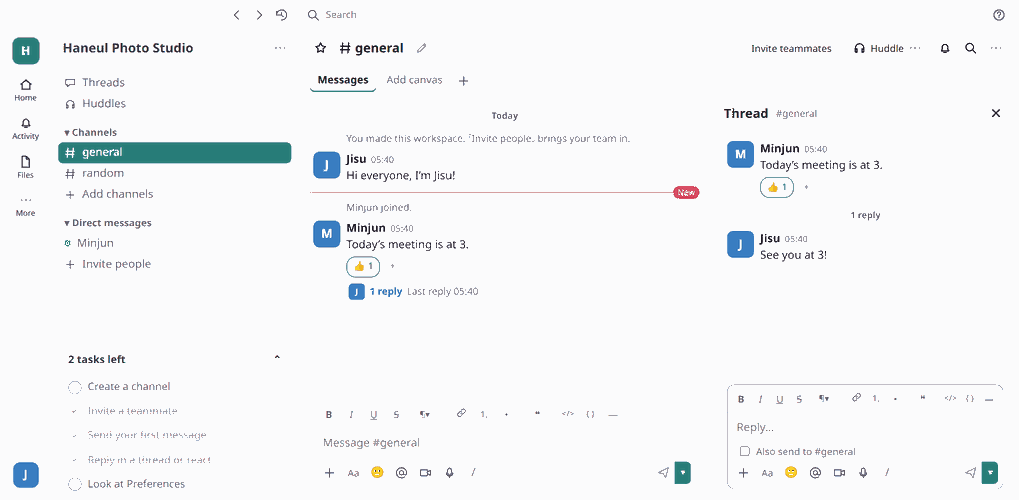
3. Answer in a thread
- Hover a message and press "Reply in thread" (on a phone, long-press it).
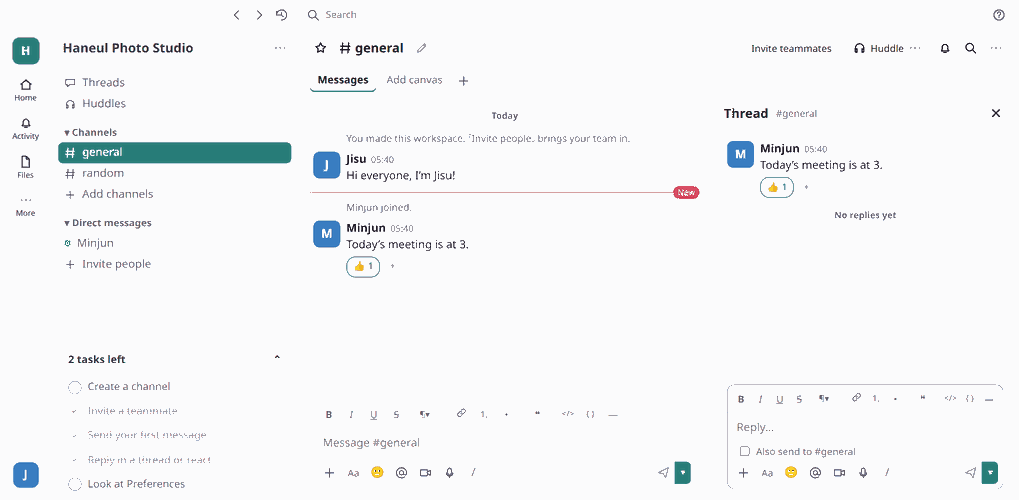
- Write the answer in the right pane and press Enter.
Shortcuts
Ctrl+K jump to a channel or person (type, Enter) · Ctrl+N new message (type a person, Enter) · Ctrl+Shift+K direct messages · Ctrl+Shift+T threads · Ctrl+Shift+M activity · Ctrl+Shift+A all unreads · Ctrl+Shift+L browse channels · Ctrl+Shift+S saved items · Ctrl+[ / Ctrl+] back / forward · Ctrl+O attach a file (Ctrl+U too outside the text box; in the box it underlines) · Ctrl+Z right after sending (empty box, within 15 s) takes the message back into the box · Ctrl+G search · Ctrl+F find in this conversation · Enter send · Shift+Enter new line · ↑ edit your last message · Esc close the thread or a window · Ctrl+, settings · Ctrl+W close.
Settings
NanumWork › You › Settings (or Settings › Apps › NanumWork): your name, look (light by default · dark), sound for new messages (on by default), Enter key (sends by default · new line).
What it cannot do
Huddles are audio with an optional camera for up to 4 people (no screen sharing yet). No private channels, guest accounts, workflows or app connections yet. Messages can be changed or deleted for one day. Reactions are not carried when past messages are fetched. Files go while the other person is online. On a NanumOS device the app shows a description for now; use it in the try-out.
Drafts and pins: a half-written message stays in its channel (or thread) when you go elsewhere; Drafts & sent at the top of the sidebar lists them. A message's ⋮ menu › Organize › Pin to channel; when something is pinned, a pin button with the count shows in the channel header and lists them. A pin is kept with the channel's messages, so every member sees it. Search has the tabs Messages, Files, People and Channels. A right click shows a menu: on a message its actions, on a channel in the sidebar the channel's menu, elsewhere jump to / new message / search / preferences.
NanumOS 0.1.15511 · 2026-11-25