Zeus AI Assistant (desktop: Zeus Studio)
Status: Ready
An AI assistant you ask in plain words.
About this app
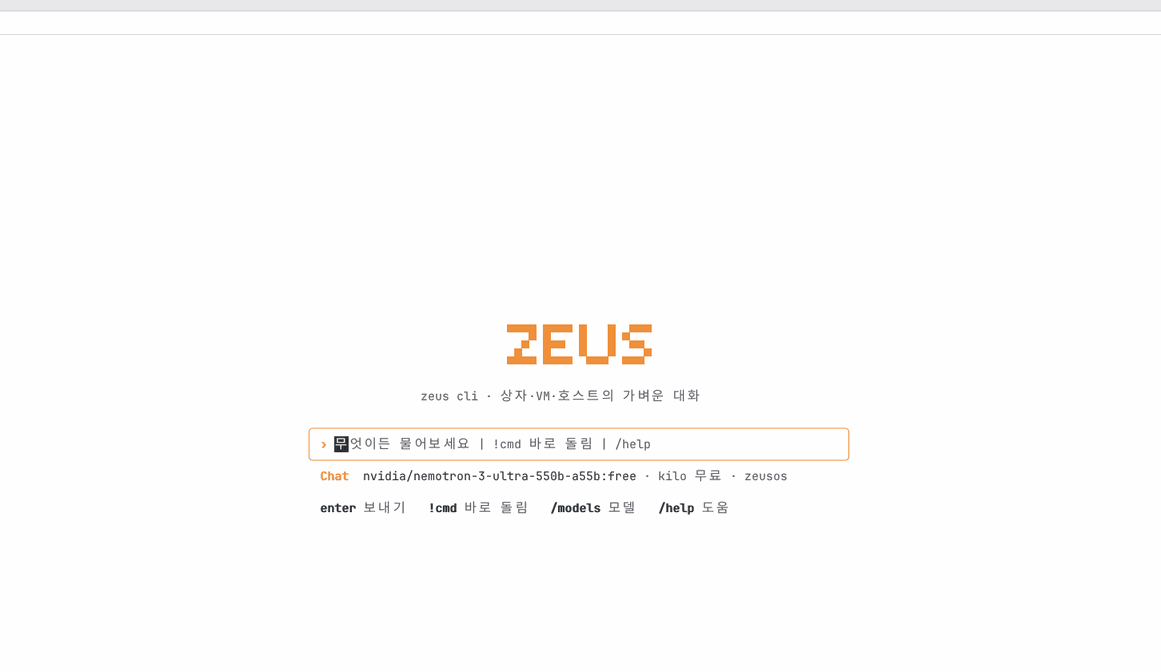
Zeus is an AI chat app that answers when you ask and does things when you tell it. On the desktop it opens as Zeus Studio in one window, and on the phone it is Zeus. They are the same app, so the list of past chats is the same. Typing zeus in the terminal gives you the same assistant on a text screen.
Basics
An AI chat app is a "conversation partner" that learned from a huge amount of writing. When it receives your message, it picks the words that most fittingly follow. It is like handing a note to a very well-read assistant. It can still be wrong, so check what matters. You can choose which "head" (model) answers, and your question goes to the service behind the head you chose.
How to use it
- Press the lightning icon (Zeus Studio) in the dock to open the window.
- Type a question or request in the box at the bottom and press
Enter. The answer appears as it arrives. - Choose the answering head with the model name ▾ under the chat title, and add pictures or files with "+". Find past chats in the list on the left, and change settings (including memory) with ⚙.
- Risky actions like deleting, overwriting or sending show an approval card first. Check it and press [Allow] to go on.
Try it yourself
Try it yourself: Type "What's the weather today?" and press Enter, then ask "Open Notepad".
How it works
- Each question starts one background job that receives the answer line by line. The window keeps running meanwhile.
- Opening apps and changing settings are done by the model calling tools; code decides which actions need permission, so those always go through an approval card.
- Chats are stored on this device, and questions go to the service of the chosen head.
FAQ
What happens if I type again while an answer is coming
Your message is not lost. It waits as a "Queued" bubble and is sent in turn when the current answer ends. While an approval card is waiting, the queue waits too.
How do I delete what Zeus remembers about me
Open Settings › Memory to see everything remembered, and press × on a line to forget it at once. "Forget all" asks once more before deleting.
At a glance
In one line: An AI chat app that answers when you ask and does things when you tell it.
The screen
- The input box at the bottom: type and press
Enterto get an answer - Past chats on the left: search, new chat, rename or delete with "..."
- The model name ▾ (under the chat title): pick which head answers
- "+": things like adding photos and files
Task 1. Ask a question
- Type your question in the input box
- Press
Enter
Say: "What's the weather like today?"
Task 2. Pick another head
- Press the model name ▾
- Press one in the list
Say: "Open Zeus Studio"
Task 3. Have it open an app
- Type your request in the input box
- Press
Enter
Say: "Open Notepad"
Try this
What this app is
Zeus is the AI chat you ask and give tasks to. On the desktop, Zeus Studio in the Dock, the apps grid and Spotlight opens as one window; on a phone it is Zeus. They are the same app, so the list of past chats is the same. Typing zeus in the Terminal gives the same assistant on a text screen (as the cli in a Mac's Terminal).
How to use it
- Click the bolt (Zeus Studio) in the Dock and its window opens; if it is open already it comes to the front.
- Type in the box at the bottom and press Enter; the answer appears as it arrives. You can use other apps while you wait.
- While an answer is still coming you can type the next message and press Enter (on a phone, ↑ beside ■). It lines up on your side as a pale 「Queued」 bubble and is sent by itself, in order, when the current answer ends (also when it is stopped or fails). Under the bubble ✎ takes it back into the box to change it, × removes it, and 「Send now」 stops the current answer and sends that one first. Words from the box's microphone (dictation sent at once) and what you type in the desktop conversation join the same line. In a spoken conversation with the Assistant, talking over the answer still stops it and your new words go at once (barge-in).
- The round name tag at the bottom right of the box (the head answering now ▾) opens the list of heads right there — grouped as 「Our heads · My API keys · Local models (this device, this Mac) · My subscription」; a row that cannot answer now is grey with its reason (for example 「key needed」). The pick is kept with that chat and becomes the default for new chats. The model name ▾ under the chat's title opens the same list.
- 「+」 has Photos and videos (several at once; on a phone, from your photos), Attach file, Web search on/off, Agent on/off, Select model, and 「Tools for this chat」 on/off. Picked pictures sit above the box as name tags (× removes one) and go to the head as pictures with your question.
- ✨ (Agent) lets you hand over a job of several steps. Zeus first shows the steps as a plan card, each step turns 「running → done」, and a step that needs your permission (deleting, overwriting) waits on the usual approval card. ■ stops it at any time; at the end 「Result」 under the card says what was done and what is left.
- On the left your past chats (search, new chat, 「⋯」 to rename or delete); the model name ▾ under the chat title picks the model; ⚙ opens settings (system prompt, temperature, tools); a wide window has the tool switches and results on the right.
- Close it with the red button or Ctrl+W (Esc does not close it). The bolt in the top bar brings the window to the front when it is open, else opens the small panel at the right.
What to do now: click Zeus Studio in the Dock and type 「What's the weather today?」.
How it works
Like posting a letter and getting the reply a page at a time — you can do other things while you wait.
FAQ
Does the local model use a GPU? When NanumOS runs on a Linux host with a GPU, it borrows that host's GPU — like sending your load on the neighbour's cart: you send the load (the model), you only borrow the cart. While the host's GPU is training it does not borrow it, answers on this device's CPU and says so. Technical details — llama -serve --host-gpu, vsock port 0x5a47, the "호스트 GPU" row of the system check (manual "How NanumOS works" › "The local model and the host's GPU"). Try it: on NanumOS on a GPU host, ask the local head once, then "check the system".
What happens if I type while an answer is coming? Nothing is lost and the answer is not interrupted. Your message waits as a 「Queued」 bubble and goes, in order, when the answer ends. While an approval card ([Allow]) waits, the line waits with it — a queued message never approves anything. The line is saved with the chat, so it is still there after the app restarts; then it shows 「paused」 and is not sent by itself — press 「Send now」 or Enter a new message and it goes on in order.
What is different about Agent (✨)? Normally one question gets one answer; Agent is like giving an errand runner a to-do list. Zeus first shows 2-6 steps as a plan card, uses tools for each step (app actions, checks, searches), and each step's dot turns grey (to do) → yellow (running) → green (done) · red (failed) · blue (waits for you). Agent mode never skips an approval card — allowing it does that one thing; to go on, say 「go on」. The plan card is saved with the answer and is there when you open the chat again. Try it: turn ✨ on and write 「make a note and then change its title」.
I sent a picture and it says it cannot see it. Some heads cannot see pictures; pick another head from the list. A picture goes with that one question only (not with later ones), and for now a video goes by its name only. Technical details — when sent, the file is read and attached to the question as an image_url (a data: address): on the desktop by zeus.py, on the phone version by the browser, through the relay. Up to 4 at a time, 3-4 MB each.
1. Ask a question
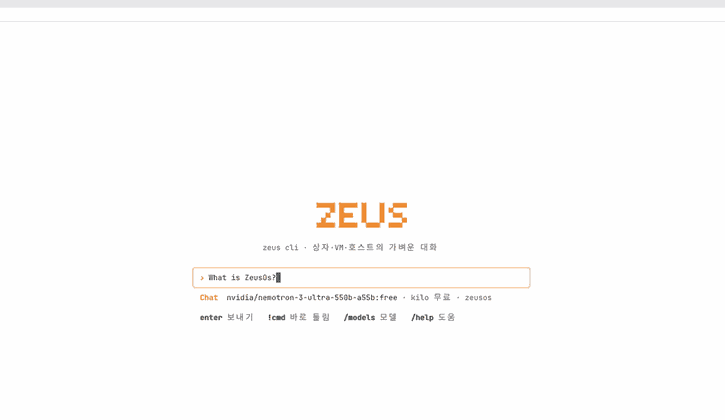
- Type your question on the bottom line.
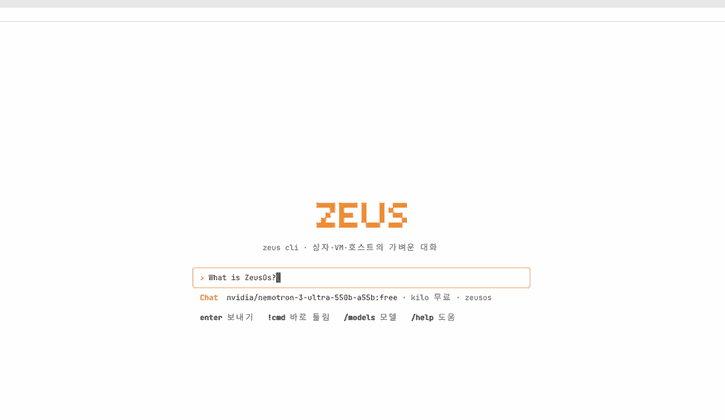
- Press
Enterand the answer appears.
2. Pick another model
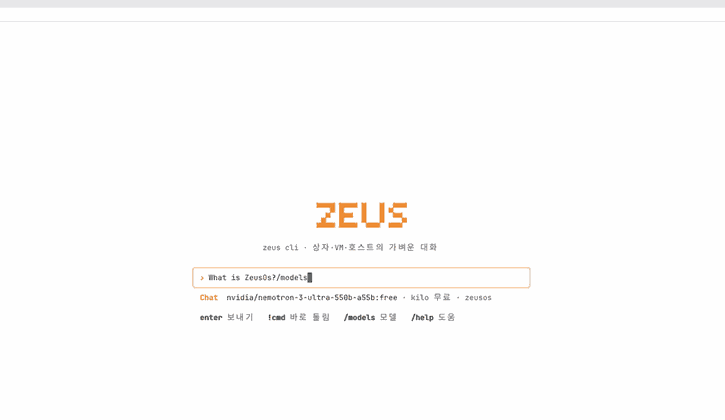
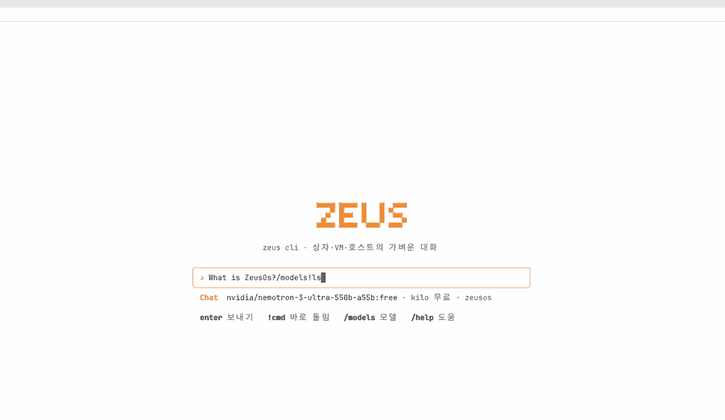
- In Zeus Studio click the model name ▾ under the chat title. In the Terminal's
zeus, type/models(Ctrl+P) to list the models you can use.
On the phone (lite), tap 「Default head ▾」 under the chat title to see a few heads with plain words — like a menu: 「fast and balanced」, 「a little slower, the most careful」. Tap one and this device remembers it. If the chosen head cannot answer for a moment, the next one answers and says so (「잠시 다른 머리로 답했어요」). What to do now: tap a head you like.
Opening apps and links
In Zeus Studio, say something like 「open Notepad and show me」 and Zeus brings that app to the front — with the file it just made, if there is one. A blue button in an answer (for example 「Open Calculator」) opens that screen when you click it — like a bookmark that opens the page. The first-open 「Try this」 card closes with Got it, Esc, Enter or a click outside it. What to do now: type 「open Notepad」.
Coming back to Zeus from an app
When Zeus makes a document and shows it, or puts on a radio station, that app comes to the front. Its ⚡ Zeus button at the top (on a phone, the round ⚡ next to "‹ Home") shows "Talking with Zeus" and a green dot, and pressing it opens the same chat again where you left it. The ⚡ of an app you opened yourself opens a new chat about that app, and Zeus starts explaining it right away (the chat you were having stays in the list; press it again without asking anything and that same chat opens). Zeus knows the app and the document you just had open, so a short "make the second paragraph shorter" or "another station" is enough. On the desktop Super+Esc (Cmd+Esc in the Mac window) switches too. Try now: "make meeting minutes" → [Approve] → ⚡ Zeus on the Documents window → "make the second paragraph shorter".
Technical details — the shared toolkit (kit) draws the button on every app. A press sets the chat's open-app context (sent with every question): the app you came from (documents, notes, radio …) and what was open there (the file path, the station). Turn it off in Settings › Appearance › Zeus button on apps.
Choosing a model · making a document · slow tools
Say 「summarize today's top news and save it in Documents」: the window asks once (Enter = make it), the Documents app makes a real document (.docx) and opens it, and the answer gets an [Open] button. If an internet search takes more than 12 seconds it is stopped, Zeus says so and answers with what it got — never an empty answer. What to do now: click the model name ▾ under the chat title to see the model list.
3. Run a command directly (the Terminal's zeus)
- In the Terminal's
zeus, start with!to run it as a command instead of asking. Zeus Studio has no such path — commands are typed in the Terminal, and whatever Zeus changes it always asks on a card first.
Under each answer, 2 to 4 short follow-up questions appear as chips. Tapping one sends it as the next question in the same chat; whatever you were typing stays in the field. A chip with an arrow opens that app screen instead. With the keyboard, when the field is empty, Tab chooses a chip and Enter sends it, or type a single number (1 to 4) and press Enter. The chips come from one line the model adds at the end of its answer; that line is never shown or read aloud. If the model adds none, there are no chips.
An empty chat says "What can I do for you? I'm good at these." with four chips of things Zeus really does (in the morning "Today's briefing" first, ones you have not tried yet before the rest). Up to twice a day, one ability you have not tried yet (with sparkles) is added under an answer. Turn it off in Settings with "Tell me about things I haven't tried".
On a big screen (desktop)
In a wide window Zeus spreads out like a desk instead of one narrow phone column. On the left is the list of your past chats (new chat ✎, search, and "⋯" to rename or delete), in the middle the conversation at a comfortable reading width with the message box under it, and on a very wide window a "Tools & results" panel on the right. That panel shows what Zeus just looked up (what a tool such as web search or reading a file brought back), switches for the tools it may use, and the model in use. What to do now: click a past chat in the list on the left.
Technical details — from 900 logical px wide (sidebar 18 %, 240–320 px; column at most 820 px; from 1280 px the right panel, 20 %, 280–400 px). ☰ at the top left hides and shows the list. A phone keeps the ☰ drawer. On the desktop the Dock's Zeus Studio opens as a window in this shape (zoom it for the right panel), and the bolt in the top bar opens the small panel at the right when there is no window (its ⤢ makes it big).
Shortcuts
| Key | What it does |
|---|---|
Ctrl+N | New chat |
Ctrl+K | Find a chat (types straight into the search box of the list) |
Ctrl+E | Export this chat as a document (Markdown in Documents) |
Ctrl+Shift+C | Copy the newest answer |
Ctrl+Shift+R | Make the newest answer again |
Esc | Stop the answer · close what is open |
↑ (empty box) | Bring the last question back |
On a Mac, Cmd works in place of Ctrl.
Settings
Settings (the gear) holds the system prompt, temperature, tools, Memory and the model.
Memory
Zeus can keep short notes about you that help in later chats — like writing in a notebook. Say "My name is Minsu, remember that" and Zeus decides to keep one line and tells you "I'll remember that". Settings › Memory lists everything kept: × on a line forgets it at once, "Add something to remember" adds a line you type (Enter), and "Forget all" asks once more before it clears the list. Turn "Use memory" off and Zeus neither sends the list nor keeps anything new.
Technical details
- When the model keeps something: the
memory_save(fact)tool (user/zeus/zeus.py) — chosen by the model through a tool call, never by matched words. Spaces folded, up to 190 characters, the same line once, the newest 40. - Where it goes: inside the question's
factsas "기억해 둔 것" — the same on 나눔OS and in the mobile (browser) version. Mobile has no tool for the model to keep things yet; only lines you add by hand are used there.
Where your data is kept
While Zeus Studio handles a question and answer, it uses the temporary files /tmp/.kim-req (the question sent) and /tmp/.kim-ev (the answer arriving).
Privacy
Your questions are sent to the chat API of the chosen AI model provider. If you have not chosen a model, they go to the default: a free online gateway that needs no key. Zeus can also use web search and web page reading.
With each question, status information is sent to the model as well: the system time, host name, system information (kernel version, uptime, memory), network address, current folder, and whether programs can run.
Secret keys for outside models are used only through the vault. Zeus does not read the key values themselves.
Asking about NanumOS, and checks
When you ask what NanumOS is, or about its usage, structure, VMs, the hypervisor or apps, it searches the guide with the os_help tool (pieces the build extracts from this manual and the structure documents) and answers with the source document names. When you ask whether the machine is fine, the os_check tool rates memory, storage, network, clock, version, vault and dmesg as healthy, caution, fault or ? In the terminal /doctor shows the same check. Small local models cannot take tools and get only a short note and the state.
Ask 「Check how the system is doing」, 「What is running now?」 or 「What hardware is this?」 and Zeus picks read-only commands itself (ps, free, uname, dmesg, ls, du, cat /proc/…), runs them and explains the output in plain words. Commands that change or delete anything, and files on the key or vault side, are refused by code. The phone edition (lite) has no command line: there it answers only from what the browser reports (cores, storage, screen) and the app stages, and says ? for the rest.
Ask about one app (「What does Calendar do?」) and Zeus reads that app's guide (app_info): what the app is for, the feature chapters of its manual, what it cannot do, what Zeus can do in it for you with example words, and the daily check (a robot uses every app on NanumOS the way a person does: how many steps passed or failed and which failed). The example words appear under the answer as buttons; pressing one asks exactly that. The build makes this guide from the app list, the manuals, the assistant's tools and the last check, and ships the same file to the laptop, the Mac window and the phone edition. A build without it says ? and searches the manual instead. 「Check all the apps」 also gives each app its daily check result, or ? when there is none.
Asking how this computer is doing now (system check)
Like a doctor filling in a chart, every item gets a value, and normal / caution / danger is decided by code against fixed thresholds — Zeus only explains the result. Answers about NanumOS and its apps are written only from what the manual, the app guide and this check returned; file paths and document names are never shown, and a line under the answer says in plain words what was checked ("Checked: the manual · system check"). What could not be found is answered with "I could not confirm that".
Try now: ask "Is anything wrong right now?". The first line is a one-line summary, then every area with its values and verdicts in full.
Technical details
- Areas: errors and warnings (log lines by source and in the last hour, the assistant's head errors, background job failure files, save failures, sound gaps, logins) · running programs · memory (RAM, file space) · storage (auto-save, last save time, generation, write failures) · job slots, pipes, temp files · network (address, DNS time, Wire) · sound · virtual machines · security (the Security app's checks) · uptime and version.
- Sources:
/proc/meminfo,/proc/storage,/proc/jobs,/proc/security,/proc/wire,/proc/sound,/proc/uptime,/var/log/messages,ps,df,vmx list. - Caution and danger rows name a fix (e.g.
[고침 net_up · 바로 해도 됨]= safe at once,허락 필요= needs approval); fixing itself is a later step. - One full check is about 3,200 characters (~1,300 tokens), small enough to show in detail.
- "What song is playing?" uses
now_playing: the Radio station and song title, the Music app's track (only "playing" while the player runs). - The phone version (Mobile) has no such check; it answers from what the browser reports and says the rest is desktop only.
Finding past chats · exporting a chat as a document
The search box above the list finds chats by their titles and their words (English letters without case). A chat found by its words shows the words around the match in blue under its title. "⋯" › Export as a document (or Ctrl+E) saves that chat as a Markdown document in Documents (<title>.md, or "<title> 2.md" when the name is taken): the title, the date, and each question and answer under a "Me" / "Zeus" heading. A green line above the message box says where it went. Nothing leaves the device. What to do now: type a word from an earlier answer into the search box.
Copying an answer
The copy button under an answer copies the version on screen as clean text — no ** markers, links as their names, no "let me try again" notices and no "Checked:" line. The button turns into ✓ with "Copied" for 1.5 s. For the raw Markdown, right-click the answer and choose "Copy as Markdown". In the Mac window the copy also reaches the Mac's clipboard.
Selecting text to copy · turning tools on and off
You can select text in an answer (and in your own question) with the mouse. Drag over the text and it is highlighted; keep dragging past the top or bottom edge and the view scrolls along. Double-click picks a word, triple-click the paragraph. Cmd/Ctrl+C copies what is selected ("Copied"), and a right-click on the text offers "Copy" and "Select all". A right-click on the input box offers "Paste", "Cut", "Copy" and "Select all". What to do now: drag over one sentence of an answer.
The tools Zeus may use are switched in the gear's Settings › Tools (the small "4 tools on" above the input box opens the same page). Read-only ones such as Web search and Read files are on from the start; Shell, Edit files and Write files start off and are marked [Ask]: they ask you each time.
The buttons under an answer
Hover a button and its tile lights up; after a moment a short tooltip appears. Hold it and the tile gets darker; the action runs when you let go.
- Edit — puts your question back in the box to change and resend; ‹1/2› appears beside the question to switch versions.
- Copy — clean text (see "Copying an answer"). Translate — Korean to English, anything else to Korean; "Translating…" shows while it works.
- Read aloud (speaker) — the Assistant's voice reads the start of the answer. While it reads, the button becomes a stop square; click again to silence it at once. A long answer is read only as far as its key part (about a minute).
- 👍 · 👎 — only one is on; it stays after the chat is closed and reopened.
- Regenerate — a new answer to the same question ("Making it again…"), ‹2/2› switches between them. Think deeper (✨) — asks a stronger model; its name shows on the answer.
- Branch — a new chat with the conversation up to here, listed in the sidebar.
- Delete — does not delete at once: a card "Delete this message?" appears. Only Allow deletes (the answers below go with it); Cancel or Esc keeps it.
- ⋯ — "Continue writing" (from where it stopped), "Copy as Markdown" and the rest. The old ▷ was "Continue", not "Read aloud", so it moved here.
What to do now: click the speaker under an answer to have it read to you.
Technical details — buttons act on release (dragging away cancels). Reading queues sentences (240 bytes at most) through gui_say to the Assistant's voice path (fetch --voice tts), the first 900 bytes only. Delete follows the needs_ok rule (an irreversible act waits for an Allow card). Test: tests/zeus_studio_buttons.py.
Troubleshooting
If an answer hits the length limit, a message tells you to raise the token limit with /set max.
A command that changes files or the system shows a confirmation box. Press Enter or y to run it, and n or Esc to skip it.
Writing into apps for you (assistant actions)
Say "put a dentist appointment tomorrow at 3 pm", "add a memo to tomorrow in the calendar", "remind me to buy milk the day after tomorrow morning" or "write a shopping list in Notepad" and Zeus puts it into Calendar, Reminders or Notepad. The date is decided by code, and the card shows what it understood (for example "11월 3일 (화) 오후 3:00"). A bare hour without morning/afternoon is read as afternoon for 1–6.
Overwriting what is already written ("make the last one shorter", "make the title Minutes") shows the lines that change and happens only when you press Allow on the card. Saying or typing "yes" does not allow it; asking the next question cancels a waiting card. Zeus never deletes, sends or pays.
What waits for Allow is fixed — like a helper who just buys new things but asks before throwing anything away. Done at once: viewing, opening, finding, checking, playing, making new things, appending (all can be undone). Asks first: overwriting, deleting, sending, changing settings, stopping or creating a virtual machine. That is also why the assistant does not ask "shall I check?" — it just checks.
When it opens an app for you, the answer adds one sentence on what that app does (the first line of the app's manual, in its own words).
The assistant knows the app you have open and the item in it (the note in Notepad, the document in Documents, the radio station). After "open Notepad", saying "make the title Minutes" and then "add a line: meeting at 3 tomorrow" works on that same note.
The buttons under an answer (follow-up chips) are things you would say next ("add a line", "show it in Documents"). When the assistant needs to ask you something, it asks in the answer or on a card, and the chips hold your replies ("Yes, show me" / "No, thanks").
In a terminal: zeus --briefing. "Who" questions look in Contacts (read only). In the terminal's line mode /undo takes back the last write.
On a phone (lite) the same cards write into Calendar and Notepad; the data stays in that phone's browser.
Doing the work in our apps for you
Ask the assistant "make a meeting minutes document", "make this month's expense sheet with a total" or "play a jazz station", and it opens our own app and does the work there — like asking a helper to do an errand. New things are made at once; before it overwrites or deletes anything, it always shows a confirmation card on the screen.
A new document, a new sheet and an appended section are done at once, and the card has Open and Undo for 30 seconds. An overwrite (replacing a paragraph, say) shows a short preview and puts Cancel first; only when you press Allow does the app do it. Saying "yes" does not allow it.
- Radio: name a station or a genre and the Radio app's own list finds and plays it (no card; Undo stops it). Just "turn the radio on" plays the first station of the Radio app's For You (your favourites and most-played first); when the asked station is not there, a similar one plays instead and the assistant says so.
Work that was only said is marked — when the assistant says "opened" or "saved" and the device did not do it (no tool was called, another app was opened, it failed, or it still waits for Allow), a red line (No action was run: Calendar · write) appears under the answer. If the assistant only forgot to act, it is asked once more and does the work; if it still does not, the line tells you. Think of checking a helper's words against the receipts and stamping "no receipt" on any word without one. What to do: when you see the line, press "do it again".
Technical details
When kim.c applies a card (event A) it writes ok|fail|wait<TAB>place<TAB>why to /tmp/.kim-act-<id>; zeus.py waits for that file (on mobile the relay waits for weblite.js's POST /relay/kim/act) up to 8 seconds and gives it to the model as the tool result. The ✓ / ✗ line is made by zact_receipt, saved with the answer and so part of the next turn. File-name rule: src/ramfs.c (letters, digits, Hangul, inner spaces, _-.+,@=~). After the answer the model is asked once more what the answer says was done in this turn, as structured values (report_claims: an action class and an app key), and code compares them with this turn's cards and the device's results (not a word list). A claim with no done (✓) card -> event N -> zact_noact_line draws "(No action was run: …)". A claim with no tool call at all is first asked once more, with the tools. The desktop (zeus.py act_truth) and mobile (relay.py) use the same appdo code.
- Notepad, News, Files: append to the open note (at once), change its title or a line (Allow), write an article into the "remembered articles" note (never its text), show a file in its folder, open Calendar on a day.
- Virtual machines: "make an Alpine VM with 512 MB" shows a card with the name, memory, disk, image and network; press Allow and the VM Manager opens with the new VM starting. Stopping and deleting also ask on a card. Without virtualization on this computer, the assistant passes on the VM Manager's own reason.
What to do now: in the assistant, say "make a meeting minutes document".
Technical details
Tool names: app_open, doc_create (show), doc_edit, sheet_create, note_append, note_change (append · title · replace), radio_play, radio_stop, news_save, file_reveal, vm_list, vm_create, vm_control (defined once in user/zeus/appdo.py, the same on 나눔OS and lite). On a phone (lite) documents and sheets stay in that phone's browser, and virtual machines are made only on a computer running 나눔OS. Whether an action waits for Allow is one column of the action list, needs_ok (appdo.NEEDS_OK = the device's zact.c ZACT_OK), which the model cannot skip; the open app goes with every question as appdo.ctx.
Showing a task step by step, recorded
Press the chip "Show me a task step by step" or say "record yourself making the sheet and show me": Zeus records the screen while it works. Like a cooking video it goes one step at a time (a short pause after each step, a sheet filled cell by cell), and at the end it attaches the result picture and the clip under its answer. Click the picture to open it large in Photos; press ▶ to play the clip right in the conversation.
- While it records, "Recording the task" with a Stop button shows at the top; it lasts at most 2 minutes.
- It only makes new files, so there is no approval card (the picture in Photos > Screenshots, the clip in the Videos folder). Vault windows and password fields are blacked out.
- Desktop only for now.
What to do now: ask Zeus "show me how you make a fruit price sheet".
Technical details
Screenshot actions record_task [target] to start and finish_task [show=none] to end (the model reads what the person wants). In between zeus.py pauses 0.9 s after each device action and adds pace=1 to a sheet_create card so the Sheet app draws it cell by cell. The recording is encoded by a kernel thread outside the desktop loop (see the Screenshot manual's technical details).
Handing over a job that spans several apps
Say it once — "sort the photos in this folder, brighten the best 10 and make a reel", "summarize this document into slides", "take the dates out of today's mail, put them in my calendar and tell the team on Messenger" — and Zeus first reads what it needs (the document's text, today's mail), then shows a plan at the bottom of the screen. The plan lists every step and which app does it, and nothing happens until you press [Allow]; [Cancel] comes first, on the left. Like an assistant who shows you the errand list and asks "shall I?".
- After [Allow] the steps run in order: Photos scores the folder's pictures and copies the best ones into a new folder (the originals stay), Retouch brightens them all at once into another new folder, Video Retouch puts them in a vertical reel (1080x1920) with music and exports it to Movies. The panel shows ▶ for the step running, ✓ for the done ones and a progress bar for long ones.
- Sending asks again, at its turn. When the plan reaches "send to the team on Messenger", the panel shows the words to be sent and waits for [Allow] or [Skip] — allowing the plan does not send anything by itself.
- If a step fails the plan stops there with ✗ and the reason (the rest is not done). [Stop] stops after the current step. When it is done you get a notification and [Open result].
- The long parts (scoring, the batch retouch, adding the pictures, the export) run in the background: other windows keep working meanwhile.
- Ask "is it done?" and Zeus answers from the panel's ✓ / ✗ lines.
Technical details — a plan is one card (task_plan, kind flow); its steps are the same app actions Zeus does one at a time (the same checks, the same approval rules). The photo scores are made on this device: sharpness (shaken shots out), exposure (too dark or blown white out), a face hint (the size and shape of skin-coloured areas and where eyes would be — not a face recognition model), one of each burst. The scores are in picks.tsv in the folder of picks. Only planning uses the model you picked; the steps after [Allow] call no model. On the phone screen (mobile) plans are not made yet. Until the Presentation app (zOffice Present) is in, the slides are a Documents file with one heading per slide.
Watching the assistant at work
Say "show me you at work", "flip through some radio stations" or "go ahead and use a few apps", then sit back and watch the assistant use our apps itself — like looking over the shoulder of someone at the next desk. The pointer moves slowly (one step every 6 seconds): it changes radio stations, flips weather cities, taps the Calculator and writes in a scratch note. A strip at the bottom says what it is doing in plain words, such as "Switching the radio to the next station".
- It stops any time: move the mouse or press any key and it stops at once; the strip also has a Stop button. It ends by itself after the time asked (3 minutes by default, 1 to 10).
- It only does things that can be undone: no deleting, sending, buying, changing settings or opening the vault. It writes only in a temporary "구경하기 연습장" note (in
/tmp, never saved) and removes it at the end. Then Notepad goes back to the note it was on, and a Notepad the watch opened closes again. - The assistant chooses what to do from a fixed list of safe steps; code does the pressing and checks each step. A button the app did not draw is skipped.
- Desktop only for now. On a phone (mobile) it says it is not there yet.
What to do now: in Zeus Studio, say "show me you at work" and take your hands off.
Technical details
Tool show_working(app?, minutes?, focus?) — the model reads what the person wants and calls it (no code looks for words). The step list is WATCH_OPS in user/zeus/appdo.py (C copy src/gui/watch_ops.h, in AUTO-QA's op words tap TAG, type TEXT); zeus.py watch_pick asks the free head first (else the chat's head) to pick the numbers. When no head answers it uses a fixed order and the card says so. A person's input is caught at the pointer and key entry of gui.c and stops it (GUI watch stop input).
Weather, opening apps, and when talking does not work
Ask 「What's the weather?」 and Zeus fetches it fresh each time from the same place as the Weather app (Open-Meteo) and tells you in plain words. A value fetched in the last 2 minutes is reused; with no internet it uses the saved one and says how old it is. Ask it to open an app (「open my notes」 opens Notepad, with the note if it just wrote one) and the app comes to the front; while you talk the Assistant becomes a small round button at the bottom — tap it to go back to the conversation.
If the Assistant says 「Could not reach the voice server — trying again soon」, it is like a call that dropped for a moment: after a few seconds it starts listening again by itself, so just say it again (nothing to tap). If an answer is cut off it says so and asks the same question once more.
If the Assistant (talking) says 「No sound from the microphone」, it is like an unplugged microphone cable: no sound reaches it. In the Mac window (QEMU) the Mac's microphone cannot be passed into the window, so this is what you will always see there. For now, type your question in Zeus Studio. 「Check this computer」 shows the same.
When the Assistant reads an answer aloud, a short answer is read whole and a long one only its first part (about 45 s to a minute), in whole sentences, ending with 「The rest is on the screen」. To hear long answers to the end, turn on 「Read to the end」 in Settings › Apps › Assistant (「Read answers aloud」 and 「Hands-free」 are there too). While it talks you can push the conversation up with a finger to see earlier answers; when a new one arrives, tap 「↓ New message」 to jump to it.
What it cannot do
Zeus keeps only the latest 40 messages in its context, and on screen the oldest blocks disappear once past 1,500 lines.
Zeus Studio has no !command, /status or /set max of the Terminal's zeus (commands in the Terminal, the state through 「check this computer」, temperature in its settings). The Terminal's zeus has no voice and no cards.
NanumOS 0.1.8349 · 2026-11-16