Books
Status: In trial
Read EPUB books like a printed book, two pages side by side in a wide window.
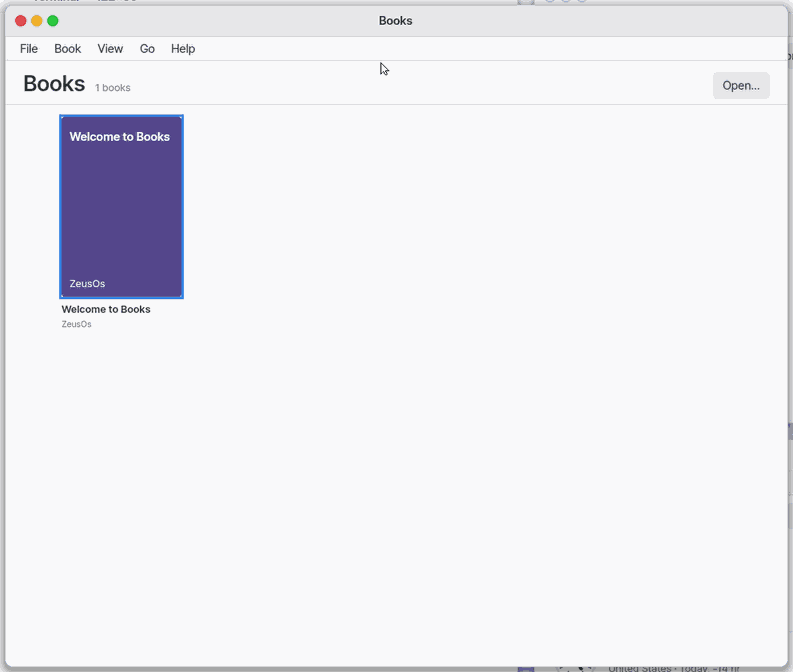
About this app
Books keeps EPUB books together so you can choose a cover and read one page at a time. When you close a book, it starts at the same place next time.
At a glance
In one line: Pick an EPUB book from the library and read it page by page. It continues where you stopped.
The screen
- The library: book covers are gathered here
- Right and left of the page: press for the next and the previous page
- Contents at the top: pick a chapter to go to
- Aa at the top: change the text size and the theme
Task 1. Open a book
- Press the cover of the book in the library
- See it continue from where you stopped, if you read it before
Say: "Open the book I was reading in Books"
Task 2. Turn pages
- Press the right side of the screen
- Press the left side for the previous page
Say: "Open the Books app"
Task 3. Go by the contents
- Press Contents at the top
- Press the chapter name you want
Say: "Go to chapter 3 of this book"
Basics
EPUB is an ebook format that keeps text, pictures and a contents list in one file. Its text is XHTML and its layout is CSS, so lines and pages change with the screen and text size. Books reads reflowable EPUB 2 and EPUB 3 books and shows PNG, JPEG, GIF and BMP pictures. Want more? Press ⚡ and choose 「Teach me」.
How to use it
Double-click an .epub file in Files to open it here.
- Put an
.epubfile in theBooksfolder in your home folder, or press Open… on the shelf to choose one. - Press its cover, then press the right or left side of the page to move forward or back.
- Use Contents to choose a chapter, or press
Ctrl+Fto find a word and go to it. - Use Aa to make text size, theme, font and line spacing comfortable to read.
Try it yourself
Try it: open the guide on the shelf, turn to the next page, then use Contents to choose another chapter.
How it works
- The app checks the
Booksfolder and puts each book's title, author, cover and saved reading place on the shelf. - When you open a book, it unpacks one chapter at a time, reads its text and pictures, and makes lines and pages for the current screen.
- It saves a place in a chapter's text instead of a page number, so changing text or window size still returns you to the same place.
- Find reads chapters one at a time, shows matching lines, and takes you to the line you press.
Technical details
Inside an EPUB, META-INF/container.xml points to the OPF; the OPF list and reading order choose the chapters. Contents come from EPUB 3 nav or EPUB 2 toc.ncx. Fixed-layout books, DRM protection, and audio or video are not supported.
The program that reads a book file runs on its own
A downloaded book may be damaged, or made to attack. The shelf reads every book's title and cover without opening it. So taking the contents, chapters and pictures out of an .epub is done by a small program (oodoc) outside the Books window and the system. The program has a fixed amount of memory and may write to one temporary folder only. Books checks everything it sends back (the reading order, paragraph positions, the text, picture numbers) before using it. If a file makes the program stop, that book says "The book reader stopped on this file (it may be damaged)", and the shelf and your other apps stay as they were.
Technical details
u -m N -w /tmp/oodoc oodoc epub meta|chap|entry … → a ZEP (the book) and a ZEC (one chapter), checked by src/gui/zepub.h. docs/APP-ISOLATION.md §8.
FAQ
Where do the books on the shelf come from?
A fresh shelf already holds eleven classics: Hamlet and Romeo and Juliet (Shakespeare), Jane Eyre, Pride and Prejudice, Don Quixote, Alice's Adventures in Wonderland, and Korean poems and a short story. Tap a cover and you are reading. You may delete any of them; Settings > Sample Files > "Add samples again" brings them back.
Technical details
Every book is out of copyright (the authors died more than 70 years ago). The English books are Project Gutenberg editions (#1524 Hamlet, #1513 Romeo and Juliet, #1260 Jane Eyre, #1342 Pride and Prejudice, #996 Don Quixote in John Ormsby's 1885 translation); the text and the site's licence notice are kept as they are. The covers are drawn by NanumOS. The source address, the original file's hash and the licence of each book are in <code>user/samples/SAMPLES.tsv</code>.
Will a book reopen where I stopped?
Yes. The app saves the open book's chapter and text position, so pressing its cover later continues where you were reading.
Why is my book not on the shelf?
Check that the .epub file is in the Books folder in your home folder. You can also open the file in Files or choose it with Open… on the shelf.
Try this
1. Open a book
- Press a book's cover on the shelf. A book you were reading opens on the page you left.
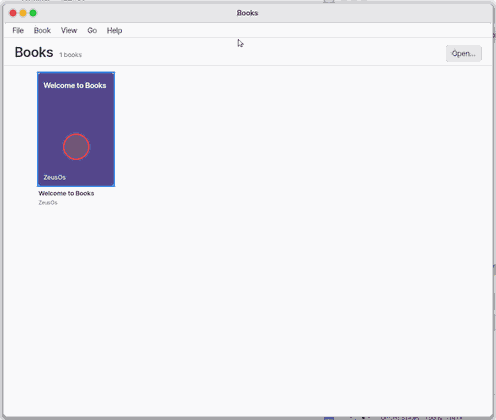
The shelf starts with six books to read: three Korean (Kim Sowol's 「진달래꽃」, Yun Dongju's 「하늘과 바람과 별과 시」, Kim Yujeong's 「봄·봄」) and three English with their pictures (Alice's Adventures in Wonderland, The Velveteen Rabbit, The Tale of Peter Rabbit), all out of copyright. Delete one and it does not come back. Put book files (.epub) in the Books folder of your home folder and they appear on the shelf. Opening an .epub file in Files opens it here too, and Open… on the shelf picks one.
2. Turn the page
- Press the right side of the page for the next one, the left side for the previous one. The arrow keys and Space do the same.
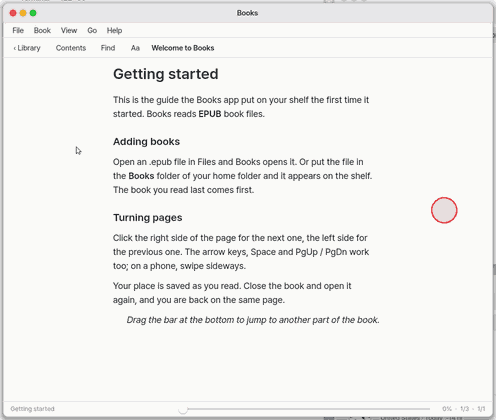
In a wide window you see two pages at once and a turn moves both. On a phone, swipe sideways; press the middle to show or hide the bars at the top and bottom. The book's title runs along the top of each page and the page number sits at the bottom centre (page numbers are an estimate: the book is only laid out one chapter at a time).
3. Go to a chapter
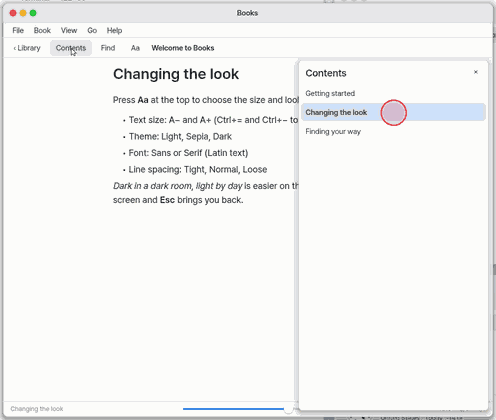
- Press Contents at the top.
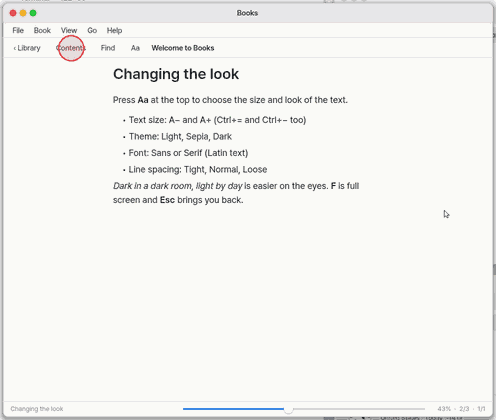
- Press the name of the chapter you want.
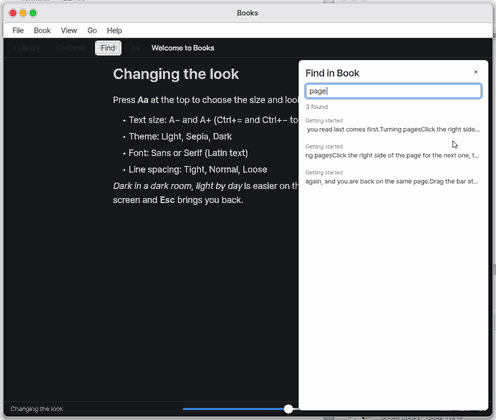
- To find a word instead, press
Ctrl+F, type a word and pressEnter. Press a line to go there.
4. Change the text size and theme
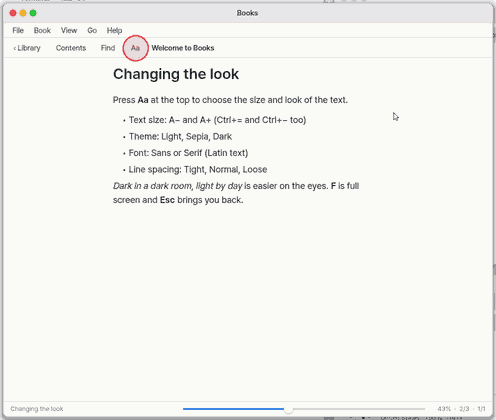
- Press Aa at the top.
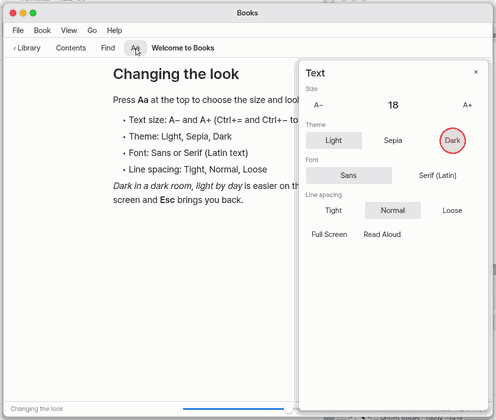
- Press A+ to make the text bigger and Dark for a dark page.
5. Bookmarks, highlights and notes
- Press Bookmark at the top (or
B) to mark the page you are on.
- Drag across text and press Highlight. Press highlighted text, or right-click it, to choose yellow, green, blue, pink, purple, underline, note, remove, or copy. Remove takes effect immediately.
- Drag across an already highlighted span to choose Remove overlap or Remove whole. Overlapping strokes of the same colour join into one highlight.
Ctrl+ZandCtrl+Shift+Zundo and redo up to 50 changes to highlights and notes. - In the Notes tab, press a row to jump to its place, or its × to remove it. Remove all asks for a second press before clearing this book's highlights and notes.
- Contents has three tabs: contents, bookmarks and notes. Press Export review notes to save them as a Markdown file in
Documents, grouped by chapter and section.
After a jump (contents, search, a bookmark) a small ‹ 117 p. button at the bottom left takes you back, and a button on its right goes forward again (Alt+← Alt+→).
Press Zeus at the top. The words on the page are put into the Zeus chat as a quoted passage of the book; you add your question and send it.
Shortcuts
| Key | Does |
|---|---|
→ ↓ PgDn Space | Next page |
← ↑ PgUp Shift+Space | Previous page |
[ ] | Previous chapter · next chapter |
Home End | Start · end of the chapter |
T | Contents |
Ctrl+F / | Find in the book |
Ctrl+= Ctrl+- | Bigger · smaller text |
F | Full screen (Esc leaves it) |
Ctrl+R | Read aloud |
B | Bookmark this page |
H | Highlight the selected text |
Delete | Remove highlights in the selected span |
Ctrl+Z Ctrl+Shift+Z | Undo · redo highlight and note changes |
Alt+← Alt+→ | Back · forward after a jump |
Esc | Close a sheet → back to the shelf |
Ctrl+O | Open a book |
Ctrl+L | The shelf |
Ctrl+, | Books settings |
Ctrl+W | Close |
Settings
Choose Books under Apps in the Settings app (inside the app, Ctrl+,) for the defaults. While reading, Aa at the top changes the same things for this book only; each book remembers its own.
| Setting | Choices |
|---|---|
| Reading mode | Pages, Scroll |
| Text size | 12 to 40 (default 18) |
| Theme | Light, Sepia, Dark |
| Font | Sans, Serif (Latin text) |
| Line spacing | Tight, Normal, Loose |
| Open the book I was reading | On, Off |
What it cannot do
- Books protected by DRM cannot be read, and the app says so. Fixed-layout books (comics and magazine EPUBs) and books with audio or video are not read yet.
- Copying text is not there yet. Highlights and notes need a mouse (not on a phone yet).
- A book's own fonts are not used; its text is shown in this computer's fonts.
How it works
An EPUB file is a zipped bundle of text and pictures. Books first reads a book's title, author, cover and contents for the shelf; when you open the book it unpacks one chapter at a time and splits it into paragraphs, headings, lists and pictures. Lines are broken for the text size and the width of the window (Korean text may break between syllables, but a full stop or a closing quote never starts a line) and cut into pages as tall as the screen. Your place is saved as a position in the chapter's text, not a page number, so changing the text size or the window keeps you on the same spot.
If you save a new version of the book file (for example while writing it), Books notices within a second and opens it again at the same place.
What to do now: open the guide on the shelf and turn a page.
Technical details
- The reader is
src/gui/epub.c(zip →META-INF/container.xml→ the OPF manifest and spine → contents from the EPUB 3navor the EPUB 2toc.ncx→ a chapter's XHTML). It uses no standard library and fresh work memory for each chapter; a chapter that is too big is cut at the end and the last page says so. - CSS understood:
font-size,font-weight,font-style,text-align,marginandpadding-left,margin-top/bottom,text-indent,display:none(tag,.classandtag.classselectors, the style attribute). The rest is ignored. - The contents document of an EPUB (the
navitem) is not shown as a page; it feeds the contents sheet. - Find opens the chapters one by one and scans their text (bold and italic marks are skipped); Latin text is not case sensitive.
- Read aloud hands the page's sentences to the assistant's voice (
gui_say) and moves to the next page when the speech ends. Without a sound device it says so.
NanumOS 0.1.8349 · 2026-11-16