Contacts
Status: Ready
One card per person.
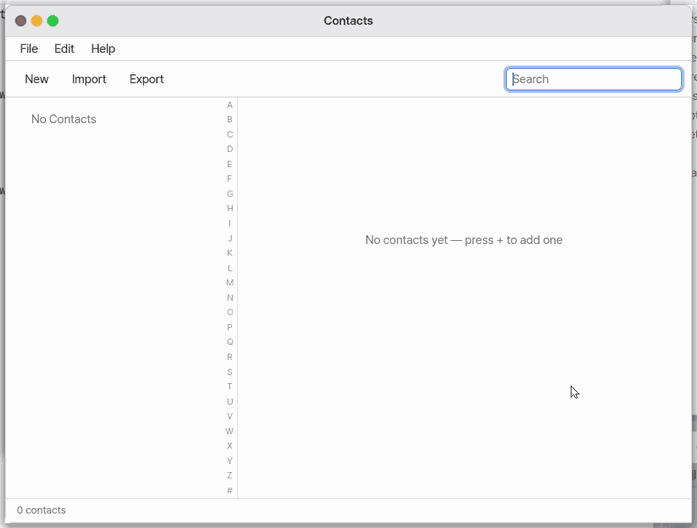
About this app
A contacts app that keeps one card per person with a name, phone numbers and email addresses, like an address book with one page per person. Contacts are stored only on this computer.
Basics
A contact is a small record: a name, phone numbers and email addresses. There is a standard file format for exchanging contacts (vCard, .vcf), so any app that reads it can take your contacts with it. Want more? Press ⚡ and choose 「Teach me」.
How to use it
- Press
+and type a name. It is saved as you type. - Type part of a name in the search box (
Ctrl+F) and only the matching cards stay. - Select a card and press the delete button (
Ctrl+Del). Ctrl+Iimports a.vcffile;Ctrl+Shift+Eexports all contacts to a.vcffile.- In File > Settings (
Ctrl+,) choose whether the second line of the list shows the phone number or the email.
Try it yourself
Try it: press + to make a card named “Alex Kim”, then type “Kim” in the search box to find it.
How it works
- Search shows only the cards from the same list that contain what you typed.
- Import adds the cards it reads to this list; export writes the whole list into one file.
- The list holds up to 256 people. When it is full you see “The contact list is full”.
Technical details
The storage format is a vCard 3.0 text file. A card shows up to 3 phone numbers and 3 emails, and photos in imported files are dropped. In the phone-browser edition “Import” picks a .vcf file and “Export” hands the file to the share sheet (or downloads it).
FAQ
How do I move my contacts to another device
Export a .vcf file with Ctrl+Shift+E, then import that file in the other device's contacts app. There is no automatic sync between devices.
Can I add a photo
Not yet. Cards hold a name, phone numbers and emails only.
I have the same person twice
There is no merge yet. Delete one card and copy what you need into the other.
At a glance
In one line: Keep a name and details on one card per person.
The screen
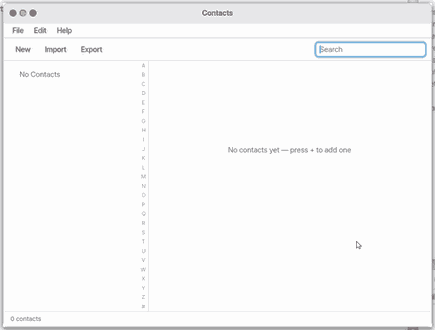
- +: adds a new card
- Search box: find by part of a name
- Card list: a phone number or email shows under each name
- The card's delete button: deletes the chosen card
Task 1. Add a card
- Press +
- Type the name
Say: "Is Kim Chulsoo's number in Contacts?"
Task 2. Find a contact
- Press the search box
- Type part of the name
Say: "Find Kim Chulsoo in Contacts"
Task 3. Delete a card
- Press the card to delete
- Press the delete button
Say: "Open the Contacts app"
Try this
1. Add a card
- Click
+.
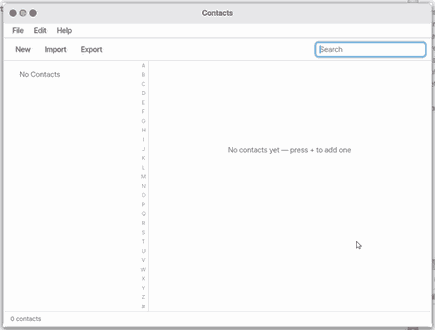
- Type a name. It saves as you type.
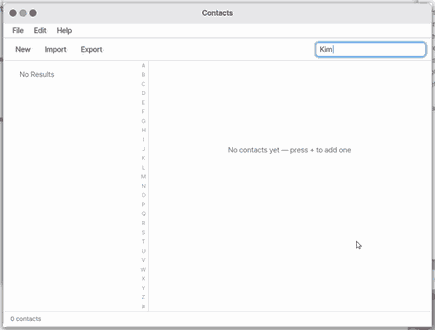
2. Search
- Click the search field and type part of a name.
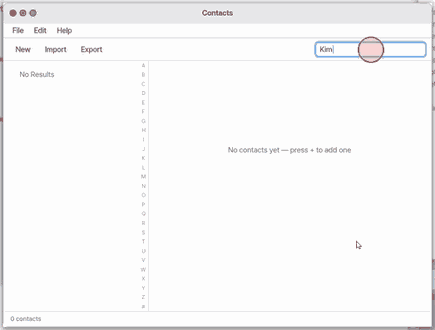
3. Delete a card
- Click Delete on the chosen card.
Shortcuts
| Key | What it does |
|---|---|
Ctrl+N | New Contact |
Ctrl+S | Save (also while editing) |
Ctrl+I | Import vCard… |
Ctrl+Shift+E | Export vCard… |
Ctrl+W | Close |
Ctrl+E | Edit Contact |
Ctrl+Del | Delete Contact |
Ctrl+F | Find |
F1 | Contacts Help |
Settings
Contacts settings open from File > Settings… (Ctrl+,).
- Second line in the list — a phone number or an email address under the name.
- Open with the search box active — whether you can type into the search box the moment the app opens (off by default: it starts on the list and
Ctrl+Fgoes to the search box).
The Edit menu has undo, redo, cut, copy, paste and select all, working on the search box or the card field.
What it cannot do
- Contacts are stored on this computer only. There is no sync with other devices.
- You cannot add a photo. A photo in an imported file is dropped.
- A card shows up to 3 phone numbers and 3 e-mail addresses.
- It holds up to 256 people. When full, it says "The contact list is full".
- There are no groups, and no merging of duplicates.
- On mobile (a phone's browser) the same app opens. Under the list, Import picks a .vcf file on the phone and Export hands all contacts to the phone (the share sheet or a download). It does not sync with the phone's own Contacts app by itself.
NanumOS 0.1.8349 · 2026-11-16