zOffice Documents
Status: Ready
A word processor for Word, Hangul (.hwpx, .hwp) and OpenDocument (.odt) files.
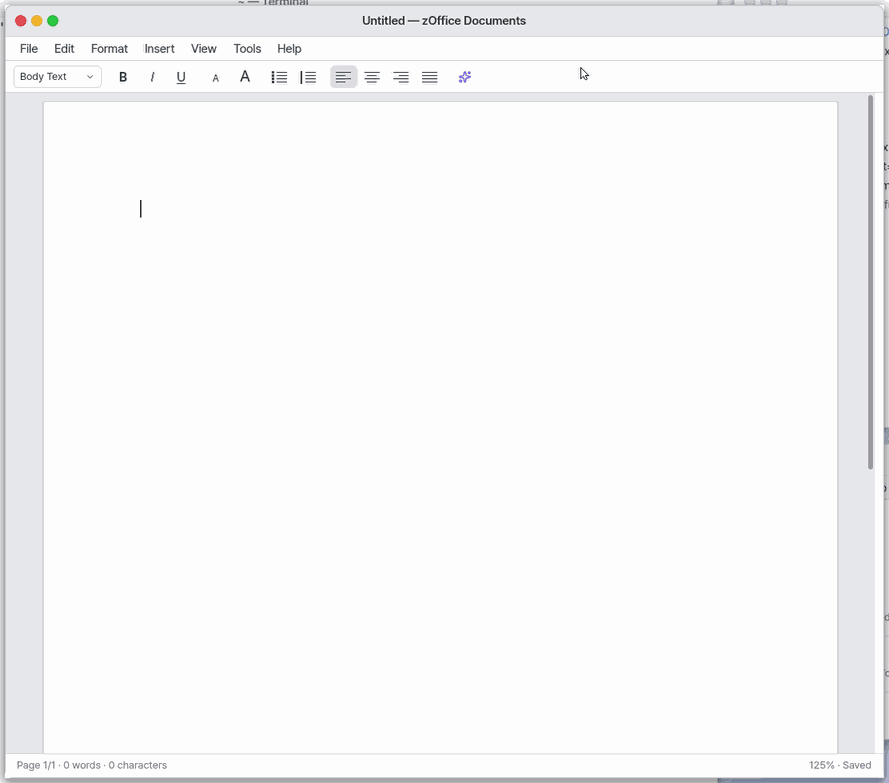
Double-click a Word, OpenDocument or Hangul document in Files to open that file here.
About this app
A word processor for writing and for opening and editing .docx, .hwpx, .hwp and .odt documents. It is like writing straight onto a white sheet of paper; double-click such a document in the Files app and it opens here.
Basics
A document file holds more than the words: the letter shapes, headings, tables and pictures too, like a box with everything packed inside. A document format (.docx, .hwpx, .odt) is an agreement on how that box is packed, so programs that follow the same agreement can swap documents. This app leaves the parts you did not touch exactly as they were and rewrites only the paragraphs you changed. Want more? Press ⚡ and choose 「Teach me」.
How to use it
- Write straight onto the empty page.
Ctrl+B,Ctrl+IandCtrl+Ugive bold, italic and underline;Ctrl+1–Ctrl+3make headings. - Press
Ctrl+Sto save. A new unnamed document asks for a name; Save As (Shift+Ctrl+S) lets you pick.docx,.hwpx,.hwp,.txtor.mdby the extension. Ctrl+Fopens the Find bar andCtrl+Hthe Replace bar.- The Insert menu adds tables, pictures, a photo from the camera, headers, footers and page breaks.
Shift+Ctrl+Eexports a PDF;Ctrl+Shift+Fenters focus mode (Escleaves it).- Settings (
Ctrl+,) sets the font, default size, auto-save delay and the Zeus writing help.
Try it yourself
Try it: type “Hello” on the empty page, make it a heading with Ctrl+1 and save with Ctrl+S.
How it works
- It saves automatically 2 seconds after you change something, and also when you close the window or open another document. Reopen the app and the last document comes back with the cursor where it was.
- Big documents: it opens about 300 pages (1.25 MB of text) and what you type shows at once, however many pages there are. Only the pages in view are drawn, and typing one character lays out again only that paragraph's lines. A big paste goes in a little at a time (about 24 KB) and shows "Pasting NN%" after 0.3 s; one paste is one
Ctrl+Z. In a big document the word count in the status bar updates when you stop typing. - In an opened document the parts you did not edit (styles, headers, pictures, untouched paragraphs and tables) are saved byte for byte as in the original file; only the paragraphs you changed are written anew.
- A
.odtfile is written anew on save, so what the app does not read (comments, tracked changes, shapes) is dropped. To keep the original, choose.docxin Save As. - A file you receive may be damaged or crafted, so reading and saving is done by a small separate program outside the document window. It is like opening a parcel on a workbench outside the front door instead of in the house: if a strange file stops it, the open document and other apps are untouched.
- The Zeus writing help (summarize, polish) is off by default; the first time you use it after turning it on, it asks “Send to Zeus?”.
FAQ
Can I open a Hangul document (.hwp)
Yes. It opens and edits .hwp and .hwpx and saves them in the same format. Password-protected files cannot be opened, and distribution-protected ones are read-only.
Will editing spoil the original look
Parts you did not touch stay as they were. If you change a table's structure a lot, that table's borders, cell colours and merged cells return to the plain default.
How do I print
Printing to a printer is not there yet. Export a PDF with Shift+Ctrl+E and use that.
At a glance
In one line: A word processor for writing and opening Word, Hangul and OpenDocument files.
The screen
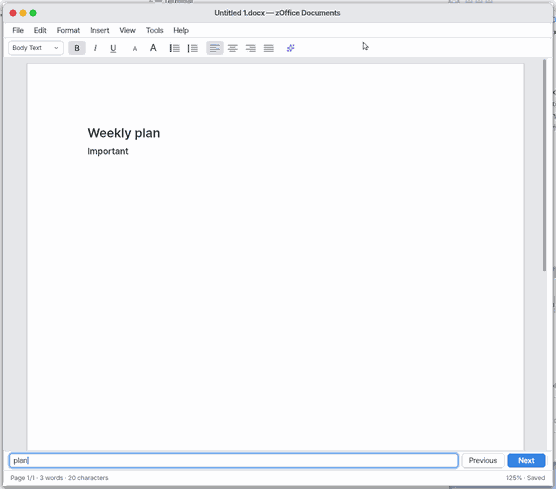
- Blank page: a sheet you just write on
- Top bar: text styling such as bold, italic and headings
- Find bar: opened with
Ctrl+F - Save:
Ctrl+S(the extension picks.docx,.hwpxand so on)
Task 1. Write something
- Write on the blank page
- Press
Ctrl+1to make a heading - Press
Ctrl+Sto save
Say: "Make a letter document"
Task 2. Write in bold
- Press
Ctrl+B - Write
- Press
Ctrl+Bagain to turn it off
Say: "Open the Documents app"
Task 3. Find a word
- Press
Ctrl+F - Type the word
- Press
Ctrl+Gfor the next one
Say: "Add a section at the end of the document"
Try this
1. Write
- Type on the empty page.
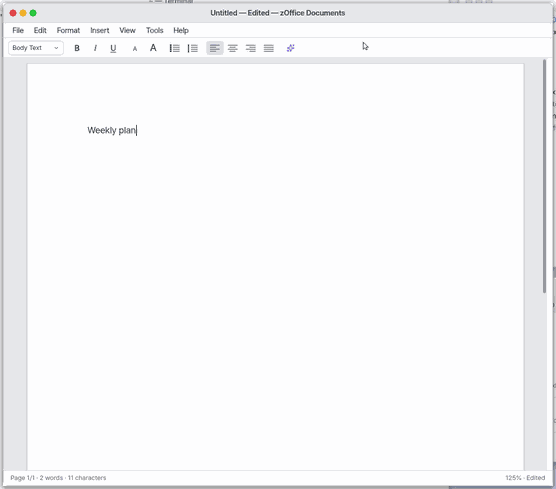
Ctrl+1makes it a heading.
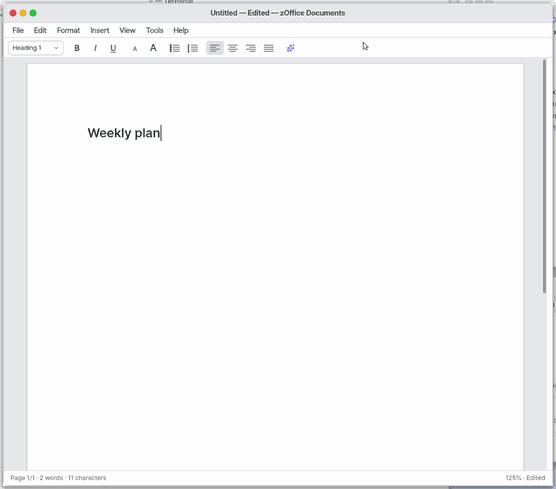
2. Bold text
- Press
Ctrl+Band type.
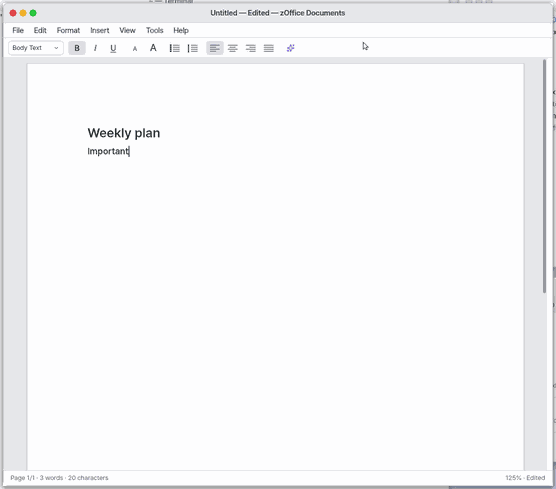
3. Find
Ctrl+Fopens the find bar; type the word.
Shortcuts
| Keys | Action |
|---|---|
Ctrl+N / Ctrl+O | New / Open |
Ctrl+S / Shift+Ctrl+S | Save / Save As (the extension picks .docx, .hwp, .hwpx, .txt or .md) |
Ctrl+Z / Shift+Ctrl+Z | Undo / Redo |
Ctrl+B / Ctrl+I / Ctrl+U | Bold / Italic / Underline |
Ctrl+] / Ctrl+[ | Bigger / smaller text |
Ctrl+0 / Ctrl+1–Ctrl+3 | Body text / Heading 1–3 |
Shift+Ctrl+L / Shift+Ctrl+N | Bulleted / numbered list |
Tab | Indent / outdent a list item (in a table: the next cell) |
Ctrl+L / Ctrl+E / Ctrl+R / Ctrl+J | Align left / center / right / justify |
Ctrl+Shift+F / Esc | Enter / leave Focus Mode |
Shift+Enter | Line break inside a paragraph |
Ctrl+Enter | Page break |
Shift+Ctrl+E | Export as PDF |
Ctrl+F / Ctrl+G / Ctrl+H | Find / find next / replace |
Shift+Ctrl+V | Paste without formatting |
Ctrl+\ | Clear formatting |
Ctrl+= / Ctrl+- | Zoom in / out (View > Fit Width to go back) |
Settings
Focus Mode
The whole screen is one sheet of paper (no menus, top bar or dock), a centred column of about 68 characters, large type. Enter: View → Focus Mode, Ctrl+Shift+F, the tool bar's last button, File → New Document in Focus Mode. Leave: Esc, or "Exit" in the faint strip at the very top (tap the top on a phone). The shortcut hints show for the first 3 seconds only. Autosave as always; an app closed in Focus Mode opens in it again. Settings (all off by default): Focus Mode paper (white / warm), dim all but the sentence, typewriter scrolling and word count.
On a phone: the File menu
A phone has no menu bar at the top, so file work goes the way phone apps do it. The file's name sits in the middle of the top bar with its save state under it ("Saved ✓ 3s ago"); tap the name to rename the file. The "⋯" button at the right brings a menu up from the bottom.
What to do now: tap "⋯".
- New · Open… (recent files, then "Browse Documents…"; the Open window lists only what Documents opens: .docx, .hwpx, .hwp, .odt, .md, .txt, .rtf and folders) · Rename · Duplicate (makes a copy and opens it) · Save
- Save in Another Format — makes a copy in Documents; the file you are in stays as it is. Formats: Word (.docx), OpenDocument (.odt), Markdown (.md), plain text (.txt), Hangul (.hwp), Hangul (.hwpx).
- Export as PDF — makes a PDF in Documents; on NanumOS Mobile it goes straight to the phone.
- Download to Phone · Share (NanumOS Mobile) — the phone's share screen opens, or the file downloads where there is none. To print, use Print on the share screen.
- Move to Trash (bring it back from the Trash in Files) · Settings · Close
The formatting tool bar (undo, redo, bold / italic / underline, bulleted and numbered lists, heading, text size, alignment, font and colours) sits at the bottom of a phone's screen, right above the keyboard. Everything up to the list buttons is on the first screen; slide it sideways with a finger for the rest. A tap on the bullet makes the current line a list item, Enter continues the list, and Enter on an empty item ends it.
On a phone: Screen View and text size
On a phone a document opens in "Screen View": the text is wrapped again to the screen's width, the way a reading app does it, so it shows at a comfortable size (about 17 pixels) and you can write in it right away. The file's own pages stay as they are.
What to do now: tap "⋯" and look at its first two rows.
- Page View — the printed A4 page as it is. Spread two fingers to zoom in; tap twice to fit the width again. The small number at the top right is the zoom. The same row takes you back to "Screen View".
- Text Size — Small · Normal · Large · Extra Large. In Screen View a two-finger spread or pinch also moves it a step. The phone's own Larger Text setting (Accessibility) is followed too.
- The view and the text size you pick are kept on this phone (they are still there after a reload). The file does not change.
- A table wider than the screen slides sideways under a finger. Pictures shrink to the screen's width.
- While you type, the caret stays above the keyboard and the formatting tool bar sits right on top of it. There is no status line at the bottom (the save state is under the name at the top).
Technical details
Screen View body size = 17 CSS px × Text Size (85 · 100 · 120 · 145 %) × the phone's text scale (iOS -apple-system-body ÷ 17, elsewhere the root font size ÷ 16). The size most of the document's body text has is set to that, and headings grow by the same ratio. These are Settings › Apps › zOffice Documents' "On a phone: view" and "On a phone: text size". Desktop windows do not change.
What it does
zOffice Documents is the word processor. It opens, edits and saves Word documents (.docx) and also opens plain text (.txt) and Markdown (.md). A new document is saved as .docx.
When you save a .docx you opened, everything you did not change — styles, headers, pictures, untouched paragraphs and tables — is written back byte for byte as it was; only the paragraphs you edited are written anew.
Hangul documents (.hwpx, .hwp)
A .hwpx opens, edits and saves like a Word document: paragraphs, tables, pictures, headers and settings you did not change are written back byte for byte, and only edited paragraphs are written anew. An edited paragraph keeps its fonts and colours; bold, size and the like add a new character shape copied from the original one.
A .hwp (Hangul 5.0) also opens, edits and saves as a .hwp: paragraphs, tables, pictures and settings you did not change are written back byte for byte; an edited paragraph is written anew with its character and paragraph shapes and the objects in it kept in place. Save As offers .hwp, .hwpx and .docx. A distribution (read-only) document is read, never saved. Password-protected and Hangul 97 documents are refused with a message. A .hwp too big for the editor to hold whole (thousands of pictures, say) is not saved as .hwp, so its end is never lost.
Changing the document's structure — putting in or removing a table — makes the .hwp be built anew (text, headings, lists, pictures, header, footer and footnotes stay). Then the original tables' look (borders, cell colours) and merged cells are not kept: tables are drawn again as plain cells. Editing the text inside a text box or drawing also builds the file anew, and that object becomes ordinary paragraphs.
What is read: the text (Korean, Hanja, emoji), bold / italic / underline / size, alignment, headings from the "개요" / "제목" (Outline / Heading) styles, bulleted and numbered lists, tables (a merged cell sits at its first cell), pictures, text-box text, paper and margins, the header and footer (grey, in the page's top and bottom margins), footnotes and endnotes (under the text, below a short rule). Equations are not shown yet (they are kept when saved).
A header or footer you change from the menu goes only into a .docx. Saving as .hwp or .hwpx keeps the file's own header and footer, and the app says so when it saves.
In Files, double-clicking a .hwp or .hwpx opens it here, and Space (Quick Look) shows the document's text at once.
This product was developed with reference to Hancom's published Hangul document file (.hwp) format. (본 제품은 한글과컴퓨터의 한/글 문서 파일(.hwp) 공개 문서를 참고하여 개발하였습니다.)
OpenDocument (.odt)
A .odt (LibreOffice, Google Docs) opens, edits and saves as .odt too (double-click it in Files, or File › Open). Headings, paragraphs, lists and their levels, bold / italic / underline, size, colour, alignment, line spacing, tables, pictures, footnotes, the paper size and margins and the header / footer text are read. Saving writes the .odt anew, so unlike a .docx the parts you did not touch are not kept byte for byte, and what this app does not read (comments, tracked changes, drawings, computed fields) is left out. To keep the original as it is, use Save As and pick .docx.
Now try: double-click a .odt in Files.
The window
Menus: File, Edit, Format, Insert, View, Tools. The tool bar has the paragraph style (Body, Heading 1–3), Bold, Italic, Underline, smaller / bigger text, bulleted and numbered lists, left / center / right / justified alignment, the Zeus button, the font family ("가"), the text colour (an underlined "A") and the highlighter.
The page view shows white pages on grey with the document's own paper size and margins; text flows to the next page. The header and footer (page number) show grey in the top and bottom margins.
The status bar shows the page (current/total), words, characters, zoom and Saved / Edited. File > Open Recent lists the last ten documents.
Tables
Insert > Table (2 × 2 or 3 × 3). In a cell, Tab goes to the next cell and Shift+Tab back; Tab in the last cell adds a row. With the caret in a cell, Insert > Row Above · Row Below · Column Left · Column Right · Delete Row · Delete Column · Delete Table change the table (each undone with Ctrl+Z; greyed out outside a table). Adding a column or taking out a row or column of a table from the opened file writes that table anew: its text stays, its borders, cell colours and merges become plain (Row Below alone keeps the file's look). Enter in a cell is a line break.
Try it now: in a table cell choose Insert > Column Right.
Picture size: put the cursor right next to a picture and choose Format > Picture Size 25% · 50% · 75% · 100% (of the size it was put in at; Ctrl+Z undoes it). The .docx keeps that size.
Fonts, colours, spacing
Format > Font Family (default, Sans, Serif, Mono, then every font you installed in Font Book, each name written in its own letters, in Korean when the font has a Korean name and NanumOS is in Korean), Text Colour (13), Highlight (15), Line & Paragraph Spacing (line spacing 1.0, 1.15, 1.5, 2.0; space after 0, 6, 12, 24 pt); the tool bar's 가 / A / highlighter buttons do the same. With a selection it changes the selection, without one what you type next. The colours and fonts of an opened document show and save as they were. A font you chose is saved by name (.docx w:rFonts, .odt fo:font-family) and the document opens with the same font; if that font is not installed, the text is drawn in the closest built-in family and the name stays in the file. A document holds up to 15 different fonts.
Page breaks, pictures, header and footer
Ctrl+Enter (Insert > Page Break) starts the next page at the caret. Insert > Take Photo… (the camera on the tool bar) takes a photo with the camera and puts it at the caret. Insert > Picture… puts a PNG or JPEG from Files at the caret (made smaller when wider than the text) — the chooser opens first in the 「Camera」 folder where camera photos are. A photo you Copy in Photo Booth or Photos pastes with Ctrl+V. Insert > Header… / Footer… ask for the text at the top / bottom of every page; Insert > Page Numbers turns page numbers in the footer on and off. All of it is saved in the .docx the way Word writes it.
Put a photo in
Put the caret where the photo should go and press the camera button on the tool bar (or Insert > Take Photo…): the camera turns on at once (it asks to Allow only the first time). The big round button or Space takes the photo at once and it lands at the caret. The photo also stays in Photos under 「Camera」 (in Files: Pictures > Camera). A photo you Copy in Photo Booth or Photos goes in as a picture with Ctrl+V. Saved, it is an ordinary picture Word shows too.
Export as PDF
File > Export as PDF… (Shift+Ctrl+E) asks for a name and writes the document as a PDF. The fonts it uses (ZeusSans, mono) are embedded, so it looks the same everywhere, and its text — Korean too — can be copied and searched. Headings, bold / italic / underline, colours, highlights, lists, tables with borders, pictures, page numbers, header and footer go in. The .docx stays as it is.
Previous versions
File › Previous Versions… shows this document's earlier saves, newest first. Pick one to see its words beside the document now (the program that opens documents runs apart and reads only the text); Restore This Version puts it back and opens it again, and what was there is kept as a new version. What the assistant changed in a document can also be undone by saying "undo that" — see Restore points and previous versions.
Editing keeps links and tables
Links, bookmarks, fields (page number, date, table of contents), comment ranges and tracked changes stay when you edit their paragraph; typing inside a link's text makes link text. Row Below on a table of the opened file copies the row above's look (cell shading, widths, merges across, row height).
The program that opens files runs on its own
A file you receive may be damaged or made to cause harm. So reading and saving .docx, .hwp, .hwpx and .odt files is done by a small program of its own (oodoc), outside the document window and the system. Think of opening a parcel on a bench outside the front door instead of in the living room. The program has a fixed amount of memory and can write in one temporary folder only. The document window checks everything it gets back before using it. If a file makes the program stop, the window says "the document reader stopped on this file", and the open document and other apps stay as they were. What to do now: nothing. If you open a strange file, check that this message appears.
Technical details
The command is u -m N -w /tmp/oodoc oodoc read|text|save …, where N comes from the file's size. The result is a ZDM (a flat document model). The window checks its sizes, paragraphs, text and picture numbers (user/office/zdm.c). The design is in docs/APP-ISOLATION.md.
Find and replace
Ctrl+F opens the find bar, Ctrl+H the replace bar: Next, Replace, Replace All. Latin letters match regardless of case. Replace All is one undo step.
Korean
Hangul input (2-beolsik, Shift+Space or right Alt) works in the page and in every field (find, replace, file names). Lines break at spaces first, between syllables only when a word is longer than the line, and never start with a full stop, comma or closing bracket. Words are counted by spaces, as Word counts Korean. File names can be Korean (보고서.docx).
Zeus writing help
Tools > Summarize with Zeus summarizes the whole document (you can insert it at the top); Tools > Polish with Zeus rewrites the selection (or the paragraph at the caret) and offers to replace it. The first time it asks "Send to Zeus?" — nothing leaves the document until you allow it; it is off by default and Settings turns it off again. Esc stops a wait. Not available on the phone version (lite) yet.
The screen keeps working while Zeus writes: the card shows "AI is summarizing… N s", and Cancel (or Esc) stops it. A summary or a polish is one short request for just that task, run as a small job in the background (not the assistant's long chat set-up, no tools), so you can use other windows meanwhile. With no answer in 60 seconds, or an error, it says so in plain words with Try again. The same text again shows the answer it already has (kept in memory until restart, never written to the disk).
Overview
A word processor that opens, edits and saves Word files (.docx).
Try this
1. Write
- Type on the empty page.
Ctrl+1makes it a heading.
2. Bold text
- Press
Ctrl+Band type.
3. Find
Ctrl+Fopens the find bar; type the word.
What it cannot do
Printing to a printer, spell check, editing footnotes, dragging a picture to resize or crop it. Hangul documents: a changed header / footer is not written to .hwp / .hwpx (only to .docx); changing a table's structure loses a .hwp's table look (borders, cell colours) and merged cells; editing text in a text box turns that box into plain paragraphs. A .hwp / .hwpx we wrote has not yet been opened in Hancom Office Hangul itself (checked with other readers, olefile and pyhwp, and with the preview text Hancom stores). Links and fields are kept but cannot be made. Serif shows as sans (there is no serif Korean face on this computer) and goes into the PDF as sans (the saved .docx names the serif font). It has never been opened in Microsoft Word itself (checked with LibreOffice).
Copy keeps the look, Clear Formatting
Text you copy in a document and paste into a document (Ctrl+V) keeps its bold, italic, underline, size, colour, highlight and font family, and one Ctrl+Z takes the whole paste back. Shift+Ctrl+V (Edit > Paste without Formatting) pastes the same text plain, in the look of the text around the caret. Text copied in another app comes in plain. Ctrl+\ (Format > Clear Formatting) takes bold, italic, underline, size, colour, highlight and font off the selected text (or off what you type next when nothing is selected); headings, lists and alignment of the paragraph stay.
NanumOS 0.1.8349 · 2026-11-16