Messenger
Status: In trial
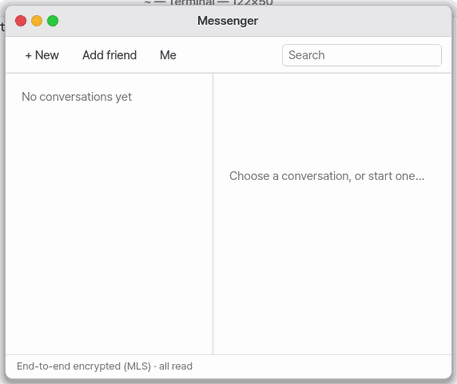
End-to-end encrypted conversations between the people of this computer.
About this app
Messenger lets the people who use this NanumOS send each other text, files and voice files, one to one or in a group. 「Me (notes to self)」 keeps notes for yourself. It has read marks, reactions (👍 ❤️ 😂), edits, deletes and safety numbers. It also connects friends on another NanumOS with one invite (it finds a way: the same network → Wire → a relay). Calls still work inside one computer only.
At a glance
In one line: Send encrypted messages and files to people on this computer and to friends.
The screen
- Chat list: "Note to self" and your chats
- "+ New chat"
Ctrl+N: pick people and open a chat - Input box: type and press Enter (clip button for files)
- "Add friend": invite friends by QR or invite link
Task 1. Send a note to myself
- Press "Note to self"
- Type in the input box
- Press Enter
Say: "Open the Messenger"
Task 2. Make an invite link
- Press "Add friend"
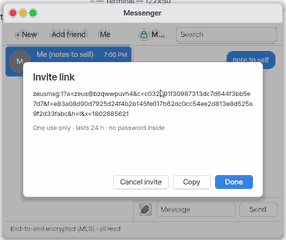
- Press "Make invite link"
- Press "Copy" and hand it to your friend
Say: "Make a friend invite link in Messenger"
Task 3. Show a QR
- Press "Add friend"
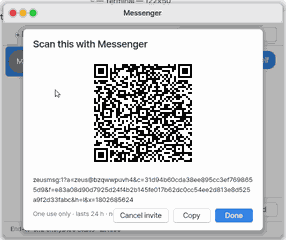
- Press "Show QR"
- Your friend reads it with "Scan QR"
Say: "Show my Messenger chat list"
Basics
A message is locked the moment it is sent, with a lock only the people in the conversation can open. Think of an envelope whose key only the receiver holds. So nobody else can read it while it moves inside the computer or after it is saved on the disk. Adding a friend never uploads an address book: people join only with your invite (a QR code or a link). What to do now: tap 「Me (notes to self)」 and send yourself a note.
How to use it
- Tap 「+ New conversation」 (
Ctrl+N) and pick people on this computer: one for a 1:1, several for a group. - Type in the field at the bottom and press Enter (or 「Send」). The clip button attaches a file (up to 512 KB).
- Tap a bubble for the reaction, edit and delete buttons.
- For a distant friend, choose 「Add a friend」 › [Make invite link] and send it with any messenger. [Scan a QR] uses this device's camera; [Show QR for a phone] displays a code for the other person's phone. Paste a link you received below and tap 「Join」.
- Devices found on the same network or Wire appear below. Pressing a device card copies an invite link; send the link to that device to start adding the friend. A device name alone cannot identify a Messenger account.
- Tap 「Safety number」 above a conversation and compare the 60 digits with the other person: the same numbers mean nobody is in between.
Try it yourself
Try it yourself: in 「Add a friend」 › 「Make invite link」 make a link, then tap 「Cancel invite」 so that link can no longer be used.
How it works
- Each conversation is locked with MLS, the open standard RFC 9420. It is not a new cipher of ours: it is a widely used public implementation (mls-rs).
- To someone on this computer, the system puts the envelope into their inbox and writes the sender's name itself (a name the message claims is never trusted).
- To a friend on another NanumOS, a courier program (zlink) carries it. Think of a letter already locked (MLS) put into a second envelope only that computer can open. It tries ① the same network ② Wire ③ a relay mailbox; if the friend is off, it waits on your computer (or sealed in the relay mailbox, at most 7 days) and arrives in order. A relay sees only the outside of the envelope (which computer to which, size, time) — never the words, the names or the invite code. The courier's device key is stored in a locked box that only the system can open; someone with the whole disk can still recover it.
- Messenger on a phone (the mobile page, the iPhone app) has the same courier inside the page. Sealing, opening and the key stay on the phone (this browser's storage); a phone cannot use the same network or Wire, so it always uses a relay mailbox. The page's server only carries already-sealed envelopes to the relay and cannot read them. Offline, what you send waits on the phone, sealed, and goes out in order when you are back online.
- If you have a Vault, the key that opens your store moves into it. After that Messenger opens only while the Vault is open.
- An invite link has no password inside. It works once, and is refused after it expires (24 hours by default) or is cancelled. It carries your key's fingerprint, so someone pretending to be you gets 「The security key does not match — not opened」.
- The assistant can use Messenger too: listing and reading right away, sending and inviting only with your [Allow] card each time.
What this app takes
- Takes: nothing. Only when you talk with a friend on another NanumOS does what you send go, sealed, to that computer (through a relay only if one is turned on).
- Does not take: your address book, your messages, your location, your usage. It uses no server of ours.
- Where it goes: the other person's inbox on this computer, or a friend's NanumOS (same network, Wire, or a relay mailbox). Never through a server of ours (the public relay only if you choose it).
- How long: conversations stay locked in your home folder until you delete them. The camera is on only while the 「Scan QR」 sheet is open, and no picture is saved.
- How to turn it off: close the app. Take back the camera permission in Settings › Security › Permissions. Turn off message text in banners in Messenger's settings.
FAQ
Can I talk with a friend on another computer?
Yes, if they use NanumOS too. Put in their invite (link or QR): Messenger uses the ways it names (same network, Wire, a relay). If they are off, a message waits — 「it goes out when they can be reached」 — and arrives in order. From a phone too (the mobile page). A phone reaches others only through a relay mailbox, so the desktop uses our public relay's locked mailbox by itself (nothing to set; the relay cannot read it; a build without our public relay needs a relay turned on in Settings › Sharing) and looks every second — a phone's message usually arrives within 3 seconds.
Can I call a friend on another computer?
Yes, if they use NanumOS too. Open the conversation and press Call at the top. Their screen shows 「NanumOS call」 over everything and rings (Answer or Decline; Enter or Esc). During the call you see the time and the path (same network, Wire, relay), and Mute, Speaker, Hang up. Afterwards the conversation has 「Call 1:02」, or 「Missed call」 if nobody answered, and Phone › Recents lists it. The sound is locked with keys only the two computers know; a relay passes it on without hearing it. On networks that cannot reach each other directly, a relay (TURN) line is needed; without one the call says 「This network cannot carry calls yet (messages work)」.
It says they have not signed in since Messenger came
Once they sign in, their public key is ready. Start the conversation again after that.
A warning says their key changed
Their key is not the one first seen. They may have made a new account; compare the safety number again in person or on a call.
It says Messenger's key is in my Vault
The key moved into your Vault and the Vault is locked. Open the Vault (sign in) and Messenger opens again.
Try this
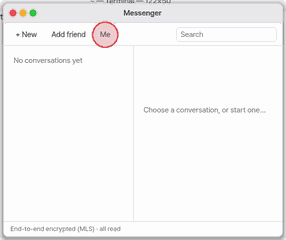
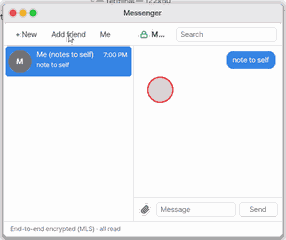
1. Send yourself a note
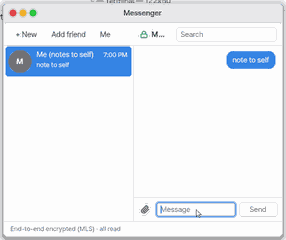
- Tap 「Me (notes to self)」.
- Type and press Enter: the bubble appears at the right.
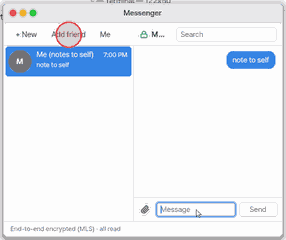
2. Make an invite link
- Tap 「Add a friend」.
- Tap 「Make invite link」.
- A one-time link appears. 「Copy」 it to your friend.
3. Show your QR
- 「Add a friend」 › 「Show QR」 shows the code your friend reads with 「Scan QR」.
Shortcuts
Ctrl+N: new conversation · Ctrl+F: find a conversation · Enter: send · Esc: close a sheet or choice · Ctrl+,: settings · Ctrl+W: close.
Settings
Settings › Apps › Messenger: 「Show text in banners」 (on) · 「Invite lasts (hours)」 (24, 1 to 168) · 「Enter sends」 (on).
What it cannot do
Group calls, video calls, calls between NanumOS and the web phone (the iPhone app, the Mac web window) and inviting Zeus into a conversation are not here yet. There is no echo canceller: on a speaker the other side may hear itself back (use earphones). Files up to 512 KB.
NanumOS 0.1.8349 · 2026-11-16