Calendar
Status: Ready
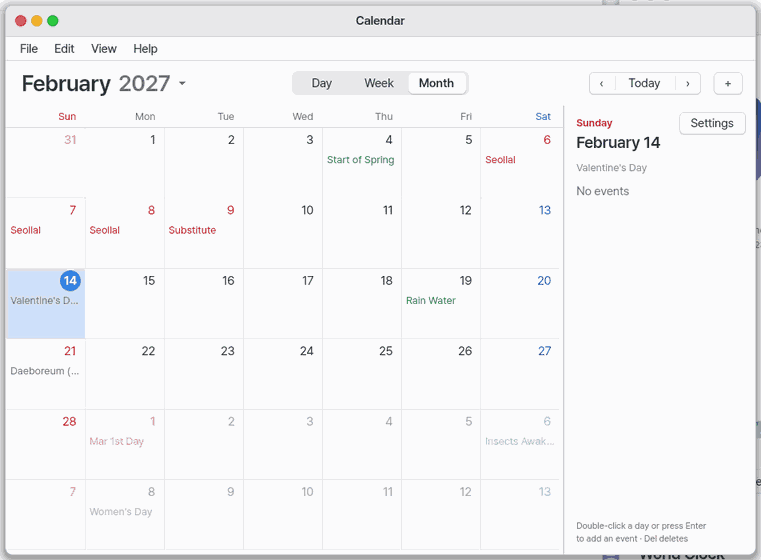
See a month, a week or a day and write your events with their times.
About this app
A calendar for viewing a month, a week or a day and writing events with their times.
At a glance
In one line: See a month, a week or a day, and write events with their times.
The screen
- View buttons on top: Day, Week, Month, Year
- +: adds a new event
- < >: previous and next month (day or week in those views)
- "Today": goes back to today
Task 1. Add an event
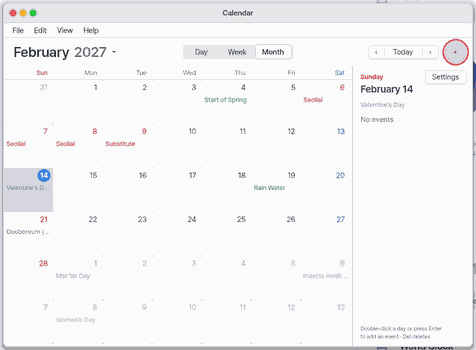
- Press +
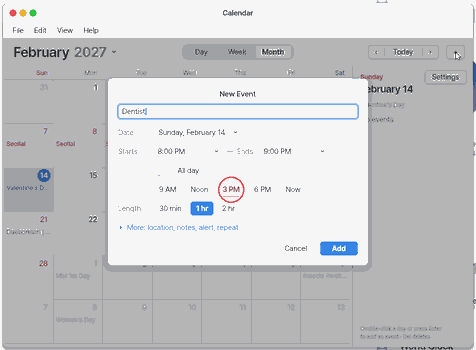
- Type the title
- Press a time button like "3 pm"
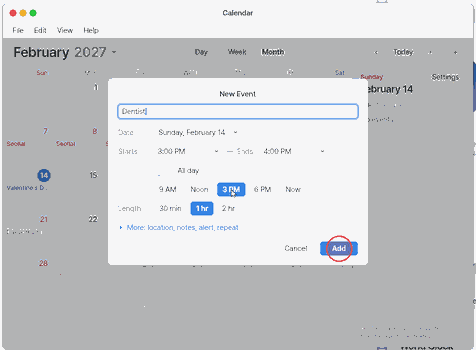
- Press "Add"
Say: "Put a dentist event at 3 pm tomorrow"
Task 2. See another month
- Press >
- Press "Today" to come back
Say: "Show me next month on the calendar"
Task 3. Move a time
- Press "Day"
- Drag the event to a new time
Say: "Show today on the calendar"
Basics
A calendar event is a small record: a date, a start and end time and a title. There is a standard file format for exchanging events (iCalendar, .ics), so calendars that follow it can pass events around. Want more? Press ⚡ and choose 「Teach me」.
How to use it
- Press
+, type a title and time, then Add. - Put a time before the title (for example
15:00 lunch) and the start time follows. - In Day or Week view drag an event to move its time. Today returns you to today.
- Drag to create: in Day or Week view press on an empty hour and drag down over the hours you want; let go and the new-event sheet opens with that start and end.
- Year view:
Ctrl+4(or "Year") shows twelve small months with a dot under every day that has an event and the holidays in red. Click a day to select it, double-click to open it in Day view, click a month's name to open that month. - Calendars and colours: right-click an event > "Calendar: Work / Family / Birthdays" gives it that calendar (a colour: Home blue, Work green, Family orange, Birthdays purple). View > "Show Work" ... hides or shows a whole calendar (also in Settings).
- Find: the "Find" button (or
Ctrl+F, Edit > Find Events) searches titles, places and notes; the matches are listed by date in the side panel, click one to go to its day,Escleaves the search. - Other calendars: File > "Export Calendar (.ics)..." writes
calendar.ics(open it in Apple Calendar or Google Calendar); File > "Import Calendar (.ics)..." reads one (times as written in the file, no time-zone conversion; importing the same file twice adds nothing).
Try it yourself
Try it: create an event titled “3pm dentist”, then drag its time in Day view.
How it works
- Events are stored as files on this device, so they stay when the app closes.
- A time written in the title is read by the app and put in the start field.
- Day and Week views draw the same list of events laid out on a time grid.
- Turn on lunar dates in Settings to see them beside each date.
- Find reads the same list, case-insensitively; a repeating event is found once, on its first day.
Technical details
Zeus can add events for you too; whatever it creates can always be checked on the calendar screen and in its card.
FAQ
How do I write the time
You can write 3, 1530, 3:30 or “3 pm”.
How do I move an event
In Day or Week view drag the event. Dragging its bottom edge changes the end time.
Try this
1. Add an event
- Click
+(or double-click a day).
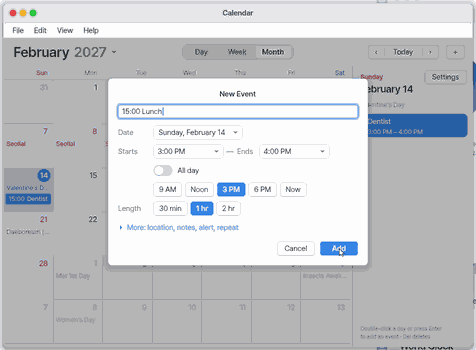
- Type a title and click a time button such as "3 PM". The end is set one hour later by itself.
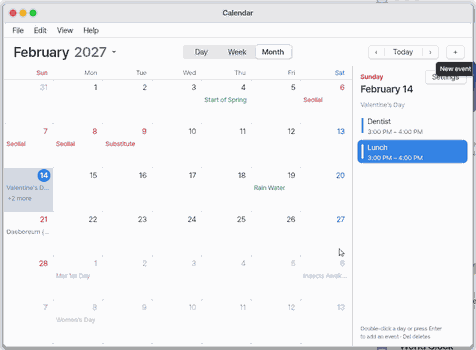
- Click "Add".
2. Type the time with the title
- Start the title with a time (for example
15:00 Lunchor "3pm Dentist") and the start time is set from it. In the start box you can also type3,1530,3:30or "3 PM".
- Press
Enterto save.
3. Make an event from an hour in the Day view
- Click "Day" to see the day hour by hour ("Week" shows seven days). Drag an event to move it; drag its bottom edge to change when it ends.
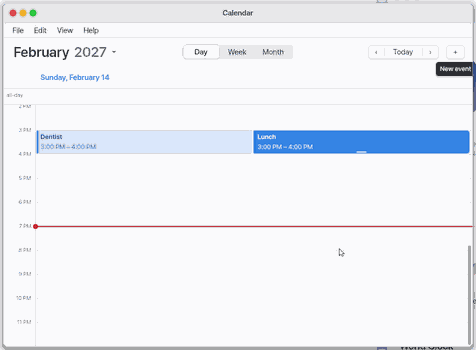
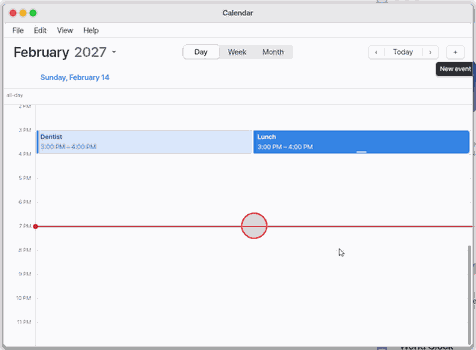
- Double-click an empty hour (one tap on a phone) and a new event opens at that time.
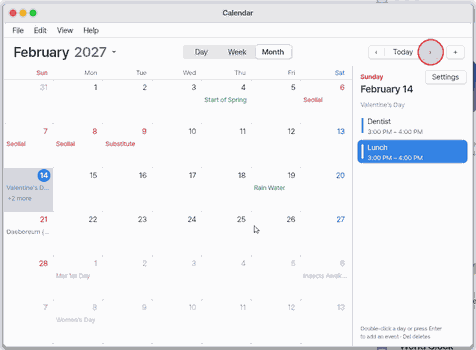
4. Go to another month
- Click
›for the next month,‹for the previous (in the Day and Week views: the next day or week).
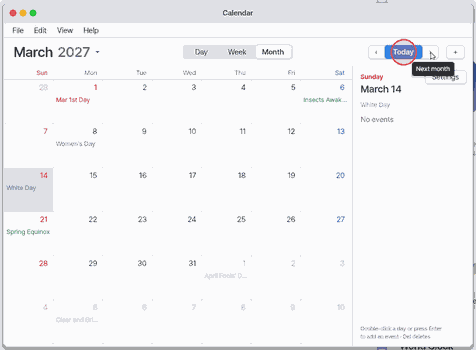
5. Back to today
- Click Today.
Shortcuts
| Key | What it does |
|---|---|
Ctrl+N | New Event… |
Ctrl+E | Edit Event… |
Del | Delete Event |
Ctrl+, | Settings… |
Ctrl+W | Close |
Ctrl+C | Copy Event |
Ctrl+1 | Day view |
Ctrl+2 | Week view |
Ctrl+3 | Month view |
Ctrl+T | Today |
PgUp | Previous Month (Day and Week views: the previous day or week) |
PgDn | Next Month (Day and Week views: the next day or week) |
Ctrl+PgUp | Previous Year |
Ctrl+PgDn | Next Year |
Ctrl+G | Go to Month… |
Ctrl+L | Show Lunar Dates (on/off, the same as the "Show lunar dates" setting) |
F1 | Calendar Help |
Home | goes to today. |
Enter | or letter A: adds an event. |
Tab | selects the next event of the day. In the event sheet: the next box (title, start, end). |
↑ ↓ | in the event sheet's start and end boxes: 15 minutes earlier or later. |
Esc | closes the event sheet without saving. |
Settings
"File > Settings…" (Ctrl+,), the "Settings…" button in the panel and the Settings app under "Apps > Calendar" all open the same sheet.
| Name | Values | Default |
|---|---|---|
| Show lunar dates | On / Off | Off |
| Show solar terms | On / Off | On |
| Show observances | On / Off | On |
| Week starts on | Sunday / Monday | Sunday |
| Holidays | Korea / None | Korea |
Chosen for each event (under "More"): location, notes, alert (none, at the time, 5 min, 10 min, 30 min, 1 hour, 1 day before; 10 minutes by default) and repeat (none, every day, week, month or year).
What it cannot do
- Events are not synced with other calendars (Google, iPhone and so on) - no account sign-in yet; only
.icsfiles go back and forth. - Changing or deleting a repeating event changes every day of it (there is no "only this day").
- A timed event cannot run past midnight; it ends that day at the latest (a several-day all-day event in an imported
.icsbecomes one line per day). - The Year view shows dots only (titles are in Month, Week and Day). The phone has no Find button yet.
- Alerts come only to the NanumOS desktop's Notification Center, not to a phone browser (lite).
- Holidays are Korean only. "None" turns holiday marks off.
- When all the events together pass a fixed size, you cannot add more.
NanumOS 0.1.8349 · 2026-11-16