Status: Ready
Read PDF documents.
About this app
PDF reads PDF documents one page at a time. You can zoom, search for text, and show page thumbnails on the side to jump around. It is a viewer only: there is no editing and no annotating.
Basics
A PDF is like a photograph of a printed sheet: it fixes where every word and picture sits and how big it is, so the pages look the same on any device. The price is that it is not meant for editing running text the way a word-processor file is. Because a PDF may come from someone you do not know, this app hands the drawing of the pages to a small, isolated helper program.
How to use it
- With no file open you see a list of recent PDFs and the sample PDFs. On a computer double-click, or select and press
Enter; on a phone tap once. Use "Open…" (Ctrl+O) for other files. Double-clicking a PDF in the Files app also opens it here. - Turn pages with the
›and‹buttons orCtrl+LeftandCtrl+Right;Ctrl+HomeandCtrl+Endjump to the first and last page.SpaceandPgDnscroll down one screen. - Change the size with the
+and-buttons orCtrl+=andCtrl+-;Ctrl+0is actual size andCtrl+9fits the width. - Type a word in the search box and press
Enter(orCtrl+F;Ctrl+Gfor the next match) to go to the page that has it. Ctrl+Tshows or hides the page thumbnails. File > Settings… (Ctrl+,) sets the starting size and whether thumbnails start on.- File > Print… (
Ctrl+P) prints. Where no printer is connected it says "No printer is connected".
Try it yourself
Open a sample PDF, type any word in the search box, press Enter, and see it jump to the page with that word.
How it works
- When you open a PDF the app first builds a list of the page's text and positions, used for the first look and for search. You see "Opening…" meanwhile.
- Then it draws the visible part of the page as a picture at the current size and swaps it in when it arrives. While you change the size, the previous picture is stretched.
- The side thumbnails are drawn as small pictures too.
- All of this runs in the background, so the window never freezes.
- The small program that draws pages has a fixed amount of memory, cannot use the internet, screen, clipboard or sound, and reads only the one open file. If a file crashes it, the other apps are unaffected.
- On builds without that program (such as the mobile web version) the page is drawn from the text list and pictures show as grey boxes. The PDF is still read on your own device and the file is not sent to a server.
Technical details
Drawing is done by pdfr running in the app box (list, render, thumbs), with FreeType for fonts (Type1, CFF, CID, TrueType). It handles curves, clipping, pictures, shadings, transparency and annotation appearances. All three jobs are background jobs.
FAQ
Pictures show as grey boxes
On builds without pdfr pictures are grey boxes. Even with it, JPEG 2000 and JBIG2 pictures (some scanned documents) show as grey boxes.
A password-protected PDF will not open
PDFs with a user password cannot be opened; you only see a notice. Files locked with an empty password open normally.
Can I select and copy text
Not yet. There is no text selection or copying, no annotating and no form filling.
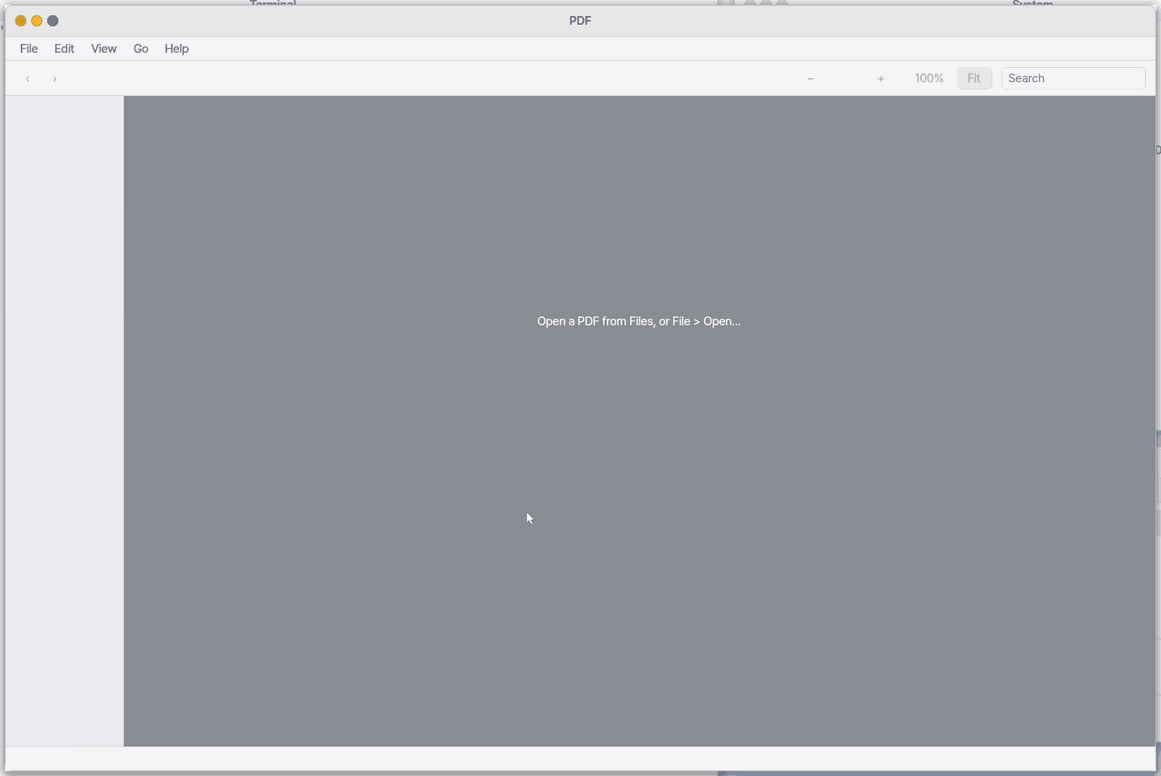
The first screen.
With no file open, the window lists the PDFs you opened recently and the sample PDFs in Documents/샘플. On the phone a tap opens one; on the desktop double-click it, or select it and press Enter. "Open…" below the list picks any other file; its window lists only PDF files and folders (other kinds, such as .docx or pictures, are not shown because this app cannot open them). On the phone (lite), with no PDF at all, the app fetches the five sample PDFs once.
Double-click a PDF in Files to open it here.
At a glance
In one line: Read PDF documents.
The screen
- The list on the first screen: recent PDFs and sample PDFs
- "Open…" under the list: pick another file
- The
›button: go to the next page - The
+button: zoom in; the search box: find words
Task 1. Open a PDF
- Pick a PDF in the list
- Double-click it
Say: "Open the PDF app"
Task 2. Turn pages
- Press
› - Look at the next page
Say: "Turn on the PDF app"
Task 3. Find words
- Type a word in the search box
- Press
Enter
Say: "Bring the PDF app to the front"
Try this
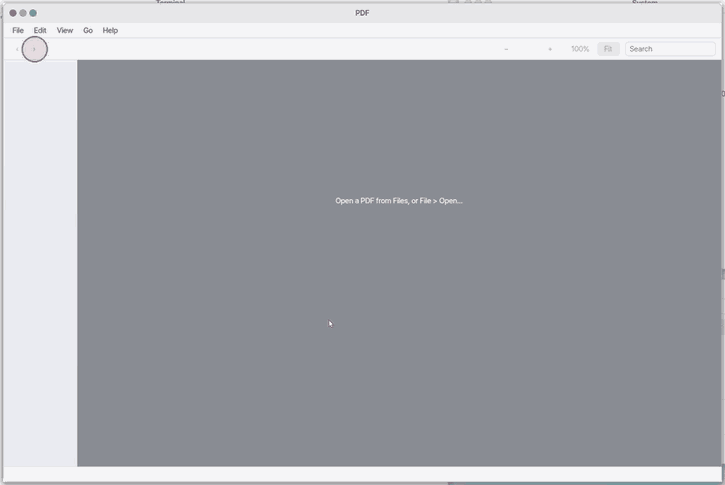
1. Turn the page
- Click
›for the next page.
2. Zoom
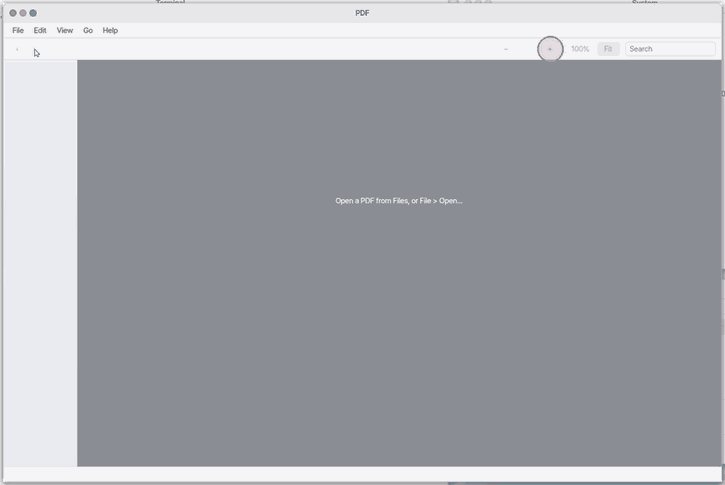
- Click
+to zoom in.
3. Find text
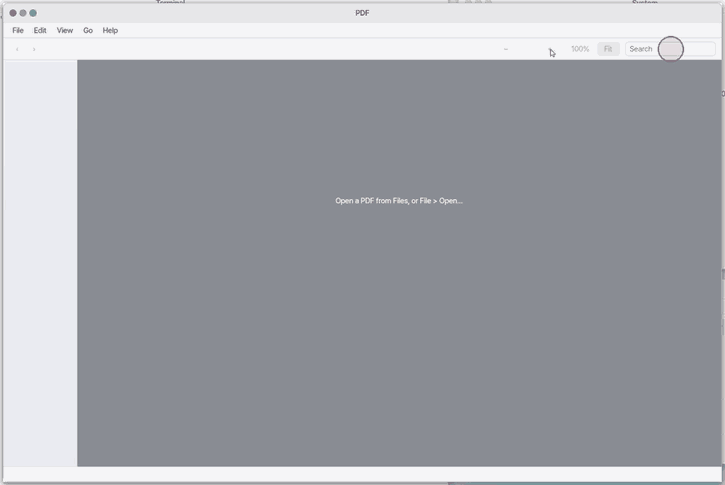
- Type a word in the find field.
Shortcuts
| Key | What it does |
|---|---|
Ctrl+O | Open… |
Ctrl+P | Print… |
Ctrl+W | Close |
Ctrl+C | Copy Path |
Ctrl+F | Find… |
Ctrl+G | Find Next |
Ctrl+= | Zoom In |
Ctrl+- | Zoom Out |
Ctrl+0 | Actual Size |
Ctrl+9 | Fit Width |
Ctrl+T | Thumbnails |
Ctrl+Left | Previous Page |
Ctrl+Right | Next Page |
Ctrl+Home | First Page |
Ctrl+End | Last Page |
F1 | PDF Help |
Space or PgDn | down one screen. PgUp: up one screen. |
Settings
PDF settings open from File > Settings… (Ctrl+,).
- Show page thumbnails — whether the thumbnail column on the left starts on.
- Starting size — Fit width, 100%, 125%, 150%. A file whose size you have changed opens at its own size.
File > Open Recent lists the PDFs you opened lately. The Edit menu has undo, redo, cut, copy, paste and select all for the search field (with no search text, Copy copies the file path).
Printing
How it works
A PDF can come from anyone. So the pages are drawn by a small separate program, pdfr, outside the PDF window — like a reader inside a glass box. It has a fixed amount of memory, cannot use the network, the screen, the clipboard or sound, reads only this one PDF and writes only one temporary folder (/tmp/pdfr). If a file makes it stop, the PDF window and your other apps carry on.
- On opening,
pdfrmakes the list of the text (for search and the first look). You see "Opening…". - It draws the part of the page you see at the size you see it (curves, clipping, pictures, gradients, transparency, every kind of font). Until the picture arrives you see the text list; while you zoom, the last picture is stretched.
- The thumbnails are drawn as small pictures too.
All of it runs in the background, so the window never freezes.
What it cannot do
- JPEG 2000 (JPX) and JBIG2 pictures show as grey boxes (some scanned documents).
- A PDF with a user password cannot be opened; you get a message. One locked with an empty password opens.
- Search ignores upper and lower case for the English alphabet only.
- Outside the Mac app there is no printer to print on.
- There is no annotating, form filling, or selecting and copying text.
- On a phone (Mobile) the pages are still drawn from the text list (pictures as grey boxes).
On mobile too
You can read PDFs on 「Mobile」 in a phone's browser too. It is on the second home page.
- Press 'Open' at the top to see the Documents folder. Tapping a PDF in Files opens it as well (also a PDF exported from zOffice Documents).
- Swipe sideways for the next or previous page. Spread two fingers to zoom in; a double tap goes back.
- Type a word in the 'Search' field and press Enter to go to the page that has it.
- The PDF is read on the phone itself. The file does not go to a server.
NanumOS 0.1.8349 · 2026-11-16