Phone Mirror
Status: In trialDesktop only
Your Android phone's screen in a window, used from here (Lab).
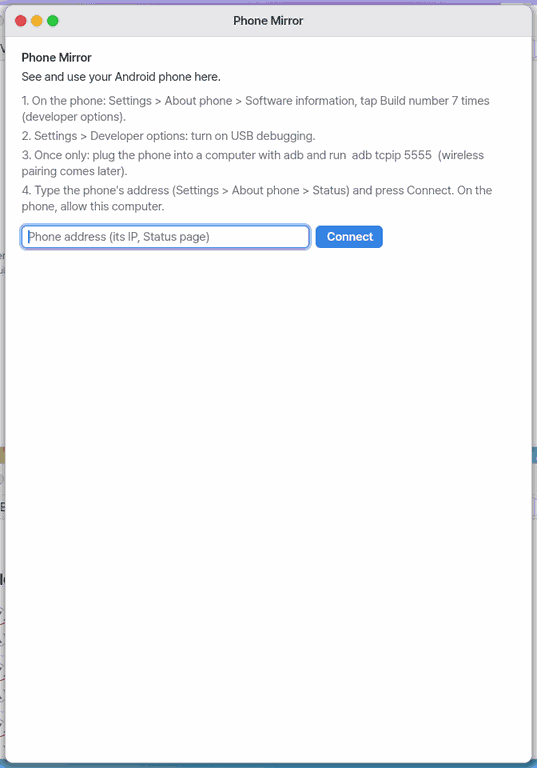
About this app
This app is still being tested (Lab stage). It shows an Android phone's screen in a window on your computer and lets you control the phone by clicking and dragging inside it. Not there yet: connecting with a wireless-debugging pairing code (the first time still needs adb tcpip 5555) and iPhone control. It exists only in the desktop edition, not on mobile (lite), because a browser cannot connect to a phone's adb.
Basics
A phone has a hidden feature called Developer options that lets a computer talk to it over USB or Wi-Fi and receive its screen. That channel is called adb. Think of it as issuing a one-time pass that says "this computer may come in". With the pass, the computer receives the phone's screen as video and passes your clicks and drags on to the phone. You only prepare it once.
How to use it
- Once only, on the phone go to Settings > About phone > Software information, tap Build number seven times, then turn on USB debugging in Developer options.
- Plug the phone by USB into a computer that has adb and run
adb tcpip 5555once. - Type the phone's IP address in the phone address box and press Connect. On the phone, in the "Allow USB debugging" window, choose "Always allow" and then Allow.
- Click, drag and scroll the phone's picture in the window and the phone responds as if touched. Over the picture,
Escis the phone's Back, andEnter,Backspaceand the arrows are the phone's same keys. - The bar on top has Back, Home, Recents, volume and saving the screen. Text typed in the line under the picture (Korean too) goes into the phone's text field when you press Send.
- Press Disconnect when you are done. What to do when it does not connect is written at the bottom of the first screen.
Try it yourself
After connecting, tap the phone's search box, type a short line in the text line below the picture, and press Send.
How it works
- This computer connects straight to the phone's adb over the network. It uses a key that belongs only to this computer; if you delete the key, the phone asks for permission again.
- A small screen-sending program is copied to the phone for the session and removed afterwards. No app is installed on the phone.
- The received video and sound are decoded and drawn in the window. Your clicks, drags and wheel in the window are turned into touches on the phone.
- Korean text is sent by placing it on the phone's clipboard and pasting.
- When a call starts on the phone, mirroring ends. The call state is only read.
Technical details
The screen-sending program is scrcpy-server 5.0.1 (Apache-2.0), run from /data/local/tmp on the phone. Video is decoded as H.264 (OpenH264) and sound as AAC. Commands are written one per line to /tmp/phonemirror/cmd and the state comes back from the same folder once a second. When the assistant operates the phone it needs one approval per session and a banner "The assistant is operating the phone" with Stop is shown meanwhile.
FAQ
It will not connect
Check that the phone and the computer are on the same network, that the phone address is right, and that you ran adb tcpip 5555. After the phone restarts you may need to run it again. The "When it does not connect" notes at the bottom of the first screen help too.
Does it work with an iPhone
No. This app supports Android phones only.
Does it install anything on my phone
No. The screen-sending program sits in a temporary folder during the session and is removed afterwards.
At a glance
In one line: Show an Android phone's screen in a window and use it from here (lab app).
The screen
- The "phone address" box and [Connect]: type the phone's IP address and connect
- The phone screen in the middle: press and drag to use the phone
- The text box below and [Send]: what you type goes into the phone's input field
- [Disconnect] on the top bar: ends the connection
Task 1. Prepare the phone (first time only)
- On the phone, press 'Build number' seven times
- Turn on 'USB debugging' in Developer options
- Run
adb tcpip 5555once
Say: "Open the Phone Mirroring app"
Task 2. Connect
- Type the IP address in the 'phone address' box
- Press [Connect]
- On the phone, choose 'Always allow', then Allow
Say: "What is Phone Mirroring for?"
Task 3. Use the phone
- Press the phone screen in the window
- Type below and press [Send]
- Press [Disconnect] when done
Say: "Turn on Phone Mirroring"
Try this
1. Get the phone ready (once)
- On the phone: Settings › About phone › Software information, tap Build number seven times, then turn on USB debugging in Developer options. Plug it into a computer with adb and run
adb tcpip 5555once.
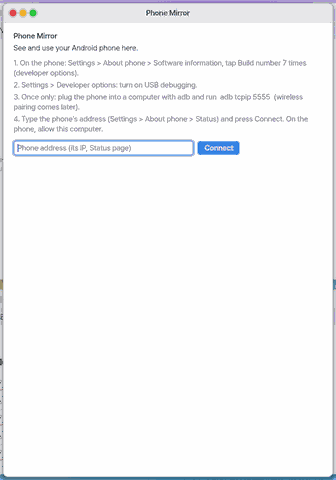
2. Connect
- Type the phone's IP address (Settings › About phone › Status) in the address box and press Connect. On the phone, choose "Always allow" and Allow.
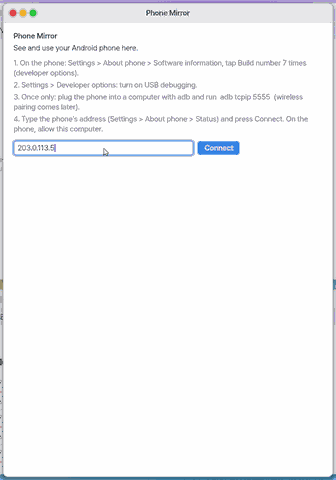
3. Use the phone
- Tap and drag on the phone's picture to touch the phone. Type text (Korean too) in the line below and press Send to put it in the phone's text field. Disconnect in the bar ends it.
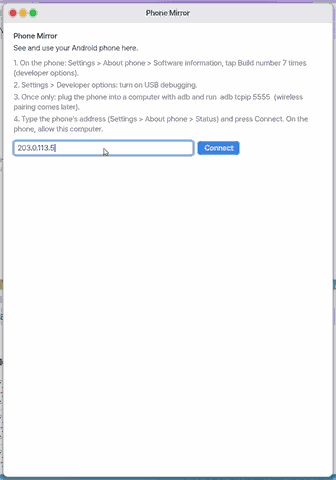
Shortcuts
| Key | What it does |
|---|---|
| Esc (on the phone picture) | the phone's Back |
| Enter · Backspace · arrows | the same keys on the phone |
| Ctrl+W | close the window (ends the connection) |
| Ctrl+, | this app's settings |
Settings
Ctrl+, opens the settings (Settings › Apps › Phone Mirror): "Remember the phone's address" (On by default) and "Show the text line under the picture" (On by default).
The menu bar: File (Connect, Disconnect, Save Phone Screenshot, Close), Edit (Undo, Cut, Copy, Paste, Select All) and Phone (Back, Home, Recents, Volume Up and Down). The first page, before you connect, scrolls with the wheel when it is long; its bottom part says what to do when it does not connect.
Delete the key and the phone asks again.
What it cannot do
- Connect with a wireless-debugging pairing code (next version) — for now
adb tcpip 5555once is needed. - iPhone — there is no way to control an iPhone from another device. A view-only path is designed.
- The mobile (lite) version — a browser cannot reach the phone's adb.
- While a ZBrowser window is open, mirroring starts after it is closed.
How it works (technical)
NanumOS connects straight to the phone's adb over TCP (an RSA key of its own), copies a small screen sender (scrcpy-server 5.0.1, Apache-2.0) to the phone's /data/local/tmp, runs it and deletes it at the end. H.264 video is decoded with OpenH264, AAC sound with NanumOS' AAC decoder. Korean goes through the phone's clipboard and paste. Every 5 s it reads the call state (read only) and disconnects during a call.
NanumOS 0.1.8349 · 2026-11-16