Remote Desktop
Status: In trial
Use another computer's screen in a window, or share this one.
About this app
This app is still being tested (Lab stage). It lets you see and use another computer's screen in a window, or hand this computer's screen to another device. For now VNC-style connections and similar work; RDP does not. Automatically finding other NanumOS machines on the same network is not complete either, so when a machine is not listed you type its address. It is not available in the phone (mobile) edition, only on NanumOS itself.
Basics
Remote desktop receives a distant computer's screen like a video and sends your mouse and keyboard input to it, so you can use it as if you were sitting in front of it. Think of it as a very long remote control. The VNC method this app uses is an old, simple standard that exchanges only screen pictures and input. The side that views is the "connecting device" and the side that gives its screen is the "sharing device"; this one app does both jobs.
How to use it
- The app has two sides:
Ctrl+1"Go into another device" andCtrl+2"Come into this device". - On the going-in side the list fills with devices found nearby, your servers and recent connections. "View screen" on a row (or
Enter) connects; "Terminal" (Ctrl+T) opens a text session. - If it is not listed, type the address in "Connect by address…" (or "+ Add a device",
Ctrl+N). Name, port and kind are in the folded "More". - If it asks for a password or access code, type it in that one window; if it is wrong, try again in the same window.
- Once connected, the top bar has Disconnect, full screen (
F11), scale (fit or actual size) and clipboard; type Korean with this computer's Han/Eng key. - To give your own screen, open
Ctrl+2and tell the other person the address and the access code (or show the QR). The "Allow remote desktop" switch turns sharing off and on.
Try it yourself
Open Ctrl+2, read this computer's address and access code, connect to it from another device, then press Disconnect in this window.
How it works
- The viewing side receives only the parts of the other screen that changed and draws them in the window, and sends your mouse and key input. The clipboard travels both ways.
- Passwords are taken from the Vault and are never drawn on screen, logged or written to a file. A password typed while connecting is used only in that window unless you turn on "Remember password on this computer".
- When sharing is on a server runs. Until you set a password, only a one-time access code that changes after use lets people in. It accepts only private addresses such as the same network or Wire, refuses internet addresses, and blocks an address for 5 minutes after 5 wrong tries.
- Errors come as fixed plain sentences such as "Cannot reach the address" or "Wrong password"; technical wording goes only to the log.
Technical details
The protocol is RFB (VNC); the client is src/gui/rfbc.c and the server rfbs.c. The server port is 5900, and its login is the VNC password scheme (DES) with no TLS encryption, which is why only private addresses are accepted. Korean text travels through the extended clipboard; with a peer that lacks it only Latin text is sent or the text is typed in. The app reads and writes the same single state as Settings > Sharing.
FAQ
It says "Cannot reach the address"
Check that the address and port (usually 5900) are right, that the other side's screen sharing is on, and that you are on the same network.
Can I connect from outside my home network
The sharing server does not accept internet addresses. From outside, go through a computer on the same network that you can reach by ssh.
Where do I see the access code
On the Ctrl+2 "Come into this device" screen. It changes after one use. For a password that does not change, press "Set password…" (6 characters or more).
At a glance
In one line: An app that uses another computer's screen in a window, or lends this screen to another device.
The screen
- "Go into another device" (
Ctrl+1): the places found automatically, with "View screen" and "Terminal" - "Come into this device" (
Ctrl+2): this computer's address, access code and QR - "Connect by address...": connects to a place not in the list
Task 1. Go into another device
- Press
Ctrl+1 - Press "View screen" on a place that appears
Say: "Connect me to see another computer's screen"
Task 2. Let others come in
- Press
Ctrl+2 - Look at the address and access code
Say: "Tell me the remote access status"
Task 3. Go in by terminal
- Press
Ctrl+1 - Press "Terminal" on the line
Say: "Let me into it with a terminal"
Try this
1. Go into another device
- In "Go into another device" press View Screen on a row that showed up by itself.
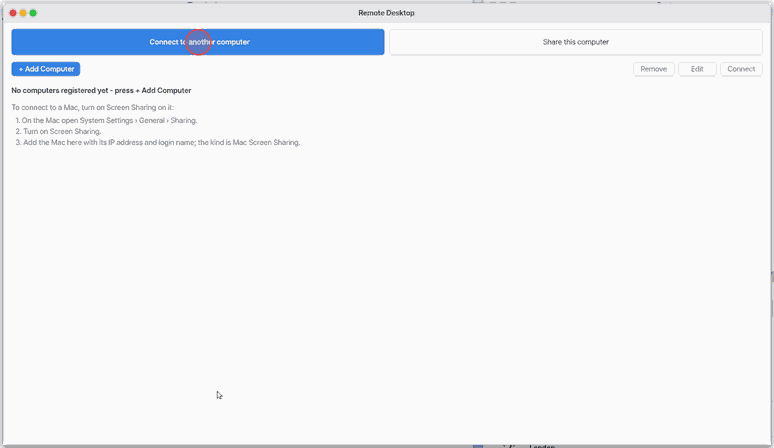
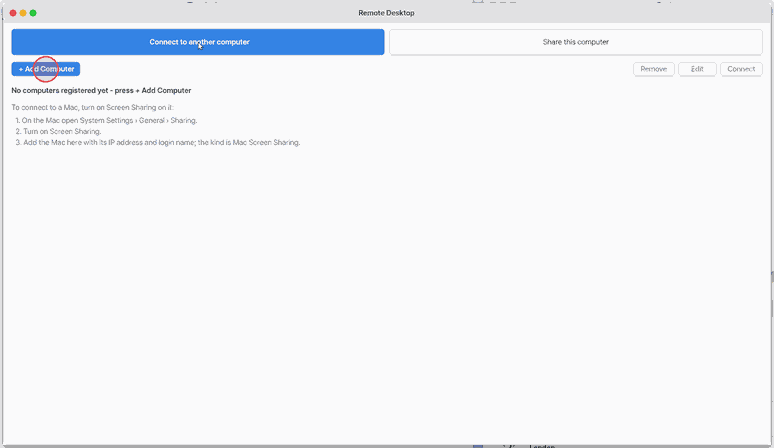
- Not in the list: type its address in "Connect to Address…".
2. Come into this device
Ctrl+2opens the incoming side: the address, the code and a QR.
3. Go in with a terminal
Ctrl+1back, then Terminal on the row (copy the key in the box below).
Shortcuts
Ctrl+1 go into · Ctrl+2 come into · Enter view the chosen screen · Ctrl+T a terminal into it · Ctrl+N add · in a session F11 full screen.
The whole story: Remote access.
Settings
Nothing to set.
Overview
An app that shows another computer's screen in a window and lets you use it. It can also share this NanumOS screen with another device (the same values as Settings › Sharing).
What it does
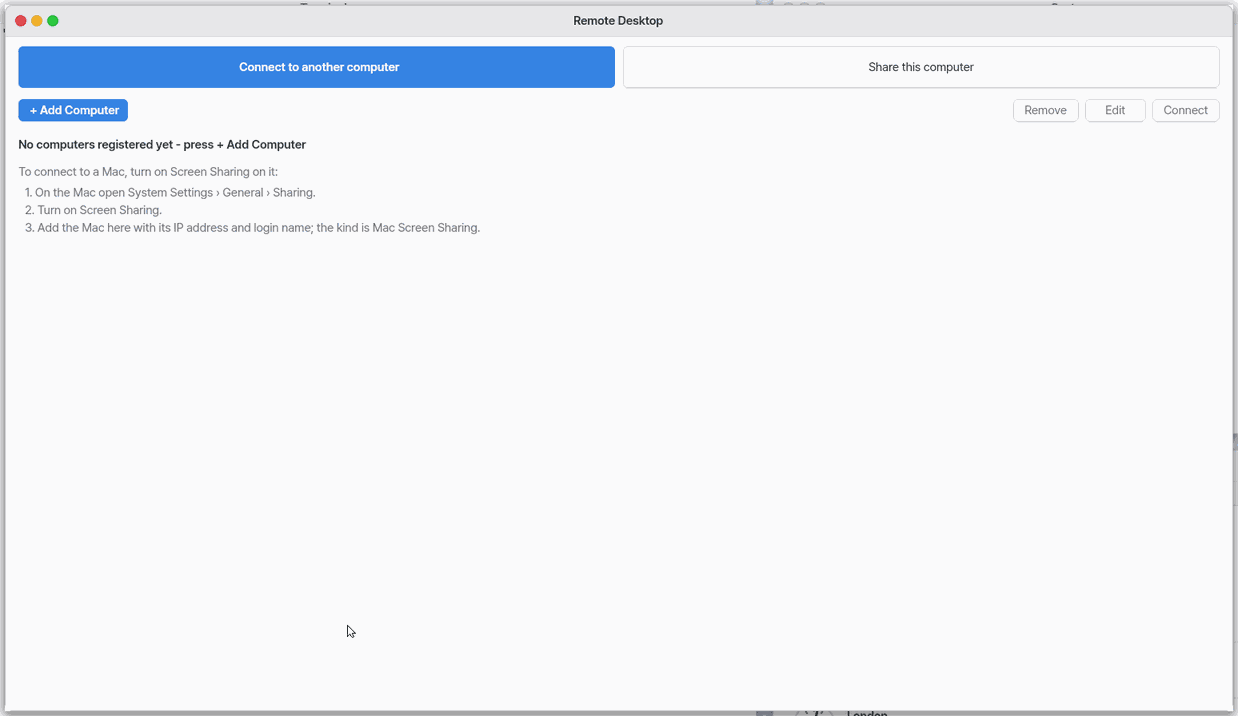
The first screen has two big buttons (Ctrl+1, Ctrl+2). Connect to another computer uses the screen of a Mac, another NanumOS or a VNC server in this window; Share this computer lets another device use this screen.
Connecting
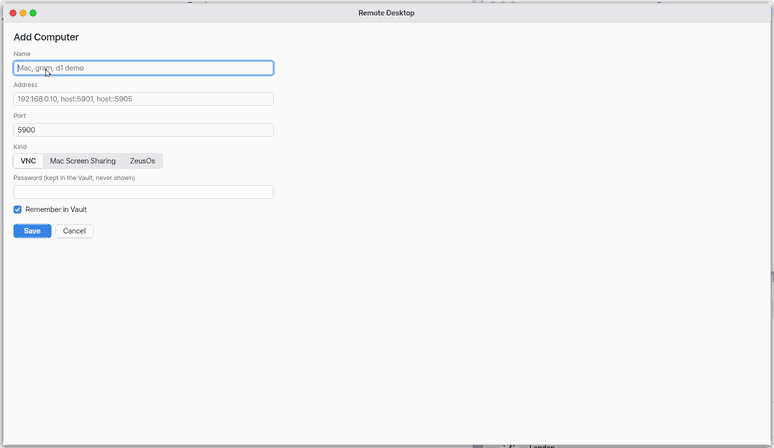
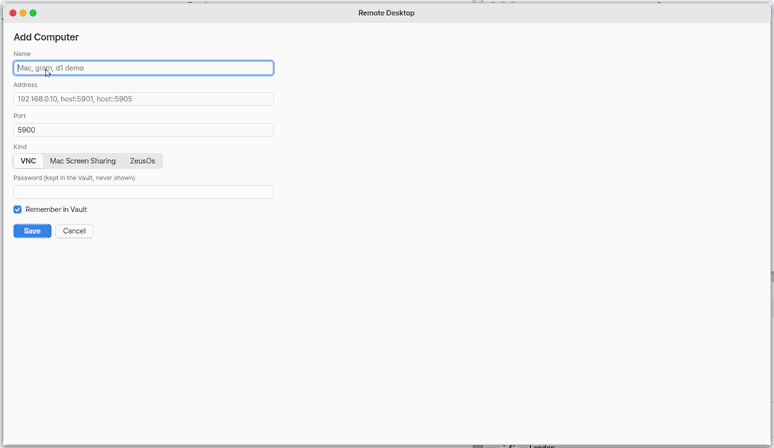
+ Add Computer takes a name, address, port (5900) and kind (VNC, Mac Screen Sharing, NanumOS); a Mac also needs a user name. The password is kept only in the vault. Pick one in the list to Connect, Edit or Delete. Once connected, the top bar has Disconnect, Full Screen (F11), scale and clipboard. When it cannot connect it says why: the address does not answer, the password is wrong, Screen Sharing is off on that Mac.
Sharing
From outside home
On a phone
The web version shows the two buttons only; connecting and sharing work on NanumOS itself.
Overview
Use another computer's screen in a window, or share this one.
Try this
1. Connect to another computer
- Press "Connect to another computer".
- Add its address with "+ Add Computer".
2. Share this computer
Ctrl+2opens the sharing side; the address is shown large.
3. Back to connecting
Ctrl+1goes back to connecting.
What it cannot do
- RDP is not supported (VNC and Mac Screen Sharing only).
- It does not work on the phone (lite), only on NanumOS itself.
- It does not find other NanumOS on the network by itself (no mDNS yet) — type the address.
- The sharing login is VNC authentication (DES), weak on an open network — hence private and Wire addresses only (no TLS yet).
NanumOS 0.1.8349 · 2026-11-16