Virtual Machines
Status: In trial
Create and run virtual machines.
About this app
Virtual Machines creates, starts and stops virtual machines (VMs). A virtual machine is another computer running inside this one. This app is still being tested (Lab stage). The settings sheet is a temporary design, and snapshots on a running VM and folder sharing (read-only) have limits.
Basics
A virtual machine is a "model computer" built inside your computer. It has its own memory and disk, so whatever you do inside does not touch the computer outside. It is useful for trying a new program or running another operating system on the side. The computer must support virtualization; if it is already inside another VM or the feature is off in the firmware, a VM cannot be created.
How to use it
- Press "New virtual machine" (or
Ctrl+N), type a name and pressEnter.Esccloses. - Pick one in the list with the up and down arrows (up to 8 are shown). Picking one shows its console, and you can stop and start it.
- The gear button opens settings, and
Esccloses them.
Try it yourself
Try it yourself: Press "New virtual machine", type a name, press Enter, then select it in the list.
How it works
- The app handles only the screen and buttons. The device's virtualization part actually runs the machines; the app asks it to create, start or stop.
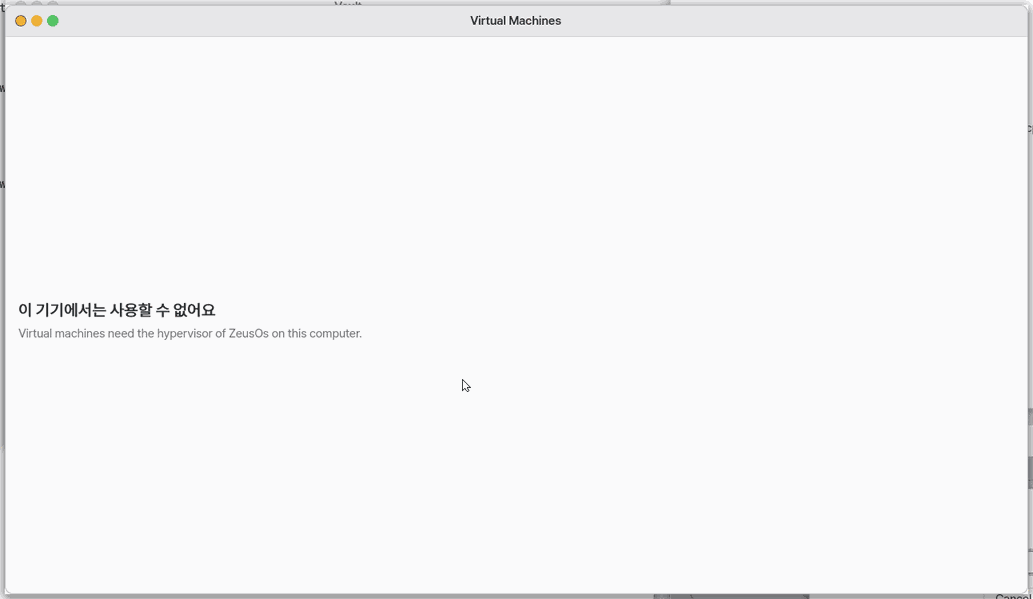
- On builds without that part (the mobile web edition) the app says "Not available on this device".
- The choices you make in settings are remembered.
Technical details
- Source
src/gui/vmm.cgoes only throughsrc/vmx_api.h; the web edition usessrc/gui/vmm_stub.c. - Files sent by a VM are limited to 8 at a time, 256 MiB each.
FAQ
It says a virtual machine cannot be created
Computers without hardware virtualization, or with it turned off (inside another VM, off in the firmware and so on), cannot create one. The first screen and Ctrl+N tell you the reason and what to do.
How do I snapshot a running machine
Snapshots and restore do not work on a running VM. Stop it first.
The mouse does not move inside the VM
On a NanumOS VM screen the mouse does not go to the VM; only the keyboard works.
At a glance
In one line: An app that makes and starts virtual machines.
The screen
- The "New virtual machine" button: makes a new virtual machine
- The list: the virtual machines you made (up to 8)
- The gear button: opens settings
Task 1. Make a new one
- Press "New virtual machine"
- Type a name
- Press
Enter
Say: "Make me an Alpine VM"
Task 2. Pick one
- Look at the list
- Choose with the up and down arrows
Say: "Show me my VM list"
Task 3. Open settings
- Press the gear button
- Close with
Esc
Say: "Open the virtual machines app"
Try this
1. Create a VM
- Click New VM.
- Type a name and press
Enterto create it.Esccloses the sheet.
2. Pick a VM
- Pick one with up and down.
3. Open the settings
- Click the gear button.
Esccloses it.
Shortcuts
| Key | What it does |
|---|---|
F1 | Open this page |
Settings
Click the Settings button in the app to open the settings view. Click it again to close it. Ctrl+, opens Settings › Apps › Virtual Machines for "Workbench memory", "Workbench disk" and "Log in as zeus in the workbench" (see Workbench).
| Item | Meaning |
|---|---|
| Hosts | The computer the VMs are on. For now it is This computer, shown as Connected. |
| Console: Show the console when a VM is picked | On or Off. Click to change. The choice is remembered. |
What it cannot do
- These two items are all the settings there are. The settings view is a placeholder.
- On a NanumOS VM screen the mouse does not reach the VM. Only the keyboard works.
- The screen size of a NanumOS VM cannot change after it starts.
- Snapshot and Restore do not work on a running VM. Shut it down first.
- The list shows up to 8 VMs.
- A shared folder is read-only, one folder per VM. Mac folders (
/Mac) cannot be shared into a VM yet. - Files a VM sends ("나눔OS로 보내기") are at most 8 at a time and 256 MiB each.
- A computer without hardware virtualization (inside another VM, turned off in the firmware, a Mac window started without it) cannot make VMs. The first screen and
Ctrl+Nsay why and what to do.
NanumOS 0.1.8349 · 2026-11-16