Photos
Status: Ready
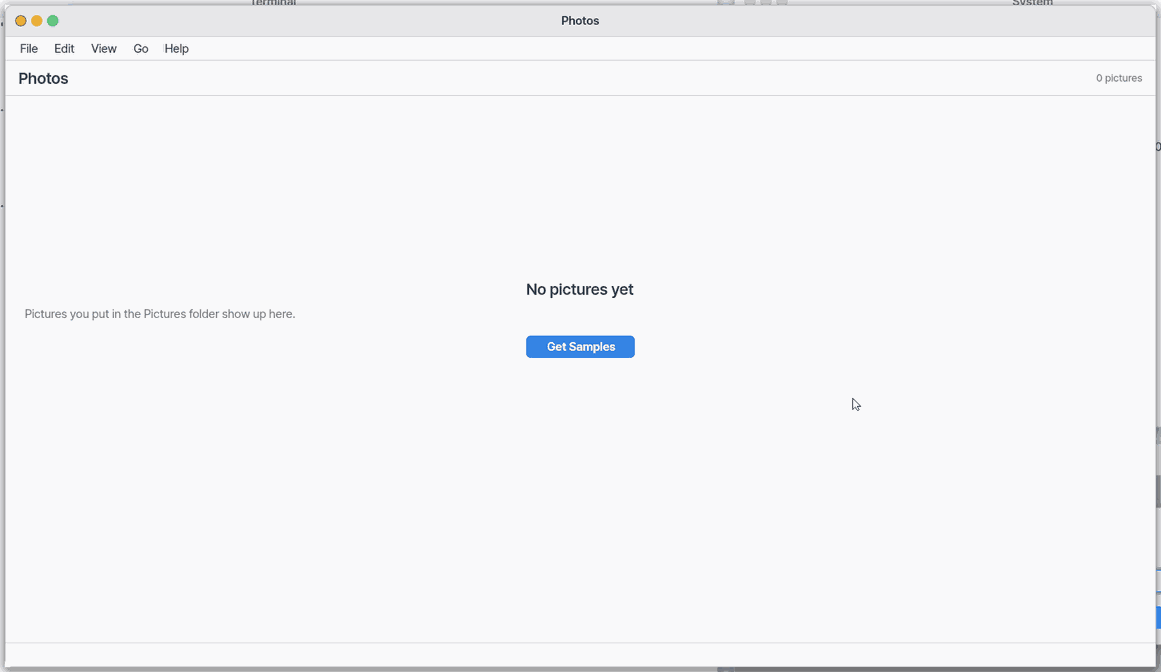
Your pictures by day; pictures without a date go under "Default Pictures".
About this app
Photos gathers your pictures by day. You pick one from a grid of small pictures, view it large, and swipe or page through the rest. It is a viewer only: there is no editing, rotating or cropping.
Basics
How to use it
- Use "All Photos" and "Camera" at the top to choose what to see. "Camera" shows only what the camera app took.
- Double-click a picture (tap once on a phone), or select it and press
Enter, to open it large. Double-clicking a picture in the Files app also opens it here. - While viewing, use
›and‹,Ctrl+LeftandCtrl+Right,Space, or a sideways swipe to move to the previous or next picture.Escreturns to the grid. - Spread or pinch two fingers to zoom, and double-tap to switch between fit-to-screen and actual size.
Delor the trash button sends a picture to the trash. PressCtrl+Zright away to bring it back.F5refreshes the grid. With no pictures at all, "Get Samples" downloads sample pictures.
Try it yourself
Double-click a picture to open it, press › to go to the next one, send it to the trash with Del, then bring it back with Ctrl+Z.
How it works
- The app collects the picture files in the Pictures folder and groups them by day using each file's time, newest first.
- For the large view the file is decoded and drawn to fit the window. The grid lists JPEG, PNG, BMP, GIF, WebP, TIFF, AVIF, ICO and camera RAW (DNG, CR2, CR3, NEF, ARW, RAF).
- Animated GIF and WebP show only the first frame. HEIC does not appear yet.
Technical details
Pictures are decoded by the same path as the Viewer (u imgview, stb_image) into an in-memory image file, using integer arithmetic only. Camera RAW is developed quickly to the screen size; CR3 and compressed RAF show the JPEG preview stored inside the file. Thumbnail file names are a hash of path, size and time.
FAQ
My picture does not appear in the grid
How do I get back a picture I deleted by mistake
Can I edit or rotate a picture
Not yet. This app is a viewer; there are no albums to make, no favorites and no slideshow.
Wallpaper: right-click a photo (or the File menu) › 「Set as Wallpaper」 and it is copied and becomes the desktop picture; deleting the original changes nothing. Fill, Fit, Center and how it works: Settings › Wallpaper.
Double-click a picture in Files to see that picture here. It stays in its original folder.
At a glance
In one line: See your photos gathered by date.
The screen
- "All photos" and "Camera" on the top row: choose which set to see
- Photo list: photos gathered by date
- The
›button: next photo when viewing big - The trash button: sends the chosen photo to the trash
Task 1. See a photo big
- Pick a photo
- Press
Enter
Say: "Open the Photos app"
Task 2. Flip through
- Press
› - Press
Escto go back to the list
Say: "Go to the next photo"
Task 3. Send to the trash
- Pick a photo
- Press the trash button
- Press
Ctrl+Zto undo
Say: "Turn on the Photos app"
Try this
1. See a picture large
- Pick a picture and press
Enter.
2. Page through
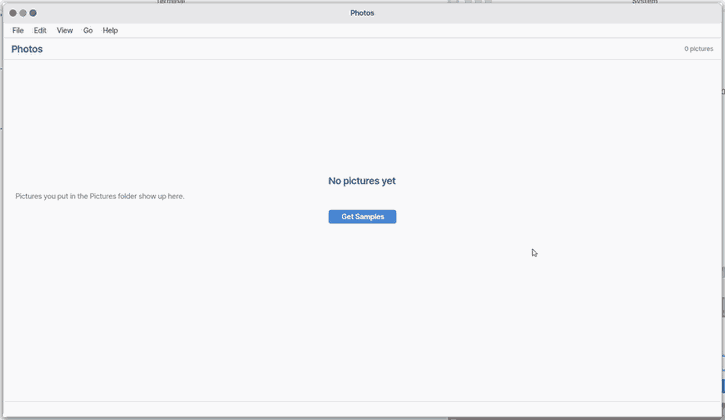
- Click
›for the next picture.
3. Move to the Trash
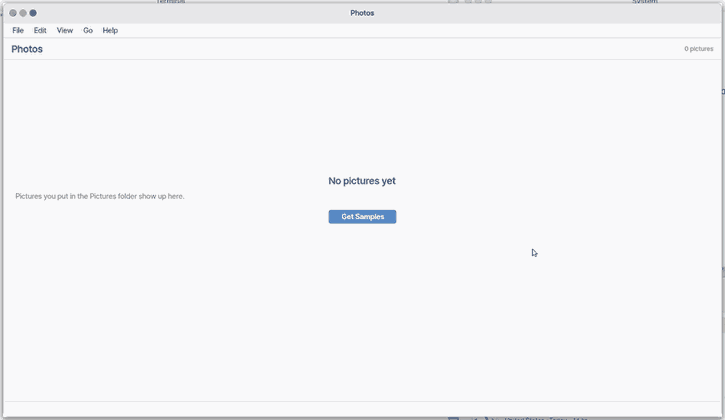
- Click the Trash button.
Shortcuts
| Key | What it does |
|---|---|
Enter | Open |
Del | Move to Trash |
Ctrl+Z | Undo (puts the picture just sent to the Trash back) |
Ctrl+W | Close |
Ctrl+C | Copy Path |
F5 | Refresh |
Esc | Back to Photos |
Ctrl+Left | Previous |
Ctrl+Right | Next |
F1 | Photos Help |
Settings
Photos has no settings. It has no Settings… menu item and no entry under Apps in OS Settings yet.
What it cannot do
- You cannot edit, rotate or crop a picture. It only views.
- There are no albums, no favorites, no slideshow and no picture information (such as camera data).
- HEIC (a photo format some phones use) does not show in the list yet. JPEG, PNG, BMP, GIF, WebP, TIFF, AVIF, ICO and camera RAW (DNG, CR2, CR3, NEF, ARW, RAF) do.
- An animated GIF or WebP shows its first frame only (it does not move).
- A camera RAW is developed quickly at screen size. CR3 and compressed RAF show the JPEG the camera stored inside the file.
- There is no import from a camera or a phone. Put pictures into the Pictures folder with the Files app or another way.
Zoom
A picture first shows fitted to the screen (the window). Spread or pinch two fingers (Ctrl + wheel on a Mac) to zoom, drag with one finger to move a zoomed picture, and tap twice to switch between fit and actual size. The line at the bottom shows the size: on a phone it says 「Fit to Screen」 when fitted, and when zoomed 100% is one picture pixel on one screen pixel.
Albums
NanumOS 0.1.8349 · 2026-11-16