Browser (Chromium VM, Lab)
The Lab way to open web sites: in a Chromium VM.
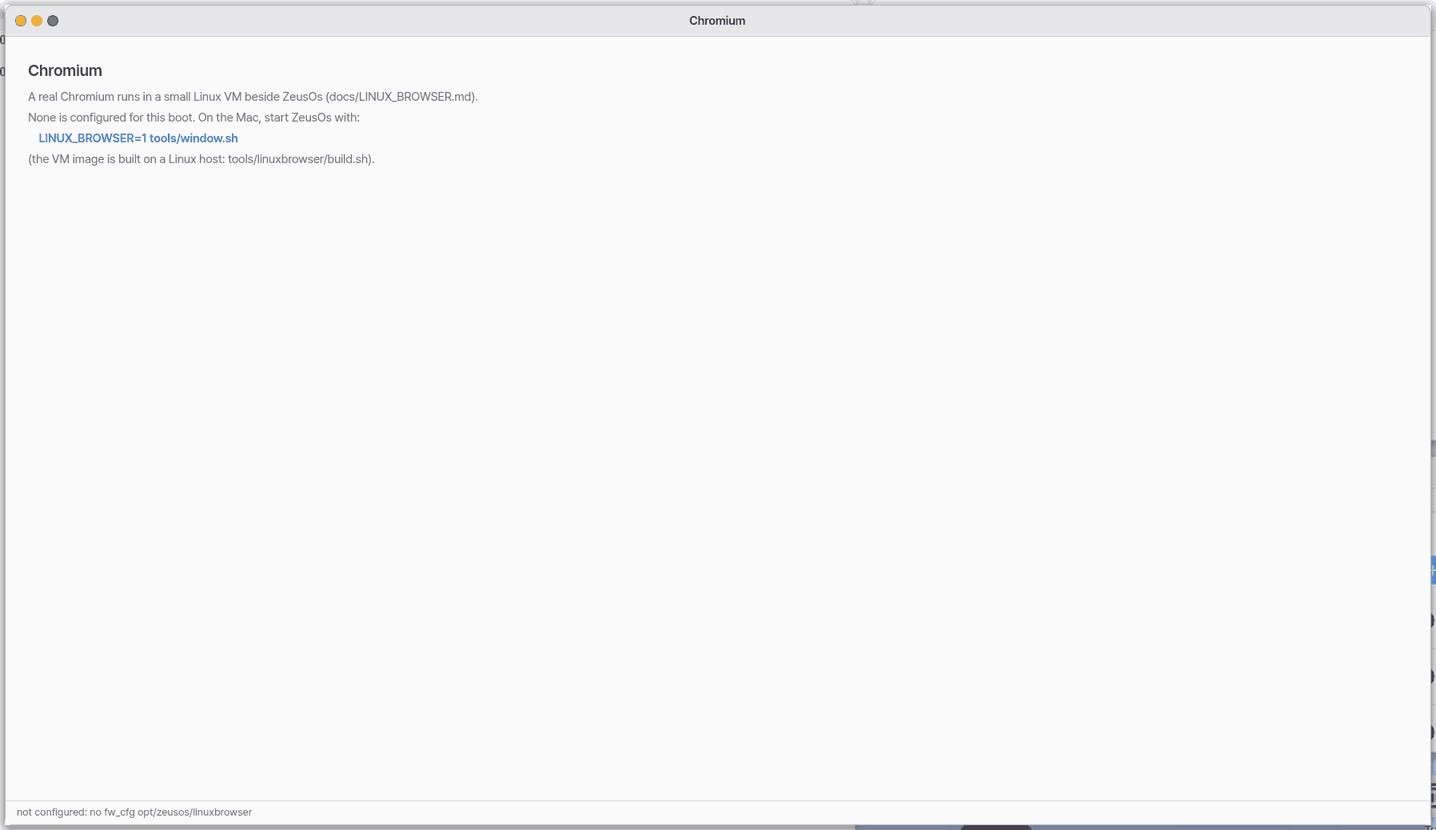
It is off unless Settings › Apps › Browser › "Lab: run the Browser as a Chromium VM" is on; the normal Browser is the Mac web view (NanumOS.app) or ZBrowser — see Browser.
About this app
With the Lab switch on, the dock's Browser runs real Chromium (the browser Google Chrome is built on) in a small virtual computer inside NanumOS and shows it in a window. Any web site opens as on an ordinary computer; keyboard, pointer, Korean input and sound go straight through.
Basics
A virtual computer (a virtual machine, VM) is another computer running inside this one. NanumOS is the hypervisor (the layer that runs virtual computers): it starts a small Linux in the VM, and Chromium runs on that Linux. The picture comes straight from the VM's memory; input goes over VNC (the standard remote-screen protocol). To learn more, press ⚡ "Teach me this app's basics".
How to use it
- Click Browser in the dock. Prepared, it opens at once; otherwise the first time takes 15–20 s.
- Type an address in the address bar and press
Enter. - Closing the window lets the Browser sleep and wait, so the next click opens it at once.
Try it yourself
Try it: start the desktop, leave it alone for about a minute, then click the dock's Browser. If it opens at once, it was prepared.
How it works
Why the first click opens at once
The Browser runs in a small virtual computer (a virtual machine, VM) inside NanumOS. The first click used to make it (copy its disk), start it (Linux and Chromium) and wait for its first picture: 15–20 seconds. Now that work is done ahead of time, while you rest.
- About 20 s after the desktop starts, after 15 s without a key or the pointer, with the CPUs quiet, the power cord in (when there is a battery) and memory to spare, it begins.
- If the browser VM does not exist, it is made; then it is started.
- When Chromium in the VM shows its first window (the guest prints one "screen" line), it waits 3 s for the first page to draw.
- Then the VM is put to sleep: its CPUs stop, its memory stays. Asleep, it uses no CPU at all.
- A click on the dock's Browser only wakes it and connects the picture — about a second.
Like lighting the stove before guests arrive and keeping it banked: when they come, you only open the damper.
What it costs
- Memory: a sleeping Browser keeps its VM's memory (about 1.5 GB in the Mac window, about 2 GB on x86). So machines with 3 GB or less never prepare it, and it does not start unless free memory is above the VM's share plus 1 GB (or a quarter of all memory, whichever is larger). If free memory falls below half of that reserve while it sleeps, it is turned off and the memory given back.
- CPU and power: only the one start (15–20 s); zero while asleep. Never on battery.
- Security: nothing changes — the same VM, the same network fence (no way into your home network or other devices), the same screen password made new at every start.
Try it
- Start the desktop and leave it alone for about a minute.
- Ask the assistant for a check-up, or System › Run diagnostics. The "브라우저 VM" row says asleep (opens at once) when it is prepared; ready = running, none = off (the first click takes 15–20 s).
- Click the dock's Browser: it opens at once.
Technical details
- Sleep is
vmxpark(the vCPU threads sleep, RAM and devices stay); waking is the window'sshow. - Log lines:
GUI browser prewarm start …,… first window ms=,… ready ms= vm_mb= free_before_mb= free_mb=, and why it waits:… wait why=user-active|cpu-busy|on-battery|small-ram|low-memory|….
FAQ
Why was the first click slow?
Making and starting the virtual computer takes 15–20 s. With "Prepare the Browser in the background" on, that is done ahead of time while you rest.
How much memory does preparing cost?
The browser VM's share (about 1.5 GB in the Mac window, about 2 GB on x86), held while it sleeps. Machines with 3 GB or less never do it, and it lets go by itself when memory runs short.
Is it less secure?
No. The same VM, the same network fence, the same screen password made new at every start.
Try this
1. Get started
- First start a Chromium VM in the Virtual Machines app.
2. Open an address
- Type an address in the window and press
Enter. Keyboard and mouse go straight through.
3. Use the Reader instead
- With no VM, use the Reader or the Browser.
4. Watch full screen
- When a web page goes full screen (YouTube's full-screen button ⛶ or its
fkey), the browser window covers the whole screen: no window frame, top bar or Dock, the video fills the screen. PressEsc, or leave full screen in the page, and the window comes back where it was.

- To give the window the whole screen whatever the page does, click the window's green button or press
Ctrl+Cmd+F. PressCtrl+Cmd+Fagain, or move the pointer to the top edge and click the button there, to come back.

Shortcuts
| Key | What it does |
|---|---|
Ctrl+Cmd+F | Full screen, and back to the window (the same as the green button) |
Ctrl+Alt+Enter | Switch between full screen and the desktop |
Settings
Settings › Apps › Browser (or the window's menu "Settings…") has two:
- Free its memory when unused for (minutes) — a prepared Browser left unused this long is turned off and its memory given back. 0 = never (it is still turned off when memory runs short).
You can also ask the assistant ("turn off preparing the browser"). It is a settings change, so an [Allow] card comes first.
What it cannot do
- A device without the Chromium template (public images, for one) cannot make the browser VM.
- Chromium's menus and web pages follow the NanumOS language. After you change the language in Settings, the browser VM uses it from its next start.
- Emoji show in colour. A browser VM made long ago fetches this font from the internet once, so until then they can show as empty boxes. Then turn the browser VM off and on, and they show in colour.
- You cannot copy Korean text out of Chromium into NanumOS. Pasting from NanumOS into Chromium works.
- With no render proxy and no virtual machine, the app opens nothing. Use Reader or the Browser then.
- It does not run on mobile (a phone's browser). Its tile says why: Chromium runs inside a small virtual computer on the NanumOS desktop. A phone's browser cannot start such a virtual computer. On mobile the Browser app does the same job.
NanumOS 0.1.8349 · 2026-11-16