Browser
Status: In trialDesktop only
Opens web sites in the Mac web view, or in ZBrowser.
About this app
The dock's Browser is one app with two engines, and which one you have depends on where NanumOS runs. Ask the assistant for app_state(browser): its first line says engine: mac-web or engine: zbrowser, and the line after says why.
- In NanumOS.app on a Mac (mac-web). The Browser is an ordinary NanumOS window — it moves, resizes, minimises and sits under other windows — and the page inside it is drawn by the Mac's own web view (WebKit, the engine behind Safari). Logins, history, bookmarks and cookies stay on the Mac, not in NanumOS. The window has what a browser has: a toolbar (back, forward, reload or stop, home), an address bar that also searches, a tab strip, a bookmarks bar, find, zoom, and Mac menu-bar items (File, View, History, Bookmarks, Window) while the Browser window is in front.
At a glance
In one line: A browser that opens web sites with the engine this computer has.
The screen
- Address bar: type an address or words to search
- Tool row: back, forward, reload, home
- Tab row: the pages you have open
- Star: puts this page in your bookmarks
Task 1. Open an address
- Type the address in the window
- Press Enter
Say: "Open Chromium"
Task 2. Bookmark a page
- Press the star
- Check it in the bookmarks bar
Say: "Open the browser"
Task 3. See which engine it uses
- Ask the assistant, by voice or in writing
- Read the answer
Say: "Tell me which engine the browser uses"
Basics
A web view is a ready-made piece of the Mac's own browser that an app can place in its window. NanumOS.app does not draw the page itself: it lays the web view exactly over the Browser window's body and tells it when to hide (the window is minimised, covered by another, or not in front). NanumOS sends the Mac app only the rectangle and the address to open — nothing else. ZBrowser is the other case: NanumOS reads the page into a tree (the DOM) with its own engine and draws it itself.
How to use it
- Click Browser in the dock. On the Mac app the web view's address bar is at the top of the window; elsewhere ZBrowser's is.
- Type an address, or words to search for, and press
Enter. Words that are not an address are searched with the engine chosen in File › Search Engine (Google by default). - Press the star (or
Cmd+D) to bookmark the page; bookmarks show in the bar under the toolbar and in the Bookmarks menu, where you can rename or delete one. Cmd+Topens a new tab,Cmd+Wcloses it (on the last tab it closes the window). A link that wants a new window opens a new tab.- History lists the recent pages;
Cmd+Yshows all of them and Clear History empties the list. - Closing the window closes the page too.
- Saved logins (Mac web view). On a page with a password field, a bar appears under the toolbar when your vault has a login for exactly that site: Fill the saved login "name" for site? Nothing is typed until you press Fill. After you send a form with a password you typed, the bar asks Save this password in your vault? — press Save, or Not now.
- Downloads (
Shift+Cmd+J): the list shows each file with a progress bar while it comes, then Open (opens it in NanumOS with its app), Show in Files (the 받은 것 / Downloads folder), and Remove. A download that failed says so and has Try again. Clear the list empties it (the files stay in Downloads). - History (
Cmd+Y): a search box on top, Delete beside each page, and Clear: last hour / today / last 7 days / everything.
Try it yourself
Try it: ask the assistant "which engine is the Browser using?".
How it works
Bookmarks, history and tabs (mac-web)
They are two small files on the Mac, browser/bookmarks.json and browser/history.json in the app's data folder, written only by the Mac app. NanumOS is never sent them, and the assistant cannot read them: it can still only ask to open one address, and read, find, click or type under the approval cards. Like a notebook kept in your own desk drawer, not in the shared room.
Saved logins, downloads and history (mac-web)
Saved logins — the flow.
- A page with a password field finishes loading. The Mac app asks NanumOS one thing: which saved logins are for this site? It sends only the site's address as its own web view shows it (like
https://example.com), never anything written on the page. - NanumOS compares that address with the address of each entry in your vault. It must be the same site exactly: same
https/http, same name, same port.login.example.comis notexample.com,exarnple.comis notexample.com, and a login saved forhttpsis never offered on anhttppage. - If there is a match, the bar names the user (never the password). Pressing Fill asks NanumOS for that login; it checks the site again, writes one line in the vault's use log (
vault log: browser → entry @ site (autofill) filled), and hands the password to the Mac app, which types it into the page's fields and forgets it. - After you send a form with a typed password, Save adds a new entry named after the site, or changes the password of the entry that has the same user. It is a log line too.
Why: the browser is only a hand and NanumOS holds the key. Like a hotel desk that hands you a key only when you stand in front of it and say your room, and writes it in the book.
Not done: the assistant never sees, types or is told any of this — the bar is the app's own, not part of the page, and the assistant's page operations (read, click, type) still refuse password fields. A page cannot read the bar either. Forms that never send a normal submit (some single-page sites) are not offered for saving. ZBrowser has no form fields, so it has no saved logins — sign in with the Mac web view.
Try it: save a login in the Vault app for a local test page, open the page, and watch the fields stay empty until you press Fill. Then run vault log in the Terminal and find the line.
Technical details
App → NanumOS lines over the drop port: vfind <origin>, vfill <index> <origin>, vsave <origin> TAB user TAB password; the answers are vfound, vfilled, vsaved or a refusal word. Matching is src/fillmatch.h (scheme + host + port, lower case, default ports dropped, a trailing dot dropped, user@ read as a browser reads it, anything odd = no match). The same matcher runs for the offer and for the fill. In the page, the script and its messages live in the app's own content world (zeus-fill), so the page's scripts cannot call them. The password is in the Mac app's memory only between the answer and the fill; no log line carries a password, a user name or an address (tests/mac_brbasic.py greps the serial log and every log of the data folder).
Downloads and history — the flow. A file the page cannot show (or one sent as an attachment) is saved by the Mac app to a private folder, handed to NanumOS over the same port that Send Files uses, and the Mac copy is removed a minute later. The list page is a page the app writes itself; its buttons are links that only that page can use (a web site cannot press them). Open and Show in Files are two words to NanumOS (cmd fileopen NAME, cmd filesdl). History lives in browser/history.json on the Mac; deleting one entry or a range rewrites that file.
Mac web view (mac-web)
The Mac app tells NanumOS when "Use the Mac's browser" is on (cmd hostbrowser 1). Then the Browser window's body is only a place: each frame NanumOS says hrect x y w h when the place moved, hhide when it is covered, and hclose when the window closes. The Mac app keeps one borderless web window over that place. Like a picture frame on a wall — the frame is NanumOS's, the picture is the Mac's.
ZBrowser (zbrowser)
With no Mac web view, the Browser is ZBrowser: our engine reads, lays out and draws the page in the window, and scripts run inside the engine too.
Chromium VM (Lab)
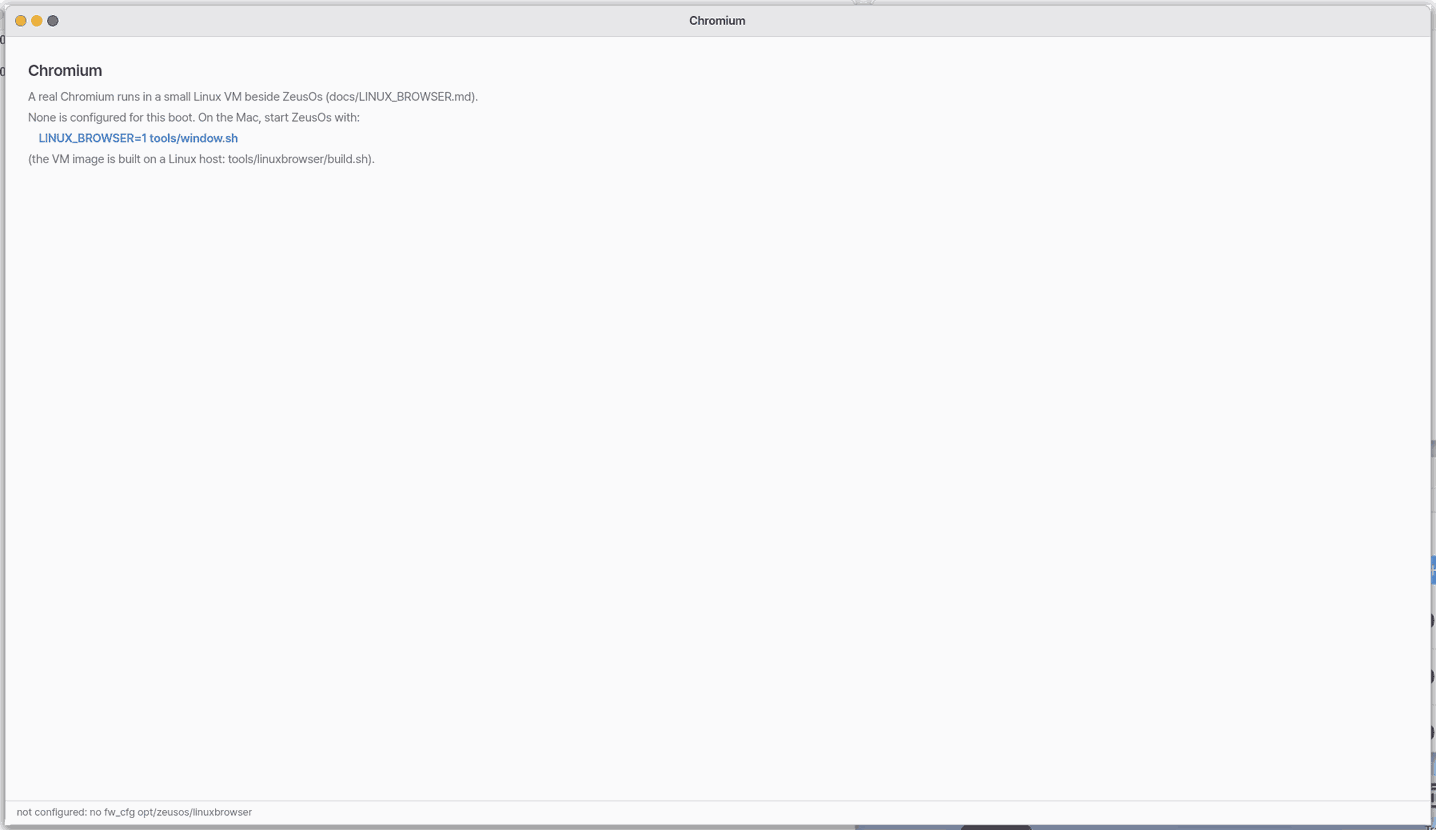
A third way, off by default, runs real Chromium inside a small virtual computer. It appears only when the Lab switch is on in Settings › Apps › Browser, and then app_state(browser) lists chromium-vm. See Browser (Chromium VM, Lab).
FAQ
Where do my logins and history stay?
With the Mac web view, on the Mac (the app's web storage), not inside NanumOS. With ZBrowser, inside NanumOS.
Why does the Browser look different on another computer?
It is the engine the computer has. A Mac with NanumOS.app uses the Mac's web view; a computer with none uses ZBrowser.
Can the assistant see my bookmarks or history?
No. They stay on the Mac. The assistant only gets what it is allowed to do on the page that is open.
Does the Browser fill in my passwords by itself?
No. It offers, and you decide. The bar appears only when the vault has a login for exactly this site, and nothing is typed until you press Fill. A look-alike address or another site gets no offer at all.
Where is a password I save in the Browser kept?
In your NanumOS vault (the same file as the Vault app), not on the Mac. Each fill and save is a line in the vault's use log (vault log).
Can I see what I downloaded?
Yes: Shift+Cmd+J. Files are in the Downloads folder (받은 것) of NanumOS; the list also keeps failed ones so you can try again.
Can the assistant read the page?
Reading and opening need no approval on the Mac web view; clicking or typing for you asks each time. A password or card number is never typed by the assistant.
Try this
1. Open an address
- Type an address in the window and press
Enter.
2. See which engine you have
- Ask the assistant which engine the Browser uses; it answers from
app_state(browser).
3. Read a page in the Reader
- For a long article, open it in the Reader instead of the Browser.
Shortcuts
On the Mac app's web view: Cmd+T new tab, Cmd+W close tab, Cmd+L address bar, Cmd+R reload, Cmd+. stop, Cmd+[ back, Cmd+] forward, Shift+Cmd+H home (zeus.kim, the NanumOS intro page, by default), Cmd+D bookmark, Shift+Cmd+B bookmarks bar, Cmd+Y history, Cmd+F find (Cmd+G next), Cmd++ / Cmd+- / Cmd+0 zoom, Option+Cmd+O open in the Mac's default browser. Elsewhere the keys go to the page.
Settings
Settings › Apps › Browser has the Lab switch ("Lab: run the Browser as a Chromium VM"), off by default. On the Mac app, the app menu's "Use the Mac's browser" turns the Mac web view on or off. File › Search Engine picks the search engine (Google, DuckDuckGo, Bing, Naver; stored as hostsearch in the app's settings). The bookmarks bar is shown or hidden from View.
What it cannot do
- Without the Mac app's web view, the Browser is ZBrowser and some complex sites may not show well there yet.
- The Mac web view cannot read your Mac's files; the page gets no file from this Mac.
- Saved logins and downloads need the Mac web view; ZBrowser has no form fields. Saving a password is not offered in a private tab.
NanumOS 0.1.8349 · 2026-11-16