Calculator
Status: Ready
Type a sum and get the answer.
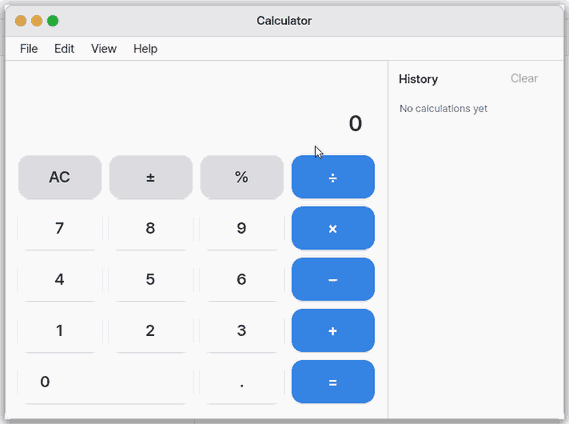
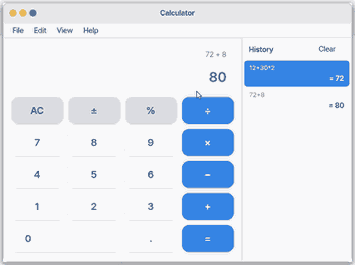
The keys stay about square (at most 96 pixels) and gather in the middle of the window instead of stretching. In a wide window the History on the right becomes a paper tape, 30 % of the width (260 to 440 pixels); click a line to use its answer again.
Scientific view
Choose View > Scientific (Ctrl+2; Ctrl+E switches between the two) and the window grows: the engineering keys appear left of the basic pad. The Calculator always starts in Basic the first time and remembers the view you left it in. The full rules are in docs/CALC.md.
2ndworks for one press:sin cos tanbecomeasin acos atan,ln log log2becomee^x 10^x 2^x.hyp, once on, givessinh cosh tanh.- The display shows the angle unit,
DEGorRAD; theDegkey switches it. - While you type, a grey live result shows on the big line. When the sum cannot be done, such as
log2(0), it showsErrorat once. log y(a log with a base you choose) andy√(a root with an index you choose) show both boxes at once. Tap a box, or useTabor,, to move;=works only when both are filled.%:200+10%is 220,200×10%is 20. A calculation such as1÷0showsErrorand leaves no record in History.- In Basic you can still type
sin(30),2^10and(on the keyboard.
History (the workbook)
About this app
This app lets you type numbers and sums to see an answer. Use it for ordinary arithmetic, or continue from the last answer. In a wide window, choose an earlier answer from History on the right.
At a glance
In one line: Type a sum and press Enter, and the answer shows at once.
The screen
- The big line: the sum you typed and its answer
- Buttons: press digits and + - x /
- History column on the right: earlier sums stay line by line (wide window)
- "View" menu: switch between Basic and Scientific
Task 1. Calculate
- Type the sum (for example 128+256)
- Press Enter
Say: "What is 128 plus 256?"
Task 2. Continue from the answer
- Type *2 after the answer
- Press Enter
Say: "What is (128+256) times 2?"
Task 3. Look at earlier sums
- Press the up arrow
- Press one history line
Say: "Open the calculator"
Basics
An expression writes numbers and operation signs such as +, -, *, and / in order. Parentheses let you calculate the part inside them first. The calculator also handles decimal values; Scientific view chooses degrees or radians for trigonometric functions. To learn more, press ⚡ and choose 「Teach me」.
How to use it
- Type an expression, then press
Enteror=. - Type an operation sign after an answer to continue from that answer.
- On the desktop, choose “Scientific” from the View menu to show extra keys.
Try it yourself
Type 128+256 and press Enter. Type *2 after the answer and press Enter again to continue from that answer.
How it works
- The app sends the expression to a calculation tool and shows the one-line answer it receives.
- Each answer adds the expression and answer to History, so an earlier answer can be used again.
- History keeps the 64 most recent calculations so it stays quick to choose from the screen.
- In Scientific view, the chosen angle unit goes with the expression to the calculation tool.
FAQ
How do I continue from an earlier answer?
Type an operation sign such as +, -, *, or / after an answer to continue from it. You can also click a History line to put its answer back into the expression.
Where are square root and trigonometry?
Choose “Scientific” from the desktop View menu to show the extra keys. The phone screen shows the basic calculator only.
Try this
1. Do a sum
- Type the sum as it is.
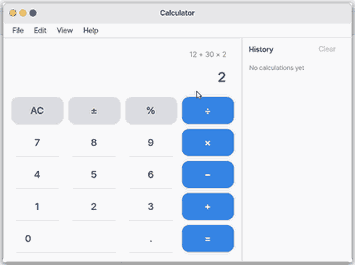
- Press
Enterfor the answer.
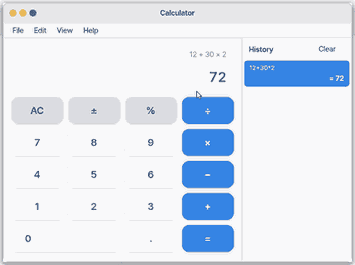
2. Carry on from the answer
- Press
+ − × ÷after an answer to continue from it.
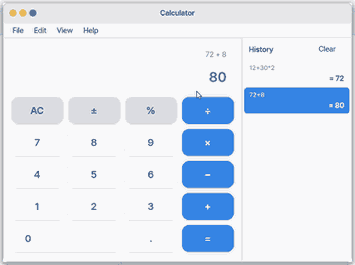
3. See earlier sums
- Use the up arrow to pick a history line.
Shortcuts
| Key | What it does |
|---|---|
Ctrl+W | Close |
Ctrl+C | Copy |
Ctrl+V | Paste |
Esc | All clear (AC) |
Ctrl+Z | Undo a history delete or clear |
Ctrl+1 / Ctrl+2 / Ctrl+E | Basic / Scientific / switch |
Ctrl+H | Show History |
F1 | Calculator Help |
x or X | types a multiplication (×). |
Enter or = | calculate. |
- | right after an answer: starts a new negative number. The − button on the screen carries on from the answer instead. |
Backspace or Delete | erases one character. After an answer, it turns the answer back into an expression you can edit. |
Settings
Ctrl+, or Settings > Apps > Calculator: the view it opens in (the last one used), angle unit, decimal places (automatic, 0 to 10), thousands separators, and the History column.
What it cannot do
- Sums (Σ), matrices, derivatives and integrals are not here yet (a later card).
- There are no memory buttons (such as
M+). - Results show 15 significant digits. Integers longer than 15 digits appear as
1.5E22.
NanumOS 0.1.8349 · 2026-11-16