Clock
Status: Ready
World clock, alarm, stopwatch and timer.
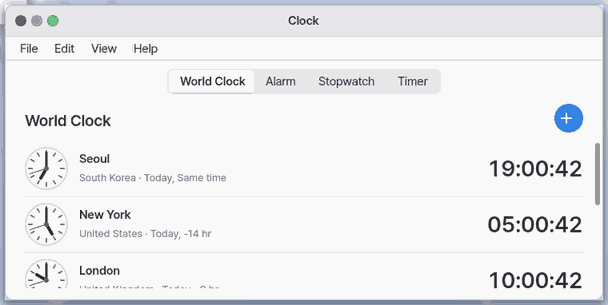
In a wide window the world clock is a grid of cards (a big face, the city, its time, the country and the time difference) across the width; a city where it is night gets a dark card, and the last card, +, adds a city. Alarm, Stopwatch and Timer show one big face in the middle; the timer's orange ring shrinks as the time runs out. Small windows and phones keep the list.
About this app
Use this app to see the current time, put times from other cities side by side, and use an alarm, stopwatch, or timer. Pick the right tool from its four tabs when you need to keep time.
At a glance
The screen
- Four tabs on top: World clock, Alarm, Stopwatch, Timer (on a phone and in the try-out they sit at the bottom of the screen). When an alarm or timer is due the page plays a tone while it is open; press Stop to silence it
- The big dial in the middle shows the chosen tab's time
- Buttons at the bottom: start, stop, lap
- The "+" card in World clock adds another city
Task 1. Set an alarm
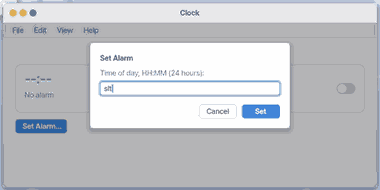
- Press the Alarm tab
- Press
Ctrl+A - Type hours:minutes like
07:30
Say: "Open the Clock app"
Task 2. Use a timer
- Press the Timer tab
- Press the 3-minute button
- Wait for the sound when it ends
Say: "How many hours behind Seoul is New York?"
Task 3. Time something
- Press the Stopwatch tab
- Press
Spaceto start - Press
Spaceagain to stop
Say: "Turn on the Clock app"
Basics
Clock reads the current time kept by the device and shows it on screen. World Clock starts with Coordinated Universal Time and calculates each city's time zone and daylight-saving rules. Want more? Press ⚡ and choose 「Teach me」.
How to use it
- Press
Ctrl+1throughCtrl+4to choose World Clock, Alarm, Stopwatch, or Timer. - For an alarm, press
Ctrl+Aand enter a time such as07:30. - For a timer, press
Ctrl+Tand enter seconds orminutes:seconds, or use the 1, 3, 5, or 10 minute buttons on the Timer tab. - For the stopwatch, press
Spaceto start or stop it, andCtrl+Lwhile it runs to record a lap.
Try it yourself
Try it: press Ctrl+3, then press Space to start the stopwatch. After a moment, use Ctrl+L to record one lap, press Space to stop, and press Ctrl+R to begin again.
How it works
- The app reads the current time and checks the world-clock cards and alarm time every minute.
- It reads your chosen city list from Settings and calculates local time and the difference using each city's time-zone rules.
- A timer records when it should end, then signals when that time arrives.
- The stopwatch adds up time between starts and stops, and keeps up to 20 recent laps.
Technical details
The city list is stored in the cities setting, and you can choose up to 30 cities. Alarms are saved; timer and stopwatch progress stays only while the app is running, so they do not remain after the computer restarts.
FAQ
My alarm or timer finished, but there is no sound
This app does not make a separate sound; it turns its window red to notify you. Press Enter, Esc, Space, or the Stop button to dismiss the notification.
How do I add or reorder cities in World Clock?
Open the + card in World Clock or World clock cities in Settings. Search for a city or country to add it, then use the up and down buttons to change its order.
Try this
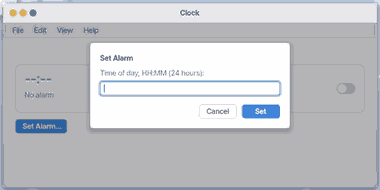
1. Set an alarm
- Press
A.
2. Use the stopwatch
Sstarts and stops,Lrecords a lap.
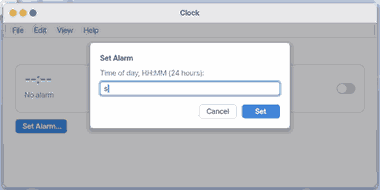
- Laps pile up in the list.
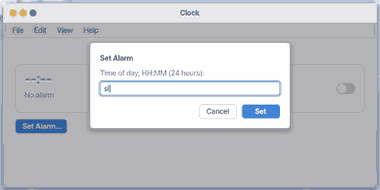
3. Use the timer
- Press
Tfor a new timer.
Shortcuts
| Key | What it does |
|---|---|
Ctrl+A | Set Alarm… |
Ctrl+T | New Timer… |
Ctrl+, | Settings… |
Ctrl+W | Close |
Ctrl+C | Copy Time |
Space | Start / Stop |
Ctrl+L | Lap |
Ctrl+R | Reset |
Ctrl+1 | World Clock |
Ctrl+2 | Alarm |
Ctrl+3 | Stopwatch |
Ctrl+4 | Timer |
F1 | Clock Help |
Settings
Change them with "File > Settings…" (Ctrl+,) or in the Settings app under "Apps > Clock".
| Name | What it does |
|---|---|
| World clock cities | Pick the cities the World Clock shows. The default is Seoul, New York, London, Tokyo, Paris and Sydney. Search by an English or Korean name (Seoul, 서울, 부산…) and press Enter to add or remove a city, and move cities up or down. |
| 24-hour time | On shows 24-hour time, off shows AM and PM. On by default. |
| Show seconds | Whether the time shows seconds. On by default. |
What it cannot do
- You can keep up to eight alarms (Add Alarm… on the Alarm tab;
Deleteremoves the selected one), and each only repeats every day. You cannot pick days or give one a name. Alarms are saved; timers are not and are gone after you turn the computer off and on. One timer runs at a time. - The alarm has no sound of its own. The window turning red is the signal.
- The stopwatch keeps 20 laps. Beyond that the oldest ones drop off.
NanumOS 0.1.8349 · 2026-11-16