Color Meter
Status: ReadyDesktop only
Shows the colour of the screen under the pointer as hex and RGB, and copies it.
About this app
Color Meter reads the colour at one point you point to on the screen and shows it as numbers. When it is the colour you need, you can copy it and paste it somewhere else.
At a glance
In one line: Shows the color of the point you aim at on screen as numbers, and copies it.
The screen
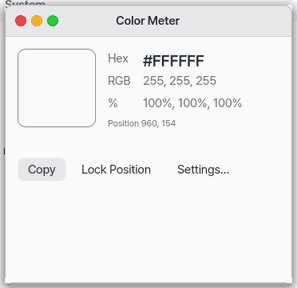
- Color swatch: the color of the point you aim at
- Hex and RGB numbers: the value of that color
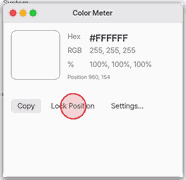
- "Lock position": the color stays even if you move the pointer
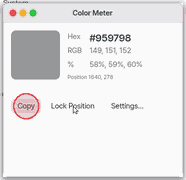
- "Copy": puts the value in the chosen format on the clipboard
**Task 1.
- Put the pointer on the color you want
- Look at the swatch and the numbers
Say: "Open the color meter"
Task 2. Lock the position
- Press "Lock position"
- Try moving the pointer
Say: "Open the Color Meter app"
Task 3. Copy the color
- Press "Copy"
- Paste it somewhere else
Say: "Start the color meter"
Basics
A screen picture is made from tiny points called pixels. One pixel's colour can be written as red, green, and blue values (RGB). The same values can also be written in hexadecimal, such as #RRGGBB. To learn more, choose ⚡ “Teach me”.
How to use it
- Move the pointer over the part of the screen whose colour you want.
- Check the swatch and the hexadecimal or RGB numbers.
- Choose “Copy” to put the selected form of the colour on the clipboard.
- Choose “Lock Position” to keep a value before moving the pointer, then choose “Unlock” to follow the pointer again.
Try it yourself
Try it yourself: Move the pointer over the colour swatch in the window and watch the numbers change, then choose “Lock Position” and “Copy”.
How it works
- As the pointer moves over the screen, the app remembers its position.
- Just before the screen draws the pointer, it reads the one pixel at that position and turns it into a colour value. The pointer picture therefore does not enter the reading.
- It shows that value as hexadecimal, RGB 0-255, and RGB percent.
- When you lock the position, it stops reading new pointer positions so the value remains ready to copy.
- It copies only the format selected in Settings, keeping pasted values consistent.
Technical details
The colour comes from the composed screen picture, with red, green, and blue channels shown from 0 to 255. RGB percent converts each channel to a percentage. The window redraws only when the colour changes, and its log records no more than ten changes per second.
FAQ
No. It reads the screen just before drawing the pointer, so the pointer picture is not part of the colour value.
Where do I change the copy format?
Choose “Settings…” in the window, or Settings › Apps › Color Meter, then choose hexadecimal, RGB numbers, or RGB percent.
Try this
- Move the pointer over anything on the screen: its colour shows at once as a swatch and numbers.
2. Lock the position
- "Lock Position" keeps the colour while the pointer moves on.
3. Copy
- "Copy" puts it on the clipboard in the chosen format (#RRGGBB and so on).
Shortcuts
Ctrl+C Copy, Ctrl+L lock and unlock, Ctrl+, Settings.
Settings
Settings › Apps › Color Meter, or "Settings…" in the window: copy as Hex (#RRGGBB), RGB (0-255) or RGB (%). The chosen format is bold in the window.
It reads the colour of one pixel of the screen. Its position (pixels across, down) shows under the numbers.
What it cannot do
- No magnifier (the pixels around, enlarged) and no averaging yet.
- No colour spaces (sRGB, P3): the value as drawn on the screen.
- Not on the phone (lite): one app fills the screen at a time.
- It does not run on mobile (a phone's browser). Its tile says why: Color Meter reads the colour under the pointer anywhere on the screen. A phone's browser cannot read the screen outside its own page. On mobile, take a screenshot with the phone and look at it in Photos.
NanumOS 0.1.8349 · 2026-11-16