Dictionary
Status: Ready
Look up a word, hear its example sentences read whole, review your notebook.
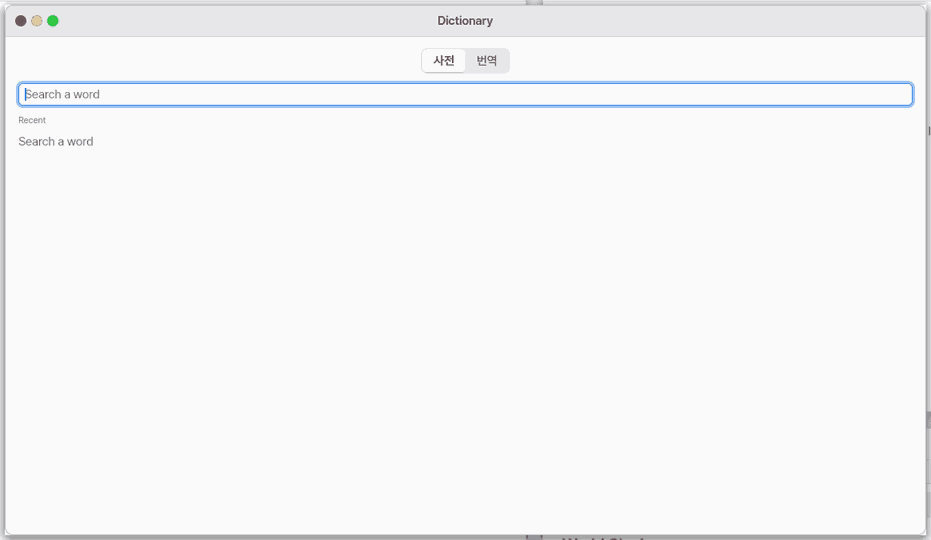
About this app
A dictionary for learning: looking up a word shows example sentences that use it next to its meanings and reads each sentence aloud, whole. Keep words in the notebook and go over them a little every day with Review.
At a glance
In one line: Look up a word's meaning and example sentences, hear whole sentences, and review with a word notebook.
The screen
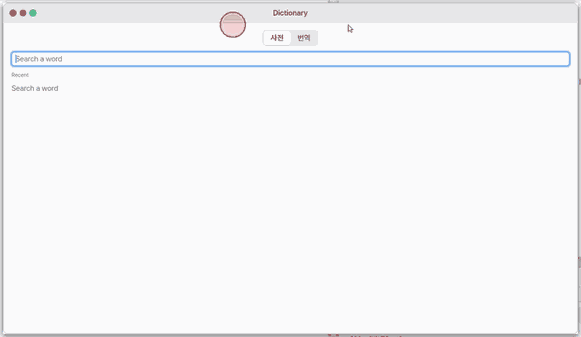
- Search box: type a word and candidates appear
- Button on the left (first "English to Korean"): picks the direction
- Word screen: meanings, examples, "Read all", "Add to notebook"
- "Review (N)": shows today's words when the search box is empty
- "Translate" box: translates a sentence
Task 1. Look up a word
- Press the search box
- Type a word
- Press
Enter
Say: "What does apple mean?"
Task 2. Hear the examples
- Find and open a word
- Press "Read all"
- Press
Escto stop
Say: "Open the dictionary app"
Task 3. Save to the notebook and review
- On the word screen press "Add to notebook"
- Press "List"
- Press "Review (N)"
Say: "Turn on the dictionary app"
Basics
A meaning alone is hard to remember; seeing and hearing the word in real sentences is the quickest way in. So this dictionary gathers sentences from two places: the examples already in the dictionaries (WordNet, the AI meaning) and sentences fetched from the internet at the moment you open a word (Tatoeba and Wiktionary — collections people build together and share under free licences). Review is a very simple form of spaced repetition: a word you knew comes back after twice the gap (1, 2, 4, 8 days …), a word you did not comes back tomorrow. Press ⚡ 「Teach me」 to learn more.
How to use it
- Type a word and press
Enter— under the meanings, 「Example sentences」 lists the sentences, each with where it came from (site, licence, author, link). - 🔊 in front of a sentence reads that sentence in one go, to the end (never cut at a comma). The small 🔊 in front of a translation reads the translation.
- 「Read all」 reads the examples in turn — a sentence, its translation, the next sentence — and colours the one being read. Press it again or
Escto stop. - 「Add to notebook」 keeps the word, with three of the sentences shown.
- With the search field empty, 「Review (N)」 shows today's words one at a time: hear and read the sentence first → 「Show meaning」 → 「I knew it」 or 「Not yet」.
Try it yourself
Try it yourself: look up apple, press 「Read all」, then 「Add to notebook」, go back to the list and do 「Review (1)」.
How it works
- The sentences are not in the build. When you open a word (a tap in the list or
Enter) the device sends that one word to Tatoeba (api.tatoeba.org) and Wiktionary (en.wiktionary.org) and gets sentences back. Nothing is sent while you type (the suggestions). Settings → Apps → Dictionary → 「Example sentences from the internet」 off: nothing is sent at all. - Why not ship them: NanumOS puts no outside material in its builds. The sentences come from where they live when a person asks, and each keeps its source and licence on screen (Tatoeba: CC BY 2.0 FR or CC0 per sentence, with the author's name · Wiktionary: CC BY-SA 4.0).
- If a source cannot be reached (no internet, a server error) the entry says 「Could not reach the internet: only the dictionary's examples.」 and that source is left alone for a while (2 minutes → 10 minutes → 1 hour). One lookup asks each source once.
- Reading: a whole sentence goes to the voice in one piece. In the Mac app the Mac's own voice reads English sentences in English and the Korean translations in Korean.
Technical details
One example line is EX: source TAB sentence TAB translation TAB licence TAB link TAB author (user/zeus/dictex.py). A sentence over 280 bytes is left out, never cut, so the reader always gets it whole. Examples of slang senses (such as a dictionary's vulgar usage) are filtered out.
FAQ
I see no example sentences
Check the internet connection and that 「Example sentences from the internet」 is on in Settings. A rare word may have no sentence on the internet either (the entry says so).
What leaves the device?
Only the word you looked up. No account, device data or other text.
When does a word come back in Review?
「I knew it」 doubles the gap — 1 day, 2, 4 … (180 at most); 「Not yet」 brings it back tomorrow.
Try this
1. Look up a word
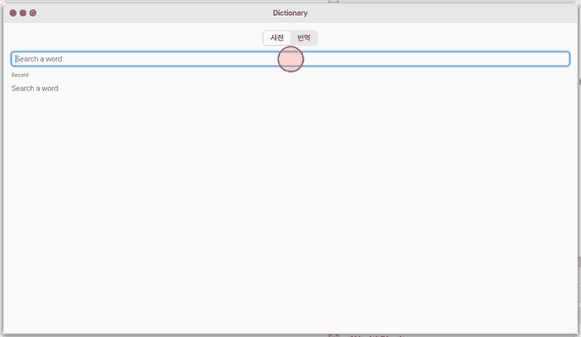
- Click the search field.
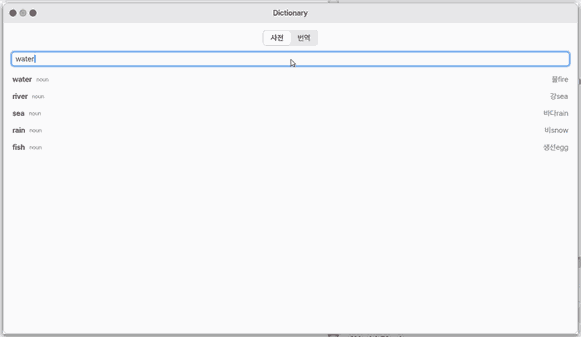
- Candidates appear as you type.
Enteropens one.
2. Translate
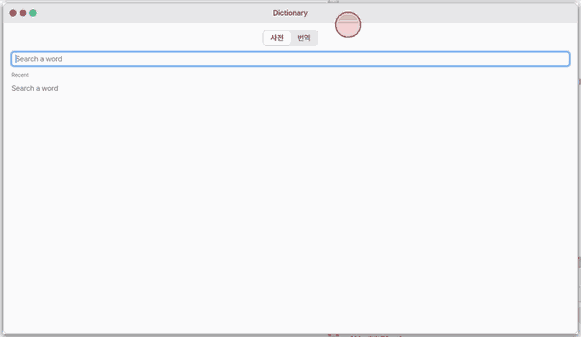
- Click the Translate tab.
3. Look it up again
- Back on the Dictionary tab your recent words are listed.
Shortcuts
| Key | Does |
|---|---|
↑ ↓ | choose a match |
Enter | open the chosen word |
Esc | close the word page · close the Get dictionaries sheet |
Ctrl+, | Dictionary settings |
Ctrl+W | close the window |
Settings
Settings → Apps → Dictionary: the default direction, "More dictionaries" (the installed ones, name and size) and "Clear history".
More to try
1. Look up a word
- Click the search field and type. Matches appear as you type.
- Synonyms and antonyms are links: click one to go to that word. "Speak" reads the word aloud, "Add to notebook" keeps it in the notebook (with three of its sentences), "Send to Translate" puts it in the Translate tab. "List" or
Escgoes back to the suggestions. - A typo is fine: "carle" suggests close words such as care and carl.
- Switch to Hangul with
Shift+Space(or the Han/Eng key). The search follows the syllable as you compose it.
2. Choose a direction
The button left of the search field (at first "EN→KO") picks the direction.
| Direction | Dictionaries searched |
|---|---|
| EN→KO | the built-in English-Korean word list, Korean Wiktionary English-Korean, WordNet (English-English) |
| KO→EN | English Wiktionary's Korean entries, the English-Korean lists read backwards |
| JA→KO/EN | JMdict (Japanese-English), Korean Wiktionary Japanese-Korean — romaji works (neko → 猫) |
| ZH→KO/EN | CC-CEDICT (Chinese-English), Korean Wiktionary Chinese-Korean — pinyin works (nihao → 你好) |
| Korean | Korean Wiktionary's Korean entries (Korean-Korean) |
| EN-EN | WordNet 3.1 |
3. More dictionaries
Not needed for everyday use (English meanings are built in with WordNet). Only when you want Chinese, Japanese or Wiktionary:
- Open Settings → Apps → Dictionary → "More dictionaries" (a build with no dictionary at all also has the button at the top right of the Dictionary).
- Each dictionary shows its name, licence, download size → size on this machine, and the original URL first.
- "Get" downloads it straight from its publisher and converts it on this machine. Then "Remove" and "Licence" appear.
- "Done" goes back.
4. A word in no dictionary
The screen keeps working while it asks: "AI is writing the meaning..." shows with the seconds so far, and "Cancel" (or Esc) stops it. The question runs as one small background job, so you can use other windows or look up other words meanwhile. If the head does not answer within 25 seconds, the page says so and shows "Try again". If the head answers in another shape, that is not a failure: its text is shown as it came. "Ask the model" goes to the Translate tab and asks as a sentence.
4b. Recents and the notebook
With an empty search field you see 「Review (N)」 at the top, then the notebook and the recent words. Only words that gave an entry are recorded; a repeated word moves to the top instead of appearing twice. Settings → Apps → Dictionary → "Clear history" empties the list.
5. Translate
In the "Translate" tab write a sentence, pick the language and click "Translate".
Dictionaries and licences
- CC-CEDICT (CC BY-SA 4.0), JMdict (CC BY-SA 4.0, EDRDG), Wiktionary (kaikki.org, CC BY-SA 4.0 / GFDL): not in any build; "Get" fetches them from the publisher. The licence text is inside the dictionary file and beside it (
ID.LICENSE.txt); "Licence" shows it.
What it cannot do
- No lookup of a word selected in another app. Pronunciation symbols come only with the AI meaning (WordNet has none) and may be wrong.
- 우리말샘 and 표준국어대사전 need a login to download, so they are not offered.
- Downloaded dictionaries are saved with the auto-save storage: a big one (JMdict, 13 MB) uses that much of it.
- WEB-LITE (the phone page) has no Dictionary app yet.
On mobile too
You can use the Dictionary on 「Mobile」 in a phone's browser too. It is on the second home page.
- The first time it opens it fetches the built-in word list and the English dictionary WordNet (about 6 MB) once. After that words are found without the internet.
- The words you looked up stay in this phone's browser.
- 'Get dictionaries' (Chinese, Japanese, Wiktionary) works only on NanumOS on a computer for now.
NanumOS 0.1.8349 · 2026-11-16