Files
Status: Ready
See and organise your folders and files: open, rename, move, trash.
About this app
An app to browse and organise folders and files: open, rename, move and send to the trash.
At a glance
In one line: See, open, rename and trash folders and files.
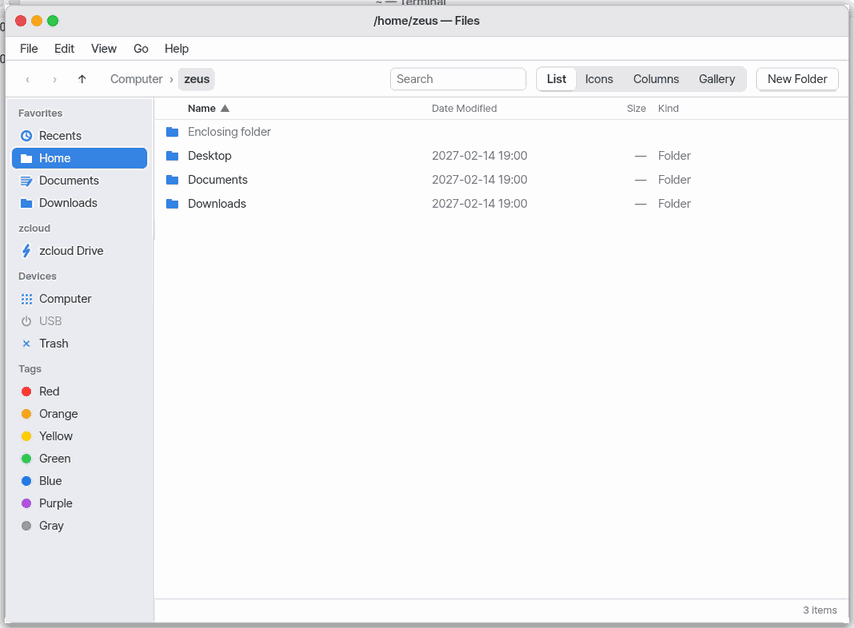
The screen
- Sidebar: Favorites, Tags, Recents
- Middle list: folders and files
- Search box on top: results shrink as you type a name
- Top row "Parent folder": goes back up a folder
Task 1. Open a folder
- Choose a folder with the arrow keys
- Press
Enter - Press
Backspaceto come back
Say: "Open the Documents folder in Files"
Task 2. Make a new folder
- Press
Shift+Ctrl+N - Type a name
- Press
Enter
Say: "Make a Trip folder in Documents"
Task 3. Find by name
- Press the search box on top
- Type a name
- Open a result with
Enter
Say: "Open the Files app"
Basics
How to use it
Double-click a file to open it in its default app. Use Open With ▸ to choose another app for one opening, then Always use this app to remember that choice for files with the same extension. This applies to files in Downloads and other folders too. Press Space for a preview without changing apps.
- Pick with the arrows and open a folder with
Enter;Backspacereturns to the parent. Shift+Ctrl+Nmakes a folder,F2renames,Delsends to the trash.- Select a file and press
Spaceto preview it without opening. - Open a music file to play it once without adding it to the library. Add to Music puts it in the library; you can also drag it onto the Music window.
- Wallpaper: right-click a picture (JPEG, PNG, BMP) › 「Set as Wallpaper」, or drag it onto the 「My photo」 tile in Settings › Wallpaper, and it is copied and becomes the desktop picture. GIF, WebP, TIFF, AVIF and camera RAW work too. HEIC gets 「This format can't be a wallpaper yet」. Settings › Wallpaper.
- Archives (zip, 7z, rar, tar.gz, tar.xz, tar.zst, tar.bz2, and .gz/.xz/.zst/.bz2 files) unpack right next to themselves with a double click. One folder inside comes out as that folder; anything else goes into a new folder named after the archive. Right-click › 「Compress」 makes a zip; 「Compress As…」 lets you pick tar.gz, tar.xz, tar.zst or tar.bz2. Big ones show a progress bar with 「Cancel」 at the bottom of the window.
Try it yourself
Try it: make a folder, rename it, send it to the trash with Del, then restore it from the trash.
Import from the cloud
Picture it like this: your drawer is at home and the cloud is a storeroom in another house. You leave the key once (in the Vault) and fetch one thing at a time. Nothing in the storeroom changes — this only brings things home.
- The cloud on the computer or phone you use (iCloud, Google Drive, Dropbox, OneDrive): tap "Add from My Computer"; the file picker your Mac or phone opens already shows that cloud. Choose from there.
- Connecting to Google Drive, Dropbox or OneDrive directly is not there yet.
What this app takes (cloud)
What it takes: it asks the WebDAV server address you typed (for example https://cloud.example.com/…) for the folder list and the files you choose. What it does not take: it never changes or deletes anything on your server and looks at nothing outside it. Where to: the one server you typed (no other server). For how long: only while you connect or open. How to stop: remove it from the sidebar (delete the Vault entry in the Vault app).
How it works
- The device's files form one tree. The app reads it and shows folders and files.
- Working files live in fast memory and changes are written to disk automatically.
- The trash moves things aside instead of deleting, so they can come back until you empty it.
- The preview looks at the file type and shows the picture, text, sound or document text accordingly.
Technical details
Tags and recent items are lists the app keeps. “Delete now” cannot be undone, so a confirmation card comes first.
Previews are made by a program that runs on its own
Selecting a file is enough to show its preview, and it may be a file you never opened. So Quick Look's words of .docx, .xlsx and .hwpx files and the small pictures of photos are made by a small program (oodoc) outside the system. If a damaged file makes that program stop, the file shows its icon without words or picture, and Files and your other apps stay as they were. Search's (Spotlight's) photo preview works the same way.
How archives are unpacked
An archive is like a box with things packed tightly inside. Unpacking reads the box's list and takes things out into a new folder, always keeping a few rules:
- An existing file is never overwritten. If the name is taken, the new one is called "name 2".
- Names that point outside the box (
../, names starting with/), shortcuts (links) and device files are not taken out. Anything skipped is reported in red. - Every check value the archive carries (CRC, checksum) is compared; a file that fails is removed, never left half written.
- A file that unpacks to far more than its size (a "zip bomb") is stopped, what came out is removed, and you are asked whether to 「Extract Anyway」. Even then it never takes more than the free memory.
- A zip with a password asks for it. The password is not kept: it is handed over only while unpacking, then deleted.
Try it: pick a folder, 「Compress As…」 › tar.xz, then double-click the new file and see it come out as "name 2".
Technical details
Unpacking and packing are done by a separate program, arc (in the Terminal: tar, zip, unzip, 7z, unrar, gzip, xz, zstd, bzip2), not by the Files app. Reading is libarchive 3.8.11; compression is zlib, liblzma (xz), zstd and libbz2. The program runs with permission to make new names only, so whatever an archive says, it cannot change a file that exists. Names are shortened to this system's 31 bytes per name (~), Hangul written in separate letters by Mac tools is joined, and the Mac's __MACOSX folder is left out. Contract: docs/contracts/ARCHIVE.md.
FAQ
Can I keep long names and big videos?
Yes. A name can be up to 255 bytes (about 85 Hangul syllables) and one file up to 64 GB; they come in and go out unchanged. Think of the notebook's columns getting wider. The first time a long name or a file over 256 MB is saved, the storage area switches to the new layout; from then on an older NanumOS version leaves this storage area alone (it does not open or erase it). The Mac app keeps a copy of the storage area (home-before-<version>.raw) before a new version first opens it. Once the long names and big files are gone, the next save is in the old layout again.
The archive has a password
zip (the old way and AES-256 alike) asks for the password when you unpack it. Password-protected 7z and RAR files are reported as not supported.
It stopped, saying "possible zip bomb"
A file that unpacks to more than a thousand times its size may be trying to fill the computer up, so it stops. If it came from somewhere you trust, press 「Extract Anyway」.
Why can't I make RAR or 7z files?
7z and RAR are unpack-only. The program that makes RAR files is commercial, and the RAR maker's own unpacking code (unrar) is not used because of its licence terms. Unpacking uses libarchive's RAR reader, written separately under a free (BSD) licence. To make an archive, choose zip (opens everywhere) or tar.xz (smallest).
How do I get a deleted file back
Files sent to the trash can be restored from there. Ones removed with “Delete now” or after emptying the trash cannot.
How do I find a file by name
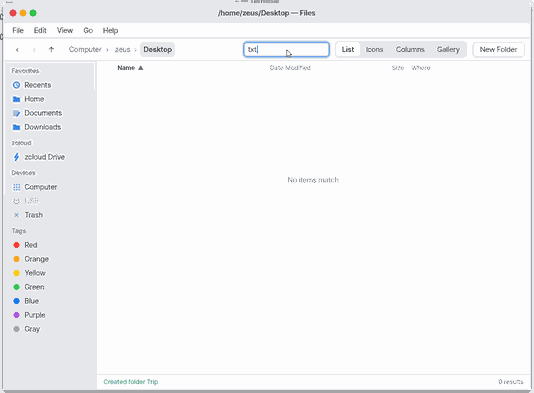
Type the name in the search box at the top; results narrow as you type.
How do I open my NAS or a Windows shared folder
Press Ctrl+K, type smb:// and the server's name (for example smb://nas), then your user name and password on that server, and choose one of its shared folders. It stays in the sidebar under "Network".
Try this
1. Open a folder
- Pick an item with the arrow keys. A folder opens with nothing selected.
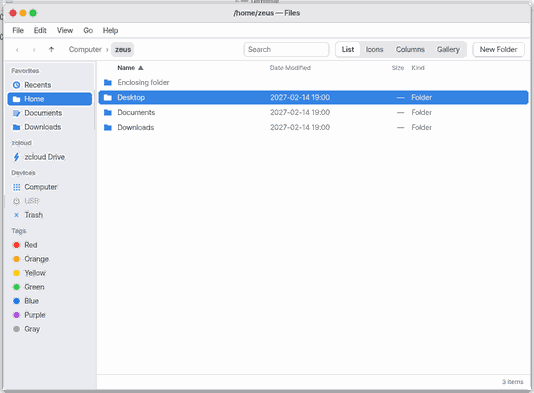
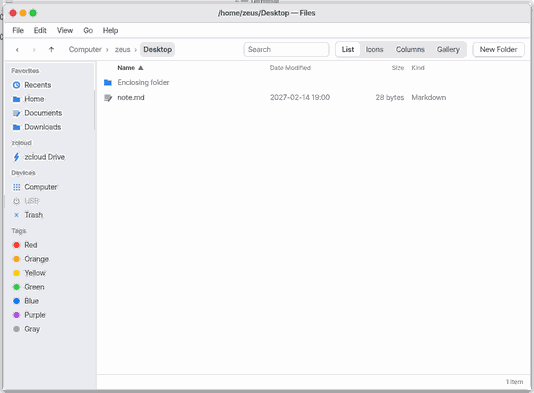
Enteropens it;Backspaceor the top row "Enclosing folder" goes back up.
2. Make a new folder
- Press
Ctrl+Nand type a name.
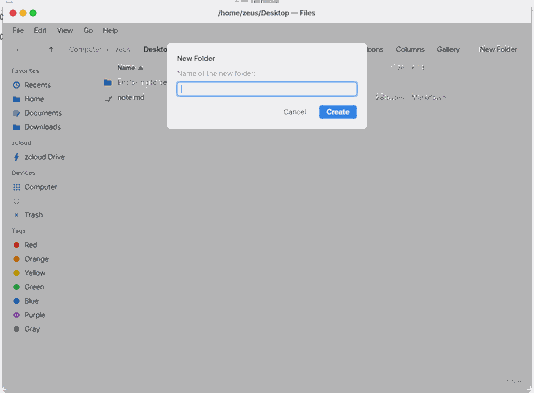
Entermakes it.
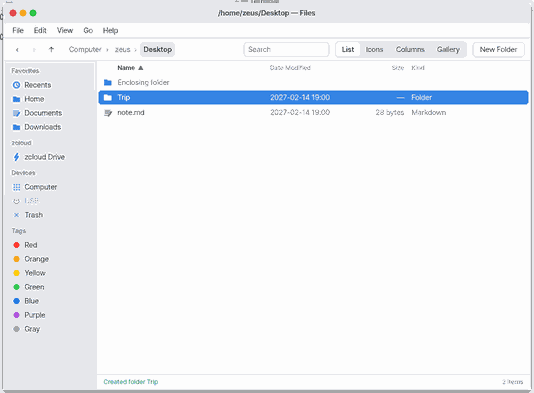
3. Find by name
- Click the search field at the top.
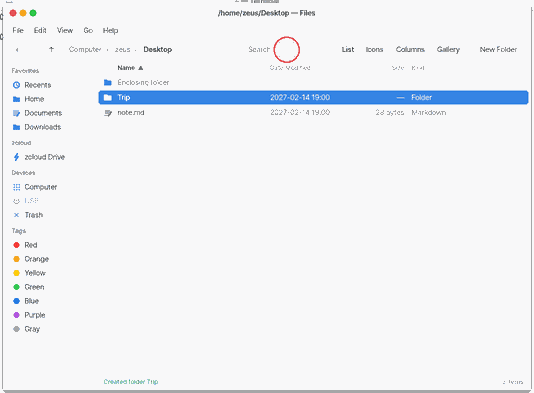
- The results narrow as you type.
4. Quick Look and views
- Select a file and press
Space: a preview over the window (pictures, text and Markdown, the words of .docx, .xlsx and .hwpx, sound played in the background, a video's facts, a folder's item count; a PDF opens on its first page in the PDF app). The arrows show the next file;SpaceorEsccloses it.
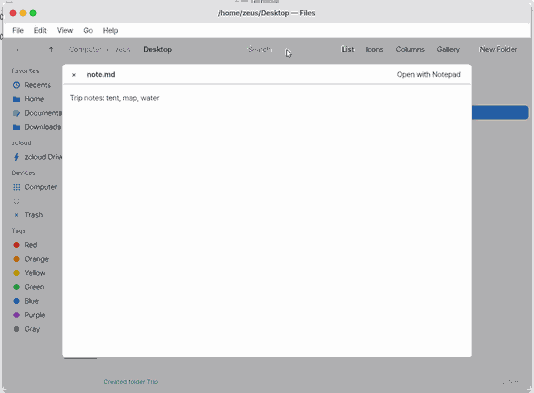
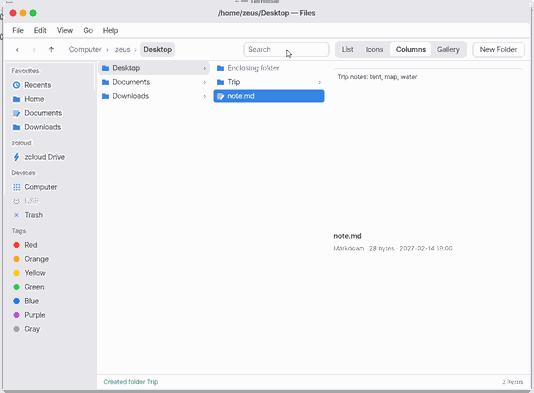
Ctrl+1list ·Ctrl+2icons ·Ctrl+3columns (←up,→in) ·Ctrl+4gallery. In the list, View › "Group by Kind" or "Group by Date"; click a column name to sort by it.
5. Get Info and tags
Ctrl+Ishows kind, size (a folder: everything in it), where and when it was modified.
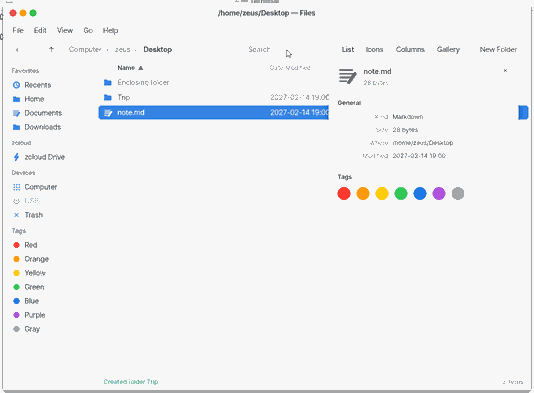
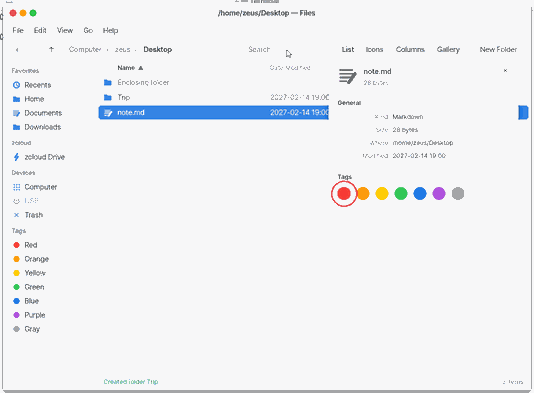
- Click a colour dot (or a colour in the right-click menu) to tag and untag. A colour under "Tags" in the sidebar gathers its items, "Recents" the files any app opened lately. Drag a folder onto the "Favorites" heading to add it; right-click › "Remove from Sidebar" takes it out.
Shortcuts
| Key | What it does |
|---|---|
Shift+Ctrl+N | New Folder |
F4 | New File |
Ctrl+F | Find |
Space | Quick Look |
Ctrl+I | Get Info |
Ctrl+O | Open |
F2 | Rename… |
Ctrl+D | Duplicate |
Del | Move to Trash |
Shift+Del | Delete Immediately… |
Shift+Ctrl+Del | Empty Trash… |
Ctrl+1 | as List |
Ctrl+2 | as Icons |
Ctrl+3 | as Columns |
Ctrl+4 | as Gallery |
Shift+Ctrl+T | Add to Sidebar |
Shift+Ctrl+F | Recents |
Shift+Ctrl+I | zcloud |
Ctrl+K | Connect to Server… |
Ctrl+W | Close Window |
Ctrl+Z | Undo |
Ctrl+X | Cut |
Ctrl+C | Copy |
Ctrl+V | Paste |
Ctrl+A | Select All |
Settings
Settings › Apps › Files:
- View of a new window (List / Icons / Columns / Gallery).
- Show hidden files (off).
- Show devices on this network (on) — the sidebar "Network" section.
Shortcuts (.zlink files, such as the ones in the NanumOS Introduction folder on the desktop) show their name in the system language and their own icon; a double click opens the app, screen or file they point to. See What's New.
On a phone (NanumOS Mobile) one tap opens an item. To rename or delete it, hold your finger on it for a moment to select it, then use the buttons at the bottom.
In sidebar Trash, the title and breadcrumb say “Trash”; use Empty Trash at the top right, then its confirmation card, to remove everything.
The bottom line shows, next to the item count, "Storage 10% used, 25 MB free" — how full the space that survives turning the computer off is. Over 90 % a notice appears. What to do now: if it is nearly full, delete or move big files.
Network — see the devices on the same network
Open the sidebar "Network" › "Nearby devices" and the devices on the same Wi-Fi or wired network are listed. Each line shows a name, an address and what the device offers (file sharing, SSH, printing, screen casting), with a picture by kind (computer, phone, printer, TV, speaker, NAS, NanumOS). A separate "My devices (Wire)" group lists the devices on your own Wire network.
- Buttons: [Refresh] asks again. [Send Nearby] is on only for a NanumOS device and sends the item you had chosen in a folder before opening Network (the other side must tap Accept). [Connect] is on for a device that shares files (a NAS, a Mac or a PC with file sharing) and starts Connect to Server with its address. [Copy Address] copies the chosen line's address.
- New devices: while the list is open, a device that announces itself gets a line without any button press.
- Settings › Apps › Files › Show devices on this network off: the section leaves the sidebar and nothing listens.
- In the Mac app window: this window sits in a virtual network inside the Mac, so it cannot see the Mac's own network directly. When the list is empty it says so ("This window cannot see the Mac's network directly (it runs inside the Mac app)"). A laptop or a PC attached to a real network lists the real devices.
How it works: devices announce themselves with the standard way ("I am a printer", "I share files": mDNS and DNS-SD, the same idea as Bonjour on a Mac), and this listens. It also adds the addresses that show up in the address checks (ARP) already passing on the network. It never connects to another device and never knocks on ports; it keeps only names and kinds, sends and stores them nowhere, and the list is gone when the window closes.
Connect to a server — a NAS or a Windows shared folder
A shared folder on a NAS or another computer opens in Files like any folder: you browse it, open files with their apps, copy files in and out and save into it.
- Press
Ctrl+K(Go › Connect to Server…). - Type the server's address, for example
smb://nas— after you sign in its shared folders are listed and you choose one — or the folder directly:smb://nas/photos. Press Connect. - Choose Registered User and type your user name and password on that server — or Guest for a folder anyone may open.
- The folder opens. The server stays in the sidebar under "Network"; the next time one click opens it.
- Your password: when it works it is kept in your Vault (entry
SMB/name@server), and only Files may use it, only for that server. It is never written anywhere else or shown. A wrong password asks again and says why. - Disconnect: right-click the server in the sidebar › Disconnect. "Remove from Sidebar" forgets the address (the Vault entry stays; remove it in the Vault app).
- Delete on a server asks first: a server has no Trash.
- If the network drops or the server restarts, the next thing you open reconnects by itself.
- From the Terminal: the shared folder is
/Net/photos, so every program can use it (ls /Net/photos,u cp).smb statusshows the connections;smb mount smb://name@nas/photosconnects (asks the password, nothing is shown).
How it works: NanumOS speaks SMB, the language Windows, Macs and NAS boxes use for shared folders — only its current, safe versions (SMB 3). Every answer from the server carries a signature made with a key only you and the server know, so nobody on the way can change it; when the server asks (or you choose), everything is also encrypted. The old SMB1, which spread ransomware, is never used: a server that speaks only SMB1 is refused with an explanation.
Technical details
SMB 3.0, 3.0.2 and 3.1.1 (SHA-512 pre-authentication integrity; 3.0.x: validate negotiate), NTLMv2 sign-in inside SPNEGO, signing AES-128-GMAC (or AES-128-CMAC), encryption AES-128-GCM / AES-128-CCM, reads and writes up to 1 MiB. The share is a mount at /Net in the kernel (src/smb/), beside the Mac folders at /Mac. Port 445 unless the address says another (smb://nas:4450/photos). Check: /proc/smb (counts only) and the assistant's system check row 「네트워크 공유」. Details: docs/contracts/SMB.md.
What it cannot do
- Other computers open through SMB (Connect to Server) only; NFS, WebDAV and SFTP folders cannot be opened yet.
- Archives: 7z and RAR are unpack-only. Password-protected 7z/RAR and split (multi-part) archives cannot be opened. One file is at most 64 GB (this system's file limit).
- You cannot make a folder inside search results. Make it in a folder.
- Undo (
Ctrl+Z) covers only the last Move to Trash, move or rename. "Delete Immediately" and "Empty Trash" cannot be undone. - Search looks at names only (content search is Spotlight's index). At most 128 results are shown.
- Tags are kept by path: moving a file outside Files (in the Terminal) leaves its tags behind.
- This build has no video player: Quick Look shows a video's facts and "Play" opens the Video app.
- Grouping works in the list view only. The gallery strip shows icons; only the big preview draws the picture.
- Web (Mobile) build: a file name longer than 240 bytes (about 80 Korean letters) is cut at the end when added (the extension stays); if storage is blocked the page says why.
NanumOS 0.1.8349 · 2026-11-16