Settings
Status: Ready
Change the screen, sound, language and more.
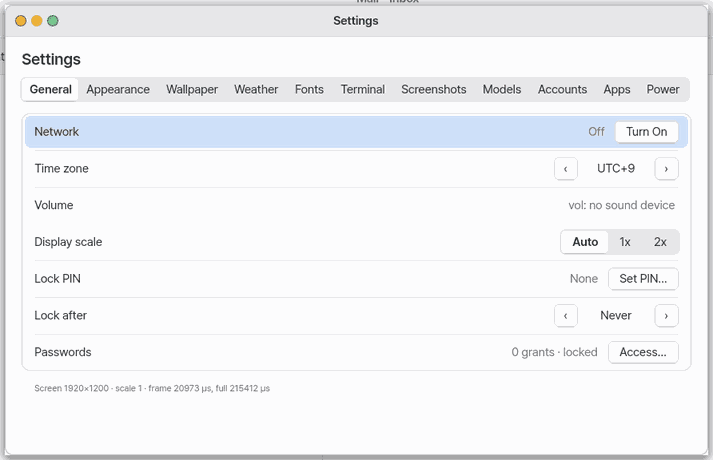
In a wide window the panes in a list on the left (coloured icons) with a search field on top, and the chosen pane on the right as one centred column (up to 720 pixels). Type in the search field, for example "lock" or "dock", and only the panes with that word stay and the first one opens (Ctrl+F puts the caret there, Esc clears, the up and down arrows go to the next pane). On a phone it stays a list of panes, then one pane.
About this app
An app for changing the computer's settings in one place: screen, sound, language, network and more. Each app's own settings are in the Apps pane. It opens on the computer and on the phone screen (Mobile).
Basics
Settings are like a fuse box or a remote control: the switches you use now and then (brightness, sound, language) are gathered on one panel so you do not have to guess where to look. The app groups the switches into panes (General, Display Mode, Sound, Network...) and, when you type a word in the search box at the top, keeps only the panes that match.
How to use it
- Pick a pane in the list on the left; its rows appear on the right.
- If you do not know where something is, press
Ctrl+Fand type a word (for example "lock"). - Move between rows with up and down and change the value with left and right. On a row with a button, press
Enter. Tabgoes to the next pane,Shift+Tabto the previous one.- For one app's own settings, open the Apps pane and pick that app.
Try it yourself
Try it: press Ctrl+F, type "sound", and change the volume in the pane that is left.
How it works
- A change takes effect and is saved at once. Changing the language changes the open apps in place.
- App settings are written by each app to its own settings file; the Settings app shows up to 8 rows per app.
- On the phone screen it works in two steps: the list of panes, then one pane.
FAQ
Where is a changed setting stored
Where do I pick Wi-Fi
This app does not have Wi-Fi connection or choosing a sound output device yet.
I can't select 2x scale
2x is offered only when the screen is at least 1600 pixels wide.
At a glance
In one line: An app where you change settings such as screen, sound and language.
The screen
- Category list on the left: colored icons and names
- Search box on top: type a word and only matching categories stay (
Ctrl+F) - Right side: the lines and values of the chosen category
- "Apps" category: the settings each app has
Task 1. Find a setting
- Press
Ctrl+F - Type a word to look for
- Press the category that is left
Say: "Open the Settings app"
Task 2. Change a value
- Pick a line with up and down
- Change the value with left and right
Say: "Open the Models page in Settings"
Task 3. Open an app's settings
- Open the "Apps" category
- Pick an app
- Press
Enter
Say: "Show me the Screenshot settings"
Try this
1. Move between panes
- Press
Tabfor the next pane.
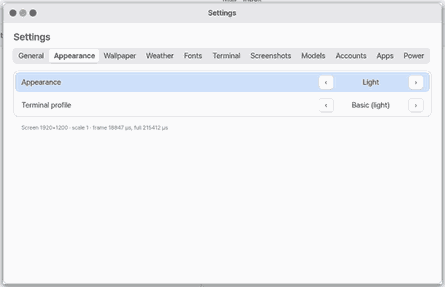
2. Change a value
- Pick a row with up and down, change it with left and right.
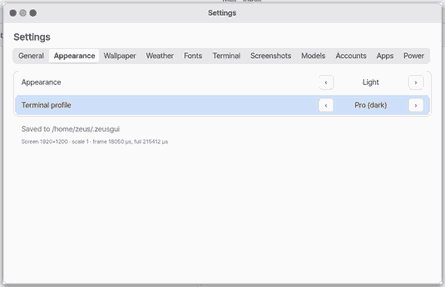
3. Open an app's settings
- In the Apps pane pick an app and press
Enter.
Shortcuts
| Key | What it does |
|---|---|
Tab | go to the next pane. Hold Shift as well to go to the previous pane. |
Enter | press the button of the chosen row. For example, it turns the network on or off, or starts setting a PIN. |
Settings
The Settings app has no settings of its own. It is the place where settings are changed. Per-app settings are in the "Apps" pane.
- Workspaces pane: sets of apps, sites and files you open together — "New from Open Windows…", Open and Close, Add App/Site/File, Up/Down, Remove, Rename, Delete, and "Open sites in" (Automatic, ZBrowser, Browser VM, Text view). See Workspaces.
- *See the Settings guide.
- Appearance pane, the Dock rows: "Dock size" (32–80 pixels, 48 by default), "Dock magnification" (the icon under the pointer and its neighbours grow), "Automatically hide the Dock" (it stays hidden until the pointer touches the bottom edge; windows may then use the full height).
- Sound pane: Volume, Start sound on/off, one of four start sounds (Open fifth, Bell and air, Open door, Warm pad — the default), which plays once when chosen, and Start text on/off. Both come once, when the desktop first appears after a boot; any key ends the text.
- Sharing pane, "Allow Remote Desktop": lets other devices on the same network or Wire see and use this screen. On by default — until you set a password, a one-time pairing code shown only on this screen is the login. Turned off, it stays off across restarts. See the Remote Desktop manual.
- Sharing pane, "Clipboard with the host computer": when NanumOS runs in a window on a Mac or PC, text copies both ways (Hangul too). Vault passwords stay here. On by default.
- Restore pane: restore points, snapshots of the whole home folder — the list, a click previews what going back would change, "Go Back to This Point…" (the home now is kept as a new point first), "Make One Now", "Make one every hour by itself". See Restore points and previous versions.
- About pane: the NanumOS version. On Lite (the phone version) it says, in plain words, when the build you run was made, whether it is the latest and whether a newer one is downloading. The small "Technical details" line below has the build id and the last check time.
Settings › Accounts adds, edits and removes mail accounts, and turns on connected services (plugins): log in, turn on, check now, check interval — see Connected services.
What it cannot do
- Wi-Fi connection and choosing a sound output device are not in this app.
- On a computer with no sound device, the Volume row says "not available".
- Display scale 2x can only be chosen when the screen is at least 1600 pixels wide.
- An app's settings show up to 8 rows.
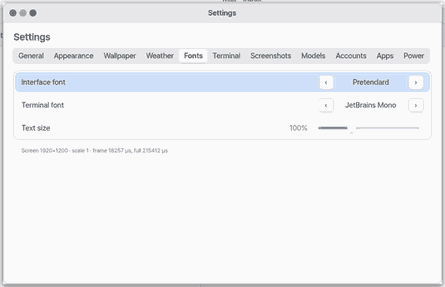
- Some names and values in Settings are shown in English even on the Korean screen. The font names are an example.
NanumOS 0.1.8349 · 2026-11-16