Console
Status: Ready
Read the lines the computer and its apps log.
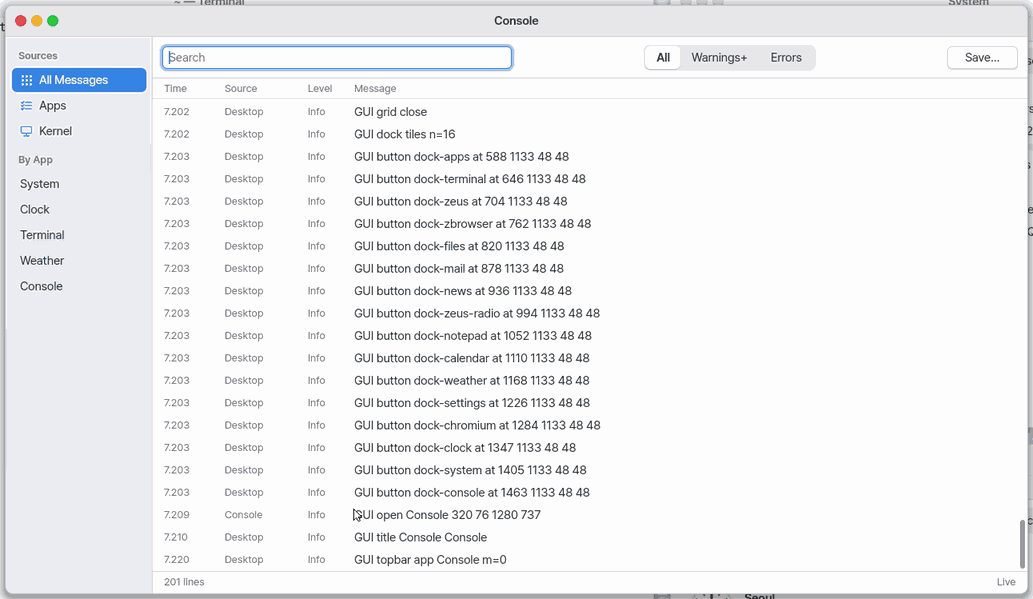
About this app
Console is where you read the records left by the computer and its apps. New records continue at the bottom; you can find the lines you need, read them in full, or save them as a text file.
At a glance
In one line: Read the records the computer and its apps leave, all in one place.
The screen
- Record list: each line shows time, source, level and text
- Search box: keeps only the lines with your word
- Level buttons on top: ranges like "Warning and above"
- "By app" on the left: see one app's records only
Task 1. See only problems
- Press "Warning and above" on top
- Read the lines that show
Say: "Open the Console app"
Task 2. Find a record
- Press the search box
- Type the word to find
Say: "Open the console"
Task 3. Copy one line
- Press one line
- Press "Copy"
Say: "Open the Console"
Basics
A log is a short piece of writing that says what a program did. Console gathers kernel records, desktop app records, and journal files when they are present, and shows them in time order. It reads words such as error and warning in each line to label it Info, Warning, or Error. Want to learn more? Press ⚡ and choose 「Teach me」.
How to use it
- Open Console and read the newest records at the bottom. When you scroll up to read, the screen stops following new lines.
- Type a word in the search field to keep only matching lines, or use the source on the left and the level at the top to narrow the list.
- Select a line to read its full text, time, source, and level; then use Copy or Save… if you need it.
Try it yourself
Try it: type GUI in the search field, select one line to read it in full, then press Copy. Press End to return to the newest line and follow again.
How it works
- When the app opens, it reads kernel records and desktop app records, plus journal files when they exist.
- It gathers each line's time, source, and message into a list, then marks its level from words that mean an error or warning.
- It checks for new records at regular intervals and adds them right away only while you are at the bottom. If you scroll up to read, it leaves the view still and tells you how many new lines arrived.
- Search and the source and level choices filter the lines already gathered, so you can find the record you need quickly.
- Save writes only the lines currently shown to a text file.
Technical details
Kernel records come from /var/log/dmesg; app records come from the desktop's recent record buffer. Each source keeps up to its newest 4,096 lines, dropping the oldest lines first when there are more.
FAQ
New records arrive, but the screen does not move
The screen stays still while you have scrolled up to read. Click “Paused — N new” or press End to return to the newest line and follow again.
Can I save only the records I need
First narrow the lines with search, source, or level, then click Save…. Only the lines currently shown are saved as a text file.
When it opens, every line since the computer started is there at once, and new lines are added at the bottom as they happen. While you scroll up to read, the screen stays still; click "Paused — N new" to follow again. Each line shows its time, its source (which app), its level (Info, Warning, Error) and the message.
Try this
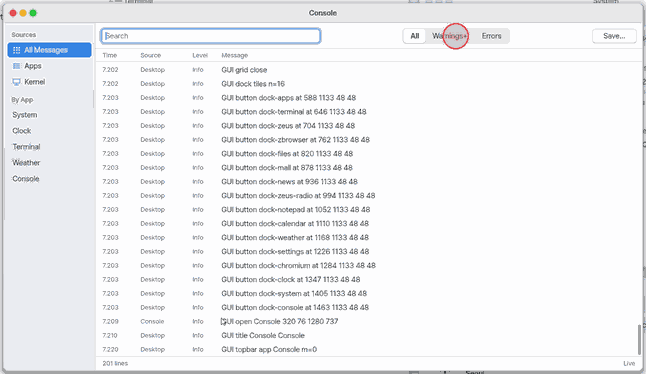
1. See only problems
- Click Warnings+ at the top. If there are none, it says "No warnings or errors right now — all is well".
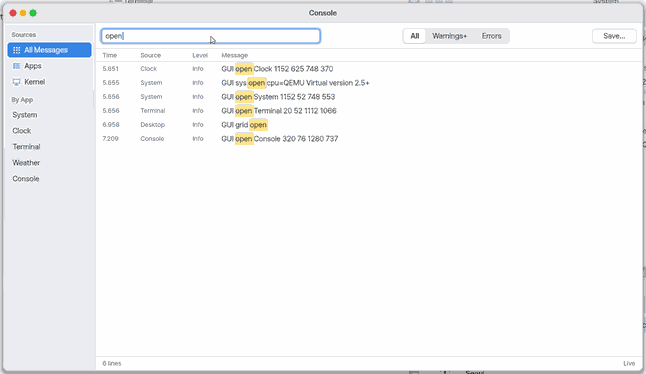
2. Search the log
- Type a word in the search field. Only the lines with that word stay, with the word marked.
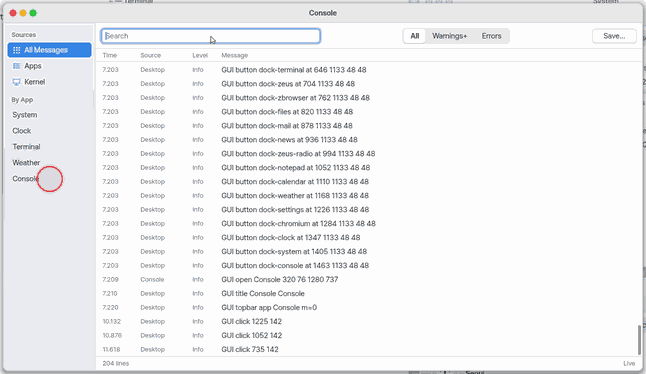
3. See one app's lines
- Click an app's name under By App on the left. All Messages shows everything again.
4. Read a line in full and copy it
- Click a line: the whole line, its time, source and level show below.
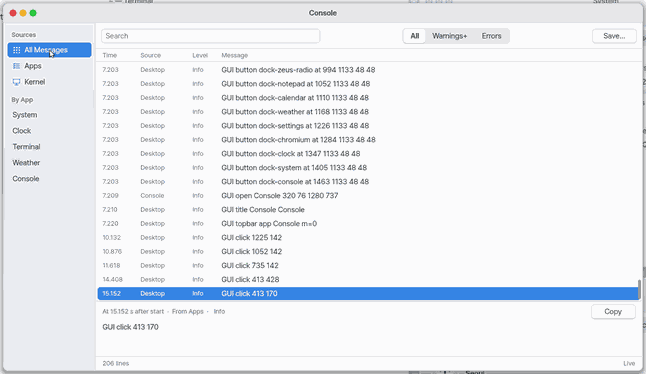
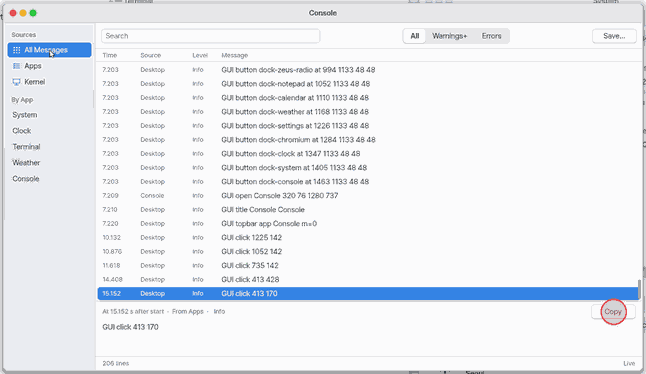
- Click Copy to put the line on the clipboard.
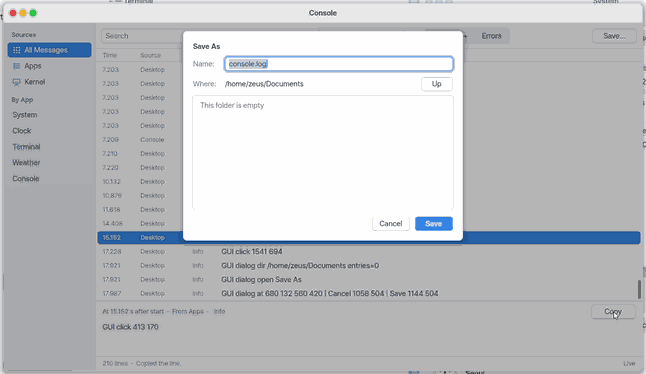
5. Save to a file
- Click Save… and choose a name. The lines shown now are saved as a text file.
Shortcuts
| Key | What it does |
|---|---|
Ctrl+F | Go to the search field |
Ctrl+C | Copy the selected line |
Ctrl+S | Save the shown lines to a file |
End | Go to the bottom (the newest line) and follow again |
Esc | Clear the search; again to unselect the line |
Ctrl+W | Close |
Ctrl+, | This app's settings |
Settings
Ctrl+, opens this app's settings (Settings › Apps › Console): "Show time column" and "Show details under the list" (both On by default).
The menu bar has File (Save As…, Close), Edit and View (pick the source, pick the level, pause live updates, jump to the newest); everything the keys do is in a menu too.
The source you looked at last (All Messages, Apps, Assistant & Services, Kernel, Journal or one app) comes back the next time. The level always opens on All, so a filter left on never hides every line.
What it cannot do
- You cannot clear a log.
- Named journals (logs per service) are not in a stock image, so Journal usually does not show.
- Each source keeps its newest 4,096 lines. When there are more, the oldest are dropped first.
- The level comes from the words of the line (error, failed, warning, timeout and the like). A line that reports a problem without such a word shows as Info.
- On mobile only this page's own log (the apps) shows. A phone's browser has no kernel log to show. The log starts empty when the page is opened again.
NanumOS 0.1.8349 · 2026-11-16