Terminal
Status: Ready
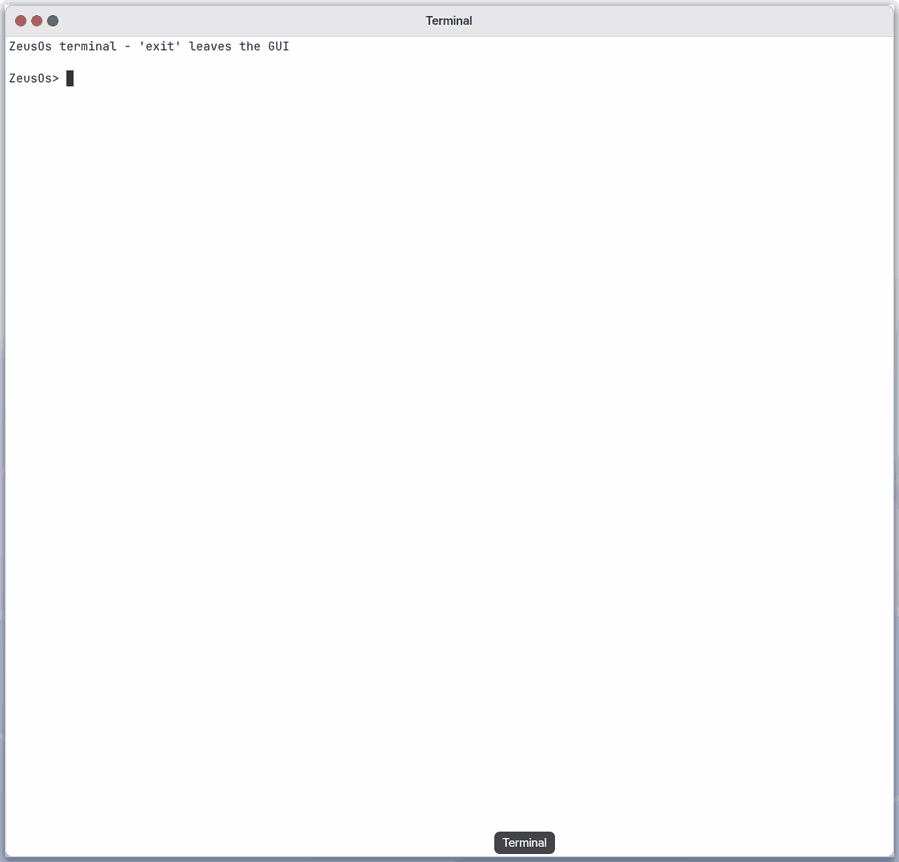
The window where you type commands.
About this app
A window where you give the computer written commands. Instead of the mouse you type to create files, move them and run programs.
At a glance
In one line: A window where you give the computer written commands.
The screen
- Prompt
zeus@nanumos:~$: where you type a command - Text area below it: the command's result appears
- Tabs: open several and switch between them
- Right click: the menu for that spot
Task 1. Run a command
- Type
lsafter the prompt - Press
Enter
Say: "What is the terminal for?"
Task 2. Clear the screen
- Make some long output
- Press
Ctrl+L
Say: "Open the terminal"
Task 3. Stop what is running
- Press
Ctrl+C - Check that the prompt comes back
Say: "Bring the terminal to the front"
Basics
Inside the terminal a program called the shell reads the line you typed, finds the right program, runs it and prints the result as text. Commands often look like name option target (for example ls -l Documents). Want more? Press ⚡ and choose 「Teach me」.
How to use it
- Type a command after the prompt and press
Enterto see the result. - The up arrow recalls earlier commands.
Tabcompletes names. Ctrl+Cstops a running program andCtrl+Lclears the screen.
Try it yourself
Try it: run ls to list the files here and pwd to see which folder you are in.
How it works
- The window sends your keys to the shell and draws the shell's output into a grid of characters.
- The shell splits the line into words, looks up the first as the command and hands it the rest.
- When a command ends it leaves a number saying whether it worked, and the prompt returns.
- Each tab runs its own shell, so work in one tab does not block another.
Technical details
A command is either a program in /bin or a feature built into the shell. Commands that delete cannot be undone, so write the exact absolute path.
FAQ
I typed a command wrong
Usually you just get a “not found” message and nothing happens. Recall the line with the up arrow, fix it and run it again.
How do I stop a running program
Press Ctrl+C.
Try this
1. Run a command
- Type a command after the prompt
zeus@nanumos:~$.
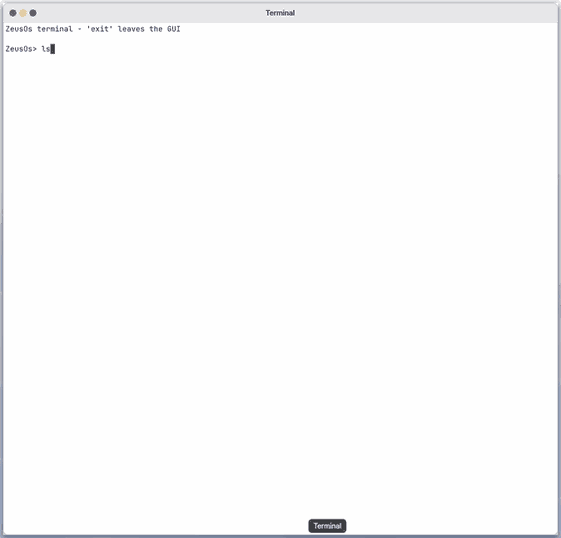
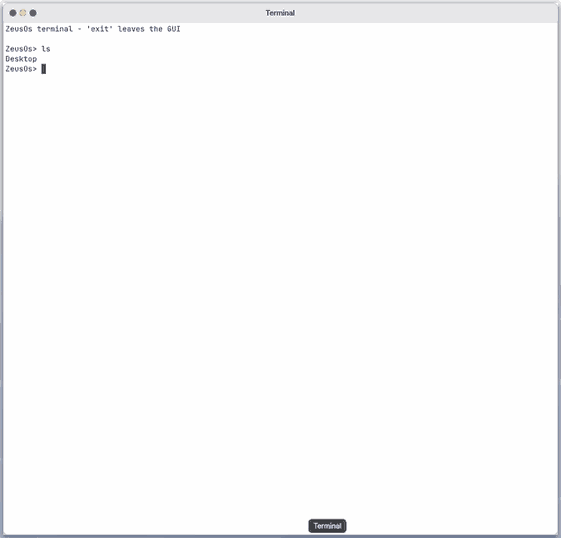
- Press
Enterto see the result.
2. Clear the screen
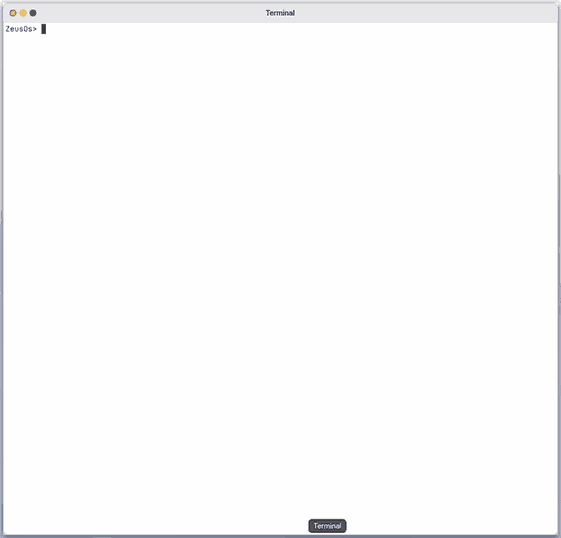
- A long output has piled up.
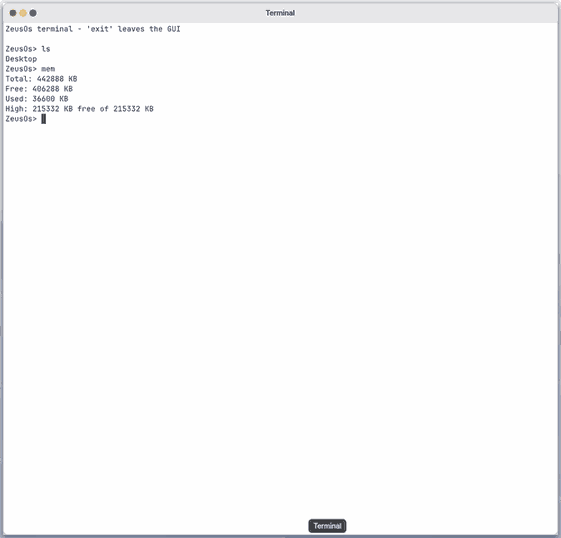
- Press
Ctrl+Lto clear the screen.
3. Scroll back
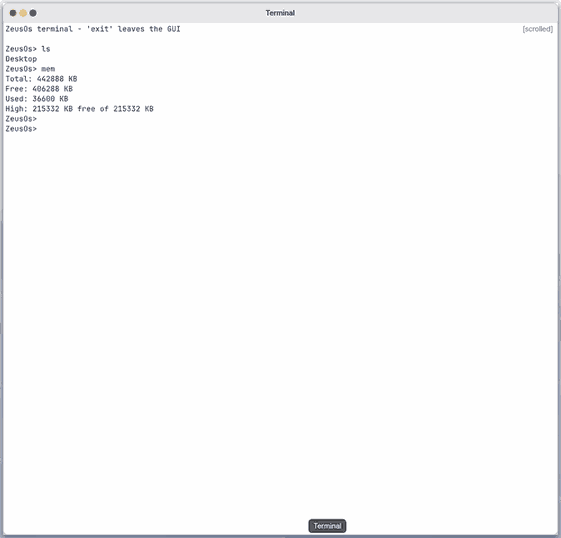
- Press
PgUp(or turn the wheel) to read earlier output.
Shortcuts
On the Mac window use Cmd; on a PC use Ctrl+Shift. Plain Ctrl+letter belongs to the shell: Ctrl+C stops the program, Ctrl+L clears the screen, Ctrl+W erases a word.
| Do | Mac window | PC |
|---|---|---|
| New tab (same folder) | Cmd+T | Ctrl+Shift+T |
| Close tab (the last one closes the window) | Cmd+W | Ctrl+Shift+W |
| Next / previous tab | Shift+Cmd+] / Shift+Cmd+[, Cmd+1..9 | Ctrl+Tab / Ctrl+Shift+Tab, Ctrl+PgDn / Ctrl+PgUp |
| Copy / paste | Cmd+C / Cmd+V | Ctrl+Shift+C / Ctrl+Shift+V |
| Take back the last typing | Cmd+Z | Ctrl+Z |
| Select all | Cmd+A | Ctrl+Shift+A |
| Find / find next | Cmd+F / Cmd+G | Ctrl+Shift+F / Ctrl+Shift+G |
| Clear scrollback | Cmd+K | Ctrl+Shift+K |
| Export text to a file | Cmd+S | Ctrl+Shift+S |
| Bigger / smaller / normal text | Cmd+= / Cmd+- / Cmd+0 | Ctrl+= / Ctrl+- / Ctrl+0 |
| Scroll to the top / bottom | Shift+Home / Shift+End | Shift+Home / Shift+End |
| Earlier commands | Up / Down | Up / Down |
| Complete a name (twice: the list) | Tab | Tab |
| Move inside the line | Left / Right, Ctrl+A / Ctrl+E, Alt+B / Alt+F | Left / Right, Home / End, Alt+B / Alt+F |
| Erase after / before the cursor | Ctrl+K / Ctrl+U | Ctrl+K / Ctrl+U |
| Select a word / a line | double click / triple click | double click / triple click |
| Menu at the pointer | right click | right click |
Settings
Cmd+, (Ctrl+, on a PC) opens this app's settings (Settings › Apps › Terminal).
| Item | Values |
|---|---|
| Cursor | Block (default), Underline, Bar |
| Copy when you select | On copies dragged text the moment you let go (default Off) |
| New tabs open in | The same folder (default), Home folder |
The font, the profile and the text size stay in the Settings app, in the panes below.
| Pane in Settings | Name | Values |
|---|---|---|
| Fonts | Terminal font | JetBrains Mono, Pretendard |
| Appearance | Terminal profile | Basic (light), Pro (dark), Classic Linux (black, the old console's 16 colours) |
| Terminal | Terminal text size | A percentage (%) |
Type cat h and press Tab: the name fills in (cat hello). A name with a blank gets a \ in front of it (가계부\ 표.xlsx), and when no name starts with what you typed, a name that contains it is looked for in this folder and two folders below (cat 가 → Documents/샘플/가계부\ 표.xlsx). The earlier commands are the same list as the console's and ssh's.
ls and grep typed here show colours (folders blue, programs green, matches red); into a pipe or a file they print plain text. LS_COLORS changes the colours.
What it cannot do
- One command runs at a time: while a program runs in one tab, the other tabs wait.
- No second Terminal window and no split panes (open more tabs instead).
- The scrollback keeps 400 lines per tab.
- No printing, no clickable links, no italic text.
- Undo (
Ctrl+Z) works on the line you are typing at the prompt. While a program runs,Ctrl+Zgoes to that program.
NanumOS 0.1.8349 · 2026-11-16