Network Utility
Status: Ready
Check whether your network works.
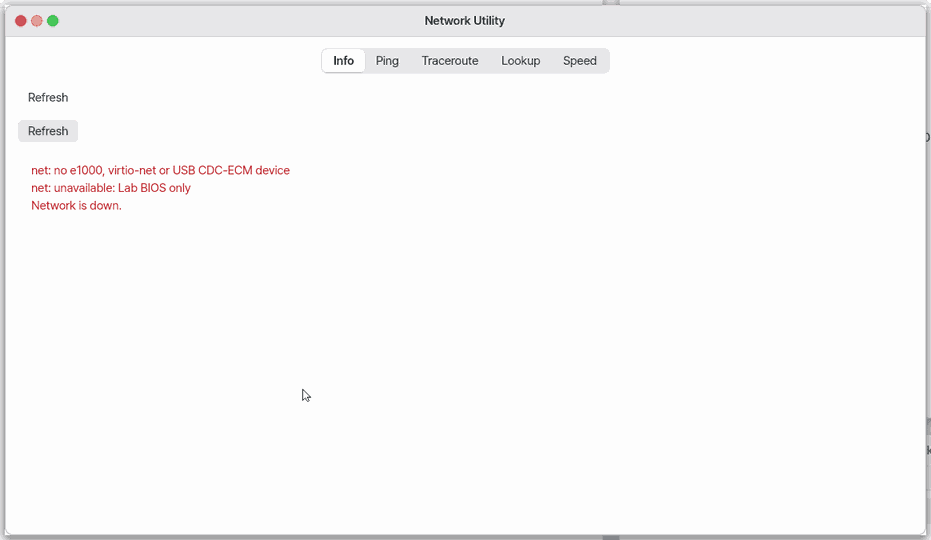
About this app
It shows your device's connection details, how long it takes to reach an address, which number a name resolves to, and how fast a download runs.
Basics
The internet is like a road. Your device sends traffic through the router to a distant server, passing several places on the way, and a jam anywhere makes everything slow or cuts it off. This app probes that road piece by piece. A "ping" is a shout whose echo is timed, and a "lookup" is a phone book that turns a name such as example.com into a numeric address. When things feel slow, it helps you tell whether the cause is your device, your router, or the outside.
How to use it
- Pick one of the five tabs (Info, Ping, Traceroute, Lookup, Speed).
Ctrl+1toCtrl+5also switch tabs. - On Info, read whether you are connected, your address, the router, and DNS. "Refresh" reads again, and "Details" adds the interface and MAC address.
- On Ping, Traceroute and Lookup, type an address or name and press
Enter. Change the ping count in its field. - On Speed, keep the download address and press Go. While it runs you see "Downloading... N s" and Go turns into Cancel (or press
Esc). If it takes more than 10 seconds the app says so; press Go again. - File > Settings sets the default ping count. The network itself is turned on and off in the Settings app.
Try it yourself
On the Info tab confirm you are connected, then on the Ping tab type your router's address, press Enter, and read the time in ms.
How it works
- The Info tab reads the connection values the device holds right now (address, router, DNS).
- Ping sends a small signal to the address and times the reply. It waits up to 4 seconds.
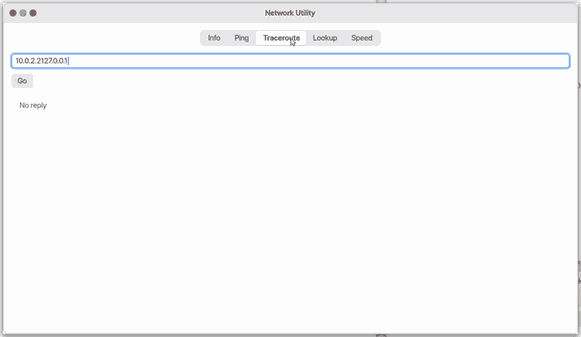
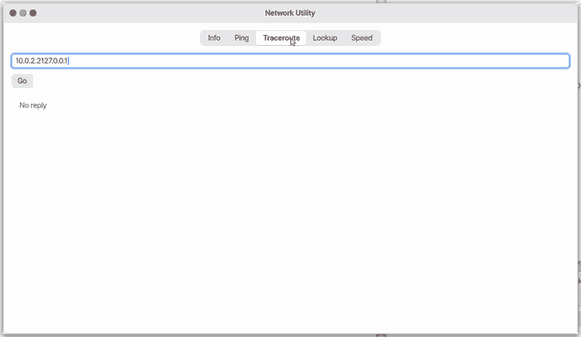
- Traceroute shows only the first hop, not the whole route.
- Lookup finds IPv4 addresses only.
- Speed runs as a background job, so the screen keeps moving while you wait, and it downloads for at most 10 seconds.
- On mobile (web) the app does only what a browser can: the connection type the browser reports, the time to our server, name lookups, and a download from our server. A real ping and a route trace are not possible in a browser, and the app says so.
Technical details
Lookup asks DNS for A records (IPv4); on mobile it asks over DNS-over-HTTPS. Ping uses ICMP echo, Traceroute sends with TTL 1 to see the first hop's reply, and the result box holds about 1000 characters.
FAQ
My ping says "No reply"
The address may simply refuse to answer pings. Check on the Info tab that you are connected, then try pinging your router's address.
The whole route does not show
The Traceroute tab shows only the first hop. On mobile a browser does not allow route tracing at all.
Can I save the result
Not yet. There is no save or copy for results.
At a glance
In one line: Check whether your network is working well.
The screen
- Five tabs on top: Info, Ping and more (switch with
Ctrl+1toCtrl+5) - The "Info" tab: connected, address, router, DNS
- "Refresh" and "Details": read again, and see interfaces and MAC address
- The "Ping" tab: type an address and press
Enter
Task 1. See your network info
- Press the "Info" tab
- Read connected and address
- Press "Refresh"
Say: "Open Network Tools"
Task 2. Send a ping
- Press the "Ping" tab
- Type an address
- Press
Enter
Say: "What is Network Tools for?"
Task 3. Stop a test
- Look at the running test
- Press
Esc
Say: "Turn on Network Tools"
Try this
1. See your network info
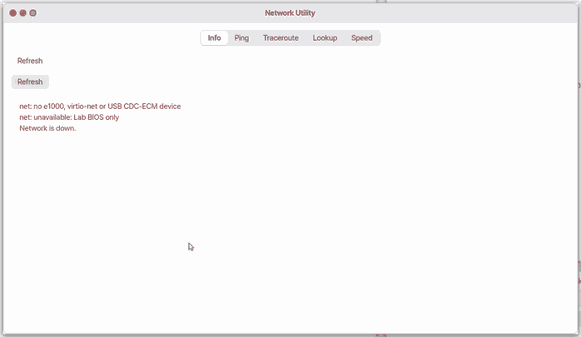
- The Info tab shows whether you are connected, your address, router and DNS. Use Refresh to read it again; Details shows the interface and MAC address.
2. Send a ping
- Click the Ping tab.
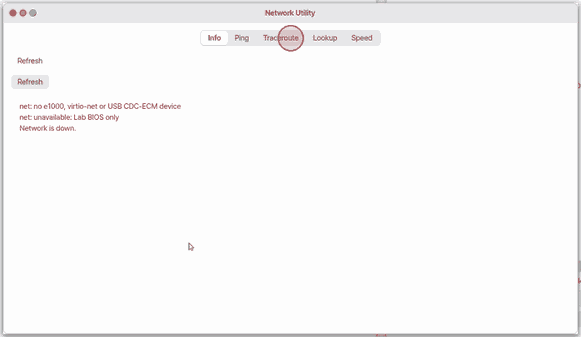
- Type an address and press
Enter.
3. Stop a test
Escstops a running test.
The speed test downloads in the background: the box says "Downloading… N s", Go turns into Cancel, and the rest of the desktop keeps working. After 10 seconds it says so and you press Go to try again.
Shortcuts
This app has no shortcuts of its own.
Settings
File > Settings sets the default ping count and whether Info opens with details. The menu bar also has Edit (Undo, Redo, Cut, Copy, Paste, Select All on the field with the caret) and View (the five tabs, Ctrl+1 to Ctrl+5). Turn the network itself on or off in the Settings app.
What it cannot do
- Traceroute shows only the first hop, not the whole path.
- Lookup finds IPv4 addresses (A records) only.
- One Ping waits up to 4 seconds, Traceroute up to 4 seconds, and Speed up to 10 seconds.
- The result box holds about 1000 characters.
- You cannot save or copy the result.
- On mobile it does only what a browser can: the kind of connection the browser reports (Safari hides it), the time to our server, a name lookup over DNS-over-HTTPS, and the download speed from our server. Traceroute cannot be done in a browser, and the tab says so.
NanumOS 0.1.8349 · 2026-11-16