Disk Utility
Status: ReadyDesktop only
See the size and use of the disks and USB sticks, and eject a stick safely.
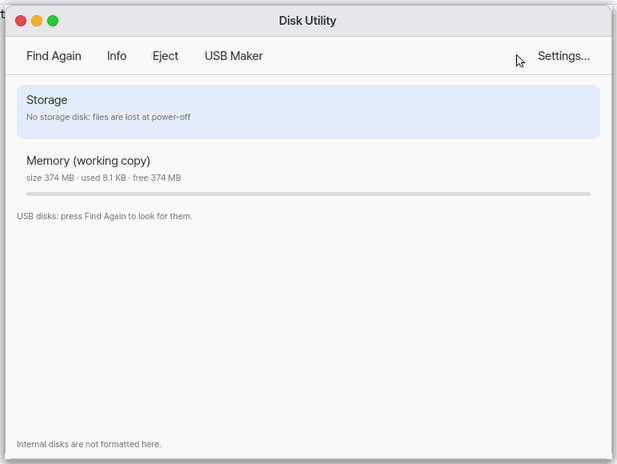
About this app
An app that shows the size and used space of your disks and USB sticks, and ejects a USB stick safely. Think of a stock sheet for a storage room: you see at a glance how full each one is. It exists only in the desktop edition, not on the phone.
Basics
Your files live on a disk, and the working copy of the file you are using sits in memory. If you pull out a USB stick without ejecting, what was not yet written can be lost, so use Eject first. Sizes can be counted in GB (units of 1000) or GiB (units of 1024), so the same disk shows slightly different numbers.
How to use it
- Plug in a USB stick and press Rescan (
Ctrl+R); the stick is added to the list with its size. - Pick a disk with the up and down arrows and press Info (
Ctrl+I), or double-click it, to see its size, files and save state. - Select the USB stick and press Eject (
Ctrl+E); the app saves your files first and tells you when it is safe to pull it out. - In Settings (
Ctrl+,) choose GB or GiB for sizes.
Try it yourself
Try it: press Rescan, select the storage disk and press Info. The memory bar also shows how much is used and how much is left.
How it works
- Opening the window does not look for or read any disk. It shows what it already knows; USB sticks are searched only when you press Rescan.
- “Storage disk” shows the size and save state of the place where your files live; “Memory” shows used and free space as a bar.
- The USB stick you started from and a stick that holds your files are labelled as such.
- Eject finishes saving and then tells you it is safe to pull the stick out.
- It does not erase (format) or partition disks. To make a boot USB use the “USB Maker” button, which opens USB Maker.
Technical details
USB entries show a device name such as sda, the maker and the size. Whole internal NVMe and SATA disks are not listed; only the NanumOS file inside an NVMe disk appears as a storage disk. Whether a disk may be written (the booted stick and a stick holding your files may not), auto-save, and unsaved changes are shown on the same screen.
FAQ
My USB stick is not in the list
Plug it in and press Rescan. The window does not search for sticks when it opens.
Can I just pull the stick out
Not if it was being written to. Press Eject, wait for the message that it is safe, then pull it out.
Can I erase or partition a disk
Not yet. This app only looks and ejects.
At a glance
In one line: See the size and used space of disks and USB sticks, and eject a USB stick safely.
The screen
- Storage disk: the size and save state of where your files live
- Memory (working copy): used and free space as a bar
- USB disks: shown after you press "Rescan"
- "Info" and "Eject": what you do to the chosen disk
Task 1. Find a USB stick
- Plug in the USB stick
- Press "Rescan"
- Look for it in the list
Say: "Open Disk Utility"
Task 2. See info
- Choose a disk
- Press "Info"
- Read the size and save state
Say: "What does Disk Utility do?"
Task 3. Eject a USB stick
- Choose the USB disk
- Press "Eject"
- Wait for the all clear to unplug
Say: "Open Disk Utility"
Try this
1. Find a USB stick
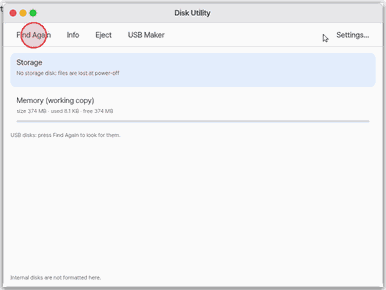
- Plug a stick in and press "Find Again": the USB disks join the list with their sizes.
2. See the details
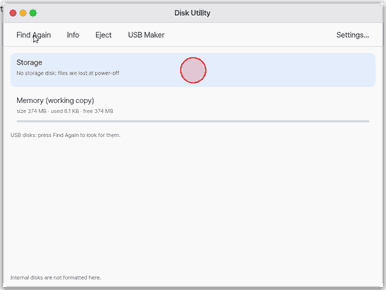
- Pick a disk and press "Info", or click it twice: size, files and saving state.
3. Eject
- "Eject" saves the files first and says when the stick can be pulled out.
Shortcuts
Ctrl+I Info, Ctrl+E Eject, Ctrl+R Find Again, Ctrl+, Settings. The Up and Down arrows pick a disk.
Settings
Settings › Apps › Disk Utility, or "Settings…" in the window: sizes in GB (1000) or GiB (1024).
What it shows
- Storage — where your files are saved (the NanumOS USB stick, the NanumOS file on the NVMe disk, or the lab disk): the disk's size, the size of the saved files, whether it saves by itself, and whether there are unsaved changes.
- Memory (working copy) — the memory that holds the files in use, used and free as a bar.
- USB disks — only after "Find Again": name (sda…), maker, size and whether it may be written (the stick this system started from and the stick with your files say so).
Opening the window never looks for or reads a disk. It shows what is already known; USB disks are looked for when you press "Find Again".
The "USB Maker" button opens USB Maker to write an image to a stick.
What it cannot do
- Erasing (formatting) and partitioning are not here yet. Internal disks are not formatted here.
- Whole internal NVMe and SATA disks are not listed (only the NanumOS file on NVMe shows, as Storage).
- Not on the phone (lite): a browser has no disks.
- It does not run on mobile (a phone's browser). Its tile says why: Disk Utility works with the disks and USB sticks in the computer. A phone's browser cannot see disks at all. On mobile, the System app shows how much storage is left.
NanumOS 0.1.8349 · 2026-11-16