Help
Status: Ready
Read and search the manuals.
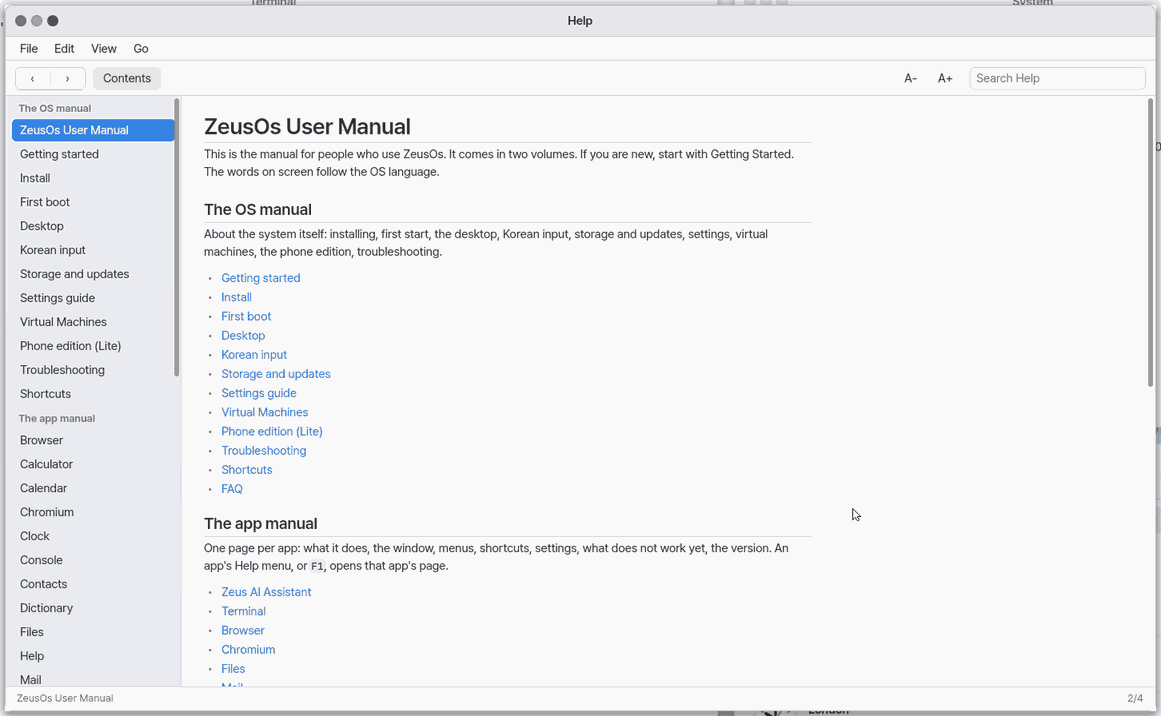
About this app
An app for reading and searching this manual. It works like turning pages of a book by its table of contents. Only the pages that come with this edition are shown, and they are read-only.
Basics
Not applicable
How to use it
- Press
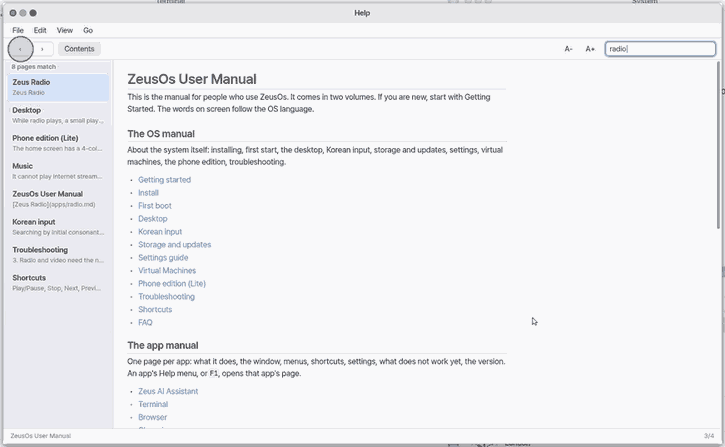
Ctrl+Lto show the table of contents and read the page in the middle.‹›(orCtrl+[andCtrl+]) go to the previous and next page. - Press
Ctrl+Fand type a word; results appear as you type. Click one to go to that page. Ctrl+=andCtrl+-make the text larger and smaller,Ctrl+0returns to the default size. A- and A+ do the same.Shift+Ctrl+Hgoes to the first page.Ctrl+Ccopies the page text.- File > Settings sets whether the contents list shows (Auto, Always, Hidden) and whether Help opens on the last page or the first.
Try it yourself
Try it: press Ctrl+F, type “calendar” and click a result.
How it works
- The manual is inside this edition, so it reads without the internet.
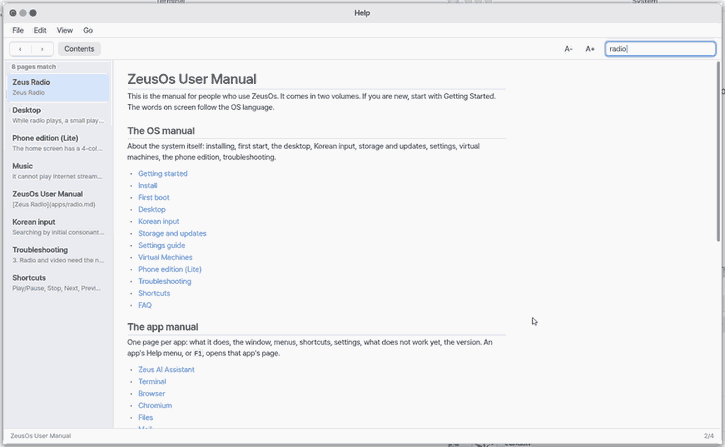
- Search scans the words of every page and shows the results with the page name.
- The text size moves in eight steps from 80 to 200 % and the last size is remembered for next time.
- The first time you open an app, a small “Try this” pill appears at the right end of its menu bar. Click it to unfold three things to try in that app, and turn it off with “OK” or “Don't show again”.
- The manual can also be read in “Mobile” in the phone browser. After a first download it opens without the internet.
FAQ
I cannot see the pictures
On mobile the pictures are only shown in NanumOS on a computer for now. All the text can be read.
Can I add notes to the manual
No. The manual is read-only.
How do I get help inside an app
Press the “?” button in the app window to open that app's chapter. Press ⚡ to ask the assistant that knows the app.
At a glance
In one line: Read and search this manual.
The screen
- Contents: shown with
Ctrl+L - Page text: the manual appears in the middle
‹›: go to the previous or next page- A- A+: change the text size
Task 1. Find a word
- Press
Ctrl+F - Type the word
- Press a result
Say: "Open Help"
Task 2. Make the text bigger
- Press
Ctrl+= - Press it again for bigger
- Press
Ctrl+0for the normal size
Say: "Open the Help app"
Task 3. Go back and forward
- Press
‹ - Return to the earlier page
- Press
Ctrl+]to go forward again
Say: "Open the manual"
Try this
1. Search for a word
- Press
Ctrl+F.
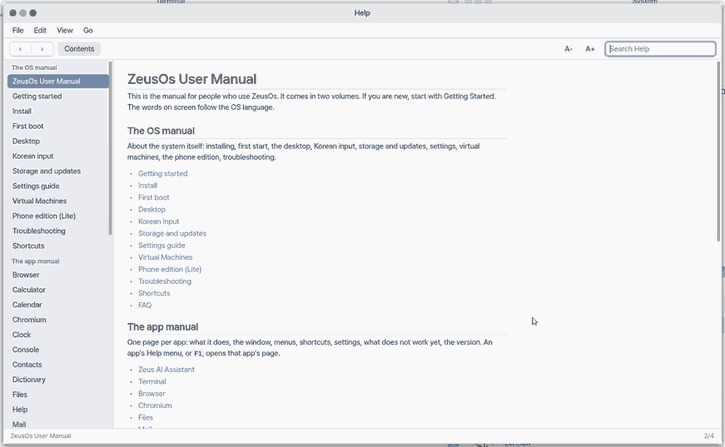
- Results appear as you type.
2. Bigger text
- Press
Ctrl+=to make the text bigger.
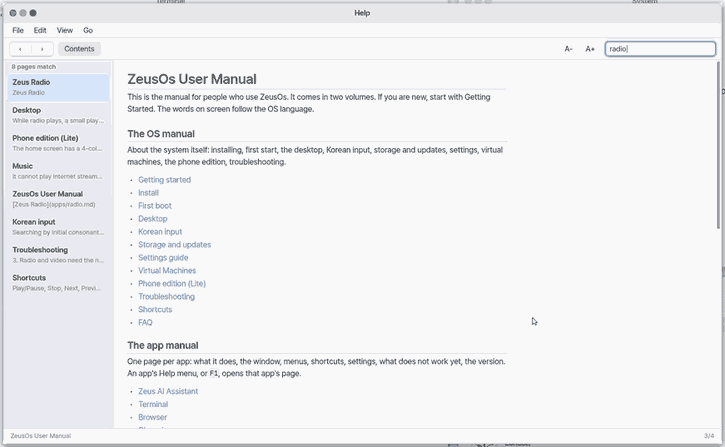
3. Back and forward
- Click
‹to go back a page.
Shortcuts
| Key | What it does |
|---|---|
Ctrl+W | Close |
Ctrl+C | Copy Page Text |
Ctrl+F | Find in Help… |
Ctrl+= | Bigger Text |
Ctrl+- | Smaller Text |
Ctrl+0 | Actual Size |
Ctrl+L | Show Contents |
Ctrl+[ | Back |
Ctrl+] | Forward |
Shift+Ctrl+H | Start Page |
Settings
The "Try this" tip when an app first opens
The first time you open an app, a small 💡 "Try this" pill appears in the empty right end of that app's menu bar. It covers nothing, so you can just carry on. Click the pill and three things to try in that app drop down; "Got it" hides it for that app, "Don't show again" turns it off in every app. To see the tips again: any app's Help menu → "Show Tips Again". An app without a menu bar shows the same pill small in the window's bottom-right corner.
The Edit menu works on the search box: Undo, Redo, Cut, Copy, Paste and Select All, next to Copy Page Text and Find in Help.
What it cannot do
- Manuals on the internet cannot be read. Only the pages in this build are shown.
- You cannot edit a page or add notes. Pages are read-only.
- In a build without the manual pages, Help says that the manuals are not in this build.
On mobile too
You can read this manual on 「Mobile」 in a phone's browser too. It is on the second home page.
- The first time it opens it fetches the manual once (about 400 KB). After that it opens without the internet.
- The 'Search Help' field at the top searches every page at once.
- Pictures show only on NanumOS on a computer for now.
NanumOS 0.1.8349 · 2026-11-16