Vault
Status: Ready
A safe place for your passwords.
In a wide window a locked vault is one card in the middle (the lock, what to do, the master password, Unlock). Open, it has a sidebar on the left (search on top, then the categories: All and the groups), the entries in the middle (a round initial, the name, the user) and the chosen entry on the right (a big initial, name and group, then user, address and password with Copy and Edit). New, Edit and Access are one centred column.
About this app
A vault that locks passwords and other private details in one place. You remember one master password and the vault remembers the rest.
At a glance
In one line: A safe that keeps passwords securely. You only remember one master password.
The screen
- Lock card: the master password box and Open
- Left sidebar: search on top, categories below
- Middle list: item names and users
- Right side: the chosen item's user, address, password, Copy and Edit
Task 1. Open the vault
- Press the master password box
- Type the password
- Press
Enter
Say: "Open the Vault app"
Task 2. Find an item
- Press
Ctrl+F - Type the name
- Press the item
- Press Copy
Say: "Bring the Vault app to the front"
Task 3. Lock the vault
- Press
Ctrl+L - Check that the lock card comes back
Say: "Open the Vault app and show it"
Basics
The vault file uses the KDBX format that KeePass uses. A key made from your master password encrypts the whole file, so a stolen file cannot be read without the password. Want more? Press ⚡ and choose 「Teach me」.
How to use it
- Click the master password box, type it and press
Enterto open. - Press
Ctrl+Fto find an entry; pick it and the right side shows the user, address and password, with a copy button. - When you are done, lock at once with
Ctrl+L.
Try it yourself
Try it: open the vault, find one entry with Ctrl+F, lock it with Ctrl+L, then open it again.
How it works
- Opening decrypts the file and keeps its contents only in this device's memory; locking wipes them.
- The password is never written in the file. The file opens only when the same password can rebuild the same key.
- When another program needs a secret from the vault, it asks you first and only gets it if you allow.
- To use the vault on several devices, zcloud keeps only the encrypted file in sync on a server.
Technical details
It reads and writes KDBX 4. Older KDBX 3.1 files cannot be opened. Up to 400 entries are shown.
FAQ
I forgot the master password
A forgotten password cannot be recovered. Look for a copy of the vault on another device where you still know it. That is also exactly why the vault is safe.
The vault will not open
A line under the card says why. For “wrong password” check the password again; for “not enough memory” close other apps and retry.
Try this
1. Unlock the vault
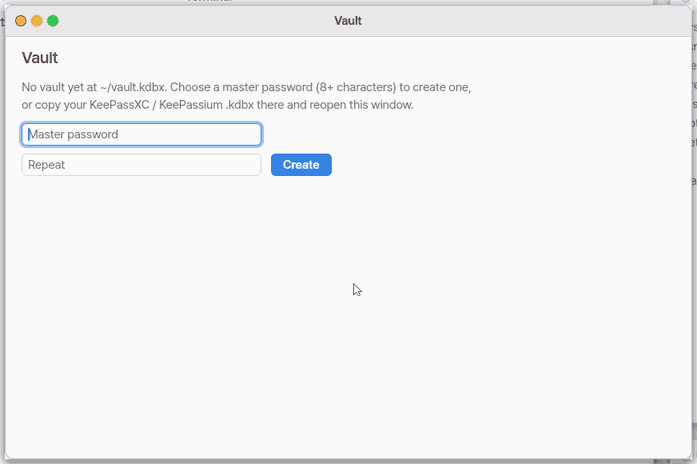
- Click the master password field.
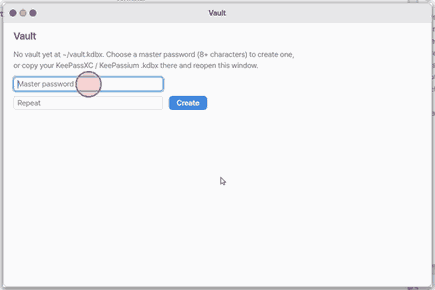
If it does not open, one line under the card says why. "The password does not match" means a different password (a vault brought from your Mac uses the master of zeus.kdbx in KeePass there); "Something went wrong while opening the vault" means the password may be right, so try again; "Not enough free memory" means close other apps and try again.
2. Find an entry
- Press
Ctrl+Fto go to the search field.
3. Lock the vault
- Press
Ctrl+Lto lock it at once.
Shortcuts
This app has no shortcuts of its own.
Settings
Vault settings open from File > Settings… (Ctrl+,).
- Clear a copied password after — 10 seconds, 30 seconds, 1 minute, 2 minutes. After copying a password the clipboard is cleared when this time is up (if you copied something else meanwhile, it is left alone).
The Edit menu has undo, redo, cut, copy, paste and select all. Fields that hold a password never copy, cut or undo. While the vault is locked, Ctrl+F tells you that searching starts after you unlock. On the lock screen Tab walks the field and the buttons.
The Access screen opens from Passwords in the General list of the Settings app.
zcloud: the same vault on every device
Settings > zcloud: the server address (https), this device's name and the device password, Join, then Sync. The server only gets the file the master password encrypts; the device password stays in a file outside the vault (0600). More in the OS manual's "zcloud" chapter.
On mobile — get my vault
This app
On your phone (NanumOS Mobile) the same vault you use on the desktop or the Mac opens. Nothing to create again, no file to move. The vault is one locked box; it sits in your zcloud, so every device opens it with the same key (the master password).
How to use it
- Open Vault on the phone. With no vault on the phone yet, the first screen has Get my vault on top and Create new under it.
- If it says "Your vault is in your zcloud", type the master password and tap Get my vault — the one you use for the vault on the desktop or the Mac.
- If it says "No vault in your zcloud yet", open the vault once on the desktop or the Mac, then tap Get my vault on the phone again.
- After that nothing asks you anything. A change on the phone goes up by itself; a change made elsewhere comes in when you open the vault.
Try it now: open Vault on the phone and type the master password once.
How it works
- Only one locked file travels. Unlocking (Argon2) and merging happen on the phone; the master password never leaves it.
- When two devices changed the same entry, the later change stays and the earlier one is kept in that entry's History. Nothing is dropped and no window asks.
- The server keeps the file as it was just before the last change as
zeus.kdbx.prev, one step back. - A fresh phone page, or the idle lock, asks the master password again: the open vault lives in that page's memory only, and no key is left in the browser's storage.
Technical details
- One sync: LOCK (120 s) → GET → merge entry by entry (
kx_sync_merge: newer wins, the other into History, up to 10) → if the server lacked something, keep.prevand PUT → UNLOCK. A clock more than 5 minutes off the server's is refused. - A server with no vault door set up shows the old Create screen.
On the Mac app: bring your vault from this Mac
This app
If your vault file lives on the Mac, you can hand it to NanumOS in two steps. Only the locked file goes over; your master password never leaves the Mac window and NanumOS never reaches into the Mac.
How to use it
- In the Mac menu bar, open Machine and choose Import vault…, then pick your
.kdbxfile. Or, with no vault in NanumOS yet, press Import vault from Mac in the Vault app and pick the file in the Mac window. - When NanumOS says "Vault received", open Vault and type your master password.
- If a vault was already there, the old one is kept next to it, named with today's date (
before-<date>). Nothing is lost.
An empty Vault screen offers three choices in this order: your zcloud, from this Mac, create new.
Try it now: choose Import vault… and pick a copy of your vault file.
How it works
- The Mac checks that the file looks like a vault, then sends it with a fingerprint. NanumOS recomputes the fingerprint and refuses the file if it differs or is not a vault.
- The new file is written beside the old one and swapped in only when it is complete; it is readable by you alone.
Technical details
- Only the file travels: no password, no keychain items, no path. The old guest-to-Mac pairing over ssh is gone.
- Test:
tests/mac_vault.py.
What it cannot do
- There is one vault file, in your home folder. There is no window to pick another file.
- Old KDBX 3.1 files cannot be opened. Open and save them once in KeePassXC first.
- Only the first 400 entries are shown.
NanumOS 0.1.8349 · 2026-11-16