Music
Status: Ready
Play your music by album.
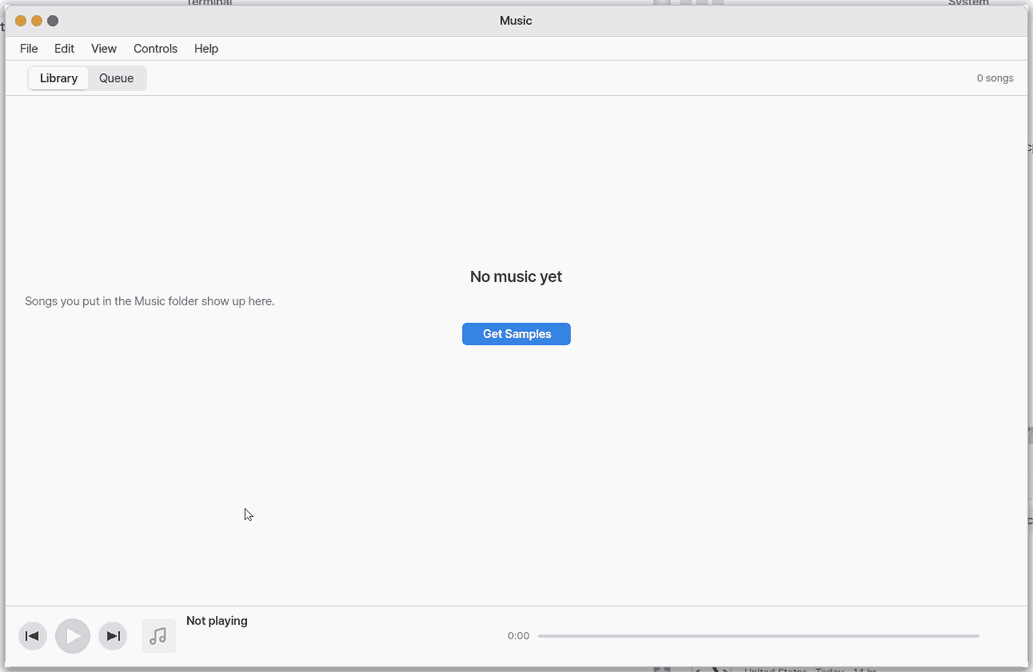
About this app
Listens to the music files on this computer, grouped by artist and album. Songs wait in a queue, and after you close the window the small player in the top bar keeps going.
At a glance
In one line: Listen to the music on this computer, gathered by album.
The screen
- Left "Albums": opens the grid of album tiles
- "Songs": the list of all songs
- "Queue": the songs to hear next
- Play bar at the bottom: pause, S (shuffle), R (repeat)
Task 1. Add music
- Open the File menu
- Press "Add to library…"
- Pick music files or a folder
Say: "Open the Music app"
Task 2. Play a song
- Press "Songs"
- Double-click a song
- Press
Spaceto pause
Say: "Turn on the Music app"
Task 3. Stack up next songs
- Pick a song
- Press "Add to queue"
- Press "Queue"
Say: "Bring the Music app to the front"
Basics
A music file is sound packed small by a codec. The same song can be packed in different ways, which is why the endings of the names differ.
- MP3 and AAC — the most common; nearly every device plays them.
- Ogg Vorbis (
.ogg) — an older open way. - FLAC and WAV — keep every bit of the sound (lossless, original). The files are big.
Title, artist and album live in the file's tags; without them the app reads the folder and file names. Want more? Press ⚡ and choose 「Teach me this app from the basics」.
How to use it
- Choose File › Add to Library… (
Ctrl+O) and select a music file or folder. You can also choose Add to Music in Files or drag a file onto Music. By default, songs are copied into yourMusicfolder. Turn off “Copy files to Music when adding to library” in Settings to keep them in their original place. - Opening a music file in Files plays that song once without adding it. In Viewer's audio screen, choose Open in Music.
- Double-click a library song to play it; Add to Queue lines up the next ones.
Spacepauses; tap the progress bar to seek. - On desktop, choose Albums in the left sidebar to see album tiles. Open one for its track list and Play album or Shuffle album. Songs returns to the full list; Queue shows upcoming tracks. If an album has no artwork, a color tile is made from its name.
- Tap S on the player bar to shuffle the remaining queue. R cycles through repeat off, repeat all, and repeat one. Right-click a song for Play Next or Play Later; right-click a queued song to move it up or down.
- Tap the album tile or song name in the player bar at the top of the window to open Now Playing. You can also open it from the left sidebar. It shows a large album tile and song information; Back to library returns to the previous view. Albums without artwork use a color tile made from the album name.
Try it yourself
Try it: get songs with 「Get Samples」, play one, then close the window. The sound goes on, and the small player in the top bar can stop it.
How it works
- Playing a song starts a player in the background (
play) that reads the file, unpacks it with the right codec and sends it to the sound card. It runs apart from the window, so closing the window does not stop the sound. - Pause ends the player and remembers the second you reached; play starts it again skipping that many seconds — seeking with the progress bar works the same way.
FAQ
Which files can it play
The song details look wrong
Try this
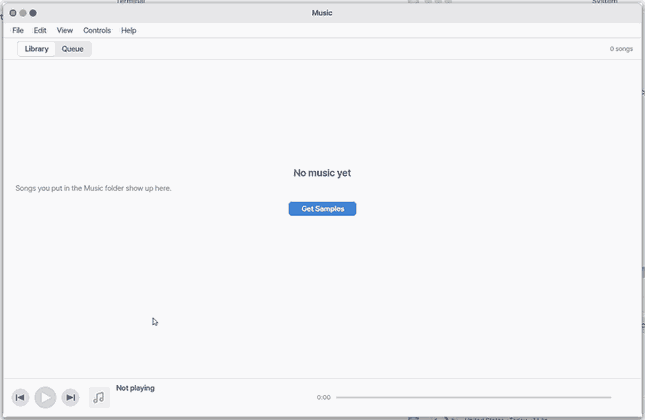
1. Play a song
- Pick a song and double-click or press
Enter.
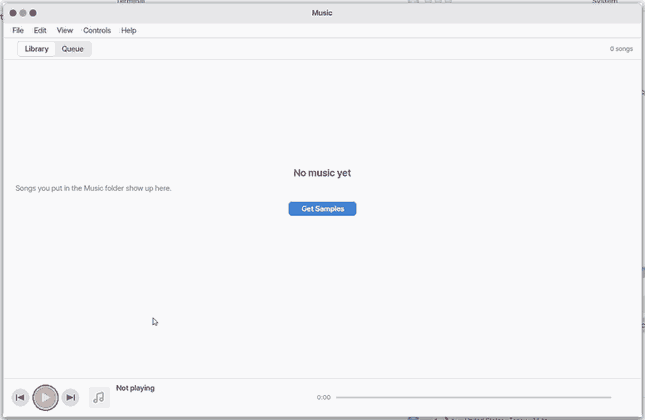
2. Pause and play
- The play button pauses and resumes.
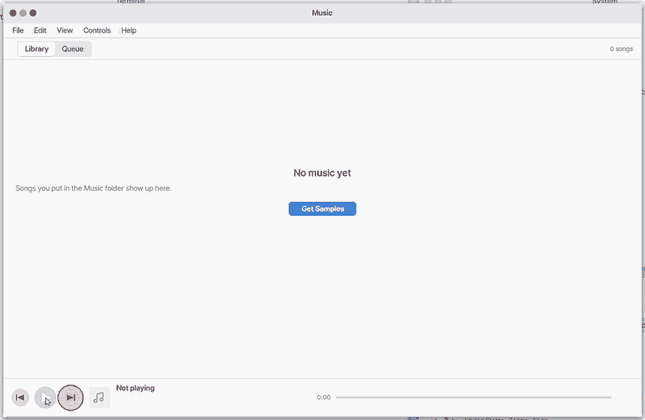
3. Next song
- Click next for the following song.
Shortcuts
| Key | What it does |
|---|---|
Enter | Play |
Ctrl+E | Add to Queue |
Ctrl+Shift+E | Play the selected song next |
Ctrl+Shift+Up / Ctrl+Shift+Down | Move a queued song |
F5 | Refresh |
Ctrl+W | Close |
Ctrl+C | Copy Path |
Del | Remove from Queue |
Shift+Ctrl+Del | Clear Queue |
Ctrl+1 | Library |
Ctrl+2 | Queue |
Space | Play / Pause |
Ctrl+Right | Next |
Ctrl+Left | Previous |
Ctrl+Backspace | Stop |
F1 | Music Help |
Settings
Settings control the opening view, repeating the queue, and whether importing copies the original file.
What it cannot do
- It cannot play internet streams or songs on other devices. Only files on this computer work. For internet radio use Zeus Radio.
- The Library holds up to 1200 songs and the queue up to 100.
- On the last song of the queue the next button is greyed and does nothing. Clicking the progress bar plays from there (also a song that ended).
- An album can be shuffled from its detail view. Library-wide shuffle, saved playlists, embedded album art and lyrics are not available yet. Albums without artwork use a generated color tile.
- There is no volume slider or equalizer in this app. Change the volume with the volume keys.
- While a song plays, changes in the folder do not show up in the list by themselves. Press
F5to refresh.
NanumOS 0.1.8349 · 2026-11-16