Zeus Radio
Status: Ready
Pick a radio station from all over the world and listen.
About this app
Find internet radio stations from all over the world by name or genre and listen right away. Keep favourites in My Stations, and use a sleep timer or an alarm.
At a glance
In one line: Pick and listen to radio stations from around the world.
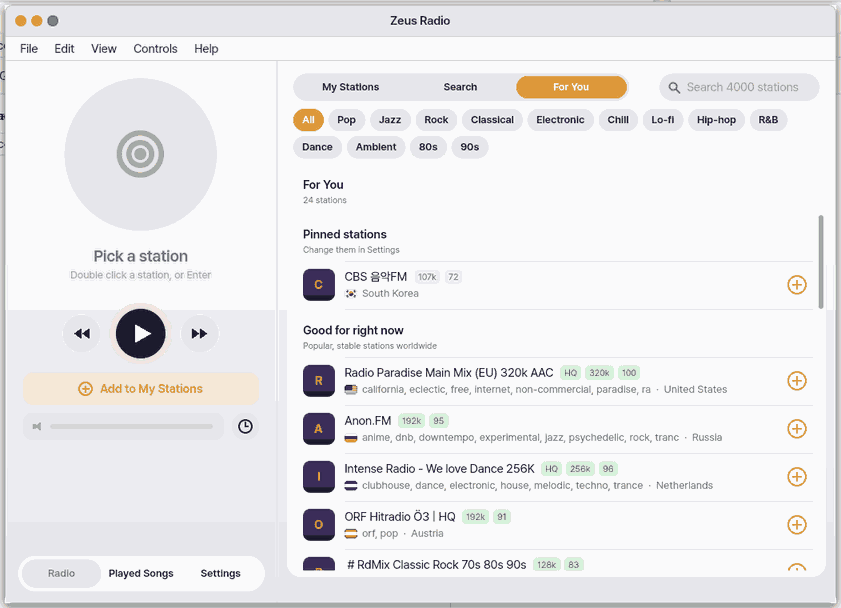
The screen
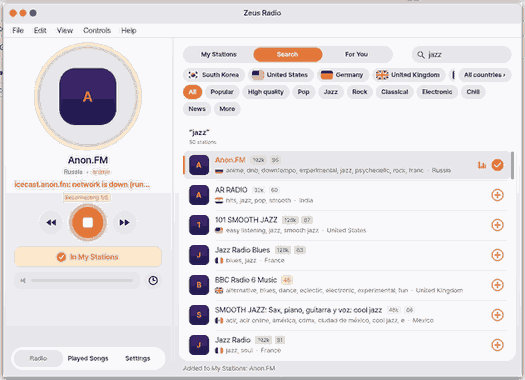
- The search box: type a station name or country and the list shortens
- The station list: pick one and press
Enterto listen - The round genre row: slide sideways to pick a genre or mood
- The tab row at the bottom: My Stations, Search, For You, Settings and more
Task 1. Find a station
- Press
Tab - Type a station name or country
Say: "Play some jazz"
Task 2. Listen and stop
- Pick a station
- Press
Enter - Press
Spaceto stop
Say: "Turn the radio off"
Task 3. Save to My Stations
- Play a station you like
- Press
Ctrl+D - Press
Ctrl+1
Say: "Open the Radio app"
On the first screen the first station is already selected, so Play works at once.
Basics
An internet radio station keeps sending its sound over the internet, and your computer plays it as it arrives (streaming). The sound arrives squeezed by a codec, and anyone with the station's address can listen. Want more? Press ⚡ and choose 「Teach me」.
How to use it
- Press
Tabto reach the search box and type a station name or country. The list narrows as you type. - Pick a station and press
Enterto listen. PressSpaceto stop. - If you like it, press
Ctrl+Dto add it to My Stations. Next timeCtrl+1goes straight there.
Try it yourself
Try it: type “jazz” in the search box, play one station, add it with Ctrl+D, then open My Stations with Ctrl+1.
How it works
- The station list arrives as a signed bundle and is used only after the signature checks out.
- When you pick a station the app connects to its address and collects the incoming sound in a small buffer so playback does not stutter.
- Why you see "Connecting" or "Buffering" for a few seconds (up to 5) before sound: a live station sends sound only as fast as it plays, so with nothing saved up even a half-second internet hiccup would cut the music. Like filling a tank before opening the tap, collecting a few seconds first lets the sound carry on through a brief slowdown. If it still runs dry, it pauses and collects more (6 s, then 12, up to 20 s) before playing again.
- Station logos are fetched quietly in the background into one file. Without a logo you see a tile with the first letter.
- The sound does not go through our servers: this device connects to the station directly.
Technical details
The radio player (play) reads up to 320 KiB of compressed sound ahead for a web station (a first lead of up to 5 s, or 128 KiB, before sound) and, only for such streams, lets the sound device's queue hold 0.6 s instead of 0.2 s (files and video keep the short queue). Try it: in play -v <station URL> the "read ahead" lines show the saved-up length and the "underrun" lines show gaps.
FAQ
The station does not play
Check that the internet is connected first. Stations sometimes change address or go off air, so try another one, and if that fails refresh the list with Ctrl+U. Password-protected streams and some formats cannot be played by this app.
An HE-AAC (AAC+) station sounds a little different
A public build decodes the basic (LC) part of AAC sound. HE-AAC (AAC+) stations still play with sound, but their basic sound is played at half the sample rate, so the highest notes may be a little less clear. The play line says aac: LC core (SBR off).
Does closing the window stop the sound
At first the sound keeps playing after you close the window. Turn on “Stop playback when the window closes” in Settings to change that.
Try this
1. Find a station
- Press
Tabto go to the search field.
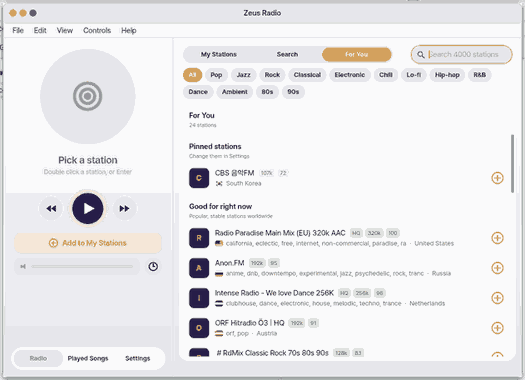
- The list narrows as you type.
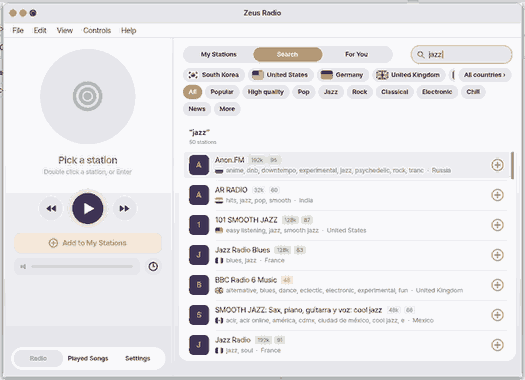
Genres and moods sit in one-line rows — the round genre buttons and the Search row; swipe them sideways (or use the mouse wheel). 「More」 adds a second row with all 62 genres.
2. Listen
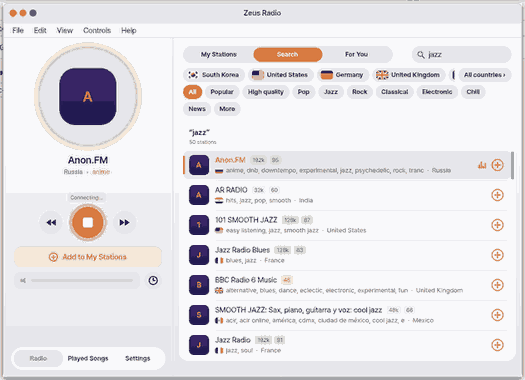
- Pick a station and press
Enter.
3. Save to My Stations
- Press
Fto add or remove it.
Shortcuts
| Key | What it does |
|---|---|
Enter | Play |
Space | Stop |
Ctrl+D | Add to My Stations |
Ctrl+U | Update Station List |
Ctrl+, | Settings… |
Ctrl+W | Close |
Ctrl+Q | Quit Zeus Radio |
Ctrl+C | Copy Station |
Ctrl+F | Find… |
Ctrl+1 | My Stations |
Ctrl+2 | Search |
Ctrl+3 | For You |
Ctrl+6 | Played Songs |
Ctrl+7 | Settings |
Ctrl+Right | Next Station |
Ctrl+Left | Previous Station |
Settings
Settings are in two places.
This app's "Settings" screen (the tab row at the bottom, or Ctrl+7):
| Setting | What it does |
|---|---|
| Theme | Choose Light or Dark. |
| Sleep Timer | Choose Off, 15m, 30m or 60m. |
| Alarm | Shows the alarm time and station. "Set…" changes it. |
| Stop playing when the window closes | If on, closing the window stops playing. At first it is off. |
| Region | The country used for the "near me" groups and distances. Press "Change…" and type a country name or code (for example Korea, Japan, US). The first value is Korea. The location is never detected. |
| Pinned | Stations that stay at the top of For You, chosen by name. Separate them with commas; empty means none. Up to 6. |
| Station list | Shows the number of stations and the list version. "Update" gets it again. |
| Logos | Shows the number of logos. "Get Logos" downloads them. |
How it works
- The bundle is about 70 MB, so on a slow connection it takes many minutes. Each finished piece is saved on its own, so an interruption does not start over from the first piece, and a failed piece is tried again after 5, 20 and 60 seconds.
- A station without a picture shows a purple tile with the first letter of its name.
- While the station you are listening to is Live, its logo on the big disc turns slowly. It stands still when stopped or connecting, and cover art of the current song comes first when there is one. Only the disc is redrawn, at most 15 times a second, so the sound is not affected.
- If the station list download (about 20 MB) breaks off, it continues from where it stopped. If the server does not understand "continue from here" and sends the whole file again, the part already received is read and dropped and the download goes on (up to 5 times), so one break on a slow line no longer leaves you on the old list. Try it:
radio update -fin the Terminal prints a "resuming" line when that happens. - Station pictures come once even on a device whose list never updated (the list it was installed with). A piece that sends nothing for 30 seconds counts as broken and is fetched again. With no internet at all the window says "Not connected to the internet — check your Wi-Fi".
The Edit menu works on the search box (Undo, Redo, Cut, Copy, Paste, Select All), next to Copy Station and Find.
What it cannot do
- "Play the last station on open" in the Settings app does not work yet. Turning it on does not make a station play by itself when you open Radio.
- Playlist addresses (
.pls,.m3u) and OGG, FLAC and MP4 stations cannot be played. Such stations are left out of the list. - HLS stations with encryption, and some HLS formats (fMP4), cannot be played.
- Stations differ in how they announce songs. If a station does not announce a title, nothing is added to "Played Songs".
- The station quality test runs only while the Radio window is open.
NanumOS 0.1.8349 · 2026-11-16