Voice Memos
Status: In trial
Record and keep voice memos.
About this app
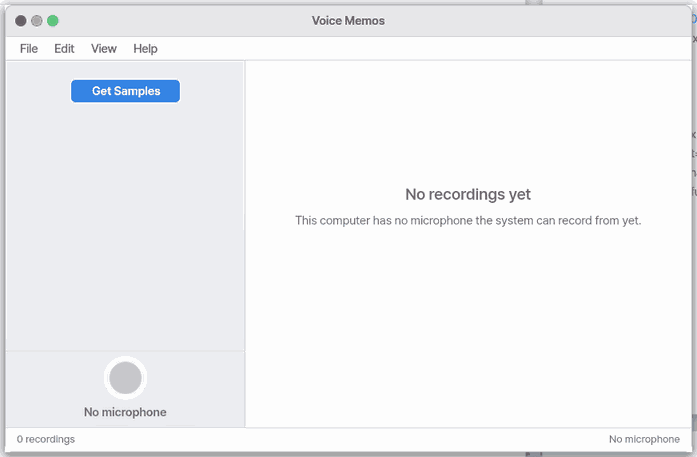
Voice Memos records your voice and plays it back. Recordings pile up in a list that you can sort by date or by name, rename, or delete. This app is still being tested (Lab stage). Real microphone recording works only in the Mac window and on the headset jack; the laptop's built-in microphone does not work yet.
Basics
Sound is air wobbling in waves. Sending the numbers back to a speaker makes the sound again. The recordings in this app are WAV files holding exactly those numbers.
How to use it
- Press the red record button (or
R,Ctrl+N) and speak. Press again to stop. - Pick a recording in the list and press play (
SpaceorEnter).Escstops it. F2renames andDeldeletes.Ctrl+1sorts by date andCtrl+2by name.
Try it yourself
Try it yourself: Press record, say a few words, stop, then select that recording and play it. Then rename it with F2.
How it works
- Recordings are ordinary sound files (16-bit mono WAV) in the
Music/Voice Memosfolder, so they remain after you close the app. - The list simply reads that folder, so sound files you add from the Files app show up too.
- One recording can be about 8 minutes long.
Technical details
- Source
src/gui/voice.c. If two recordings start in the same second, a number is added to the name. - In the Mac window a helper on the Mac side sends the microphone sound; without microphone permission, recording stops and the app tells you where to turn it on.
- There are no settings.
FAQ
I press record but nothing records
Real microphone recording works only in the Mac window and on the headset jack. Where there is no microphone, the R key does nothing either. If permission is missing, turn the microphone on where the app tells you.
Can I click the waveform to start from a spot
Not yet. There is no way to move the playback position, so playback starts from the beginning.
How do I record for longer
One recording is about 8 minutes at most. Record in parts if it is longer.
At a glance
In one line: An app that records your voice and plays it back.
The screen
- The red record button: starts recording
- The recording list: pick a recording
- The play button: plays the chosen recording
- The rename and delete buttons
Task 1. Record
- Press the red record button
- Speak
Say: "Open Voice Memos"
Task 2. Listen again
- Pick a recording
- Press play
Say: "Open the Voice Memos app"
Task 3. Rename or delete
- Pick a recording
- Press the rename or delete button
Say: "Open Voice Memos"
Try this
1. Record
- Click the red record button.
2. Play it back
- Pick a memo and click play.
3. Rename or delete
- Click Rename or Delete.
Shortcuts
| Key | What it does |
|---|---|
Ctrl+N | New Recording |
Ctrl+W | Close |
F2 | Rename… |
Del | Delete |
Ctrl+C | Copy Path |
Ctrl+1 | Sort by Date |
Ctrl+2 | Sort by Name |
F1 | Voice Memos Help |
Space or Enter | play the chosen recording. |
R | start recording (only when a microphone exists). |
Esc | stop playing. |
Settings
Voice Memos has no settings of its own.
What it cannot do
- Real microphones work only in the Mac window and through a headset jack. In the Mac window it records from the Mac's microphone (a helper on the Mac that starts with the window passes the sound). If the Mac has not allowed the microphone yet, the recording stops and a note says: on the Mac, System Settings › Privacy & Security › Microphone, switch on "Terminal". Laptops' built-in digital microphones do not work yet.
- You cannot click the waveform to jump to a place in the recording.
- One recording is limited to about 8 minutes.
NanumOS 0.1.8349 · 2026-11-16