Viewer
Status: Ready
View pictures and files at full size.
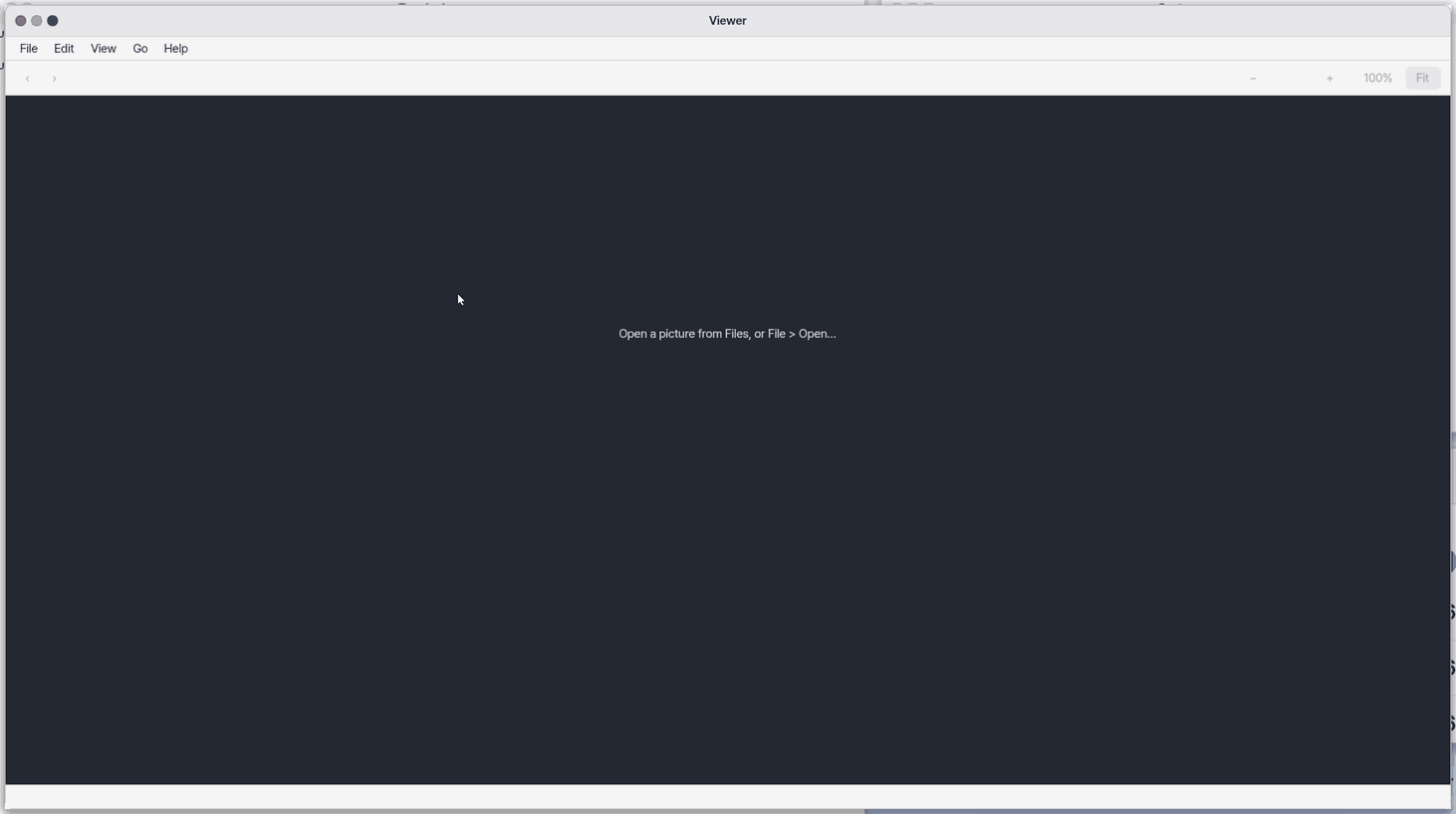
About this app
Viewer opens pictures and sound files at full size. You can page through the pictures in a folder, zoom in, or fit a picture to the window. It only shows files and does not edit them.
On the empty screen, “Open / Import from my device” lets you pick a picture from your phone or computer right away.
Basics
A picture file is a table of tiny dots (pixels). When you zoom in, each dot grows into a square and the picture looks rough. That is not a fault; the picture simply has only that many dots. The ending of the file name (like .jpg or .png) tells the app how to read it. Press the ⚡ "Teach me" chip to learn more.
How to use it
- Open a file with
Ctrl+O, or open a picture from the Files app. - Use the right arrow (
Ctrl+Right) for the next picture and the left (Ctrl+Left) for the previous one. - Use the
+and-buttons (orCtrl+=andCtrl+-) to zoom, "Fit" (Ctrl+0) to fit the window, andCtrl+1for actual size. - For a sound file, press "Play" to listen. Only play and stop are available.
Try it yourself
Try it yourself: Open one picture in a folder with several, page to the next one with the right arrow, then press "Fit".
How it works
- The app reads the file, decodes the dots, and draws them to fit the window. The original file is never changed.
- When you page on, it decodes the next picture file in the same folder the same way.
- Pictures larger than 4096 pixels are shrunk while reading.
Technical details
- Formats: common picture formats plus GIF, WebP, TIFF (compressed, 16-bit and multi-page files show the first page), AVIF, ICO and camera RAW. SVG and HEIC do not open yet and show "This picture cannot be displayed". Animated GIF and WebP show only the first frame.
- Source
src/gui/viewer.c, version 1.2.0. There are no settings.
FAQ
How do I rotate or crop a picture
The Viewer has no rotate, crop or edit. It only shows pictures.
My picture will not open
SVG and HEIC files cannot be opened yet. You will see "This picture cannot be displayed".
Can I watch a slideshow
There is no slideshow yet. Use the right arrow to go one picture at a time.
At a glance
In one line: Open pictures and files big and look at them.
The screen
- The big middle area shows the open picture
- The right arrow moves to the next picture
- The
+button and the Fit button change the size
Task 1. Flip through pictures
- Open a picture
- Press the right arrow
Say: "Open the Viewer"
Task 2. Look closer
- Press the
+button - Press it once more to go bigger
Say: "Open the Viewer"
Task 3. Fit to the window
- Press the Fit button
- See the picture inside the window
Say: "Open the Viewer"
Try this
Open an audio file and press Play, including files with spaces or non-English names. Open in Music plays it there once without adding it to the library.
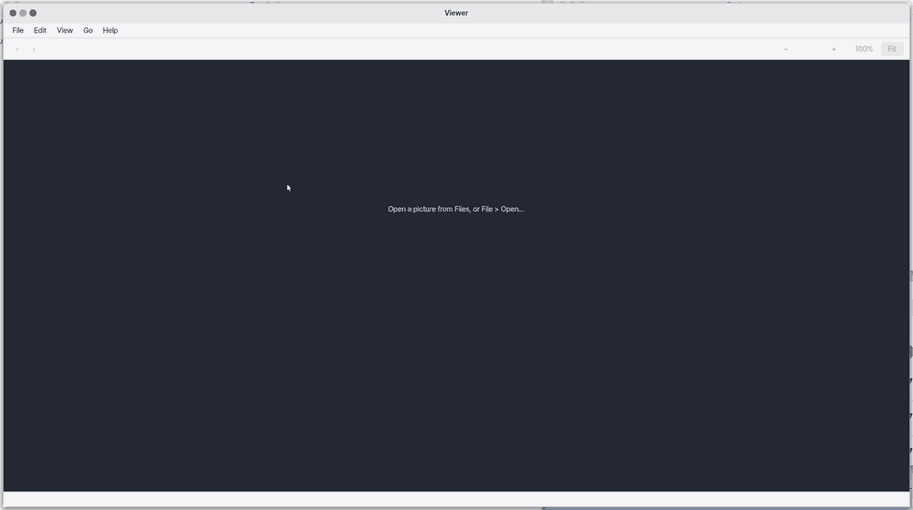
1. Page through pictures
- Press the right arrow for the next picture.
2. Zoom
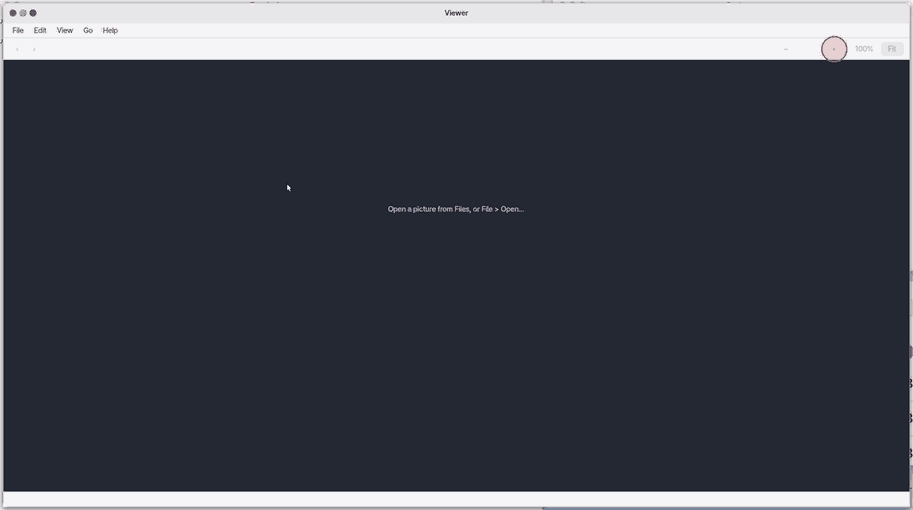
- Click
+or press the+key to zoom in.
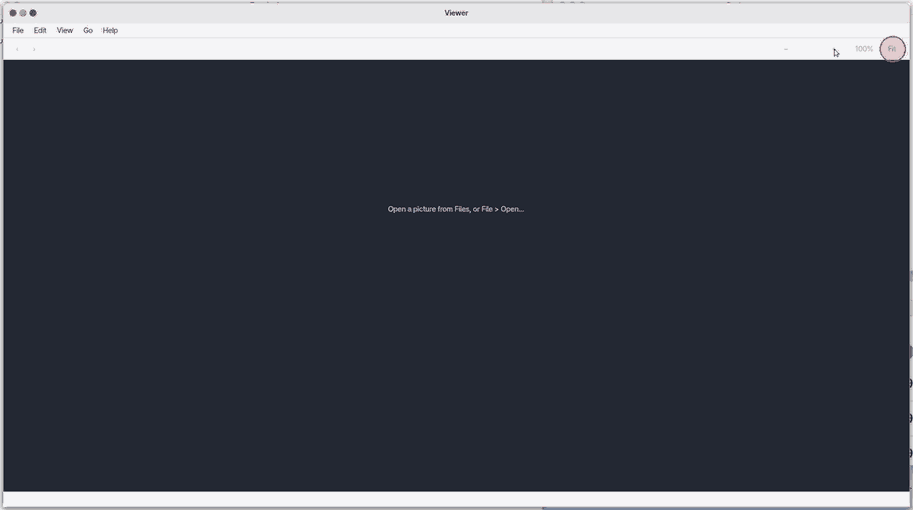
3. Fit to the window
- Click Fit.
Shortcuts
| Key | What it does |
|---|---|
Ctrl+O | Open… |
Ctrl+W | Close |
Ctrl+C | Copy Path |
Ctrl+= | Zoom In |
Ctrl+- | Zoom Out |
Ctrl+1 | Actual Size |
Ctrl+0 | Zoom to Fit |
Ctrl+Left | Previous Image |
Ctrl+Right | Next Image |
Ctrl+P | Play |
F1 | Viewer Help |
+ or = | zooms in, - zooms out, and 0 sets 100%. |
Settings
There are no settings. Viewer is not listed in the "Apps" pane of Settings either.
What it cannot do
- SVG and HEIC cannot be opened yet. You get "Cannot show this image". GIF, WebP, TIFF (compressed, 16-bit; the first page of several), AVIF, ICO and camera RAW open.
- An animated GIF or WebP shows its first frame.
- You cannot rotate, crop or edit a picture.
- There is no slideshow.
- A sound file can only be played and stopped. There is no bar to move the playing position.
- A picture larger than 4096 pixels is read at a reduced size.
NanumOS 0.1.8349 · 2026-11-16