News
Status: Ready
You subscribe to outlets' RSS feeds and read them; articles are never stored.
About this app
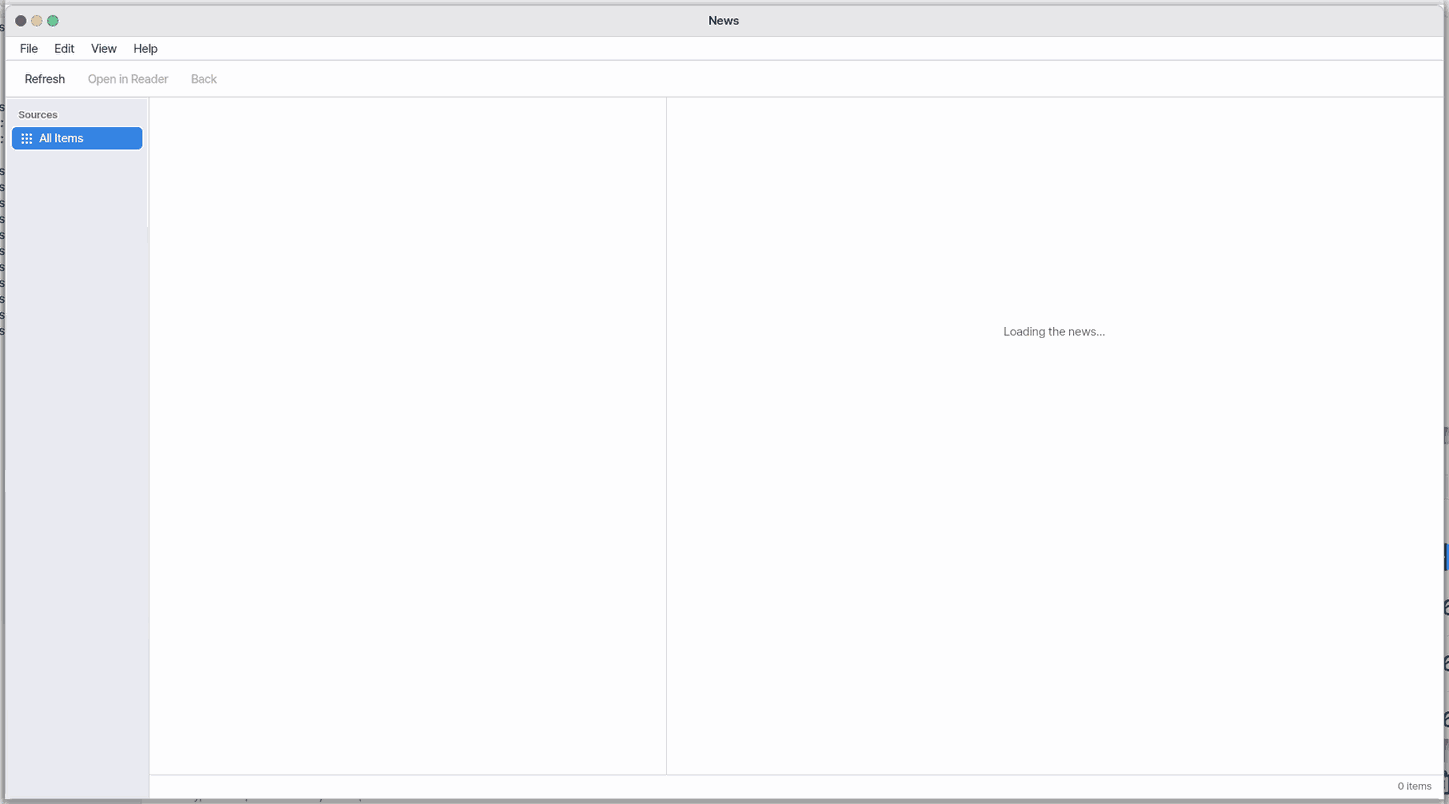
News gathers the latest headlines from the sites you follow in one place. You see the titles as a list, and picking one opens the full article inside this window.
Basics
Most news sites publish a small list of their newest items, with title, summary and address, every time something new appears. That list is called a feed (RSS or Atom), and "subscribing" means saving its address so you do not have to visit each site in turn. It is like having headlines delivered to your mailbox instead of walking to every newsstand. This app merges the titles of all your feeds into one list and only fetches the full text of the articles you open.
How to use it
- On first open, 7 recommended subscriptions are added. In the left pane pick a source (or "All sources").
- In the middle list, move with the Up and Down arrows; the selected article opens right away.
Entermoves focus to the article, where arrows andSpacescroll andEsc(orBackspace) goes back to the list. F5(orR) and the refresh button fetch the titles again.- In the toolbar, "+ Subscribe" (or
Shift+Ctrl+N): type a site address and press Find to pick a feed, or use the Recommended tab to add several by country and category. - Right-click a subscription in the sidebar to rename, delete, retry now, or copy its address.
- If you need the original page, press
W(orCtrl+B) to open it in the browser. - The File menu imports and exports your subscription list as an OPML file.
Try it yourself
Press "+ Subscribe", pick one from the Recommended tab and add it, then press F5 to see its new titles arrive in the list.
How it works
- On open, the app first shows the list it already has, then fetches new titles in the background and updates the list. The screen never freezes while it waits.
- Picking a title shows the title and summary at once; the full article is fetched in the background and swapped in. Google News links are followed to the newspaper's own page.
- Article text and pictures are kept only in memory, never saved to disk. Up to 24 articles are remembered.
- If nothing arrives within 25 seconds, a single line under the summary says so, and picking the article again tries once more.
- When the assistant shows you the news, it opens this window on the newest headlines with a short summary of the top one. In that view only titles and summaries are used: the article is not downloaded or saved, and "Original" opens the site itself. Picking an article yourself brings the full reader back. If you follow nothing yet, the assistant first follows three recommended feeds in your language that this page can read (remove them with a right-click on the source).
- A closed app does not fetch new items. It fetches when you open it and when you press refresh.
Technical details
The title list is built by parsing RSS and Atom feeds; the article text comes from a read-only view that keeps only the main text. Every fetch is a background job that writes one whole file, and the window only checks whether that file exists. Feeds are fetched four at a time.
FAQ
An article will not open
A single line under the summary tells you why. Pick the article again to retry once. Links that need JavaScript, such as Google News articles in some cases, cannot be fetched in full and show only the title and source.
I do not see new items
The app only fetches while it is open and when you press refresh. Press F5. A subscription that does not answer gets a red dot.
Can I search articles
Not yet. You also cannot set a different refresh interval per feed.
At a glance
In one line: Read the headlines of the news you subscribe to.
The screen
- Left sidebar: your subscriptions (right-click to rename or remove)
- Headline list: pick one with the arrows and the article opens
- The refresh button: fetches the headlines again
- "+ Subscribe" on the toolbar: opens the add-subscription window
Task 1. Read an article
- Pick a headline
- Use the arrows to see another
- Press
Enter
Say: "Open the News app"
Task 2. Refresh
- Press the refresh button
- Look at the new headlines
Say: "Tell me today's top news"
Task 3. Add a subscription
- Press "+ Subscribe"
- Type a site address and press "Find"
- Pick a feed and press "Add"
Say: "Open the Add a feed screen in News"
Try this
1. Read an article
- Pick a headline with the arrow keys and it opens.
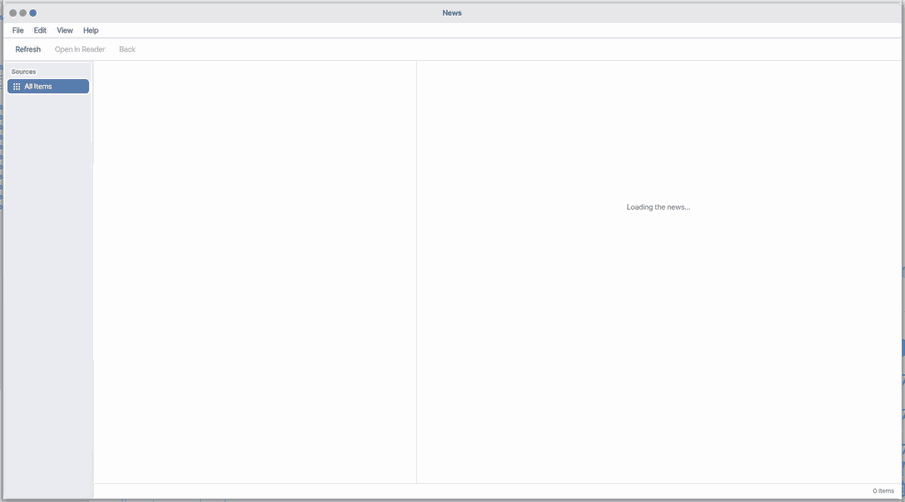
Pick a headline and the whole article appears right here in the app. Google News links are followed to the newspaper's own page for you. While you wait, the pane says what it is doing ("Loading the full article…"). If the article cannot be fetched, one plain line under the summary says so, and picking the headline again tries once more. Article text stays in memory only for a while, never on the disk.
An article's photo first shows the list's small picture in its place and switches to the full photo when it arrives. If the photo cannot be had, you see "The photo could not be loaded." and a Try again button instead of an empty grey box. Photos and articles stay in memory only, never on the disk.
2. Refresh
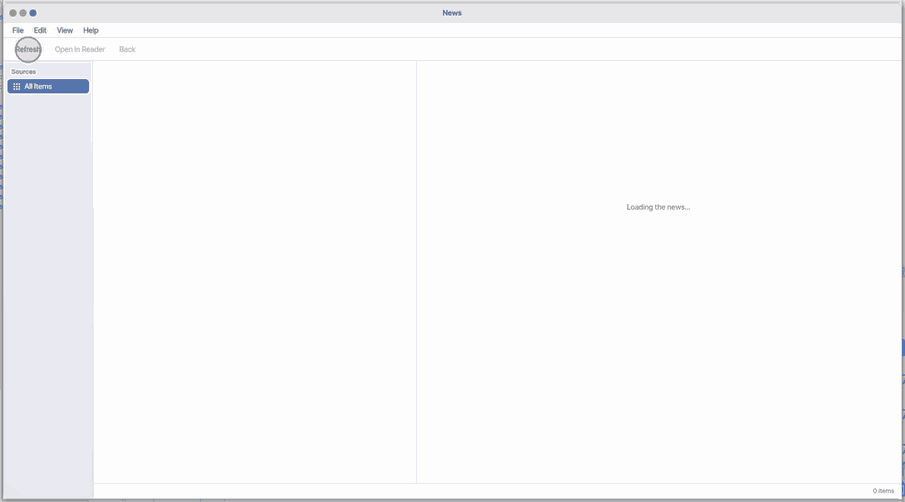
- Click the refresh button.
3. Open the original in the browser
- If you do need the original page, press
W(or use File › Open in Browser, or right-click a headline). There is no button beside the article that sends you to another app.
Shortcuts
| Key | What it does |
|---|---|
Enter | Open Article |
Ctrl+B | Open in Browser |
Ctrl+W | Close |
Ctrl+C | Copy Title |
Shift+Ctrl+C | Copy Link |
F5 | Refresh |
Ctrl+0 | All Sources |
Backspace | Back to List |
F1 | News Help |
R | refresh. W: open in the browser. |
Settings
Adding and managing feeds
+ Subscribe on the tool bar, File › Add Feed… (Shift+Ctrl+N), or the round + on a phone opens the Add Feed sheet.
- Address — type a site or feed address and press Find: the RSS/Atom feeds behind it are listed with their titles; tick and Add.
- Catalog — the first time you open News (while nothing is subscribed) this list comes first. Pick a country (Korea, USA) and a kind (News, World, Economy, IT, Science) or search, then press Subscribe on the outlet you want: it is subscribed on the spot and its headlines come in. Press a subscribed row again to unsubscribe. While News is open, subscribed feeds refresh by themselves every 15 minutes (an unchanged feed costs next to nothing).
- Get suggestions in the desktop sidebar opens the Catalog tab directly. Feeds come from the RSS addresses of the outlets you subscribed to. Ask the assistant for an IT feed and it rechecks recent candidates at their publishers and shows each with a "Subscribe" button; nothing is added until you press it.
- Manage — Rename, Delete, Try Now, Copy Address (also on a right click in the sidebar); drag to reorder. A feed that does not answer gets a red dot.
- File › Import OPML… / Export OPML… trades the list with other news apps.
- When Zeus adds a "Subscribe" button to an answer, pressing it subscribes at once and "Undo" takes it back (public, real feeds only).
What this app takes
- Takes: only the title, summary, link and time from the RSS of the outlets you subscribed to. When you open an item, the article's text is on screen only while you read it and is gone when the reader closes — it is never written to disk or a cache. Paywalls are not bypassed: you get what the page gives (in a web browser usually the summary and Open Original).
- Does not take: accounts, search history or personal files go nowhere.
- Where to: only the RSS addresses of the outlets you pressed Subscribe on; before that it connects to none.
- How long: the headline list stays on this device (the latest 400); offline you still see the last headlines.
- How to stop: press a subscribed row again in the Catalog, or delete it in Manage. With no subscriptions it connects nowhere.
- Original sites (only when you open an article in the browser): news.jtbc.co.kr · www.aftonbladet.se · www.bbc.com · www.bbci.co.uk · www.bloomberg.com · www.dw.com · www.etnews.com · www.expressen.se · www.folha.uol.com.br · www.idnes.cz · www.nbcnews.com · www.nos.nl · www.npr.org · www.nytimes.com · www.orf.at · www.sina.com.cn · www.skynews.com · www.sueddeutsche.de · www.tempo.co · www.washingtonpost.com · www.wsj.com · www.yle.fi · www.zeit.de
What it cannot do
- There is no search for articles.
- You cannot set a different refresh interval for each feed.
- It does not get new posts while the window is closed. It gets them when you open the app, every 15 minutes while it is open, and when you press "Refresh".
- In a web browser (the trial page) the Catalog lists only the outlets that browser can fetch directly. In NanumOS, the Mac app and the phone apps the Catalog lists all of them.
- The article links of Google News need JavaScript to open, so the full article cannot be fetched. The title and source still show.
- Pictures in an article: JPEG, PNG, WebP, GIF (first frame), BMP and SVG are drawn. AVIF is not yet (most sites send a JPEG too).
NanumOS 0.1.8349 · 2026-11-16