Screenshot
Status: ReadyDesktop only
Saves the screen or one window as a PNG; Zeus can take one too.
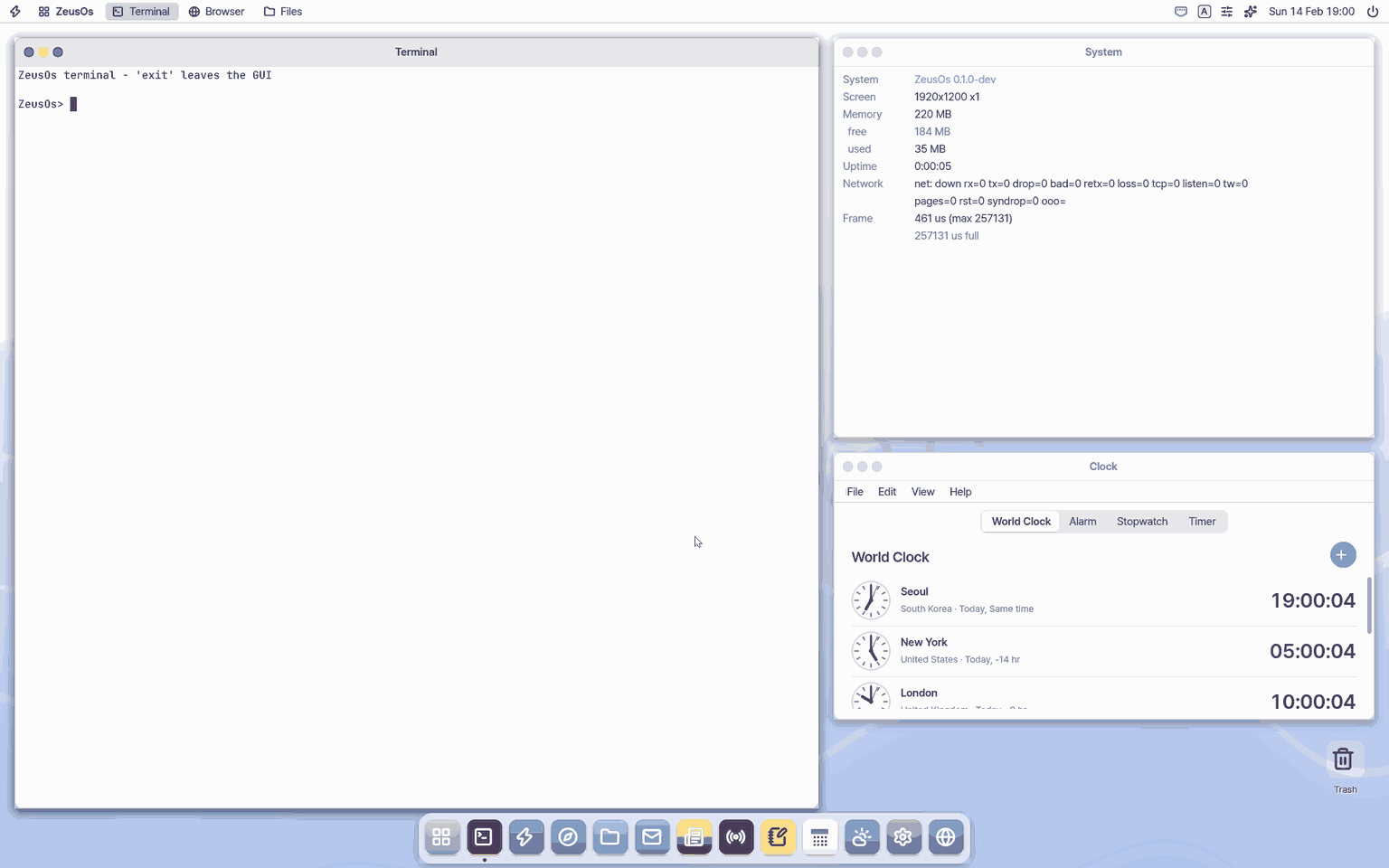
About this app
It saves the whole screen, one window or a dragged area as a PNG. Keys: desktop Print Screen / Ctrl+Shift+3 (screen), Ctrl+Shift+4 (area), Ctrl+Shift+5 (panel), Super+Shift+S (area); Mac app Ctrl+Shift+3 · Ctrl+Shift+4 · Ctrl+Shift+5 and Cmd+Shift+S; mobile uses the phone's own buttons.
At a glance
In one line: An app that saves the screen or one window as a picture (PNG).
The screen
- Four buttons: Full screen, Window, Selected area, Screen recording
- Timer: waits before taking the shot
- Last picture: open it or copy it
Ctrl+Shift+5: opens the capture panel from anywhere
Task 1. Take the whole screen
- Press
Print Screen(Ctrl+Shift+3in the Mac app) - Look at the saved notice at the bottom right
Say: "Take a screenshot"
Task 2. Take an area
- Press
Ctrl+Shift+4 - Drag to choose the area
Say: "Take a picture of just the Notepad window"
Task 3. Use the panel
- Press
Ctrl+Shift+5 - Choose full, window or area with the arrows
- Press
Enter
Say: "Take a screenshot in 5 seconds"
Basics
A screenshot keeps what you see as a picture file. By default it lands on the Desktop as Screenshot 11-03 15.12.05.png and moves to Photos > Screenshots after a day (nothing is deleted). Change the place in Settings > Screenshots > Save screenshots to.
Exact keys and button places per edition
| Edition | Whole screen | Area | Panel (window, timer, record) |
|---|---|---|---|
| Mac app | Ctrl+Shift+3 (a Mac keyboard has no Print Screen) | Ctrl+Shift+4 or Cmd+Shift+S | Ctrl+Shift+5 (the Ctrl key, not Cmd) |
| Mobile (phone browser) | The phone's buttons: iPhone, side button + volume up; Android, power + volume down | Take it with those buttons, crop in the phone's photos app | none |
- In the Mac app the Mac keys Cmd+Shift+3, Cmd+Shift+4 and Ctrl+Cmd+Shift+5 stay on the Mac (macOS takes them first); they make a macOS picture, not a NanumOS one. Inside NanumOS use the
Ctrlkeys above. - Button places: in the top bar at the right, just left of the sliders (Control Center) button, the frame-with-corners button picks an area. Open Control Center (that sliders button, or drag down from the top edge): the big top-left button "Screenshot" does the same, next to Photo/Video and Record Screen. In desk chat mode the "Capture" button at the right of the input row opens the area chooser. The Utilities folder of the app grid has a Screenshot app too.
How to use it
Take a picture with keys, buttons or by asking. The exact keys per edition are in the table above; follow the steps under "Try this" below. Every shortcut is in the "Shortcuts" table at the end.
Ask Zeus
- Say things like "take a screenshot", "just the Notepad window", "in 5 seconds, into Photos". Zeus takes it without asking (it only makes a new file) and tells you the place as "Photos > Screenshots > Screenshot ...". Zeus's own window steps aside first so it is not in the picture. Then you can say "open it" or "show it in Photos". Sending or sharing the picture always shows an approval card.
Seeing it in the conversation, and recording
- Only when you ask ("take the Notepad window and show me") does Zeus put a small picture (a thumbnail) under its answer. It is the same in Zeus and in the desktop conversation mode, and clicking it opens it large in Photos. If you do not ask to see it, taking a picture adds nothing to the conversation.
- "Record Notepad for 10 seconds" records just that window. A "Recording 0:07" badge with a Stop button shows at the top of the screen, and the clip is saved in the Video app's folder (Videos > Rec ...). If you also ask to see it, a video picture (first frame and a play button) is attached under the answer. Pressing the ▶ in the middle plays it right there in the conversation (a blue progress line along the bottom); pressing again stops it. Clicking anywhere else on the picture opens it large in the Video app.
- Show me a task step by step — press the chip "Show me a task step by step" or say "record yourself filling the sheet and show me": Zeus records the screen while it works ("Recording the task" badge with Stop at the top). It pauses after each step so you can follow, and a sheet is filled one cell at a time. At the end it takes the last screen as a result picture (Photos > Screenshots > Task ...), ends the clip (Videos > Task ...) and attaches the result picture with the ▶ clip under it. Click the picture to open it in Photos; press ▶ to play the clip in the conversation. A task recording lasts at most 2 minutes; pressing Stop ends it then.
How it works
A key or button makes NanumOS read the screen's picture buffer as it is (without overlays such as the assistant, the chooser or the notice) and write it as a PNG. Think of a camera pointed at your desk. When you ask Zeus, it calls the same thing as a "screenshot" action (screen, window or area, a delay, a save place). Try it: press Ctrl+Shift+5 to open the panel.
A screen recording only copies the screen ten times a second; the heavy part, squeezing each copy into a JPEG, is done by a helper running in the background ("recenc"). Think of a photographer who only presses the shutter while someone in the next room develops the film. So the pointer and the screen never freeze while you record. If a copy is due while the helper is still busy, that one is skipped and the previous picture is used again, so the clip keeps real time. Try it: Ctrl+Shift+5 > Record Screen, then move the pointer around.
Technical details
- Settings > Screenshots has "Save screenshots to":
Desktop(default) orPictures/Screenshots. - Names fit 31 bytes (
Screenshot 11-03 15.12.05.png); a second one in the same second isScreenshot 1103 151205 2.png. - The window's timer (5 or 10 seconds) is for Capture Entire Screen only; the panel has one 5 second timer.
- Zeus's arguments:
show=image|noneoncaptureandlook(default none),see=true, andrecord target=<app> seconds=1-60 show=video. A picture attached to the conversation is stored as the last line of the answer ([[zshow image path]]) and every surface draws it with the same function. The picture is a copy shrunk to at most 560x350; a recording keeps the window's own size (up to 1600 px wide), JPEG quality 82, 10 frames a second. - Recording: the desktop only copies a frame (about 2 ms at 1280x800); the kernel thread
recencencodes it in steps of about 4 ms and gives the desktop its turn in between. On arm64 (the Mac app) those steps run without the big kernel lock, on another CPU. One frame at a time is with the helper; the slots meanwhile repeat the last picture. Each recording logsGUI screenrec stall gap_max_ms=... gui_max_ms=... enc_max_ms=... dropped=...(teststests/rec_stall.py,tests/gui_rec_stall.py: no gap over 50 ms between desktop loop turns while recording). With no thread (or in the browser version) it encodes in place as before. - Task recording:
record_task [target]...finish_task [show=none](no approval: new files). In between every app action is followed by a 0.9 s pause, and a new sheet getspace=1and fills one cell at a time (60-260 ms a cell, about 9 s at most).finish_taskwaits until the sheet is filled, holds 1.2 s, takes the result picture and ends the clip. The answer's marker is[[zshow task picturepath<TAB>clippath]]. Playing in the bubble uses the Video app's AVI and JPEG readers and decodes only the frame that is due. - The app window has four buttons (Entire Screen, Window, Area, Record Screen), a timer, the last picture (Open, Copy) and File, Edit, View menus; capturing hides this window first. Settings > Apps > Screenshot sets what it starts with and the timer.
FAQ
How do I take a screenshot?
Print Screen or Ctrl+Shift+3 for the whole screen, Ctrl+Shift+4 or Super+Shift+S for an area. In the Mac app use Ctrl+Shift+3 · Ctrl+Shift+4 · Ctrl+Shift+5 (Cmd+Shift+S works too).
I pressed Cmd+Shift+3 on the Mac and there is no NanumOS picture.
That is the Mac's own shortcut. Inside NanumOS use Ctrl+Shift+3.
Where are pictures saved?
On the Desktop by default, moved to Photos > Screenshots after a day. Change it in Settings > Screenshots.
Did Zeus look at my screen? Where did it go?
Not by default. It is sent only when Settings > Apps > Screenshot > "Let Zeus see screen pictures" is on and Zeus looked because you asked it to; each time the conversation says "Zeus is looking at this screen (head: ...)". Vault windows and password fields are blacked out first.
Does recording slow down or freeze the screen?
No. Squeezing each frame runs on its own in the background and the desktop only copies (tested: the screen never stops for more than 50 ms while recording). On a busy computer a few frames are skipped, but the clip keeps its length.
What does "Show me a task step by step" do?
Zeus records itself doing a task, slowly, step by step, and attaches the result picture and the clip to the conversation. The picture stays in Photos > Screenshots and the clip in the Videos folder.
What about mobile?
The Screenshot app is for a computer screen and does not open in a phone browser. Use the phone's buttons (iPhone: side button and volume up; Android: power and volume down). Zeus gives the same answer if you ask it.
Try this
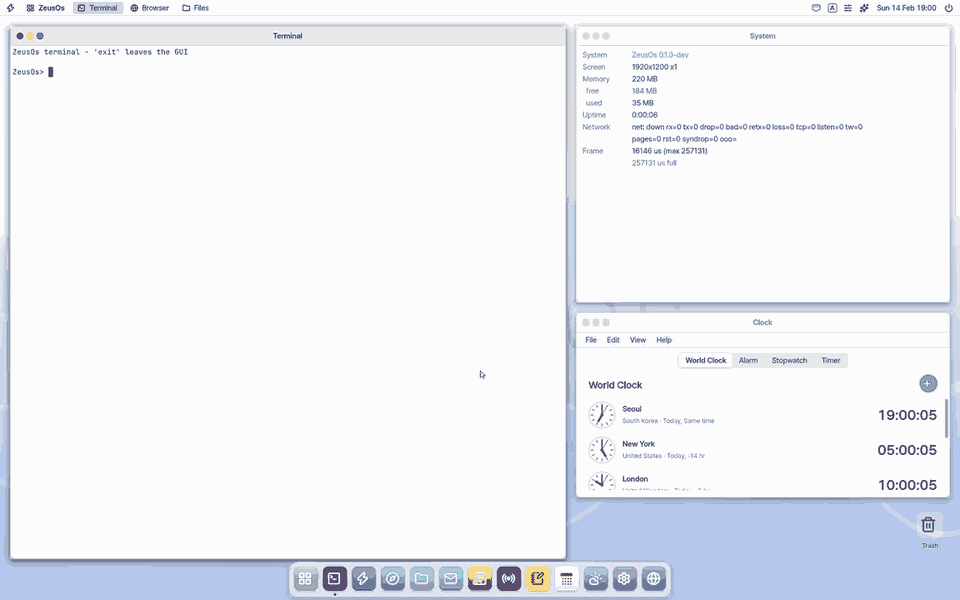
1. Take the whole screen
- Press
Print Screen(Mac app:Ctrl+Shift+3). A saved notice appears at the bottom right.
2. Take an area
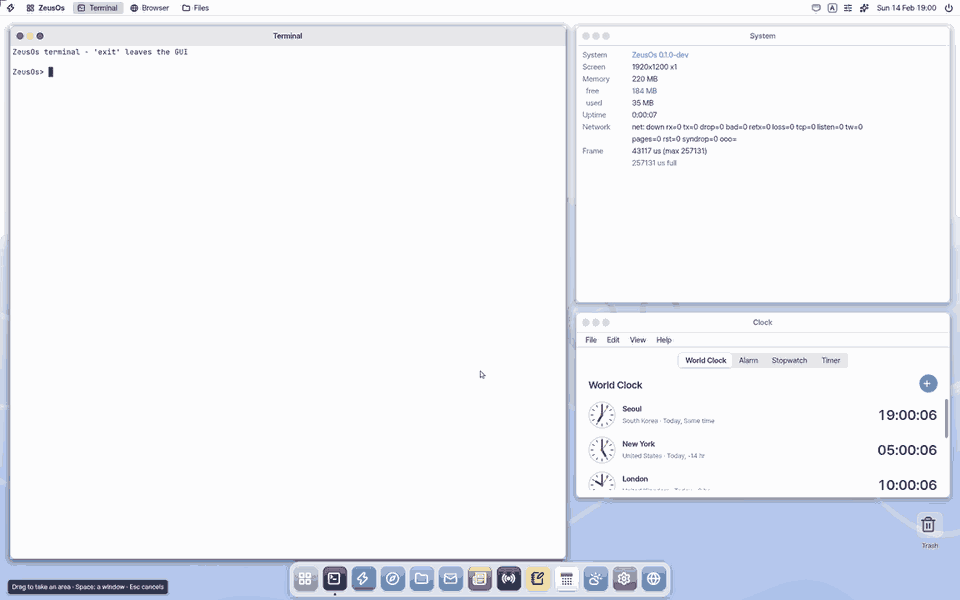
- Press
Ctrl+Shift+4and drag over an area.Esccancels.
3. Use the panel
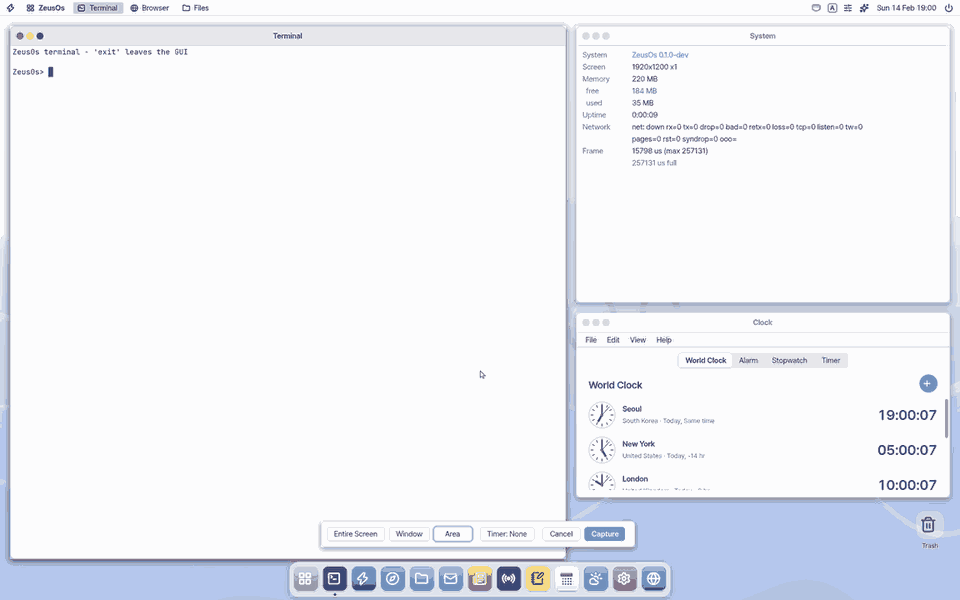
- Press
Ctrl+Shift+5. Left/Right pick screen, window or area,Ttoggles the 5 second timer,Entertakes it,Esccloses.
Shortcuts
| Key | What it does |
|---|---|
Ctrl+Shift+3 · Print Screen | Capture the entire screen |
Ctrl+Shift+4 | Capture an area |
Ctrl+Shift+5 | Open the capture panel |
Super+Shift+S (Mac app Cmd+Shift+S) | Capture an area |
Ctrl+C · Ctrl+O (Screenshot window) | Copy · open the last picture |
Ctrl+, | This app's settings |
Ctrl+W | Close the window |
Settings
What it cannot do
- The window's timer (5 or 10 seconds) is for Capture Entire Screen only; the panel has one 5 second timer.
- It does not open in a phone browser: use the phone's own buttons.
- Zeus's task recording lasts at most 2 minutes and is desktop only for now.
- A Vault window open behind other windows is still blacked out in recordings and pictures (the safe side).
NanumOS 0.1.8349 · 2026-11-16