Shopping
Status: In trial
Find prices across shops at once; hear when a saved item gets cheaper.
About this app
This app is still being tested (Lab stage). Product search needs a search key installed on the relay server, and no server has it yet, so right now a search can answer "The server does not have a shopping search key yet". Wishlist and parcel tracking numbers do work. It finds prices across several shops and tells you when a product you saved gets cheaper; it does not take payments.
Basics
Comparing prices is like walking through a market asking each stall what it charges. The same item costs different amounts at different stalls, so gathering them in one go shows you the cheapest. This app folds the same product into one row ("lowest X, N shops") and, for products you saved, asks again now and then and tells you if the price dropped.
How to use it
- On the Search tab type a product name in the box and press
Enter. The buttons beside it sort by relevance, lowest price, highest price or newest. - Pick a product and press "Add to wishlist"; it stays on the Wishlist tab.
- "Go to shop" opens that shop's page in the browser. You pay there.
- On the Parcels tab enter a tracking number and press "Track"; the carrier's tracking page opens.
Ctrl+1Ctrl+2Ctrl+3switch between the three tabs.
Try it yourself
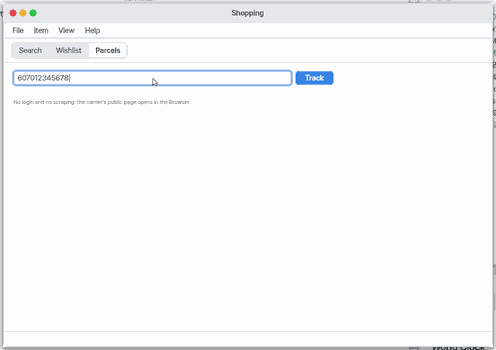
Try it: on the Parcels tab enter a tracking number and press "Track" to see the carrier guessed from the number's shape (this works without the search key).
How it works
- A search is not made from this device: the NanumOS relay server asks the shopping search service. The search key lives only on the server, never on this device.
- Products on the wishlist are asked about again in the background at the interval you set (6 hours by default), even when the window is closed, and a drop raises a Notification Center banner.
- For parcels the app guesses the carrier from the number's shape and opens that carrier's official tracking page. It does not scrape the content.
- The app never handles card numbers, payment or shop logins.
FAQ
Search says "The server does not have a shopping search key yet"
It means the relay server does not have the search key installed yet; that is server-side work. Until then you can still manage your wishlist and track parcels.
Can I buy here
No. "Go to shop" only opens the shop's page in the browser; payment and login happen there.
How often are wishlist prices checked
At the interval in Settings (off to once a day, 6 hours by default). F5 checks right now.
At a glance
In one line: An app that searches many shops for a price at once and shows price changes of items you saved. It does not pay.
The screen
- Search box (
Ctrl+1): type a product name and search - Saved (
Ctrl+2): saved items and how their prices changed - Parcel (
Ctrl+3): look up a tracking number - "Go buy": opens that shop's page in the browser
Task 1. Find a product
- Press the search box
- Type the product name
- Press
Enter
Say: "Search Shopping for wireless earbuds"
Task 2. See saved items
- Press
Ctrl+2 - Look at the prices of saved items
Say: "Bring the Shopping app to the front"
Task 3. Track a parcel
- Press
Ctrl+3 - Type the tracking number
- Press "Look up"
Say: "Open the Shopping app"
Try this
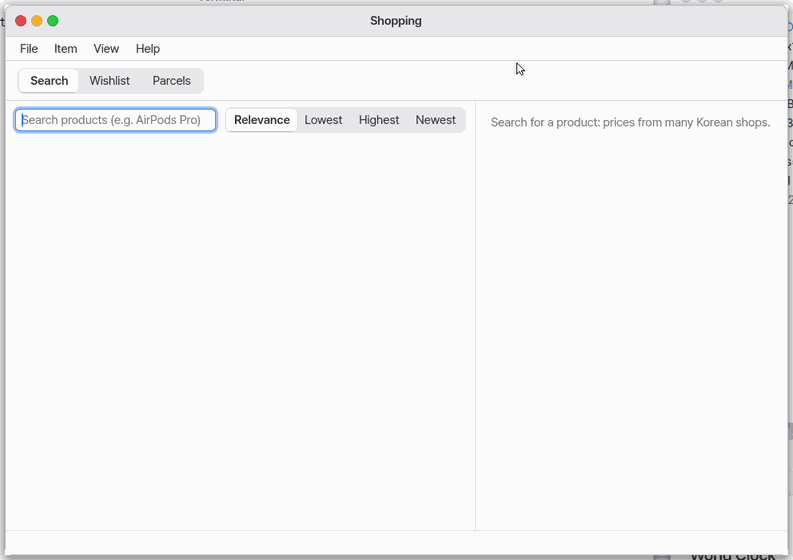
1. Find a product
- Type a product name in the search field and press
Enter.
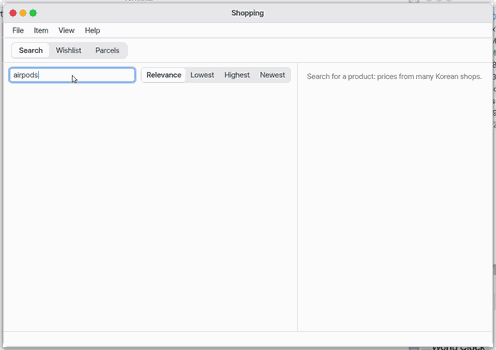
2. The Wishlist
Ctrl+2shows the saved items and their prices.
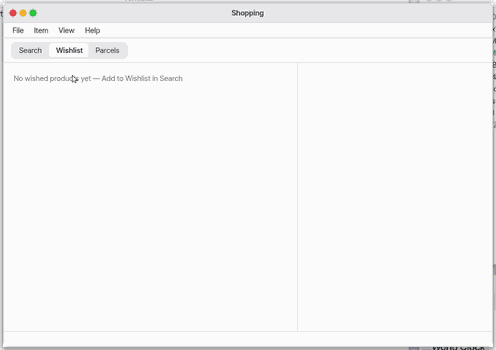
3. Track a parcel
- In
Ctrl+3, type the tracking number and press "Track".
Shortcuts
| Key | Action |
|---|---|
Enter | search field: search · list: buy (phone: detail) · parcel field: track |
Ctrl+F | the search field |
Ctrl+B | open the selected product at its shop |
Ctrl+D | add to / remove from the Wishlist |
Ctrl+Shift+C | copy the link |
Ctrl+1 Ctrl+2 Ctrl+3 | Search · Wishlist · Parcels |
F5 | search again (Search) · check prices (Wishlist) |
Delete | remove the selected Wishlist product |
Ctrl+, | Shopping settings |
Settings
What it does
Search many Korean shops at once (price, shop, picture); the same product sold by several shops is one row with its lowest price. Wish a product and its price is checked in the background, with a notification when it drops. Paste a parcel tracking number and the carrier's own tracking page opens. Shopping never pays — "Buy at the shop" opens that shop's page in the Browser.
Product search uses the official Naver Shopping search API, called by the NanumOS relay server. The search key lives on that server only, never on this machine.
Screen and buttons
The tabs Search · Wishlist · Parcels at the top (Ctrl+1, Ctrl+2, Ctrl+3).
- Search: type a product name and press Enter; Relevance · Lowest · Highest · Newest changes the order. Each row: picture, name, price, shop, and "lowest X · N shops" when several shops sell it. The detail pane has Buy at the shop, Wish, Copy Link and "Same product at other shops" (cheapest first; a click opens that shop).
- Wishlist: wished products with the price now, first and lowest, and a price history graph for the selected one. Buy at the shop, Remove, Copy Link; F5 checks the prices now.
- Parcels: type a tracking number and Track. The likely carriers (Korea Post, CJ Logistics, Hanjin, Lotte, Logen, Korea Post EMS) are guessed from the number's shape and check digit; a row opens that carrier's official tracking page in the Browser. The last 8 numbers stay below.
Price alerts
Wished products are checked every few hours (default 6), also while the window is closed. A drop raises a notification "Price drop — product · old → new".
Privacy and payment
Shopping never handles card numbers, payment or shop logins. You pay and sign in on the shop's own page in the Browser; the Browser fills logins from the Vault. Search words go only to the NanumOS relay and the Naver search API; the Wishlist stays on this machine. Parcel tracking only opens the carrier's public page — no login, no scraping.
Asking Zeus
Ask Zeus "find the lowest price of AirPods Pro" and it answers with the lowest prices and shops; the 쇼핑 앱에서 보기 link at the end opens Shopping on that search (when web search is on).
On the phone
The same app runs on the phone (lite). "Buy" and parcel tracking open the shop's or carrier's page on the phone itself.
What it cannot do
- "The server has no shopping search key yet": the Naver search key is not installed on the relay (a server-side job).
- Check: ask Zeus for a deep check — the "Shopping search" row says healthy, warning (no key), fault or ?.
NanumOS 0.1.8349 · 2026-11-16