Weather
Status: Ready
The weather now and a week ahead.
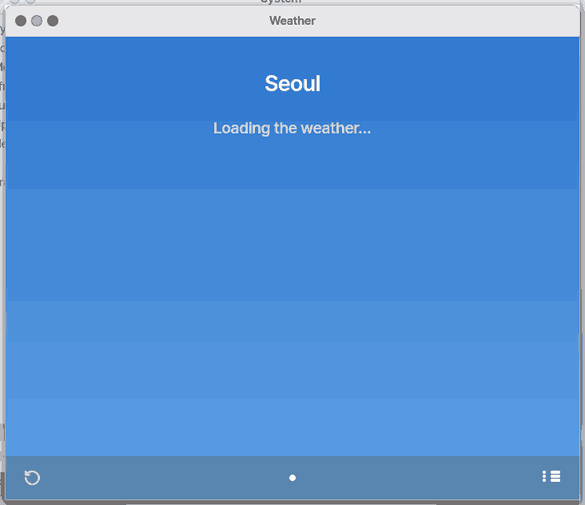
About this app
Shows the current weather and a week's forecast.
At a glance
In one line: An app that shows the weather now and a week's forecast.
The screen
- The city list on the left: press a city to see its weather (swipe sideways on a phone)
- The + above the list: adds a city
- "Edit" below the list: removes a city
- The hourly forecast row: slide it sideways
Task 1. See another city
- Press a city in the left list
- Read the weather
Say: "What's the weather in Seoul?"
Task 2. Fetch fresh data
- Pick a city
- Press
Ctrl+R
Say: "Open the Weather app"
Task 3. Add a city
- Press +
- Type a few letters of the city
- Press the city that appears
Say: "Open the Weather app"
Basics
A forecast is data produced from observations and calculation, which a weather service delivers over the internet. The app only fetches it and shows pictures and numbers per city; it does not predict anything itself. Want more? Press ⚡ and choose 「Teach me」.
How to use it
- Pick a city in the list on the left (swipe sideways on a phone). The compass button (“My location”) asks the browser for permission to use your location; if you allow it, the weather where you are shows up as “My location”, and if you do not, the city search opens instead.
Ctrl+Rfetches fresh data.- + or
Ctrl+Nadds a city; Edit removes one.
Try it yourself
Try it: add a city and scroll the hourly row sideways.
How it works
- When you pick a city the app asks the weather service for that city's data.
- When the assistant is asked for the weather it opens this window on the current city and shows today; it says what it read only after the window has the data.
- The data is kept on the device, so without a connection the last received data is shown.
- Settings change the temperature unit (Celsius or Fahrenheit) and the hourly length.
- You can keep up to 8 cities.
Technical details
Only cities from a fixed list can be found, and there is no way to add a place by coordinates. There are no weather alerts.
FAQ
The weather looks old
Press Ctrl+R to fetch again. Without a connection the last received data is shown.
How do I remove a city
Press Edit under the list and then the red −.
Try this
1. See another place
- On the desktop, click a city in the list on the left. On a phone, swipe sideways or tap the dots at the bottom. The left and right arrows work too.
2. Refresh
- Press
Ctrl+Rto fetch it again.
3. Add or remove a place
- Click + above the city list (or press
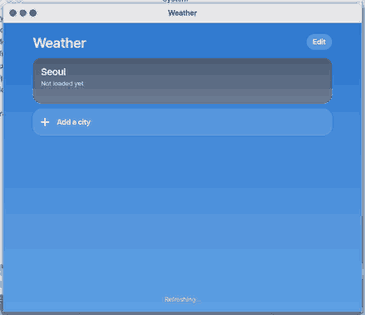
Ctrl+N) and type a few letters of the city. Click the match to add it. To remove one, click Edit under the list and the red −. On a phone use the list button at the bottom (L).
Shortcuts
| Key | Does |
|---|---|
Ctrl+R | Refresh |
Ctrl+N | Add a place |
← → | Previous / next place |
↑ ↓ PgUp PgDn | Scroll |
The hourly strip moves with a sideways scroll (Shift+wheel), a drag, or the ‹ › buttons above it.
Settings
In the Settings app, open Apps and choose Weather.
| Setting | Choices |
|---|---|
| Temperature unit | Celsius (°C), Fahrenheit (°F) |
| Hourly forecast | 24 hours, 48 hours |
You choose places inside the Weather app. The Weather section of the Settings app also lets you pick a city.
What it cannot do
- The search finds only the built-in cities. There is no window to add a place by coordinates. Up to 8 places are kept.
- With no connection, the last data is shown and no new data arrives.
- There are no weather alerts.
What this app takes
- When Weather opens, this computer (or this browser) asks open-meteo.com (the address
api.open-meteo.com) directly. They see this device's internet address and the coordinates of the cities in the app. Nothing else is sent. - NanumOS servers are not involved. It asks only when it opens or refreshes; to stop it, do not open Weather.
- The data it receives stays on this device. (Data by Open-Meteo, CC BY 4.0)
NanumOS 0.1.8349 · 2026-11-16