Wire
Status: In trialDesktop only
Links your devices like one home network, anywhere. Also in Settings › Wire.
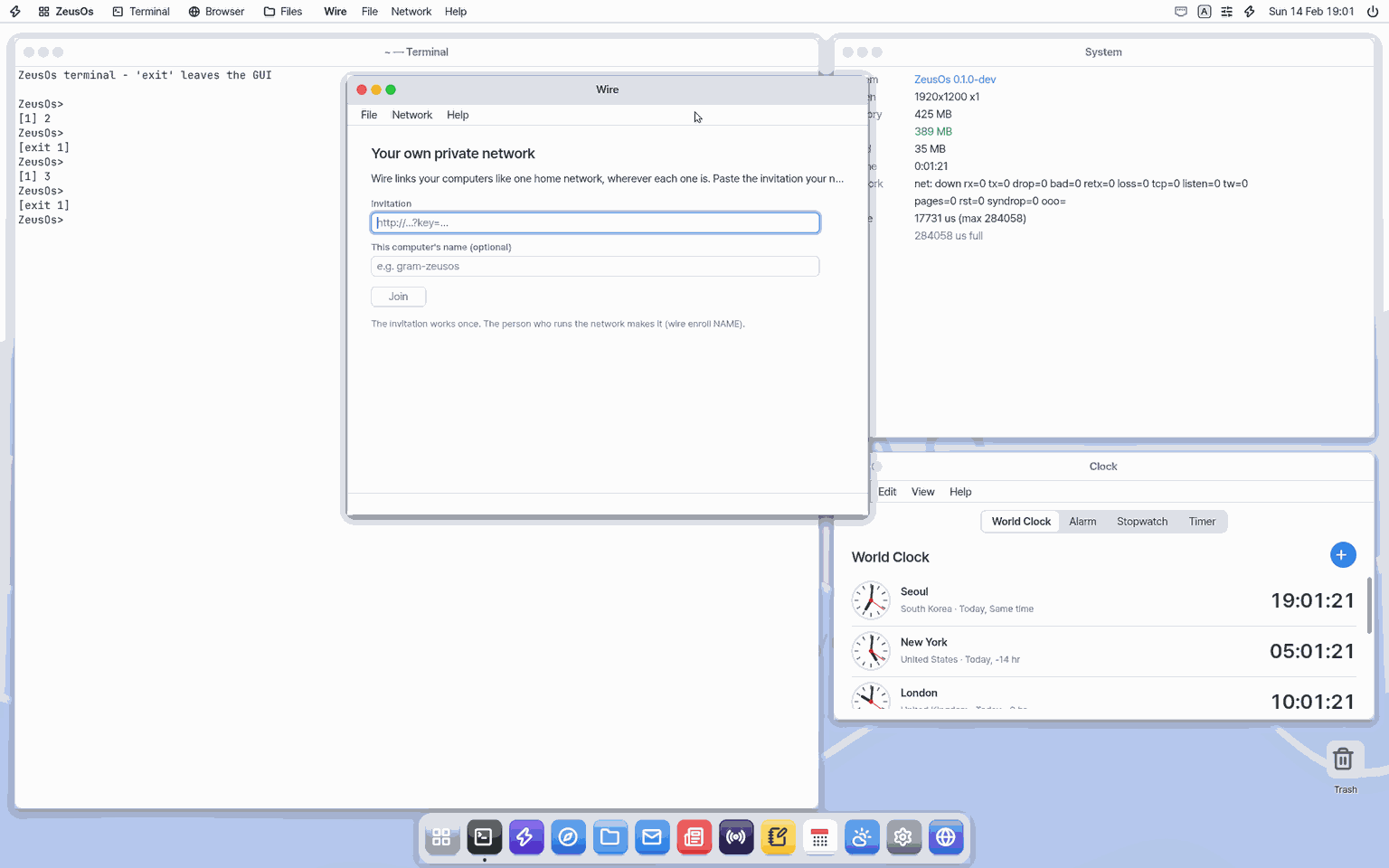
About this app
Joins your devices into one private network, wherever they are. After joining you can reach the others by name.
At a glance
In one line: An app that joins your devices into one home-like network wherever they are.
The screen
- The "Invite" box and "Join": enter the network
- "Devices in this network": each device with its address and "Direct" or "Relay"
Ctrl+T: turn on and off- "Leave...": leave the network
Task 1. Join the network
- Open the Wire app
- Press "Join"
- Check the QR and the code
Say: "Let me join my Wire network"
Task 2. See your devices
- Look at "Devices in this network"
- Pick a device
Say: "Open the Wire app"
Task 3. Turn the connection on or off
- Open the Wire app
- Press
Ctrl+T
Say: "Open the Wire app"
Basics
Devices need each other's addresses to connect, and behind a home router they are hard to reach from outside. An always-on coordinator tells devices where the others are, and a relay carries traffic when a direct path is blocked. The path between devices is locked with WireGuard, a public encrypted-tunnel design. Want more? Press ⚡ and choose 「Teach me」.
How to use it
- Paste the invitation (
http://…?key=…) into the Invitation box and press Join. - In “Devices in this network” see each device's address and whether it is a direct link or a relay.
Ctrl+Tswitches it on and off.
Try it yourself
How it works
- This computer itself is a node of the network. The app drives the WireGuard code and the Wire protocol inside the kernel.
- When you join, the coordinator tells your devices each other's addresses.
- A reachable device shows “direct”; a blocked one shows “relay”.
- You can be in only one network, and after leaving you need a new invitation to return.
Technical details
The wire command (status, join, up, down, leave) does the same from the terminal. See the technical sections below for the protocol.
FAQ
Is “relay” a problem
No. It is the detour used when two devices cannot reach each other directly; it may be a bit slower, but the link is still encrypted.
How do I leave the network
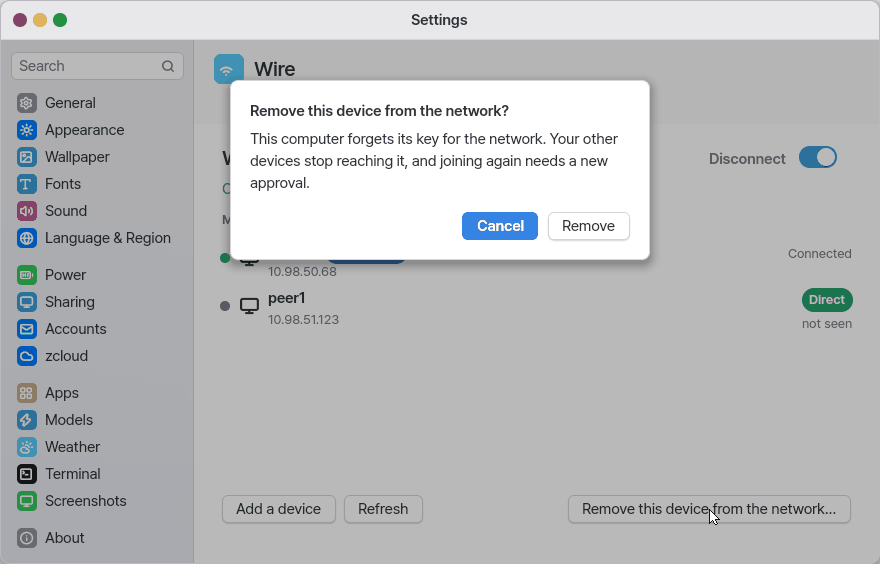
Press Leave… and approve the confirmation card. You need a new invitation to join again.
Try this
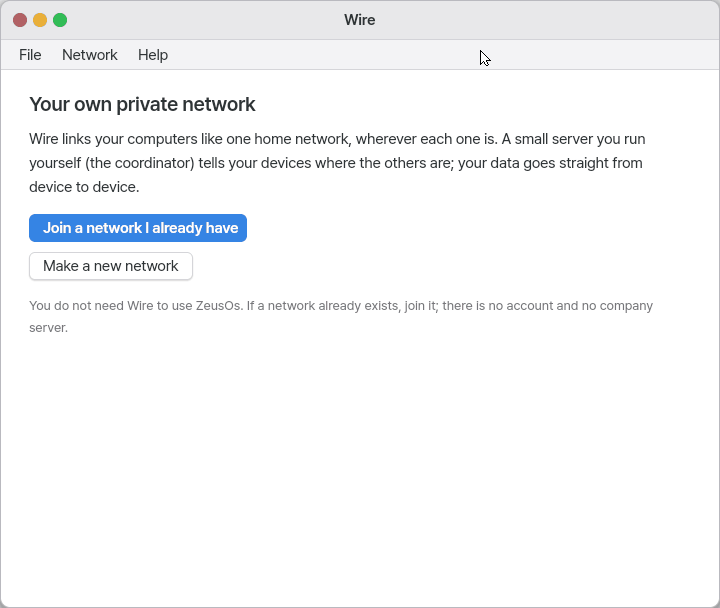
1. Join a network I already have
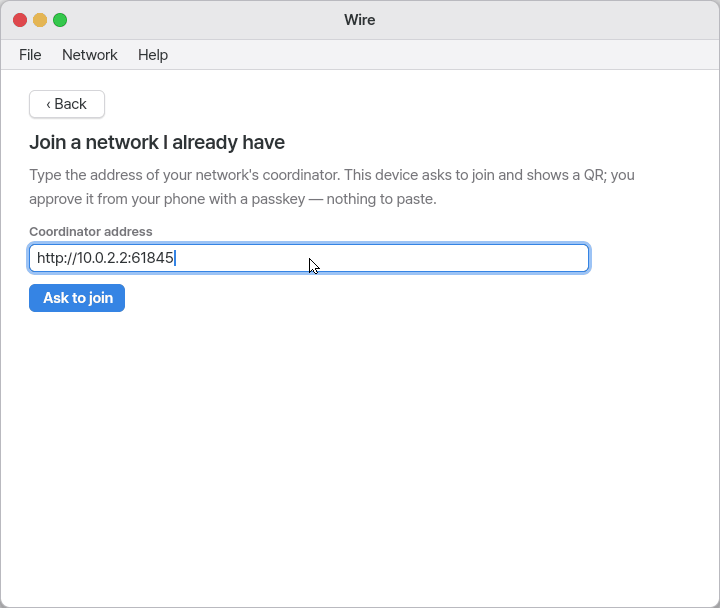
- Press "Join a network I already have" and type the coordinator's address (the server your network runs). If this image has a default coordinator it is already filled in.
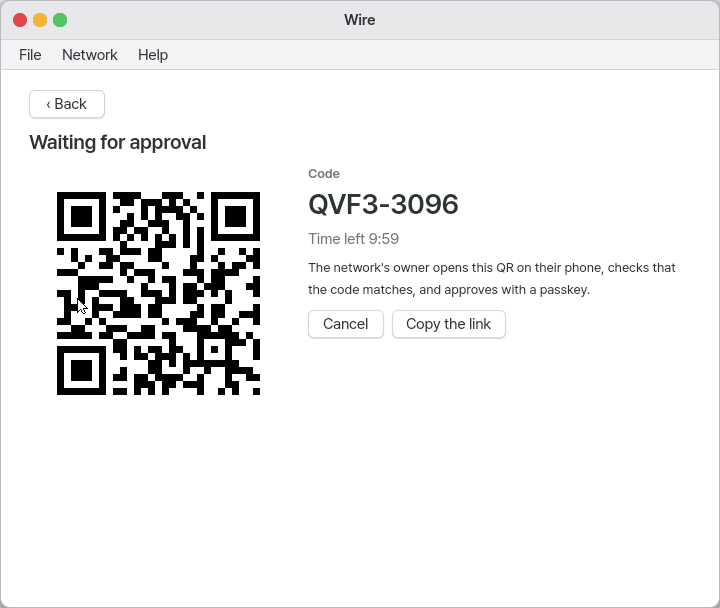
- Press "Ask to join": a QR picture, an 8-character code and a countdown appear. There is no key to paste.
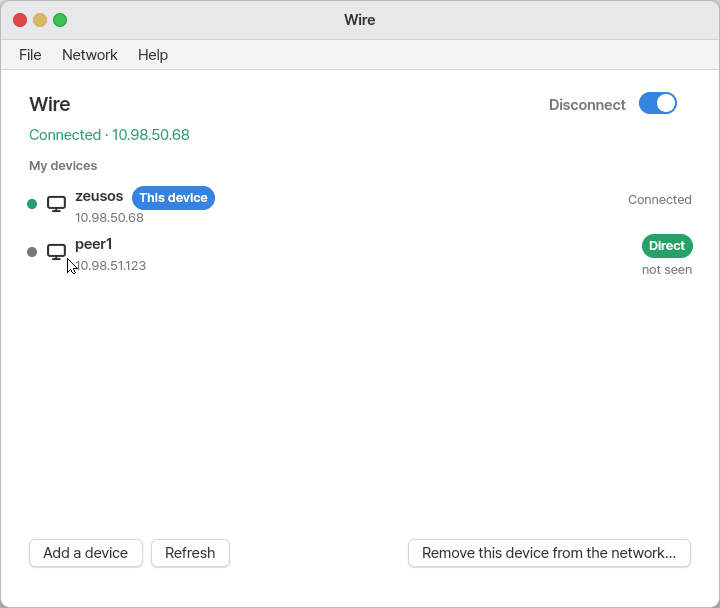
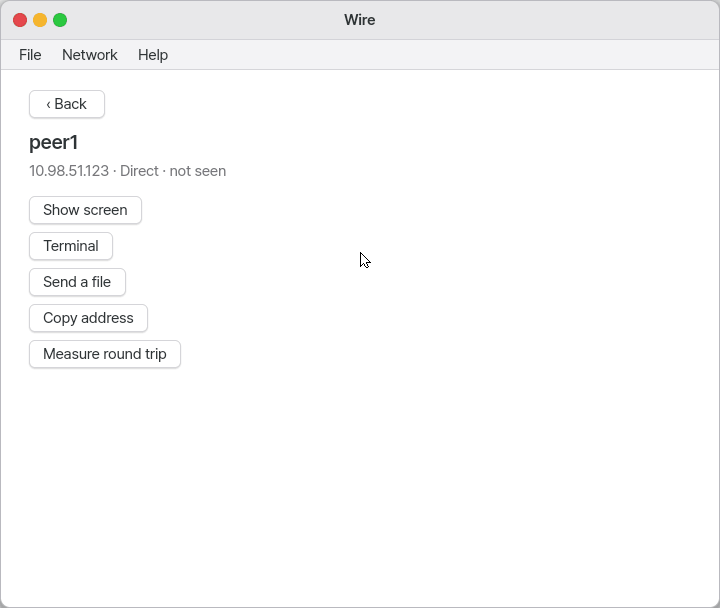
2. See and use my devices
- "My devices" shows each device's online dot and "n min ago", its name, its address (tap to copy), a "This device" tag and a Direct / Relay badge.
3. Connect / Disconnect
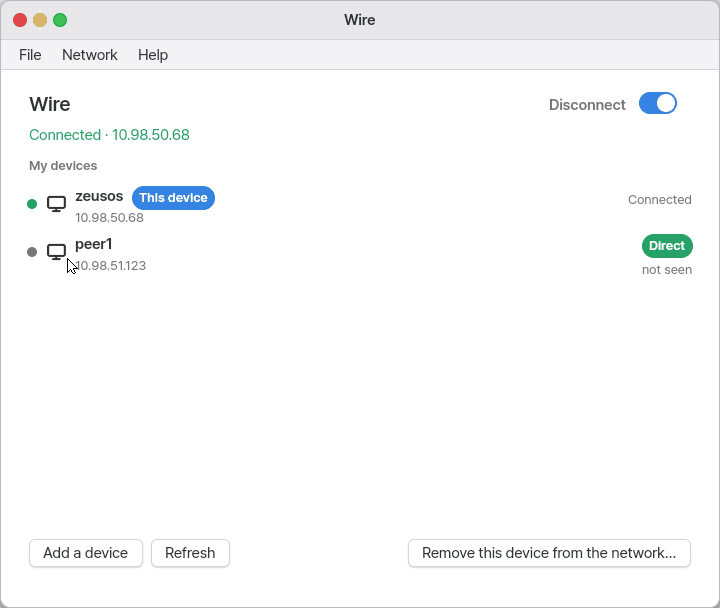
- The big switch at the top (
Ctrl+T) connects or disconnects. Disconnecting does not leave the network; connecting again brings everything back. The Wire icon in the top menu bar does the same.
4. Add a device, a new network, remove
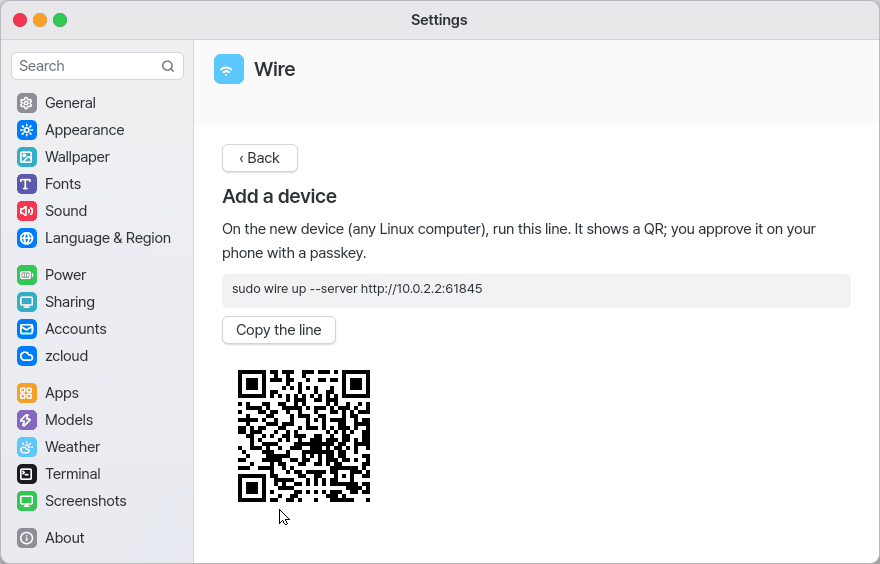
- "Add a device" shows the line another device runs to join (
sudo wire up --server …) and its QR.
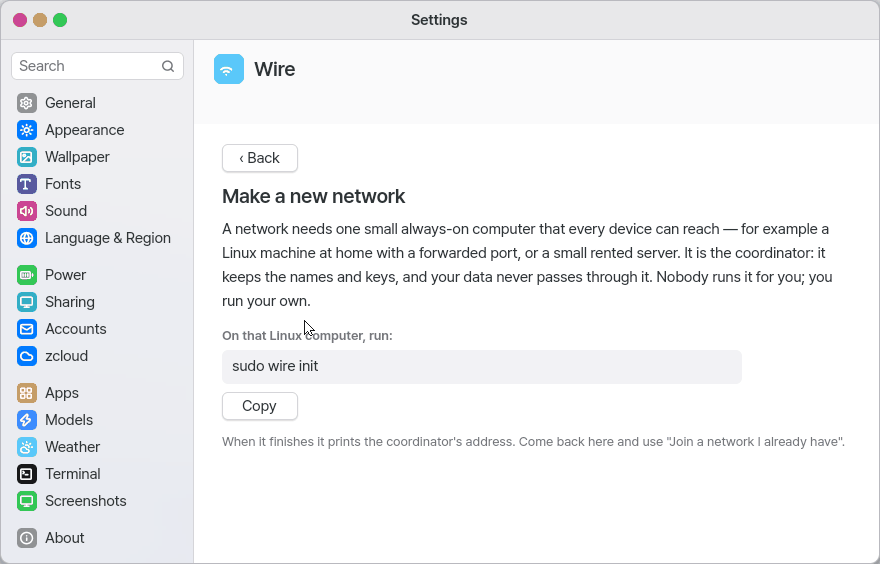
- "Make a new network" tells you to run one line,
sudo wire init, on an always-on Linux computer (with a copy button). Everyone runs their own coordinator.
- "Remove this device from the network…" asks first (Cancel is the default), then forgets the key. Joining again needs a fresh approval.
Shortcuts
| Key | Action |
|---|---|
Enter | Coordinator field: ask to join · list: open the device |
Esc | Back one screen |
Ctrl+T | Connect / Disconnect |
F5 | Refresh |
Ctrl+, | Settings › Wire |
Settings
Settings › Wire (this app's File › Settings…), Settings › Apps › Wire: refresh the peers (off, 5, 10 or 30 seconds).
What it does
Wire is a private road between your devices. Once joined you reach the others by name (ssh nas, ping nas). The coordinator only points the way; your data never passes through it. The principle and the comparison are in the OS manual, "Wire — the network that joins your devices".
How it works
Technical details
This computer itself is a Wire node — the app drives the kernel's WireGuard and the Wire node protocol (the wire command: status · join · up · down · leave). The QR comes from a small encoder inside the app (src/gui/qr.c, byte mode, error correction M), tested module for module against Wire's own encoder. One network only (a second join is refused); the box network and the host network are never mixed. The coordinator's settings are not touched. The assistant can "let me join my network" (a QR card) and "leave the network" (a confirm card).
WireGuard by hand (wg, wg-quick)
Use this to make a tunnel straight to one WireGuard peer (or a few) with no coordinator — the same way as on Linux. Think of a mailbox between two machines with two locks: each side knows the other's public key, and only the two of them can open it. What to do now: in the Terminal, make a key with wg genkey, write a config file, then type wg-quick up FILE.
wg/wg show— per peer: endpoint, allowed IPs, latest handshake, transfer, how long the handshake tookwg pubkey PRIVATE-KEY·wg genpsk- The system check (os_check) row 「Wire」 shows on/off, connected peers and the latest handshake (
/proc/wire, never a key).
Technical details: The protocol is written in C for NanumOS from the WireGuard paper and the public protocol page (no one else's code): the Noise_IKpsk2 handshake, transport messages, cookie replies (when busy), the timers (new keys every 2 minutes, keys older than 3 minutes refused), keepalives and roaming (following a peer's new address). It is tested against the Linux kernel's WireGuard (tests/wg_kernel.py). One tunnel at a time: wire up (the Wire mesh) and wg-quick up exclude each other. IPv4 only, inner MTU 1420; the config file takes PrivateKey, ListenPort, Address, DNS (ignored), MTU (ignored) and PublicKey, PresharedKey, Endpoint (numeric address only), AllowedIPs, PersistentKeepalive — command lines such as PostUp are refused. It does not come back up by itself after a restart.
What it cannot do
- An
https://coordinator address is not accepted yet (the kernel has no TLS). - No carrying of other devices' traffic, routes or exit node (the exit node says "soon").
- Sending nearby is not in yet (use
scp). - On mobile (a phone browser) it cannot list devices: a web page cannot be a place on the network. Use the Wire app on a NanumOS computer.
NanumOS 0.1.8349 · 2026-11-16