Notepad
Status: Ready
A notepad that saves as you type.
About this app
A notepad that saves by itself as you write. You never lose text just because you forgot to press Save.
At a glance
In one line: A notepad that saves what you write by itself.
The screen
- The big text area in the middle: just type
- Tab row on top: shows up when you have two or more tabs
- Note list on the left: shows up in a wide window
- "UTF-8 · LF" at the right of the status bar: pick the save format
Task 1. Write a note
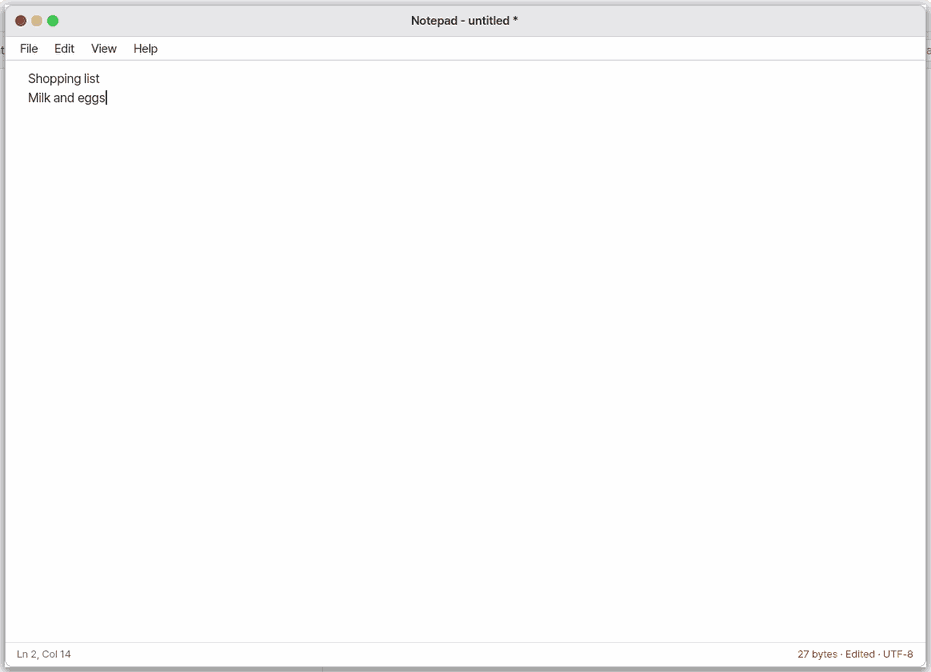
- Type in the text area
- Wait one second
Say: "Write my shopping list in a note"
Task 2. Find text
- Press
Ctrl+F - Type what to find
- Press
Enter
Say: "Open Notepad"
Task 3. Start a new note
- Press
Ctrl+N - Type in the empty note
Say: "Make a new note"
Basics
Text first sits in the device's fast memory and is written to disk after a short pause (auto-save). It is stored as an ordinary text file (.txt) in your documents folder, so other apps and devices can open it. Want more? Press ⚡ and choose 「Teach me」.
How to use it
Double-click a .txt or .md file in Files to open it here.
- Just write. One second after you pause it is saved.
Ctrl+Fsearches inside the text;Entergoes to the next match.Ctrl+Hadds a "Replace with" row.Ctrl+Nopens a blank note in a new tab. With two or more tabs a tab strip shows at the top; Ctrl+Tab goes to the next tab.Ctrl+Lis Go to Line: type a line number (or line:column).- Click "UTF-8 · LF" at the right of the status bar to choose how the file is written (encoding, line end), or "Reopen as CP949" when Korean text looks broken.
- The Zeus menu — Summarize, Rewrite Selection, Translate, Continue Writing: Zeus's answer is only a proposal; the text changes when you press Apply (
Enter).
Previous versions
File › Previous Versions… lists the earlier saved contents of this note, newest first. Pick one to see it beside the text now; lines only one side has are tinted. Restore This Version puts it back, and what was there is kept as a new version. One is kept per save (one per 30 seconds for automatic saves), the newest 30. To take the whole home folder back, see Restore points and previous versions.
Try it yourself
Try it: write "a1 b22 c333", press Ctrl+H, turn on .*, type \d+ in Find and [$0] in Replace with, then press Replace All. It first shows how many places change and how; press it again and they change. One Ctrl+Z brings everything back.
How it works
- Every keystroke changes the text in memory and on screen. Only the changed lines are drawn again, so even a very big file follows your typing at once.
- When you stop typing for a second, auto-save writes the text to its file. Saving while you write is short and never holds your typing.
- Undo is saved too. Next to the text Notepad keeps a record of what was changed, so
Ctrl+Zstill works after the window closed or the machine restarted — like keeping a slip with your corrections next to the manuscript. If another program changed the file in between, the slip is thrown away (it never undoes the wrong text). - Tabs: only the tab you are on holds its text in memory; the others remember their file and caret. Moving to another tab saves the current text first and reads the other. Next time, your tabs come back.
- Encodings: on opening, the first bytes (a BOM) and the shape of the text tell UTF-8, UTF-16 or CP949, and LF or CRLF (Windows) line ends. Inside Notepad the text is always UTF-8; saving writes it back the way it came. A character CP949 cannot hold (an emoji) makes the file UTF-8 instead of losing it, and the status bar says so.
- Pasting big text: a paste of several MB does not freeze the window. The text does not go in at once: a little (about 50 KB) goes in with each drawn frame, and when it takes more than 0.3 s the status bar shows "Pasting NN%". Think of moving boxes one by one instead of throwing the whole load. One paste is one
Ctrl+Z; if you press another key while it goes in, the rest finishes first and then the key is handled (Escstops the rest). - Big files: up to 15 MB.
- Find and replace:
Aamatches case,.*is a regular expression. The expressions run in time proportional to the text, so no pattern can freeze the editor. - Zeus help: the selected text (none selected: the whole text for a summary or translation, the caret's line for a rewrite, the text before the caret to continue) goes to the model chosen in Zeus — the first time, it asks. The answer shows as red lines (−, going) and green lines (+, coming); the text stays as it is until Apply.
- In a wide window the note list appears on the left, built from the documents folder and
.txtfiles in your home.
FAQ
There is no Save button
You do not need one: it saves when you pause. To save by hand press Ctrl+S.
The text looks broken
Korean files from old Windows (CP949, EUC-KR) are usually recognised by themselves. If not, click "UTF-8 · LF" at the right of the status bar and choose "Reopen as CP949".
Does it open big log files
Up to 15 MB. Files over 1 MB open without word wrap, so they show at once.
How do I save under another name
Press Shift+Ctrl+S and type a new name. The original stays as it was.
Try this
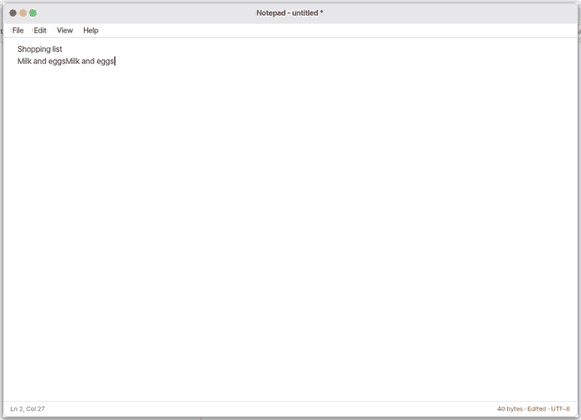
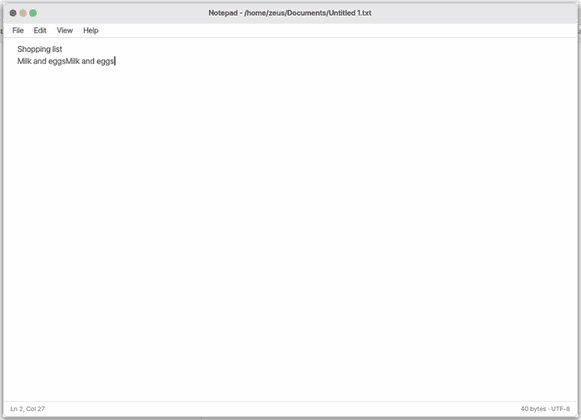
1. Write a note
- Just type. It saves by itself after a one-second pause.
2. Find text
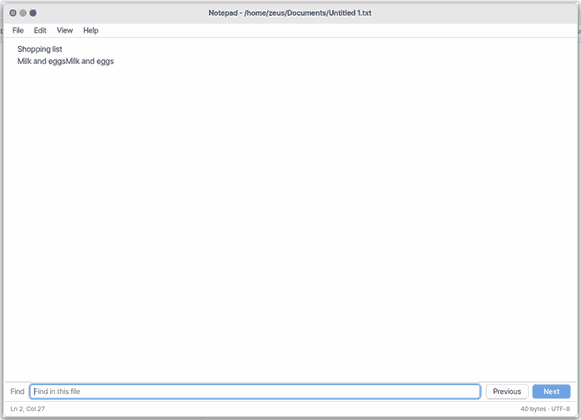
- Press
Ctrl+F.
- Type the word and press
Enterfor the next match.
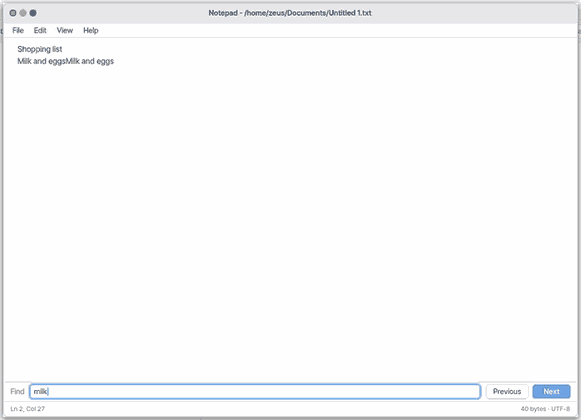
- Press
Escto close the bar.
3. Start a new note
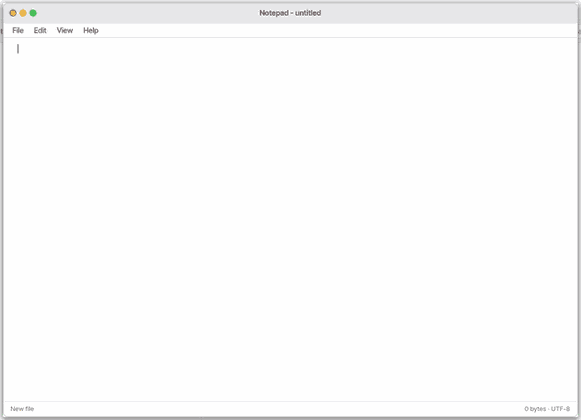
- Press
Ctrl+N: the current note is kept and a blank one opens.
Shortcuts
| Key | What it does |
|---|---|
Ctrl+N | New |
Ctrl+O | Open… |
Ctrl+S | Save |
Shift+Ctrl+S | Save As… |
Ctrl+, | Settings… |
Ctrl+W | Close |
Ctrl+Z | Undo |
Shift+Ctrl+Z | Redo |
Ctrl+X | Cut |
Ctrl+C | Copy |
Ctrl+V | Paste |
Ctrl+A | Select All |
Ctrl+F | Find… |
Ctrl+G | Find Next |
Shift+Ctrl+G | Find Previous |
Ctrl+K | Delete Line |
Ctrl+H | Replace… |
Ctrl+L | Go to Line… |
Shift+Ctrl+M | Markdown Preview |
Shift+Ctrl+F | Focus Mode |
Settings
In "File > Settings…" (Ctrl+,) or in the Settings app under "Apps > Notepad".
| Name | Value |
|---|---|
| Font size (%) | 75 to 200, in steps of 5. Default 100 |
| Show line numbers | On or off. Default off (the same as View › Line Numbers) |
| Long lines run off the right (no word wrap) | On or off. Default off (the opposite of View › Word Wrap) |
On a big screen: the notes list and a readable line
In a wide window Notepad looks like a notebook: your notes listed on the left, the text in the middle. Very long lines are hard for the eye to follow, so the text sits in a centred column about 80 characters wide. ✎ above the list starts a new note, the search field finds notes, a click on a note opens it (the note you were writing is saved first), and a right click deletes it. A very wide window also gets an "Info" panel on the right with the number of characters, words and lines, where the note is saved, and an "Outline" of the lines that start with # — click one to go there. What to do now: click ✎ above the list and write a new note.
Focus Mode
View → Focus Mode (Ctrl+Shift+F): the whole screen is one sheet of paper; Esc leaves. The Focus Mode settings (paper, sentence, typewriter, word count) are as in zOffice Documents. Right-click Notepad in the Dock → "New Note in Focus Mode".
On a phone: the File menu
A phone has no menu bar at the top, so file work goes the way phone apps do it. With a note open, the file's name sits in the middle of the top bar with its save state under it ("Saved ✓ 3s ago"); tap the name to rename the file. The "⋯" button next to Done brings a menu up from the bottom.
What to do now: tap "⋯".
- New · Open… (recent files, then "Browse Documents…") · Rename · Duplicate (makes a copy and opens it) · Save
- Save in Another Format — makes a copy in Documents; the file you are in stays as it is. Formats: plain text (.txt), Markdown (.md).
- Download to Phone · Share (NanumOS Mobile) — the phone's share screen opens, or the file downloads where there is none. To print, use Print on the share screen.
- Move to Trash (bring it back from the Trash in Files) · Settings · Close
On a phone a note's text shows at a comfortable size (17 pixels, as the phone's own Notes app). Text Size at the top of "⋯" (Small · Normal · Large · Extra Large) changes it and is kept on this phone; the phone's own Larger Text setting is followed too. It is the same value as Settings' "Font size (%)".
What it cannot do
- A file larger than 15 MB cannot be opened. Files over 1 MB open without word wrap (View › Word Wrap turns it on, after a moment).
- It does not open several windows (tabs: up to 12).
- There is no spell check.
- There is no search across many files (use the search in Files).
- PDF export takes up to 128 KB of text.
- It handles plain text only, with no formatting (bold, font changes). It cannot handle the formatting of Hangul (HWP) or Word documents.
- On a phone (Mobile) there are no tabs and no Zeus menu (asking the Assistant brings up the same proposal panel).
NanumOS 0.1.8349 · 2026-11-16